
Editor functionality
The automation editor includes tools for building workflows visually, with features for connecting nodes, configuring actions, and managing data flow without code.
The automation editor provides extensive functionality for building sophisticated automation workflows, often without needing to write any code.
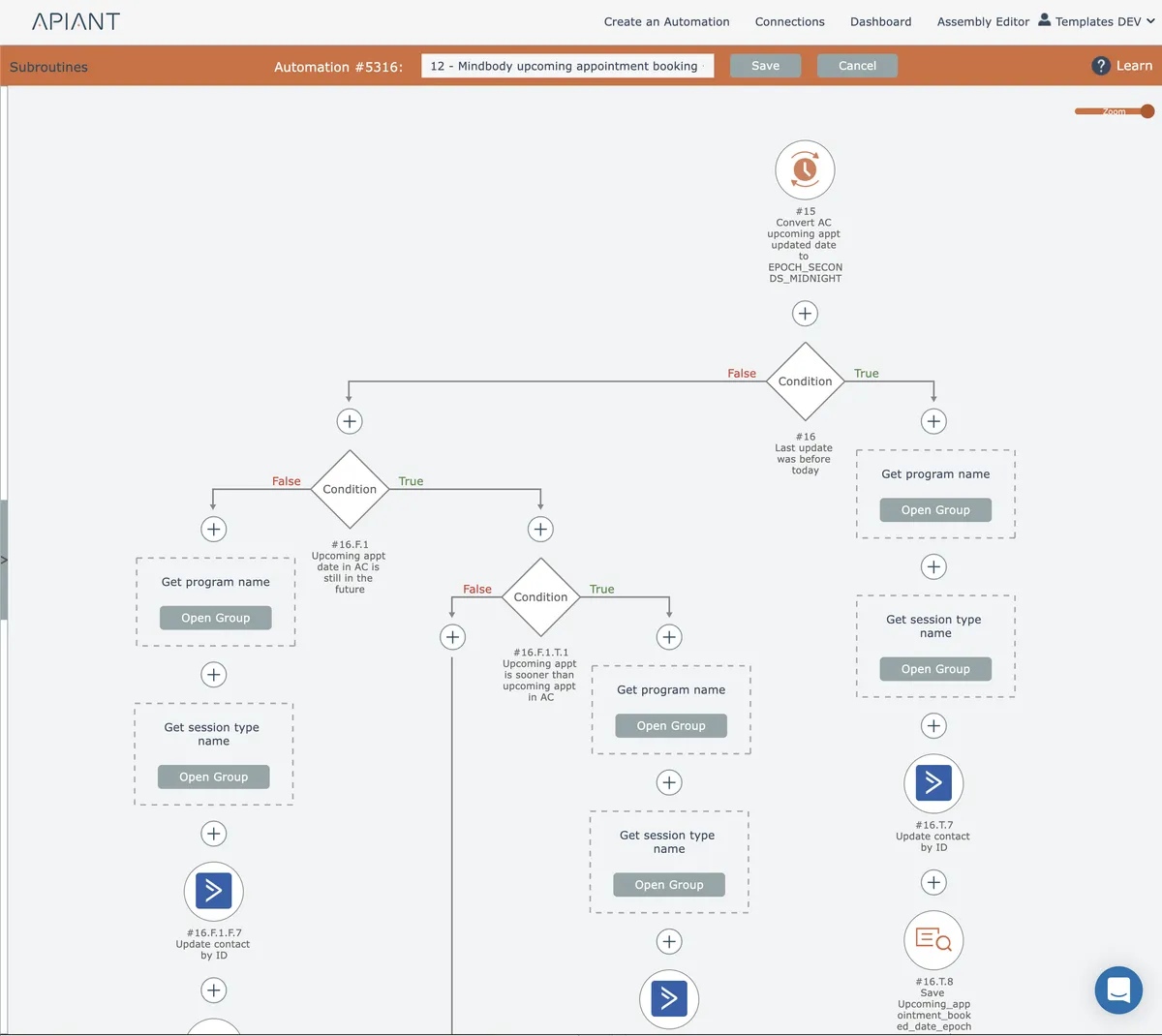
Read the subsections here to learn more about the automation editor's functionality.
In this section
Autosaved automations
Automatic saving of automation edits to the database with recovery options if browser sessions close unexpectedly before manual save.
Copy-paste a single item
Duplicate individual workflow items using copy and paste, including the ability to paste across different automation diagrams.
Copy-paste field mappings
Copy field mappings between actions by right-clicking to transfer configurations for shared input fields, saving time when configuring similar actions.
Copy-paste multiple items
Select multiple consecutive actions using right-click options, then copy and paste them within or across different automation diagrams in the editor.
Copy-paste via clipboard
Transfer action items between automations by copying them to your system clipboard and pasting into a different browser session or tab.
Copying a step number
Step numbers uniquely identify each item in an automation and can be copied to your clipboard for easy sharing and reference when troubleshooting or collaborating.
Disable an item
Prevent specific automation steps from executing by disabling individual items, which appear greyed out with a disabled label in the editor.
Disabling multiple items
Prevent multiple consecutive actions from executing by selecting a range of items and disabling them together during automation runs.
Documentation notes
Notes attached to automation actions support rich text formatting with hyperlinks and images to document your workflows.
Edit notes about an item
Add descriptive notes to automation diagram items to document their purpose and functionality using the right-click context menu.
Editing an item's settings
Modify an item's configuration by clicking it and selecting the settings option, or by double-clicking the item to open its settings panel directly.
Enable an item
Re-activate a disabled automation item so it executes when the automation runs using the right-click context menu.
Enable multiple items
Activate multiple disabled items at once by selecting a range of actions and using the enable option from the context menu.
Finding mapped items
Locate all mappings from a specific trigger or action throughout your workflow using the find feature to highlight and navigate between connected items.
Groups
Collapse and organize related automation actions into groups to simplify workflow visuals and hide implementation details from specific users.
Keep edits for later
Keep automation edits as autosaved drafts without publishing new versions, resuming changes later when you return to edit the automation.
Moving a single item
Reposition triggers horizontally and action items vertically within automation workflows using directional arrows, with confirmation prompts for ambiguous placements.
Moving multiple items
Select multiple consecutive actions using right-click options, then move them together to a new location in your workflow using the plus icon menu.
Open a trigger or action assembly
Access the assembly implementation for triggers and actions through right-click context menu if you have Assembly Developer or Switch Account permissions.
Removing a single item
Deletes individual automation items and manages field mapping references when removing triggers or actions from workflows.
Removing multiple items
Select a range of consecutive items by right-clicking the first and last items, then remove them all at once from the editor.
Rename an item
Customize automation diagram items with descriptive names by clicking their text or using the right-click context menu to clarify purpose and functionality.
Replace an item
Substitute triggers or actions in automations while preserving downstream mappings when output field names match between the old and new items.
Searching
Search within automations using the editor's search bar to locate matching content across your automation workflows.