
Moving multiple items
Select multiple consecutive actions using right-click options, then move them together to a new location in your workflow using the plus icon menu.
Let's say we want to move just the first 3 actions here:
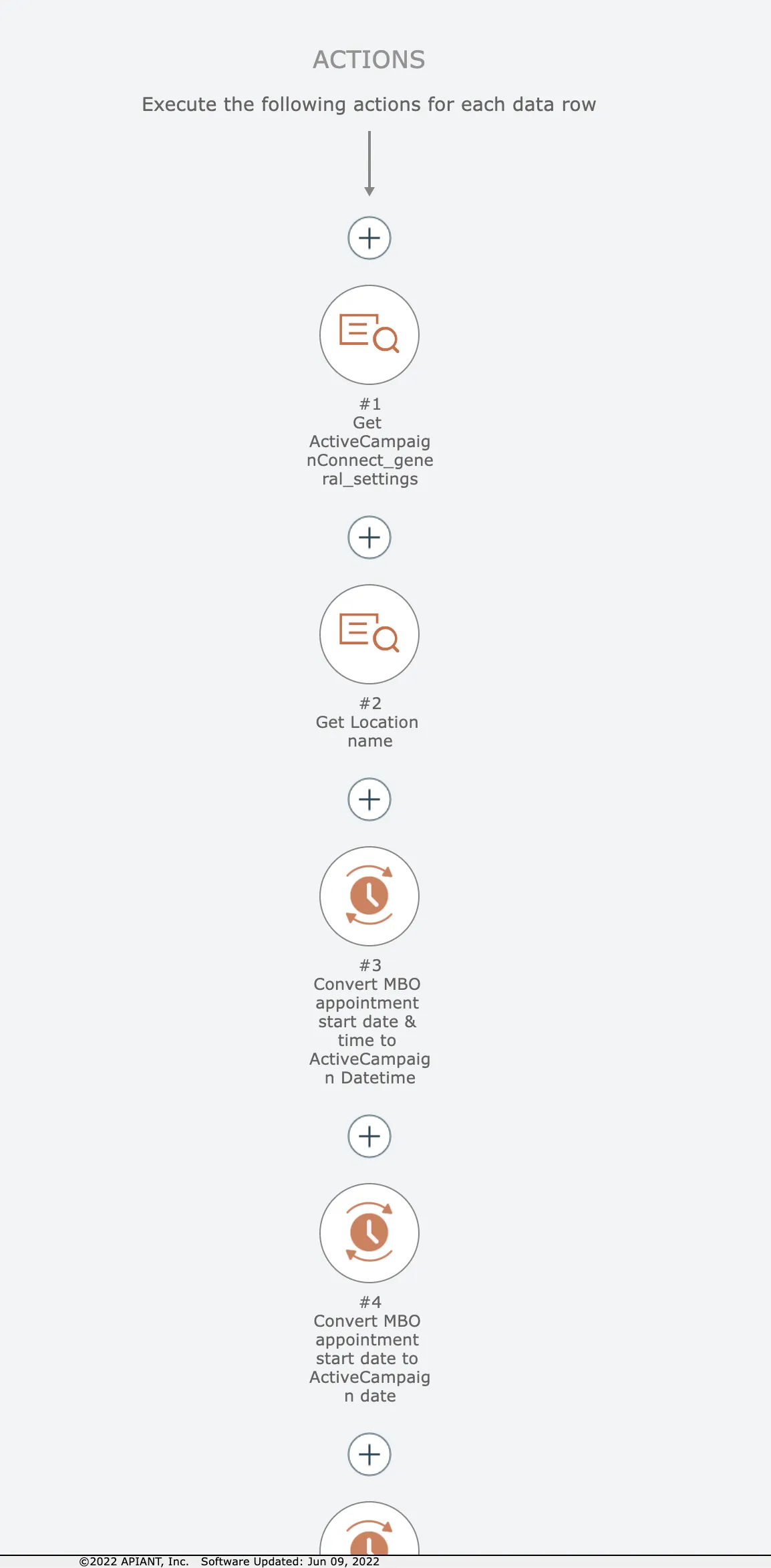
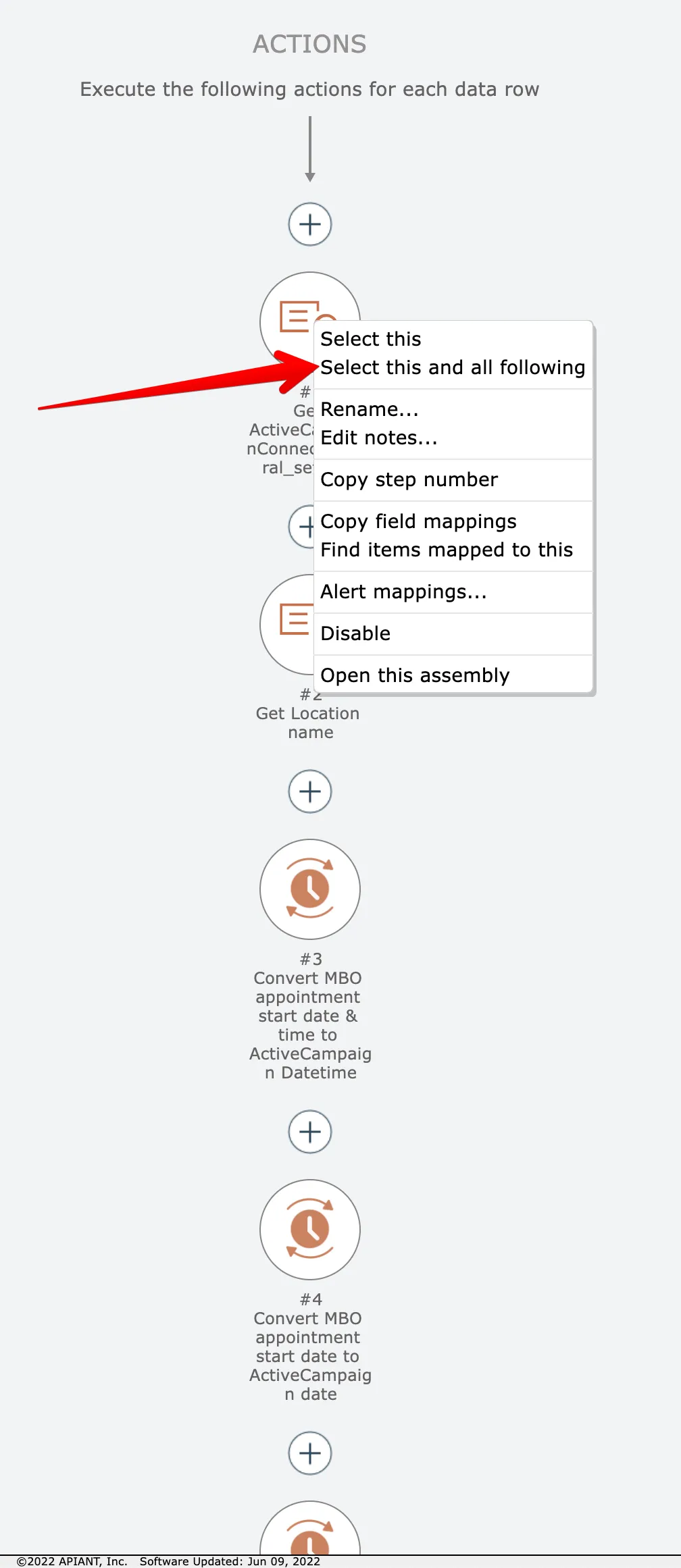
Start by right-clicking on the first item and choose this option:
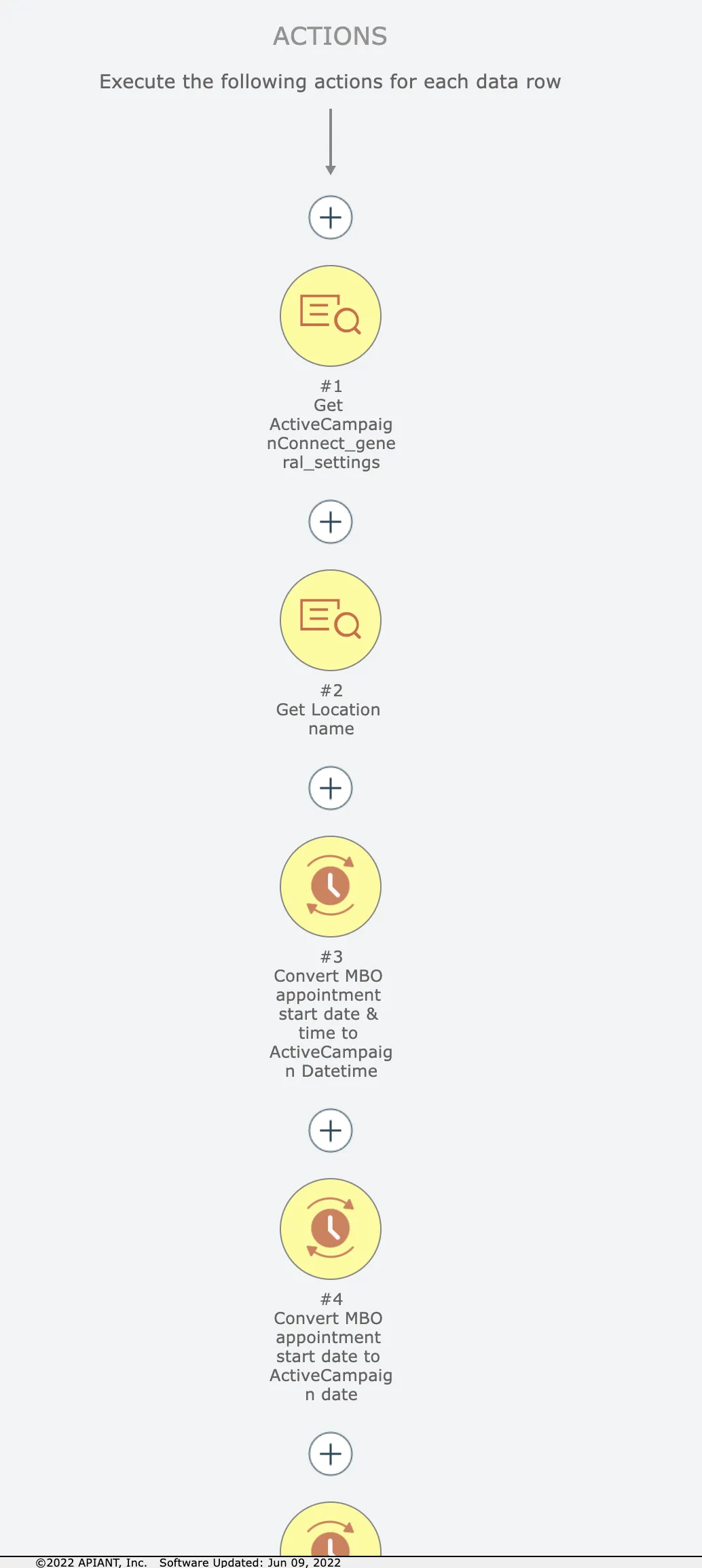
Now the first item and all following items are selected in yellow:
We want just the first 3 actions, however. So right click on the 4th item and choose this option:
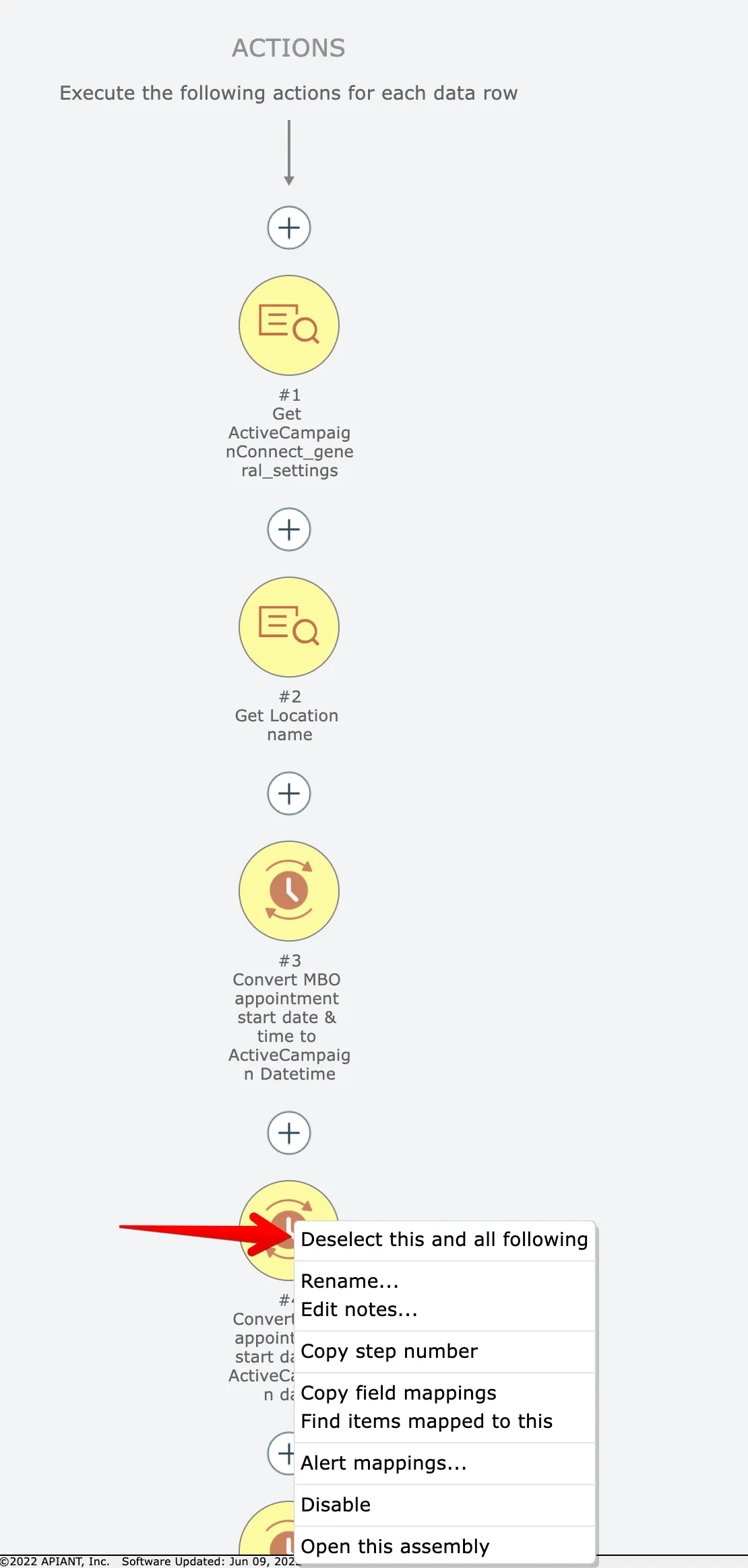
Now we have just the first 3 actions selected:
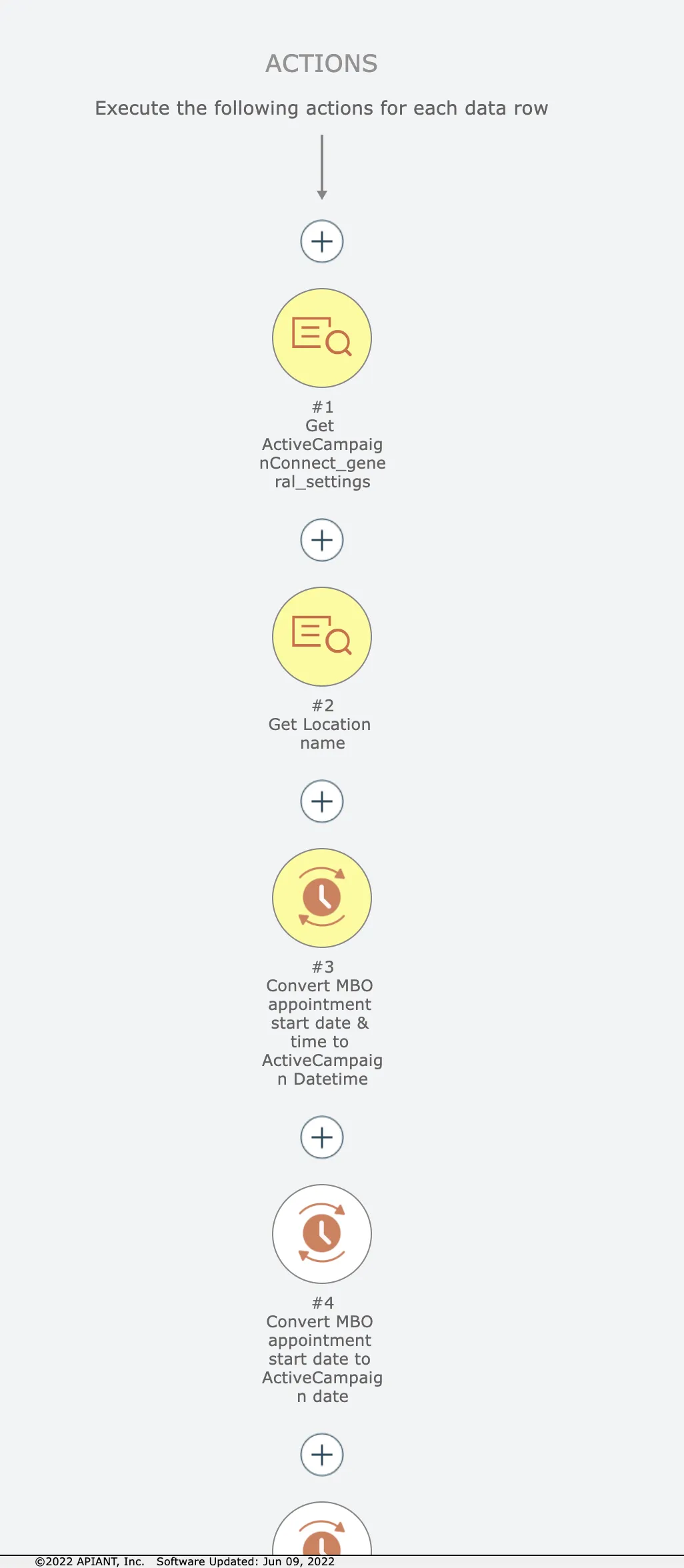
Finally, click the plus icon where you want to move the items and choose the Move option:
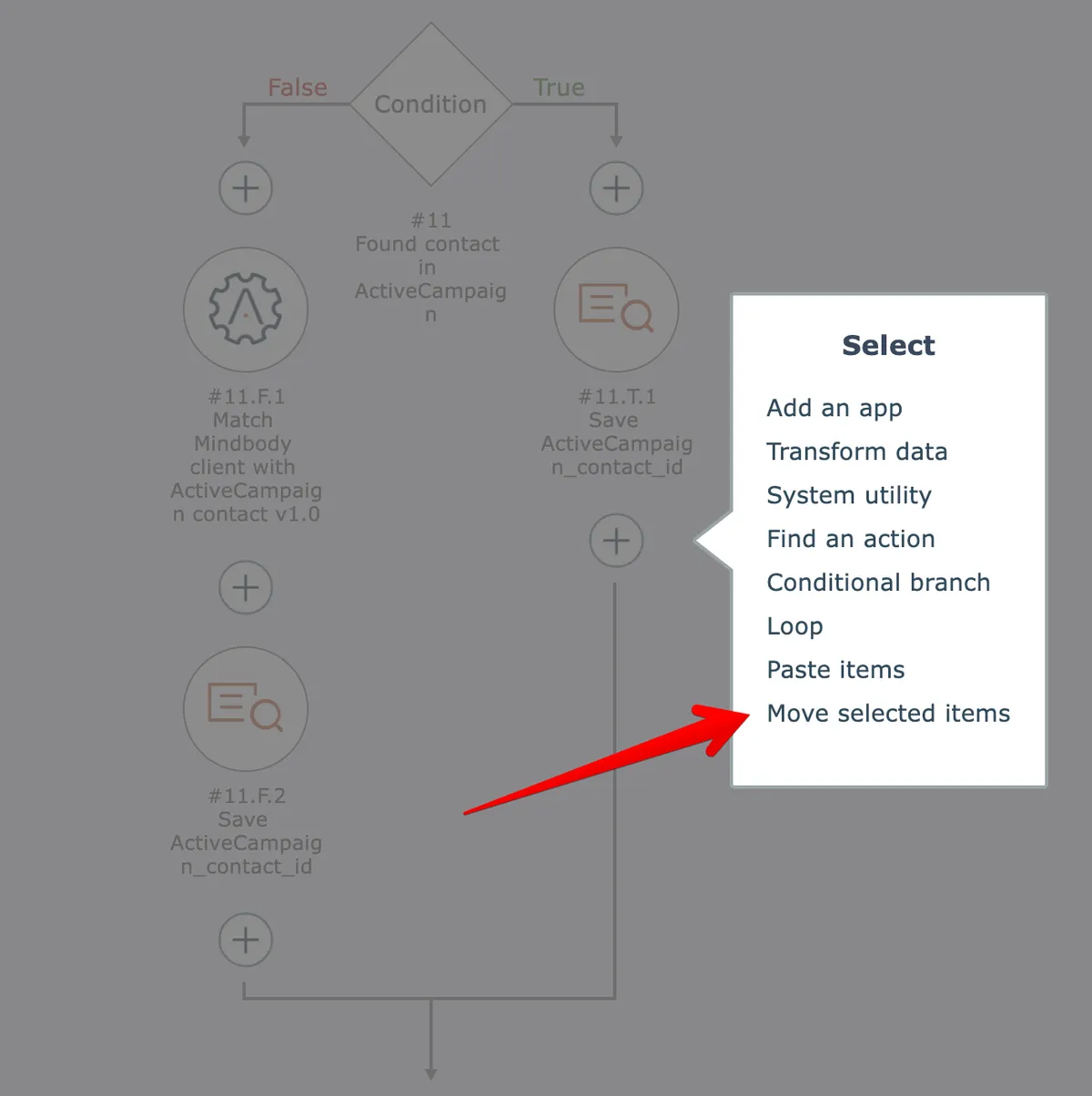
If an item's input fields are mapped with inputs from an preceding action and the item is moved to a location prior than that action, the editor will automatically remove the field mapping b/c it is no longer valid.