
GuidePlatform UI (Fallback)v1
Copying a step number
Step numbers uniquely identify each item in an automation and can be copied to your clipboard for easy sharing and reference when troubleshooting or collaborating.
Each item in an automation has a unique step number:
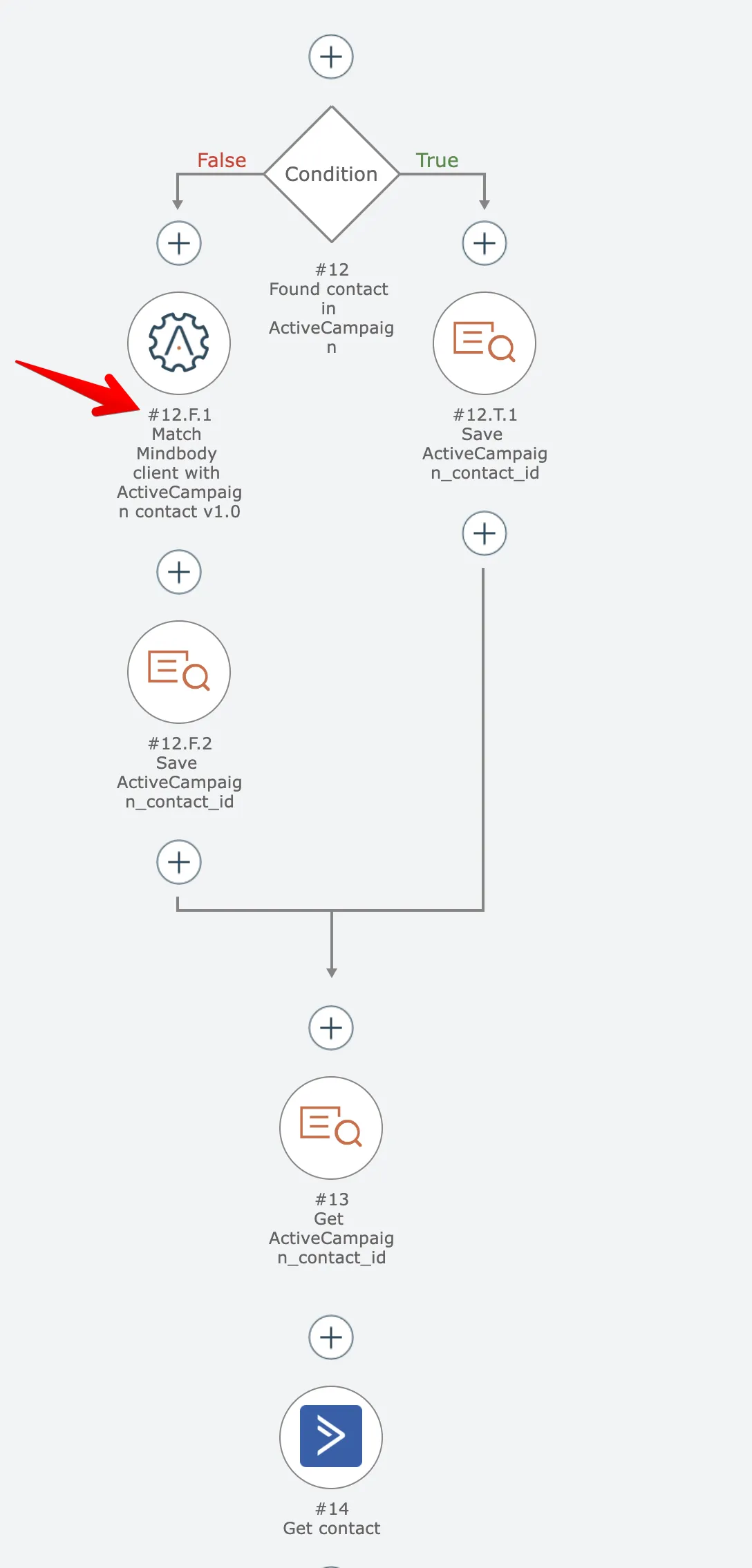
Conditional branches as shown above include "T" and "F" in their step numbers to indicate which path is taken.
When troubleshooting an automation or when asking another person to look at your automation, it can be helpful to search and find an item by its step number.
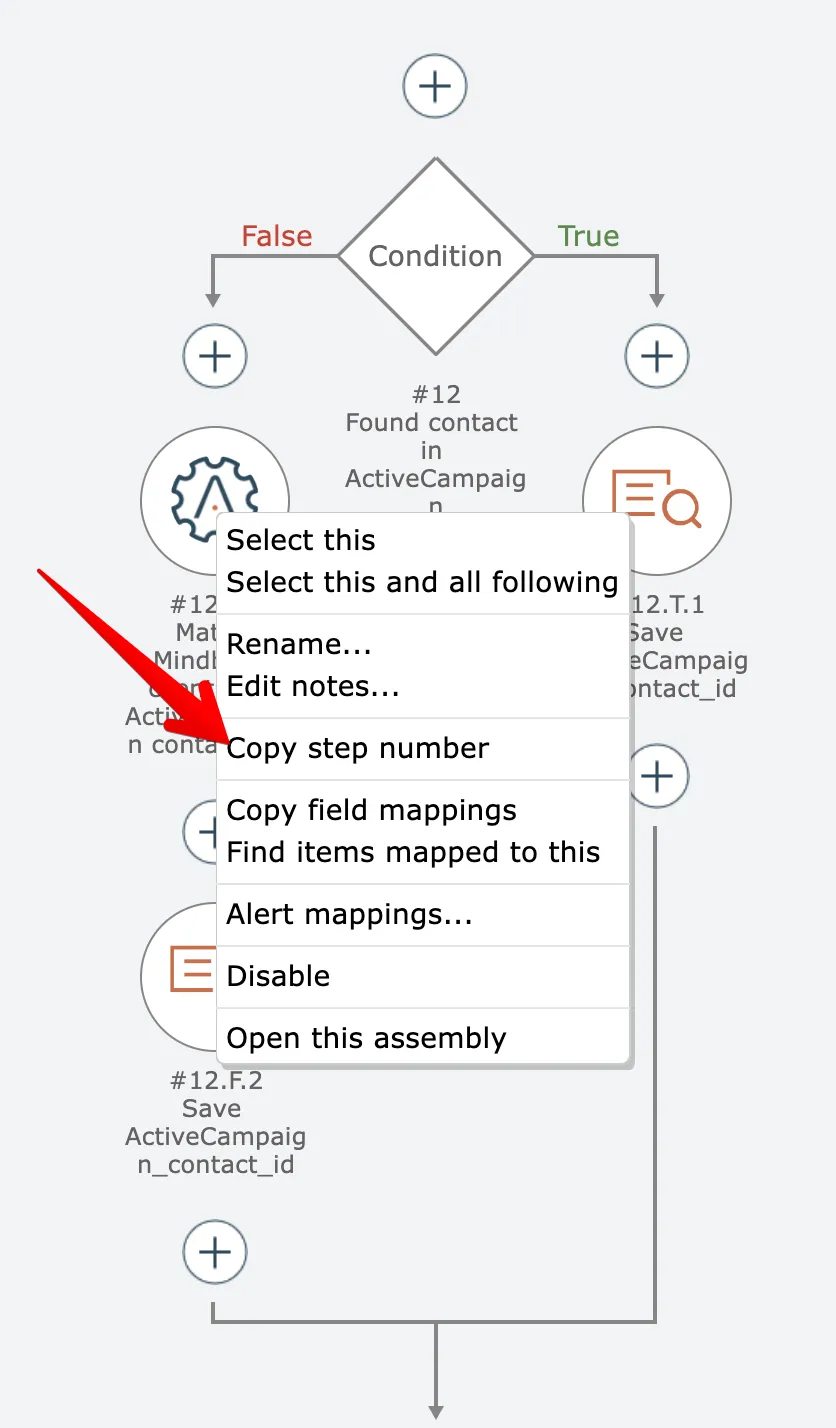
To obtain an item's step number, right click on it and choose the "copy step number" option:
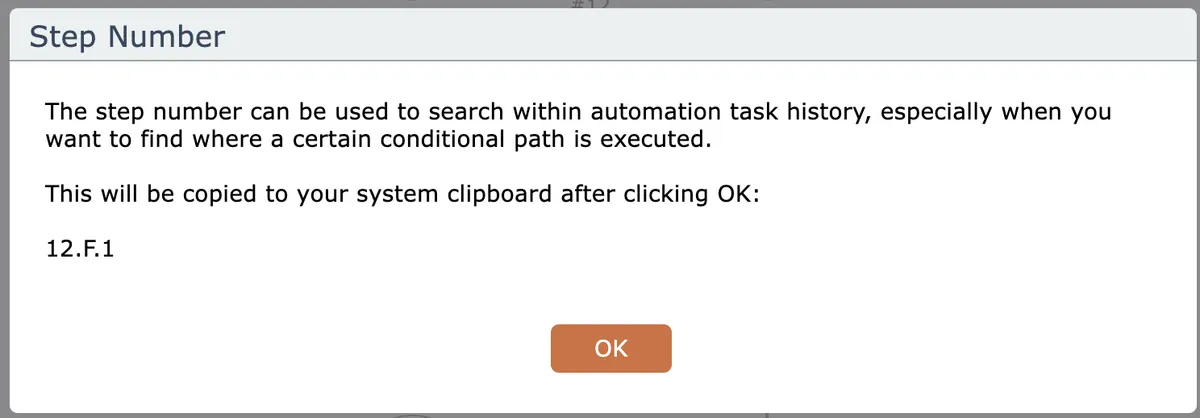
Click OK to copy the step number to your system's clipboard:
To find an item by its step number, see Search by step number
Related docs
Last updated May 4, 2026