Datafiles
Capture automation data into daily CSV files for export to external tools like ChatGPT, organized by topic with configurable columns and file size limits.
Automations can capture information into datafiles for the purpose of loading that information into other tools.
The initial datafile functionality was built with the goal of loading data from automations into AI tools like ChatGPT.
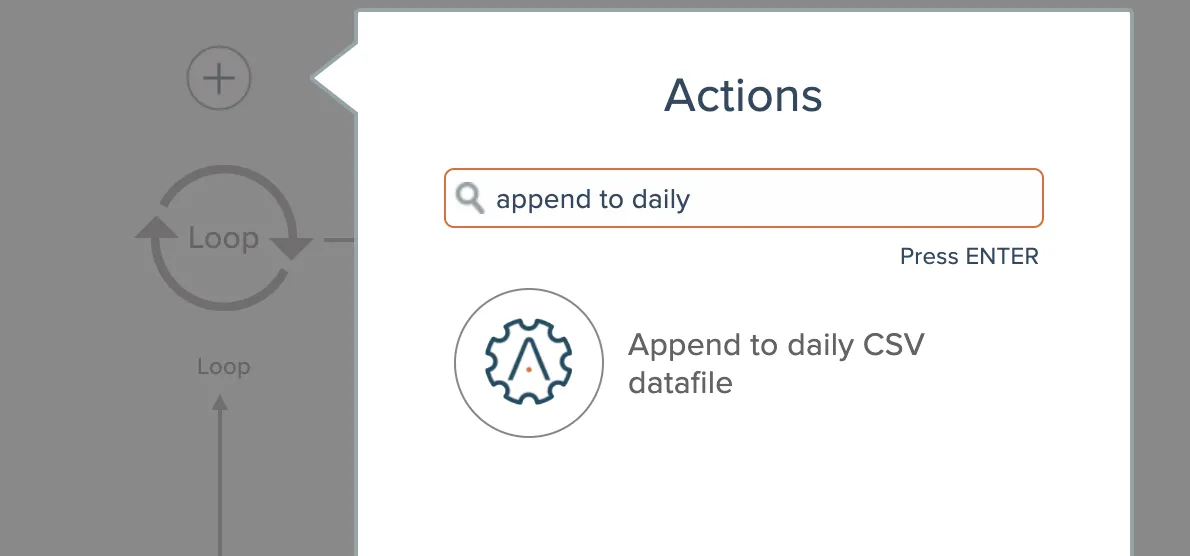
To that end, the initial functionality supports generating daily CSV files. Automations just need to use the "append to daily CSV datafile" action to write information into a CSV datafile:
The action can be configured with the CSV columns, a topic, and a maximum file size:
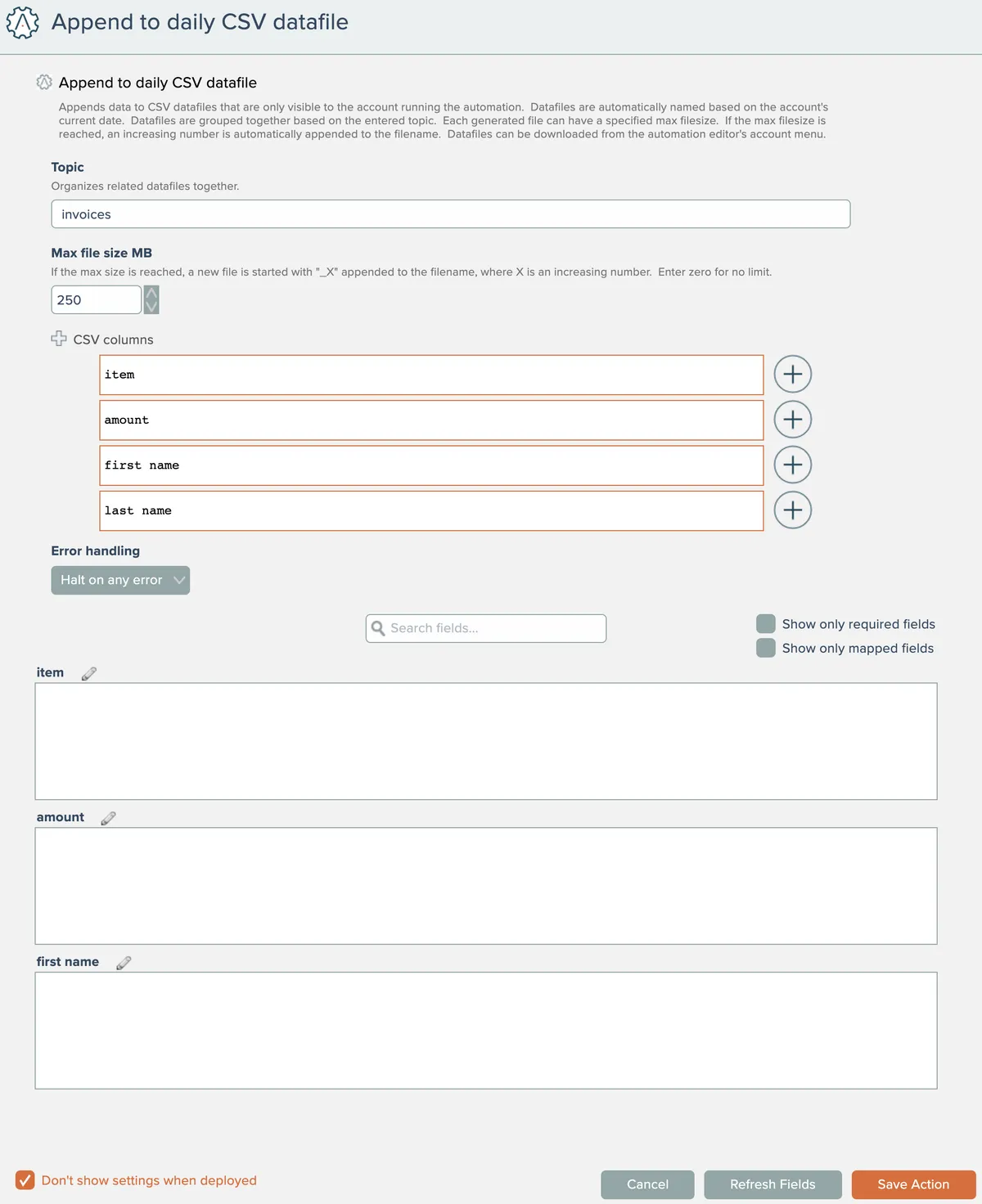
The topic is used to help organize datafiles across multiple automations.
If the maximum file size limit is reached for the current day, additional information is written into separate datafiles having "_X" appended to their names, where X is an increasing number.
ChatGPT has an upload file limit of around 100MB. Datafiles are downloaded as ZIP's, however, and can be uploaded to Code Interpreter as a sort of workaround to its file limit size. Since CSV text data is usually highly compressible, a size limit of 250MB should result in a ZIP file that is well below 100MB.
The action takes care of automatically writing the column names into a header row.
The CSV file names contain the current date as determined from the timezone setting in the account.
Datafiles are automatically purged from the system based on a configuration setting. Currently the setting is 30 days.
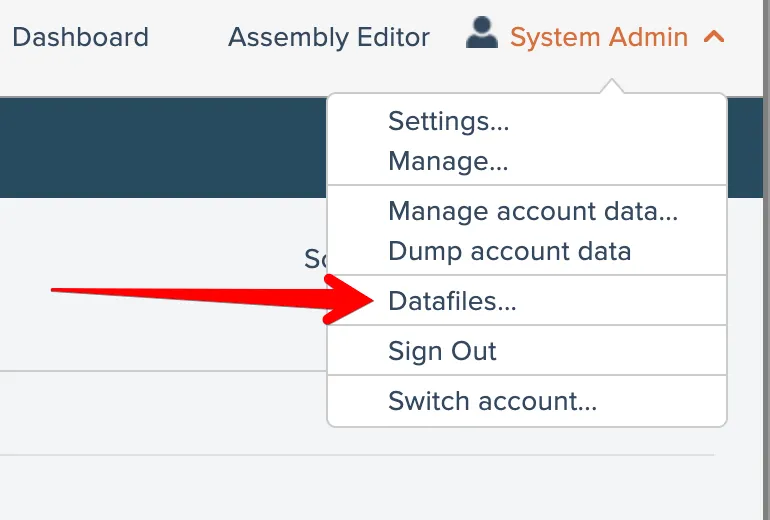
When an account has datafiles present, a menu option appears under the automation editor's account menu:
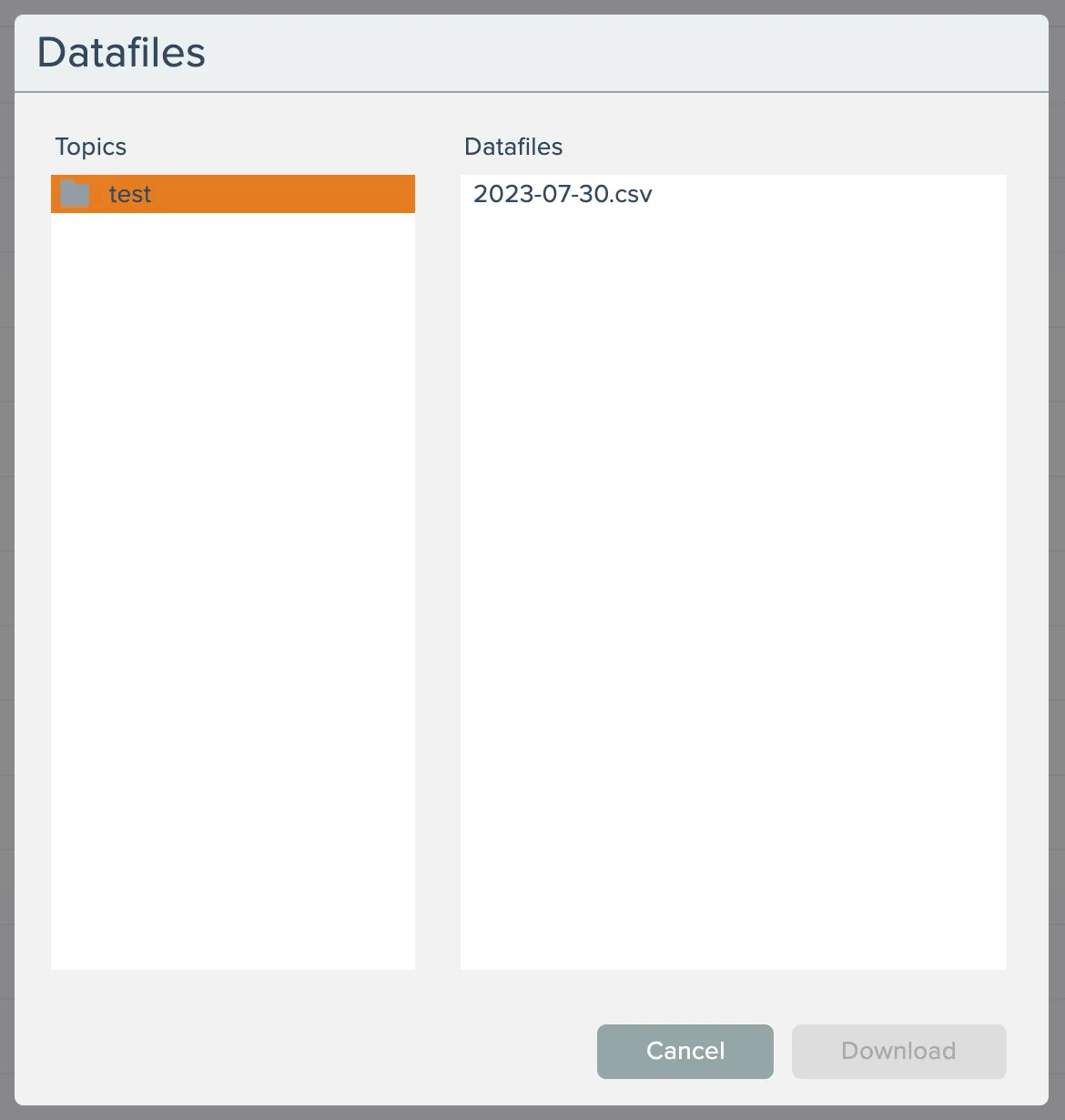
Select a topic on the left to access its datafiles. Select and click the button to download a datafile, or double-click the datafile to download. Datafiles are downloaded as ZIP files.