
CRMConnect: Cliniko → HubSpot
Synchronize client information between Cliniko and HubSpot with CRMConnect's turnkey integration solution. Supports patient, contact, appointment, and invoice syncing with practitioner email caching and configurable deal owner assignment.
Version 1.22 or Higher (current version 1.40)
Overview
- Patient and Contact Sync
- Frequency: Every 15 minutes
- Limit: Up to 100 items per execution
- Appointment Sync
- Frequency: Every 15 minutes
- Limit: Up to 100 items per execution
- Invoice Sync
- Frequency: Every 15 minutes
- Limit: Up to 100 items per execution
- Patient and Contact Updates:
- To trigger an update, add or edit a record, such as updating the "Extra information area."
- These updates will be processed during the next synchronization cycle, within 15 minutes.
Ensuring Data Integrity: The Importance of Maintaining Established CRMConnect Configurations in HubSpot
When working with the Cliniko Groups and Deals in HubSpot, it is crucial to maintain the integrity and consistency of the existing pipeline stages and properties. Changes to these elements can have significant implications on data integrity, reporting accuracy, and the overall functionality of the CRM system.
It is crucial that users do not alter or supplement the content created by CRMConnect. APIANT cannot be held accountable for any data mismatches that result from modifications made by the end user to existing content.
Key Reason to Avoid Modifications
The primary reason to avoid altering any properties, groups, pipelines, or stages within CRMConnect is that these components are configured in very specific ways to ensure accurate data transfer from Cliniko to HubSpot. Any modifications to these elements can lead to incorrect data being populated, which disrupts the entire CRM ecosystem. The system's configurations are designed to support specific workflows and data integrity, and altering them could compromise the reliability and functionality of the CRM integration.
Implementing Custom Stages
If additional stages are necessary for specific business needs, it is recommended to create a separate pipeline rather than modifying existing ones. This allows for customization without disrupting the established processes and systems. A separate pipeline ensures that custom stages are tailored to specific tasks or departments while preserving the integrity of the original system configuration.
Resources
For a detailed view of the properties used in the integration of Cliniko and HubSpot, please refer to our comprehensive list of custom properties available in the following spreadsheet:
- CRMConnect: Cliniko → HubSpot / Custom Properties list
Understanding the "Individual appointments days forward" setting
The Cliniko to HubSpot integration keeps appointment data synced between the two platforms. The "Individual_appointments_days_forward" setting determines how many days into the future the system looks for new or updated appointments to sync, while also automatically checking the past 7 days for any recent changes.
How It Works:
The system will always check for appointments from the last 7 days to capture any recent updates or changes. It will also look ahead for new or updated appointments based on the value set in the "Individual_appointments_days_forward" field. For example, if the setting is configured to 45 days, the system will check:
The past 7 days (for any recent updates). The next 45 days (for future appointments).
This ensures that both recent and upcoming appointments are synced between Cliniko and HubSpot.
Best Practices:
Set the number of future days based on your typical appointment scheduling needs. If appointments are often booked far in advance, a higher value like 45 days ensures future appointments are captured and synced correctly. Contact support@apiant.com if you need to make changes to this setting.
Using the Preferred first name field from Cliniko
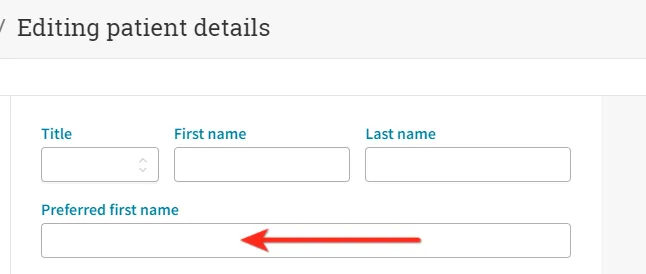
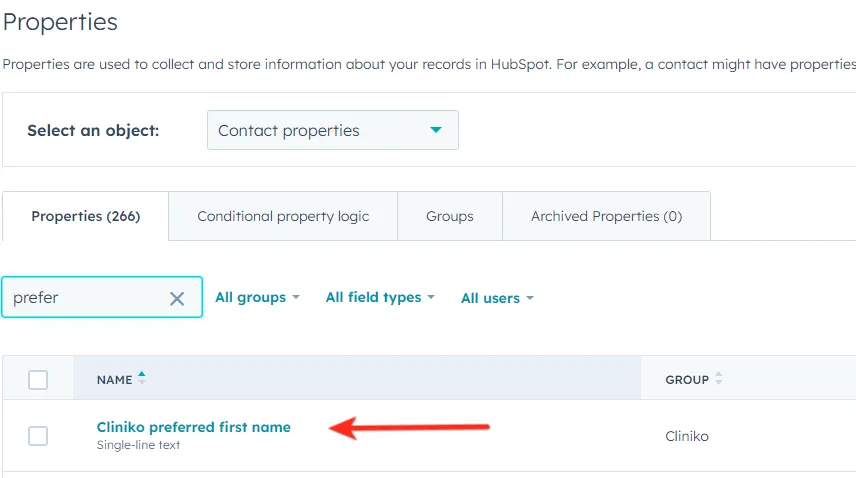
To update HubSpot contact properties with the "Preferred first name" field from Cliniko, enable the corresponding setting in your CRMConnect account's general settings. Once activated, the next synchronization of your patients and contacts will automatically update this field in HubSpot..

Understanding the "Add amount to Appointments" setting
The Cliniko to HubSpot integration allows for financial data to be automatically included in appointment records. The "Add amount to Appointments" setting enables the system to calculate and assign a monetary value to each appointment, which is then mapped to the "Amount" property in the associated HubSpot Deal.
This value is determined using a formula that references specific mapped fields:
- "Price" from the "Get billable item" action
- "Rate" from the "Get tax" action
The formula calculates the total amount by applying the tax rate to the price and then adding the result back to the original price:
(Price \* Rate / 100) + Price = Deal Amount
This ensures that the final amount includes both the base cost of the billable item and any applicable tax, providing financial data within HubSpot for each appointment.
Note: It is not recommended to enable this setting if you are already subscribed to sync Cliniko Invoice Deals, as doing so may result in revenue being reflected twice in HubSpot. This feature is typically used by customers not subscribed to the Invoice Deal sync, as it allows a deal value to be associated with each appointment.
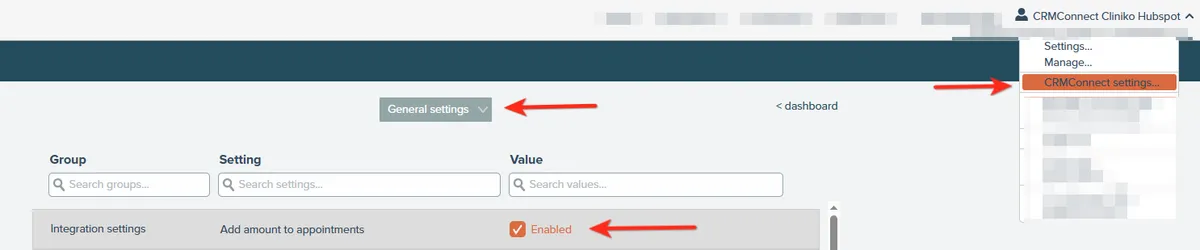
How to enable this feature in your CRMConnect account
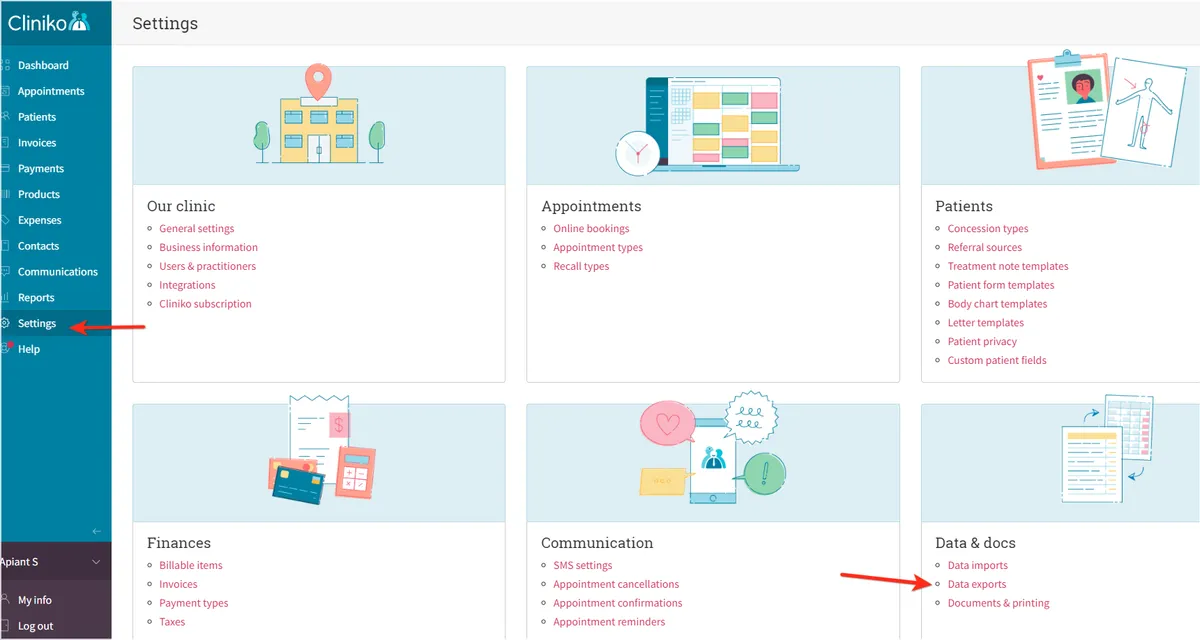
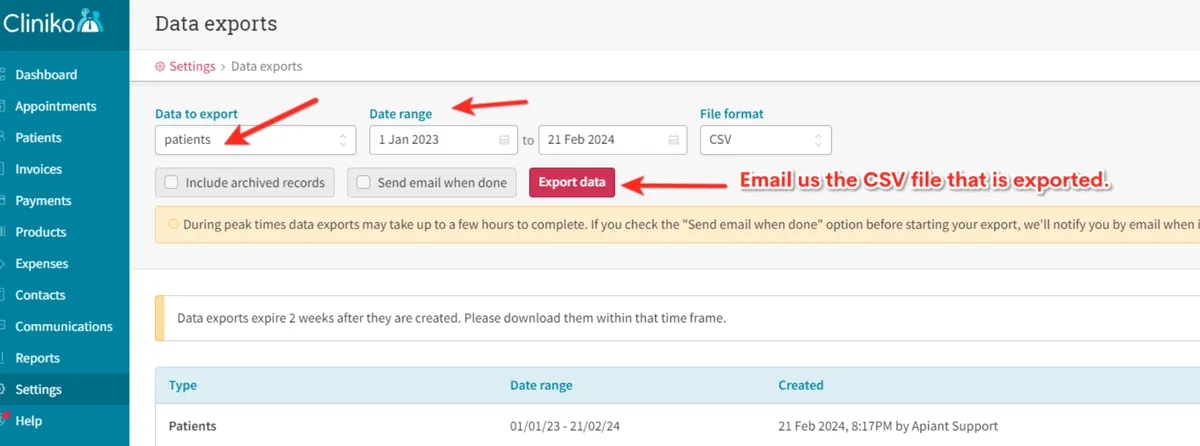
How to export CSV file from Cliniko for initial patient record import to Hubspot
The criteria in Cliniko that you want to use is up to you as far as which Patients are included in your CSV export.
How to export CSV file from Cliniko for historical appointment record import to Hubspot
The criteria in Cliniko that you want to use is up to you as far as which appointments are included in your CSV export.
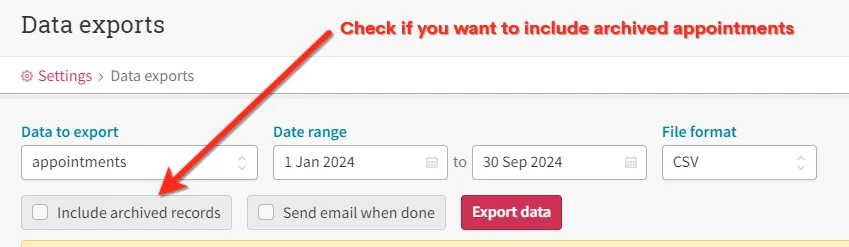
Email the CSV in its exported format to support@apiant.com
How to Update a HubSpot Record to Sync with a Cliniko Record
Maintaining synchronized records between HubSpot and Cliniko can enhance your data integrity and workflow efficiency. This guide provides instructions on manually triggering a sync, as well as setting up automation via HubSpot workflows.
Overview of Data Flow
Data initially flows from Cliniko to HubSpot, setting up a base for your records. Although data can be sent from HubSpot to Cliniko, it requires a trigger since it is not automatic by default.
Manual Sync Trigger
- Locate the Record: Navigate to the specific record in HubSpot that you wish to sync with Cliniko.
- Modify the Property: Update the properties "Update Cliniko patient" and "Update Cliniko contact" to control the data sync to Cliniko.
- Set the Property Value:
Change these properties to 'Yes' to initiate an instant sync. This triggers the update or creation of records in Cliniko:
- Update Cliniko patient: Syncs patient information.
- Update Cliniko contact: Updates contact details.
- List of properties that are updated:
- Patient ID, First_name, Last_name, Home_phone, Mobile_phone, Address_line_1, City, State, Postal_code, Country_code, Email, Gender_identity, Date_of_birth, and Referral_source.
Accounts subscribed to the custom-fields mapping add-on can additionally have their mapped custom fields included in this sync — see Version 1.40 Enhancements for details.
Automating the Sync Process
To automate the syncing process, utilize HubSpot workflows. Configure a workflow to automatically change the "Update Cliniko patient" or "Update Cliniko contact" properties to 'Yes' based on specific actions like form submissions or record updates. This setup ensures continuous synchronization without manual intervention.
Post-Sync Property Reset
After the sync is complete, the integration automatically resets the "Update Cliniko patient" and "Update Cliniko contact" properties to 'No'. This reset prevents repeated syncs unless a new update is made, maintaining efficient data management and preventing data duplication.
How to Unlink Cliniko and HubSpot Records When "Patient 2" is Linked to "Patient 1"
Overview
Occasionally, a Cliniko patient record (e.g., Patient 2) may incorrectly sync with an existing HubSpot contact record (e.g., Patient 1) instead of creating a separate entry. This guide explains how to unlink these records and ensure proper synchronization between Cliniko and HubSpot.
Steps to Unlink Cliniko and HubSpot Records
1. Unlink the Cliniko Record from the HubSpot Contact
To break the incorrect link between Patient 2 (Cliniko) and Patient 1 (HubSpot):
- Access the HubSpot Contact Record for Patient 1.
- Locate the property labeled "Unlink Cliniko patient".
- Set the "Unlink Cliniko patient" property to YES.
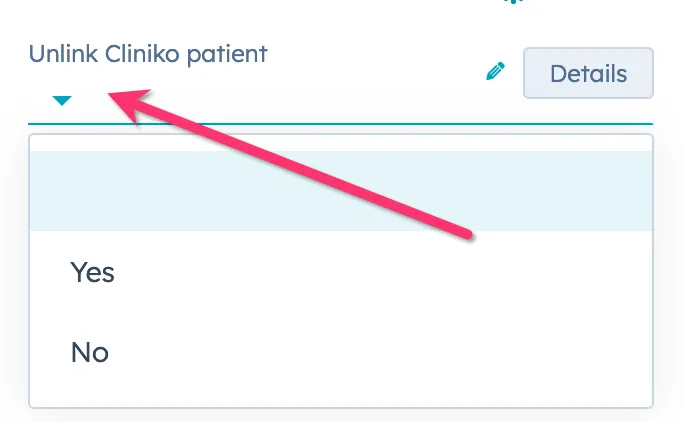
- Outcome:
- This action clears the link in the database in your APIANT CRMConnect account, removing the Cliniko patient ID and Cliniko URL associated with Patient 1's HubSpot record.
2. Force an Update from Cliniko
- Go to the Patient 2 record in Cliniko and trigger an update (e.g., modify and save the record).
- The integration will now attempt to sync the updated information, creating a new contact for Patient 2 in HubSpot.
- Outcome:
- A new contact record for Patient 2 appears in HubSpot, separate from Patient 1's record.
3. Verify the New Contact
- In HubSpot, confirm that a new contact record for Patient 2 has been created.
- Check that the new record includes the correct Cliniko information.
4. Clean Up the Original HubSpot Record (Patient 1)
- Open the original HubSpot contact record for Patient 1.
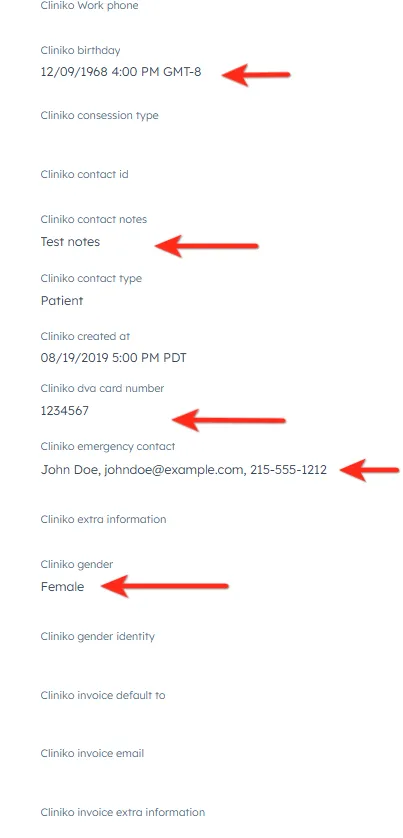
- Review and remove any incorrect or outdated properties related to Cliniko.
- Here are examples of properties that might need to be cleared, as they could contain data mistakenly associated with Patient 2.
5. Reassign Deals or Other Associations (If Applicable)
- If Patient 1 has any deals or associations that should now belong to Patient 2, manually move these to the new contact record.
- Example: If a deal was mistakenly linked to Patient 1, reassign it to Patient 2.
Additional Notes
- This process ensures that records are correctly split between Patient 1 and Patient 2 in both Cliniko and HubSpot.
- Regularly review HubSpot and Cliniko records for accuracy to prevent future sync issues.
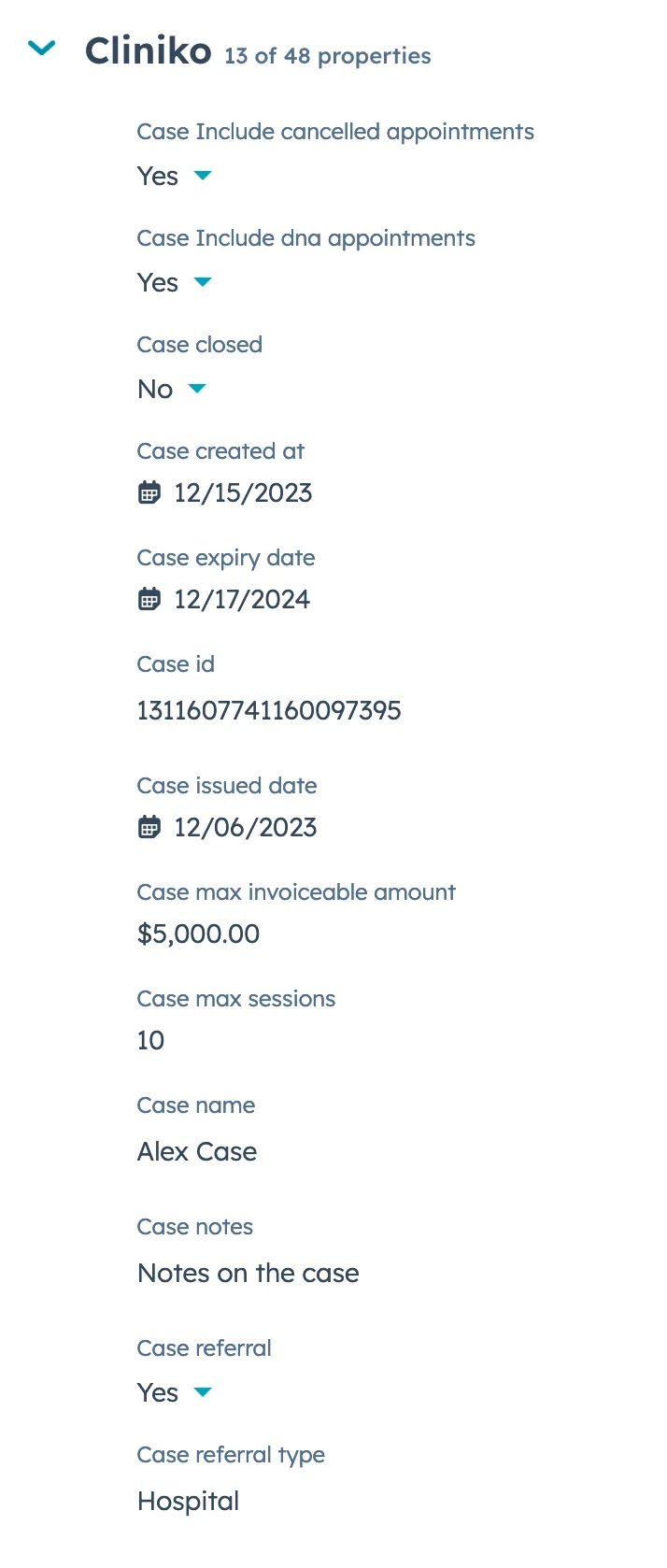
Support for Cliniko patient cases with Cliniko appointments
HubSpot deals in the Cliniko appointments pipeline now include case information from Cliniko
In this section
Version 1.26 Enhancements
Version 1.26 introduces automatic syncing of next appointment properties from Cliniko to HubSpot, including date, time, category, and practitioner details, updating whenever appointments are created, modified, canceled, or archived.
Version 1.29 Enhancements
New appointment sync range controls, custom HubSpot deal naming from Cliniko data, business display name options, and expanded field mappings including pronouns and appointment notes.
Version 1.30 Enhancements
Multi-brand HubSpot organizations can now route synced Cliniko data to specific business units using new integration settings that enable accurate brand-based data assignment.
Version 1.40 Enhancements
Custom field values can now sync from HubSpot back into Cliniko patient custom fields, controlled by a new integration setting for accounts with the custom-fields mapping add-on.