
Forms Overview
Native form functionality for automations using a drag-drop editor. Includes form triggers for public submissions and form actions with data mapping and submission awaiting.
The system includes native form functionality, allowing automations to receive and process submitted information. Automations may consist of multiple individual forms which work much like app screens.
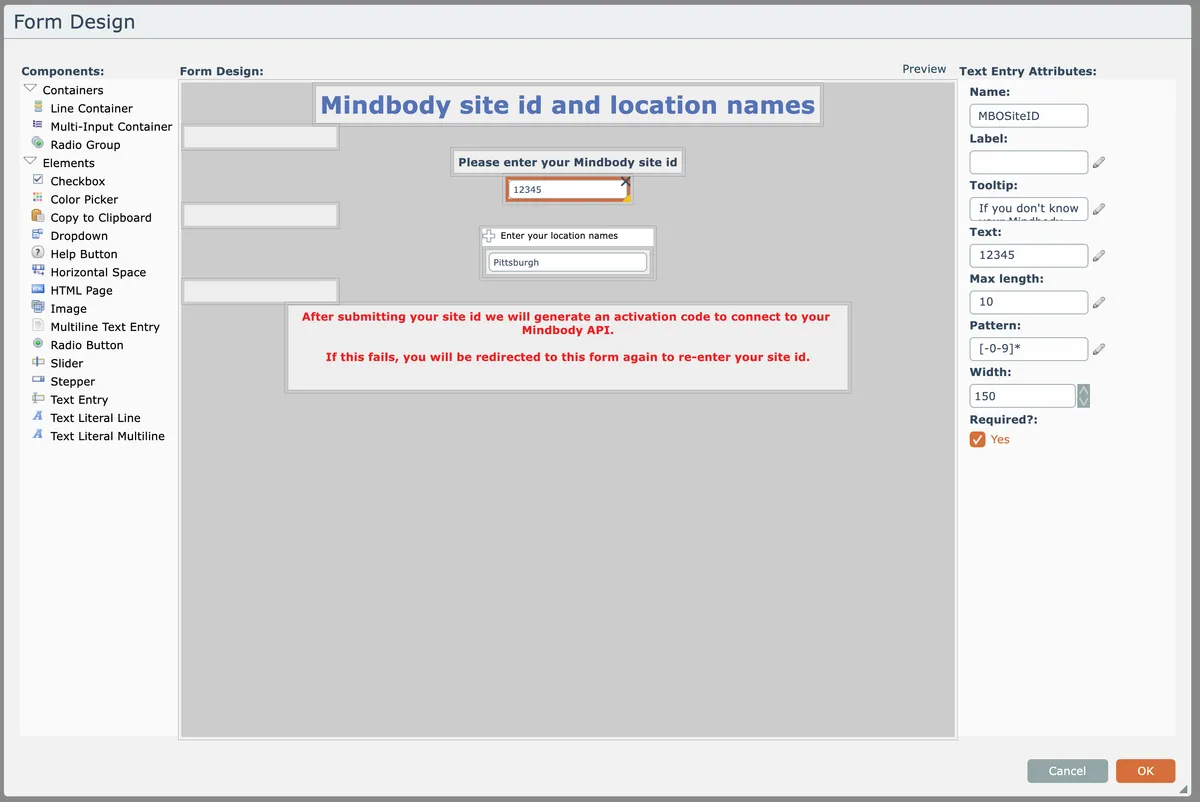
Forms are designed with a drag-drop editor. Form actions may also include data-mapped input values that get inserted into the form design!
The system provides two types of forms: triggers and actions.
Form triggers are where a URL to a form is generated and anyone given that URL can access the form and submit input. A form trigger is like other instant triggers, where the automation's trigger is fired whenever form entries are submitted.
Form actions are where the form is created as an action, which can optionally include data-mapped values to populate the form design with dynamic content. The output from a form action is the unique URL to the form, which is then typically sent to someone via email or some other mechanism. An "await form submission" action pauses the automation and awaits the form submission. When the form is submitted, the automation wakes up, the "await form submission" action emits the submitted form field values, and the automation continues its processing.
In this section
Embedded Forms
Embed forms on any web page by adding a script tag and container div to your HTML. Get the embed code from the automation settings or form editor.
Form Actions
Creates dynamic forms with data-mapped values and generates unique URLs for distribution. Includes await form submission actions that pause automations until forms are submitted and return field values.
Form Apps
Multiple forms can be sequentially displayed to end users within a single automation session, with conditional logic determining which form appears next based on user input and processing logic.
Form Designer
Drag-and-drop interface for building forms with reusable templates, customizable containers, and input elements. Configure form attributes, element names, and layout options through right-side panels.
Form Triggers
Generating shareable URLs for public forms that trigger automations when submitted, with a drag-drop designer and field processing capabilities.
Styling a Form
Customize form appearance by adjusting control colors and corner radius, with support for light and dark modes that adapt to browser preferences.
URL query parameters
Pre-populate form fields and control element visibility using URL query parameters by matching parameter names to input field names or appending _visible=false to hide elements.