
Groups
Collapse and organize related automation actions into groups to simplify workflow visuals and hide implementation details from specific users.
Related actions within an automation diagram can be placed into groups that can be collapsed and expanded.
Groups help to reduce the visual complexity of large automation workflows.
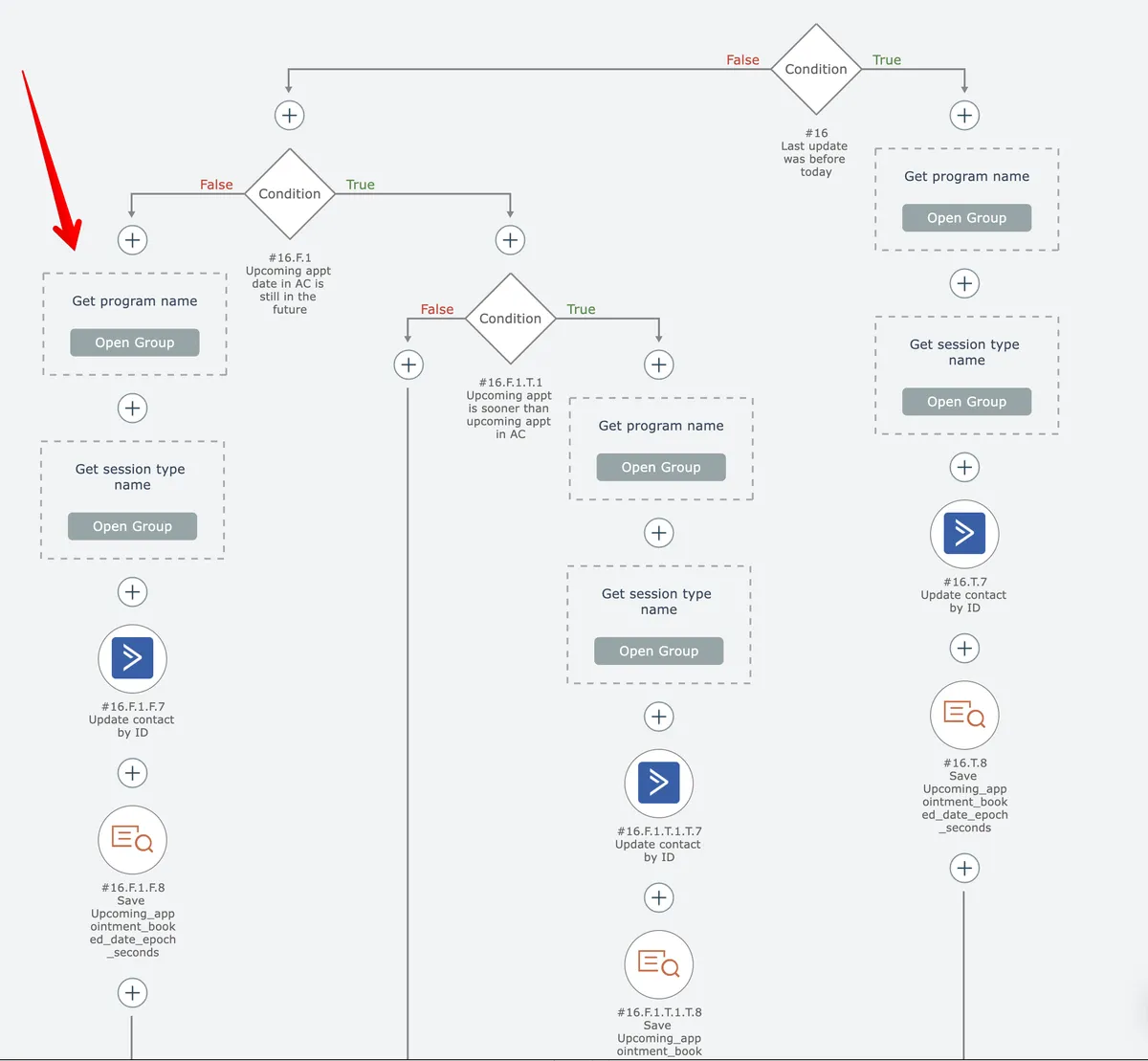
You can created nested groups, if desired.
Another usage of groups is to hide portions of automation implementation logic from end users, by restricting user accounts from having permission to open and view groups.
In this section
Create a group
Organize multiple actions into collapsible groups within the editor by selecting actions and using the context menu to create named groups for better workflow structure.
Open all groups
Expand all collapsed groups in the editor simultaneously using the right-click context menu.
Rename a group
Modify a group's name by opening it, selecting the rename option, entering the new name, and confirming the change.
Ungrouping
Removing group containers from actions while preserving the individual actions within them for independent use and management.