
GuidePlatform UI (Fallback)v1
Enable multiple items
Activate multiple disabled items at once by selecting a range of actions and using the enable option from the context menu.
Items can be disabled so they won't be executed when the automation runs. See Disable an item
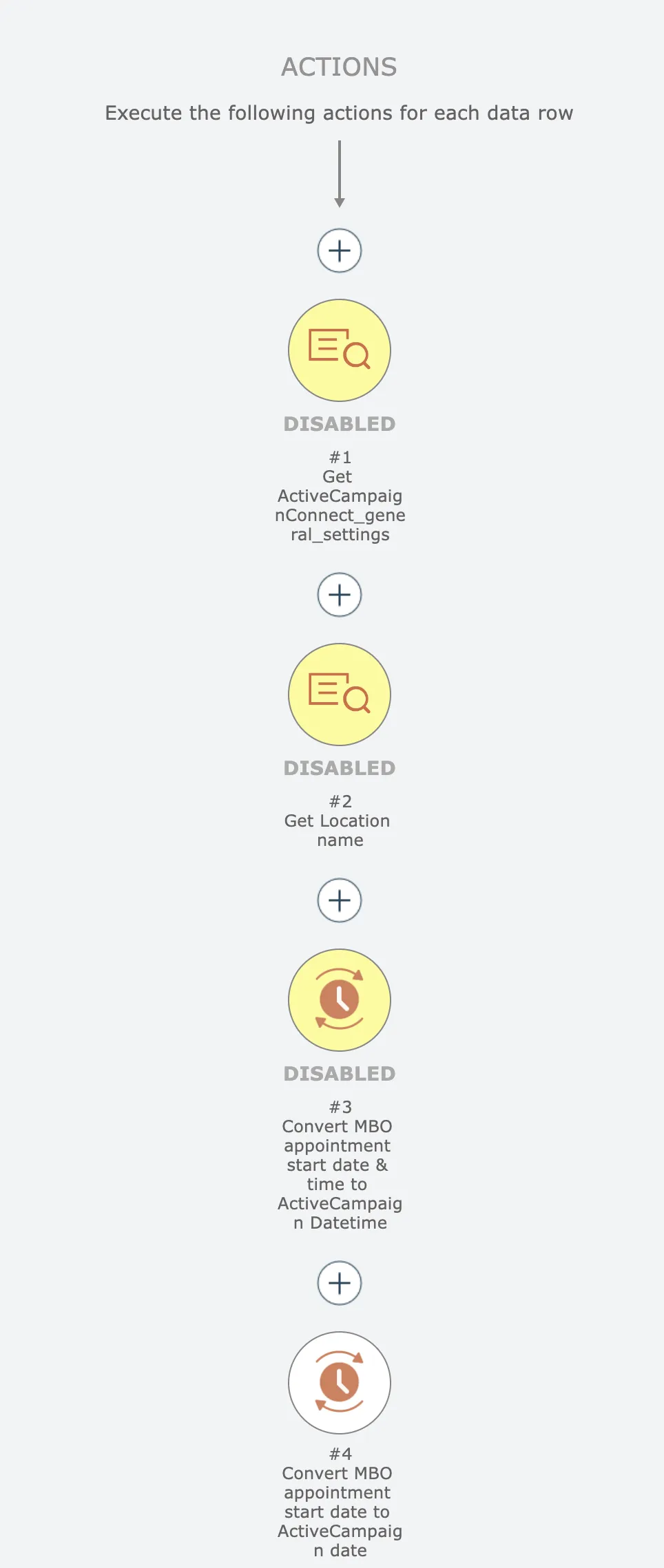
Let's say we want to enable just the first 3 actions here:
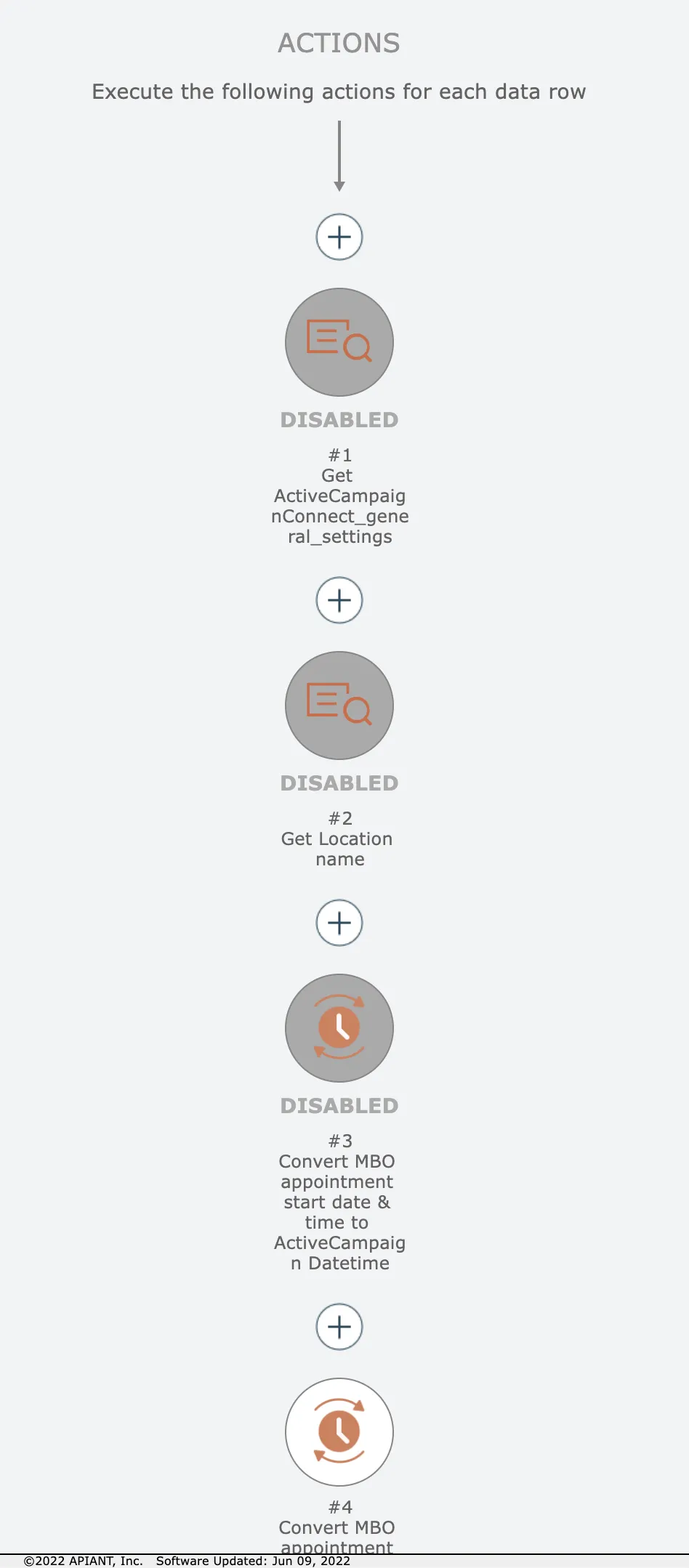
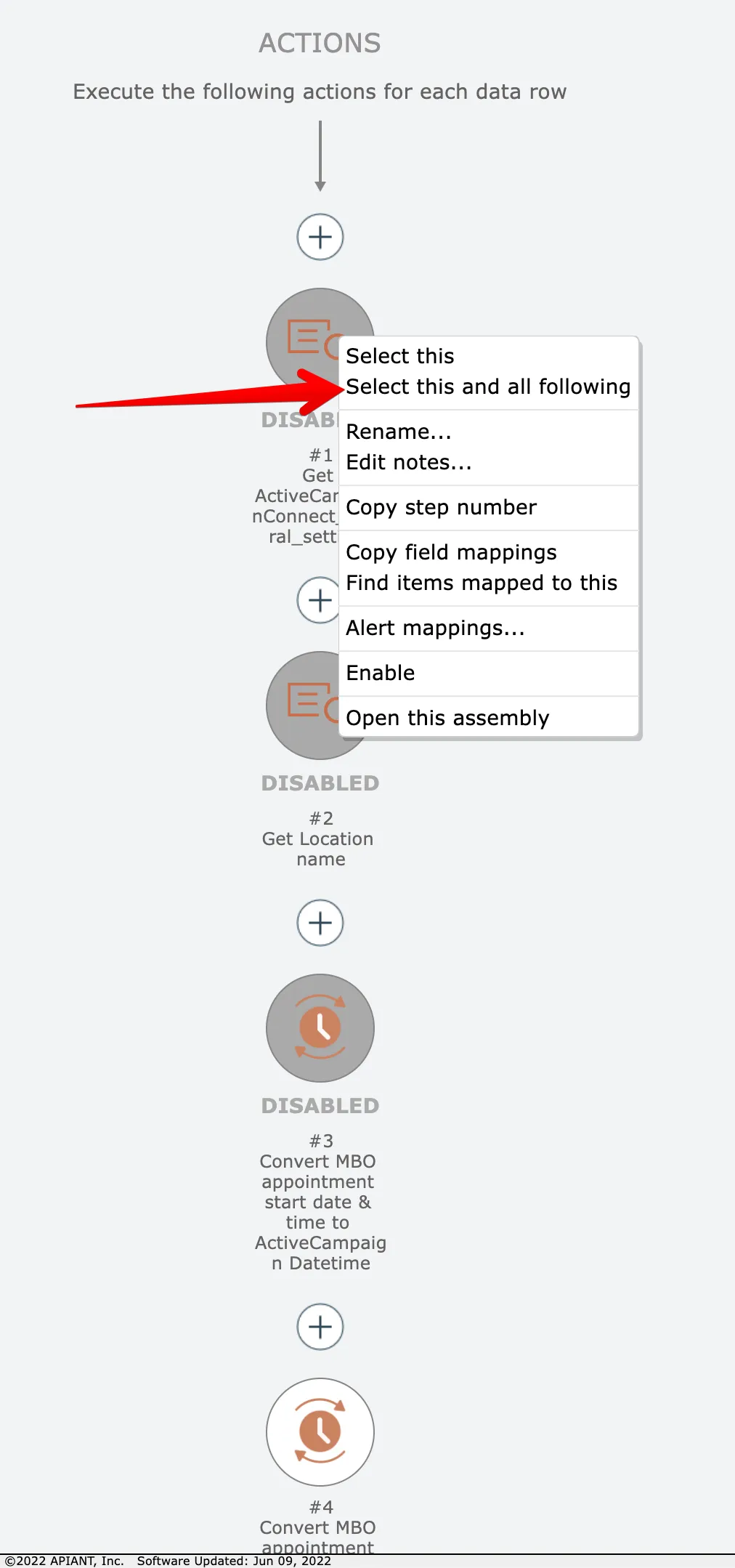
Start by right-clicking on the first item and choose this option:
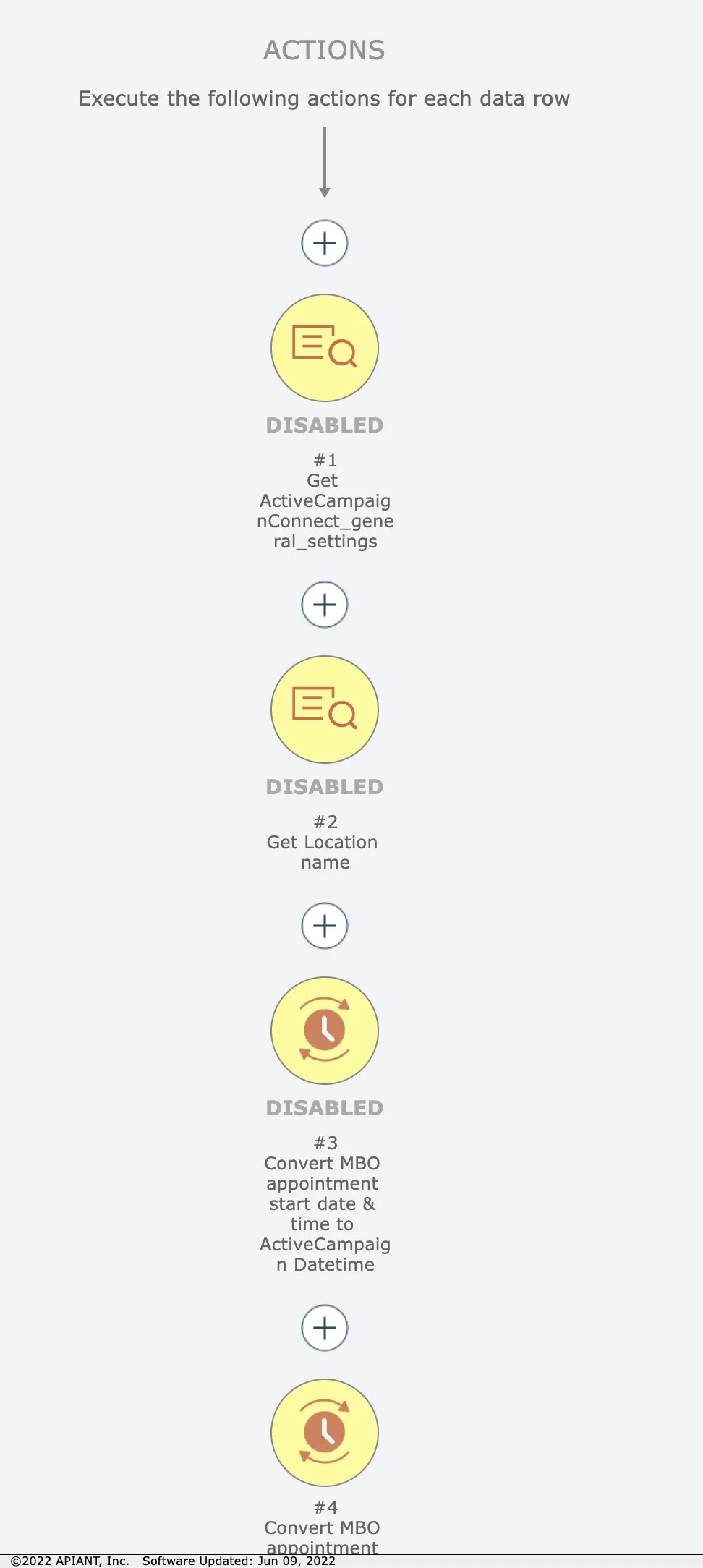
Now the first item and all following items are selected in yellow:
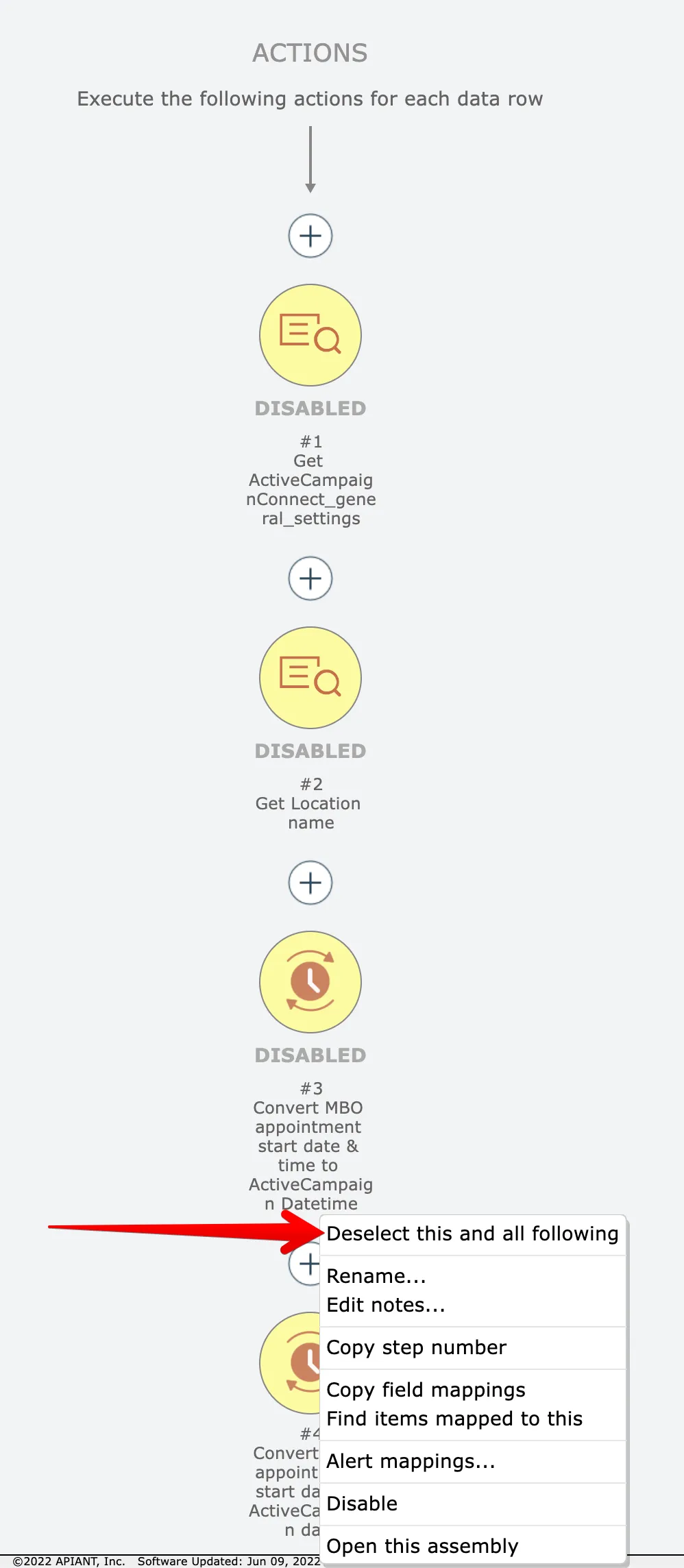
We want just the first 3 actions, however. So right click on the 4th item and choose this option:
Now we have just the first 3 actions selected:
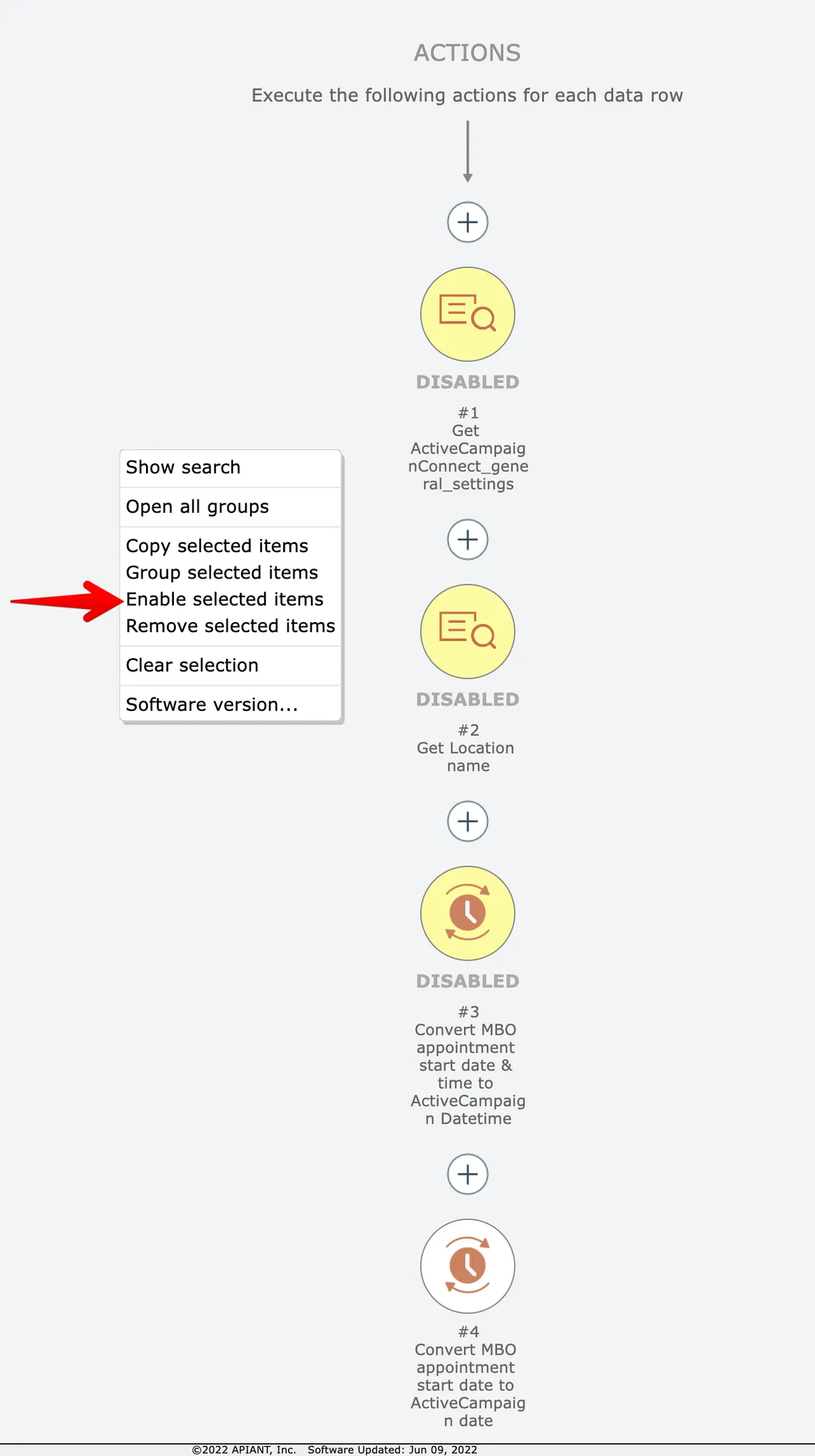
Finally, right click on the editor background and choose the enable option:
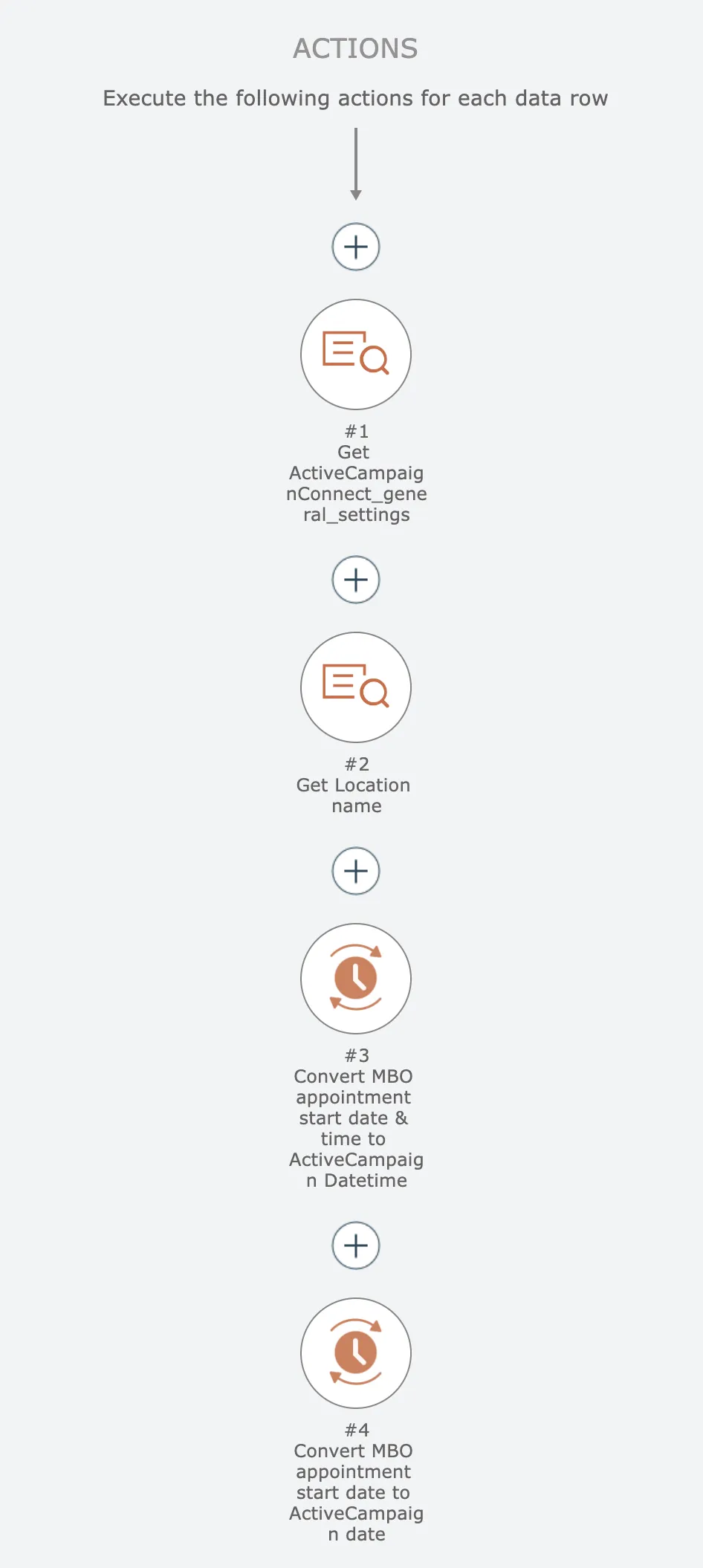
The 3 actions will then be enabled:
Related docs
Last updated May 4, 2026