Assembly versioning
Assembly versions track changes made during editing with messages explaining why modifications occurred. View version history, compare different versions graphically with color-coded changes, or revert to previous states.
The system keeps versions of assembly edits.
Each time an assembly is saved, a version message must be entered:
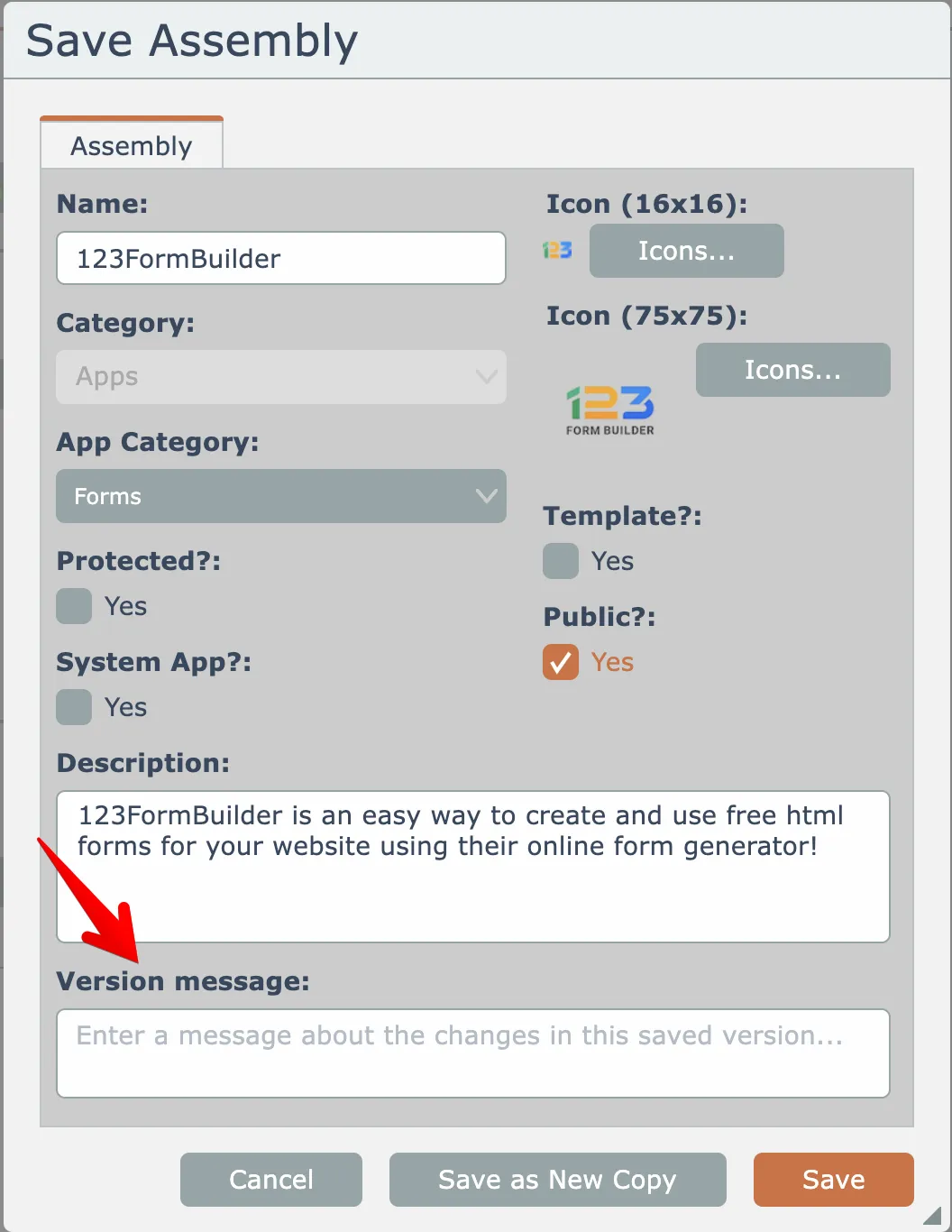
Get in the habit of entering useful version messages so you and possibly others will know why changes were performed.
In general, for version messages the "why" is more important than the "what". Especially since versions can be graphically compared, keep reading below.
To view version history for an assembly, open it in the editor then click the Versions menu option at the top right:
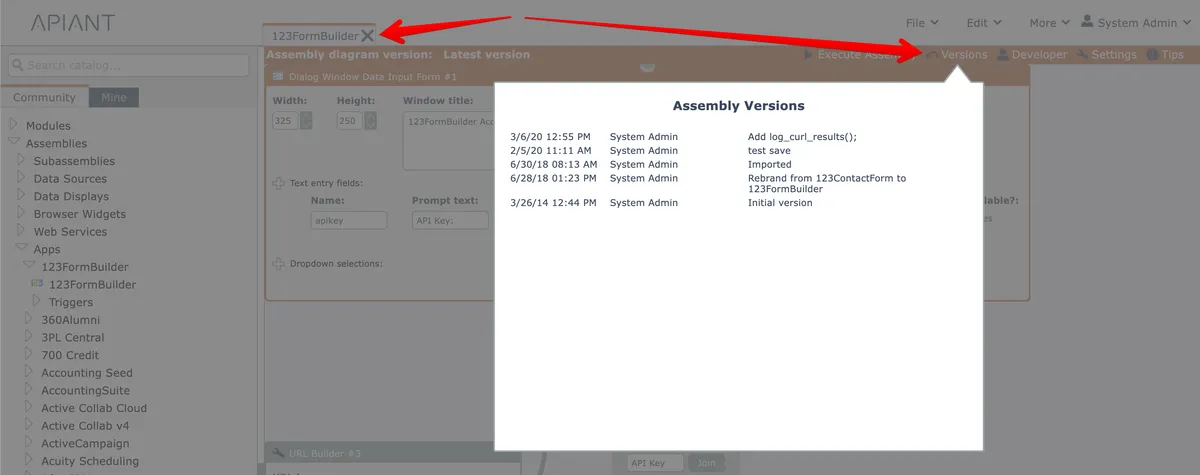
Clicking a saved version will present the option to either open the version or to compare it with the currently opened assembly version:
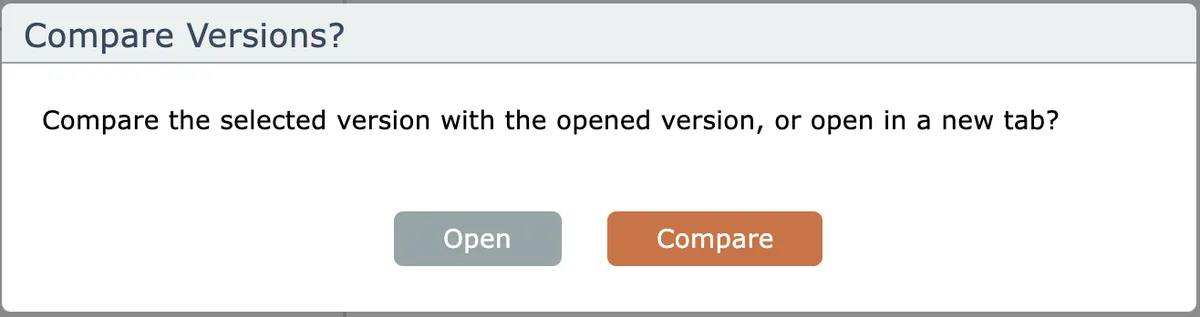
If you want to revert the assembly back to a saved version, open the version and save the assembly.
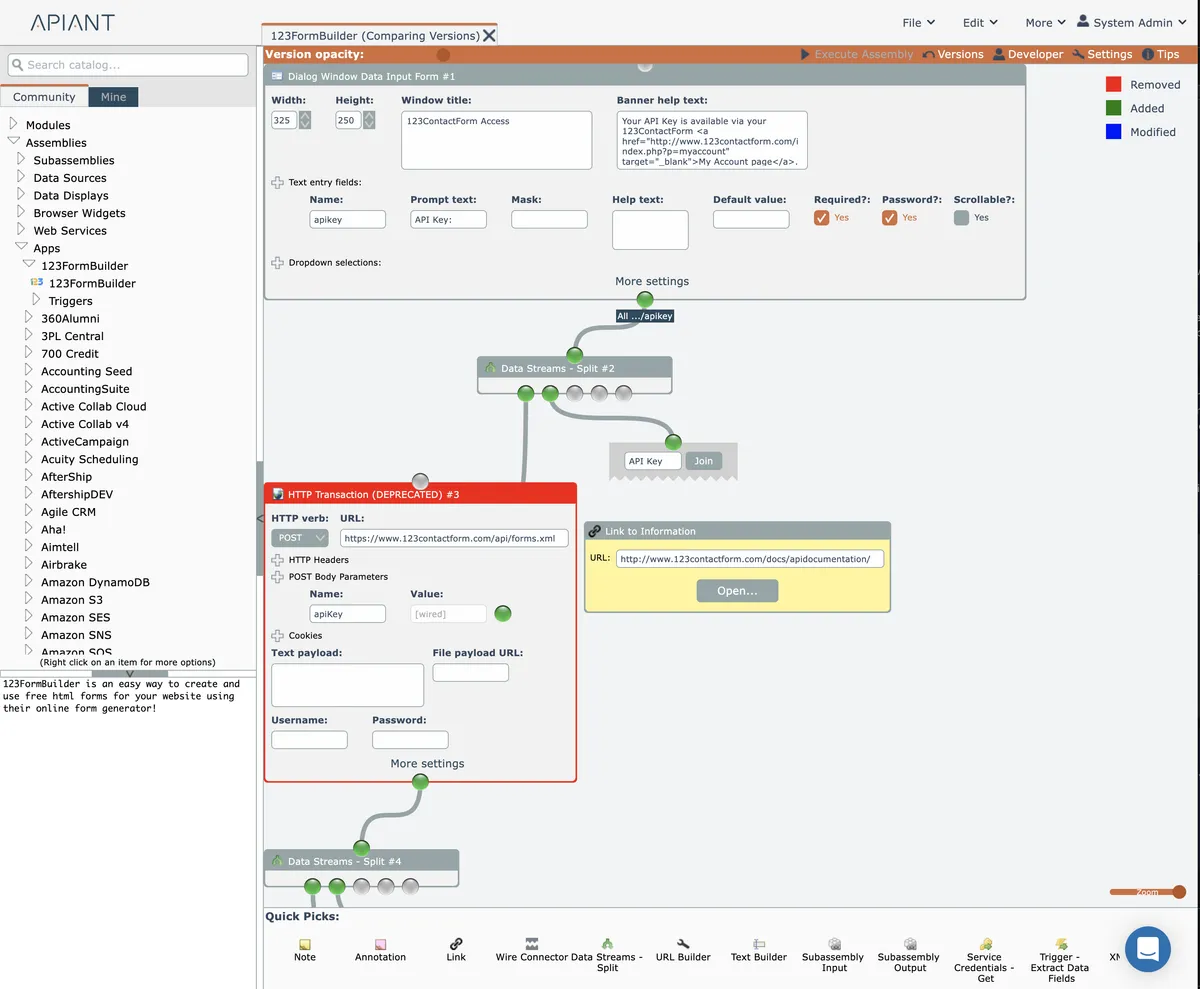
Choosing the Compare option will open a graphical comparison of the selected version against the opened assembly:
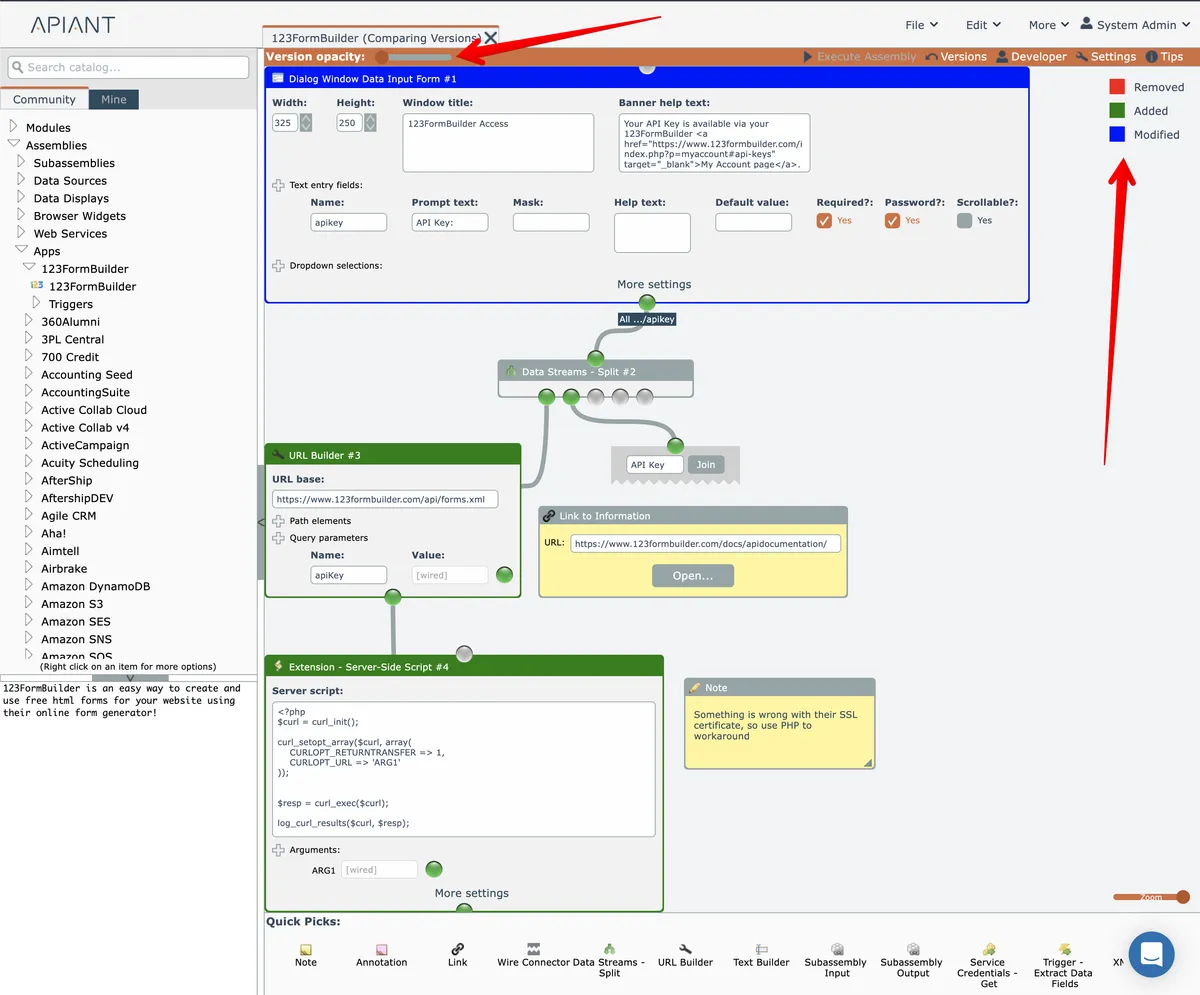
Using the slider at the top to change the opacity between the two versions.
The changes are color-coded. Red items are removed, green are added, and blue are modified.
Here in these two screenshots is 123FormBuilder. The above screenshot is the latest version. In the oldest version below, you can see the app was originally named 123ContactForm and that a HTTP module was used to make an API call instead of the PHP code being used now.