
Editor functionality
The assembly editor enables building sophisticated solutions through visual interfaces and drag-and-drop workflows without requiring code.
The assembly editor provides extensive functionality for building sophisticated solutions, often without needing to write any code.
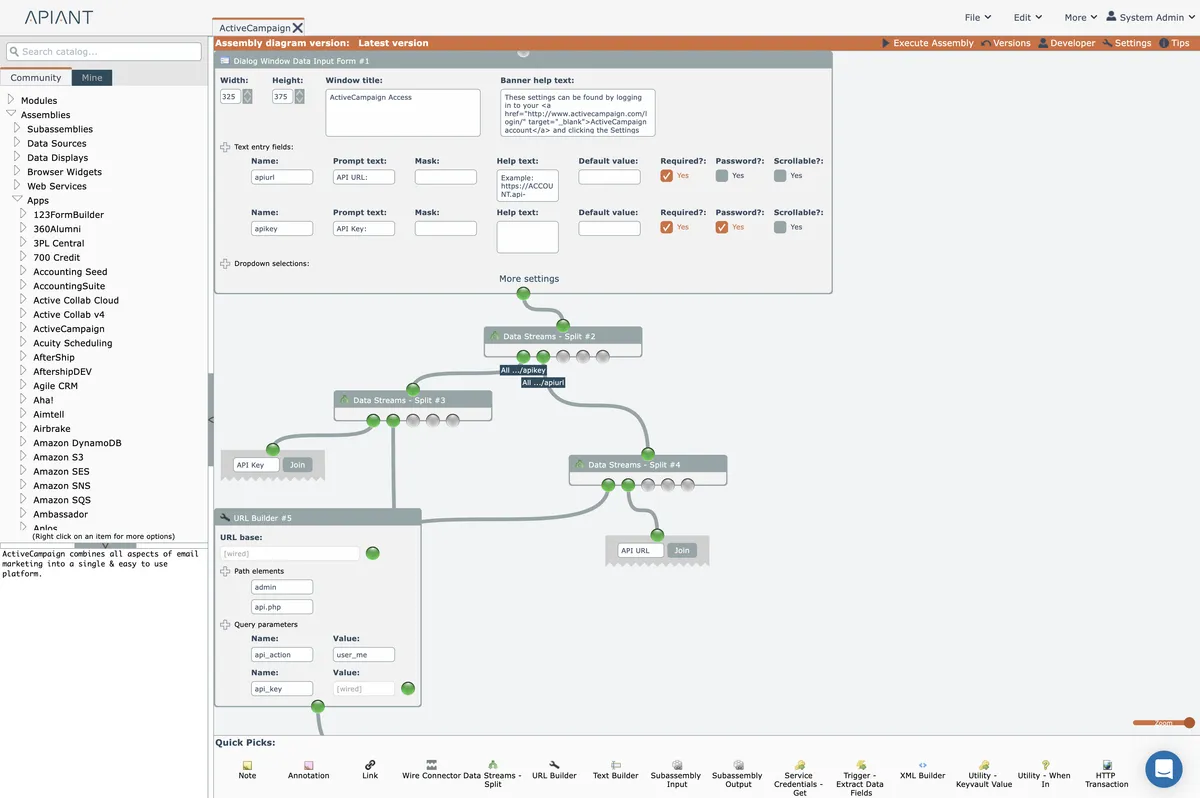
Read the subsections here to learn more about the assembly editor's functionality.
In this section
Assembly editor settings
Configure assembly editor behaviors including scroll speed, grid snapping, service account visibility, data reuse optimization, automatic module execution, and debug mode options for diagram construction.
Assembly versioning
Assembly versions track changes made during editing with messages explaining why modifications occurred. View version history, compare different versions graphically with color-coded changes, or revert to previous states.
Autosaved assemblies
APIANT automatically saves automation edits to the database at intervals and offers recovery prompts if your session ends unexpectedly before saving.
Cloning items
Duplicate modules, subassemblies, and nested items using keyboard modifiers with drag operations on Mac and Windows.
Copy-paste items
Copy items using right-click or the Edit menu, then paste them into the same or different assembly tabs with automatic offset positioning for easy repositioning.
Debug mode
Enable debug mode in the assembly editor to view module logging output, inspect data structures, and evaluate JavaScript expressions for troubleshooting assembly behavior.
Delete items
Remove one or more selected items from your assembly using the right-click context menu or Edit menu option.
Developer options
Access debugging tools, API documentation, and execution options for assembly developers, including trace logs, webhook monitoring, and code references for Java JSP extensions.
Disabling item execution
Prevent modules and subassemblies from running during assembly execution by disabling them individually or in bulk using right-click context menu options.
Documenting assemblies
Add notes and links to assemblies to help others understand their purpose and functionality, including references to API documentation.
Keep edits for later
Save assembly edits as an autosave copy to resume work later without creating a new finished version of the assembly.
Logging
Configure debug logging for modules and subassemblies during assembly execution, enabling output to automation history or the debugger window with per-item toggle controls.
Module numbering
Modules receive automatic sequential numbers in assembly diagrams based on vertical position, enabling unique identification and reference in execution logs.
Protecting output data
Restrict module output data visibility to assembly owners only, preventing other account users from viewing sensitive information in editors, logs, and debug mode.
Quick Picks
Store frequently used catalog items in the Quick Picks tray for rapid access during diagram creation. Drag items from the catalog to add them, reorder via drag-drop, and remove with the X icon.
Selecting items
Methods for selecting individual items, multiple items, or all items in a diagram, including drag selection and hierarchical selection options for reorganizing workflow layouts.
Tab sessions
Save and restore named groups of assembly diagram tabs to quickly switch between different working contexts in the assembly editor.
Tidy overlapped items
Resolving overlapped items in assembly diagrams using the automatic tidy feature to reposition elements and allow diagram saving.