
Copy-paste items
Copy items using right-click or the Edit menu, then paste them into the same or different assembly tabs with automatic offset positioning for easy repositioning.
To copy-paste one or more items, begin by Selecting items.
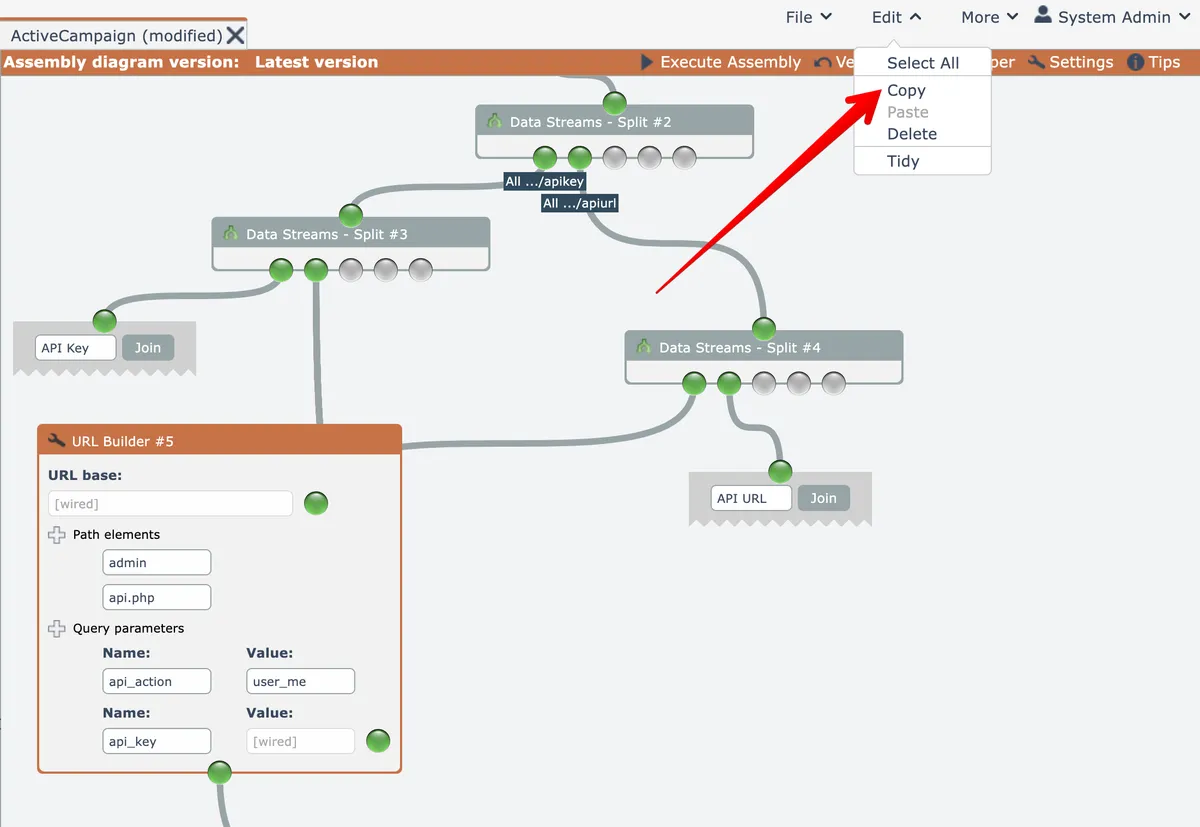
After selecting the item(s) to be copied, right-click on the editor's background and choose the Copy option:
Alternatively, use the Edit menu at the top right:
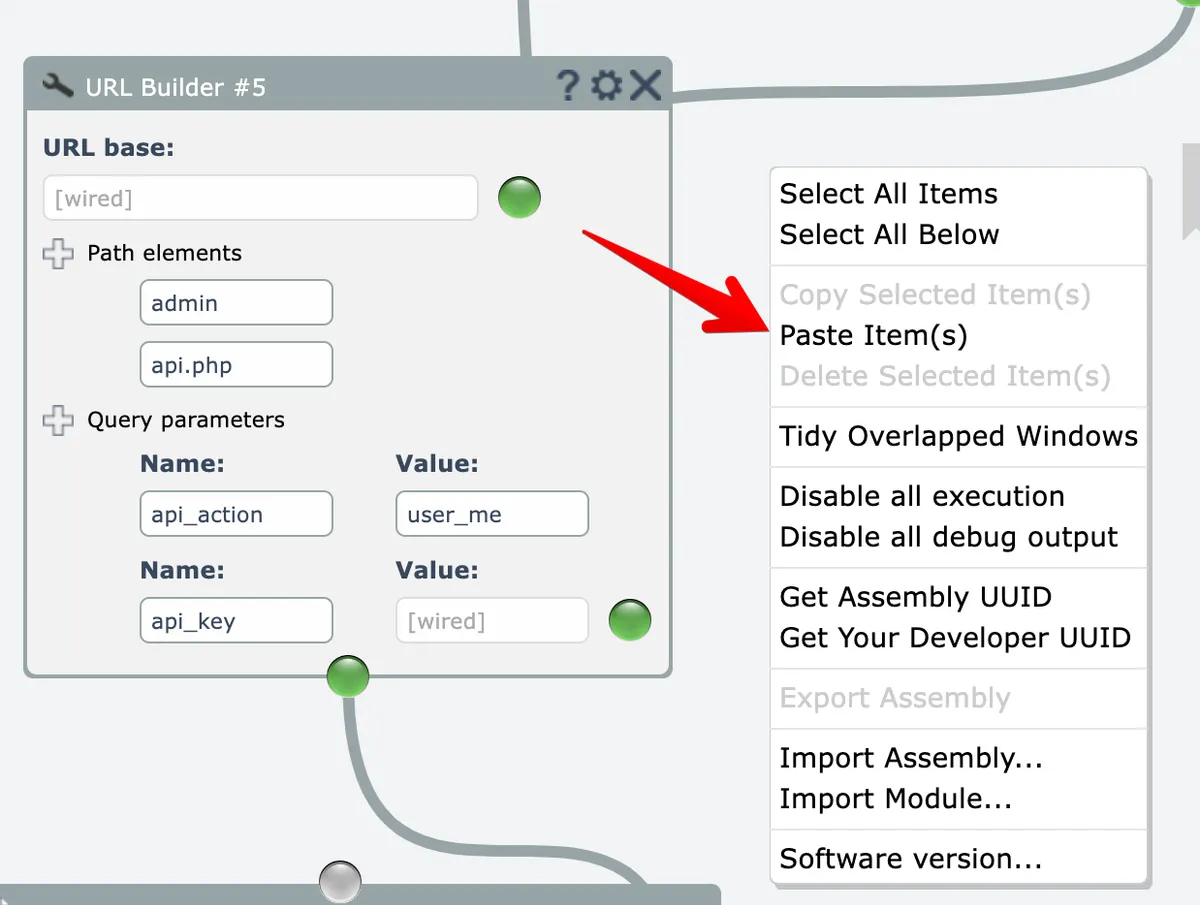
Then at the location where you want to paste the item(s), right-click on the editor's background and choose the Paste option:
Alternatively, the items can be pasted via the Edit menu at the top right:
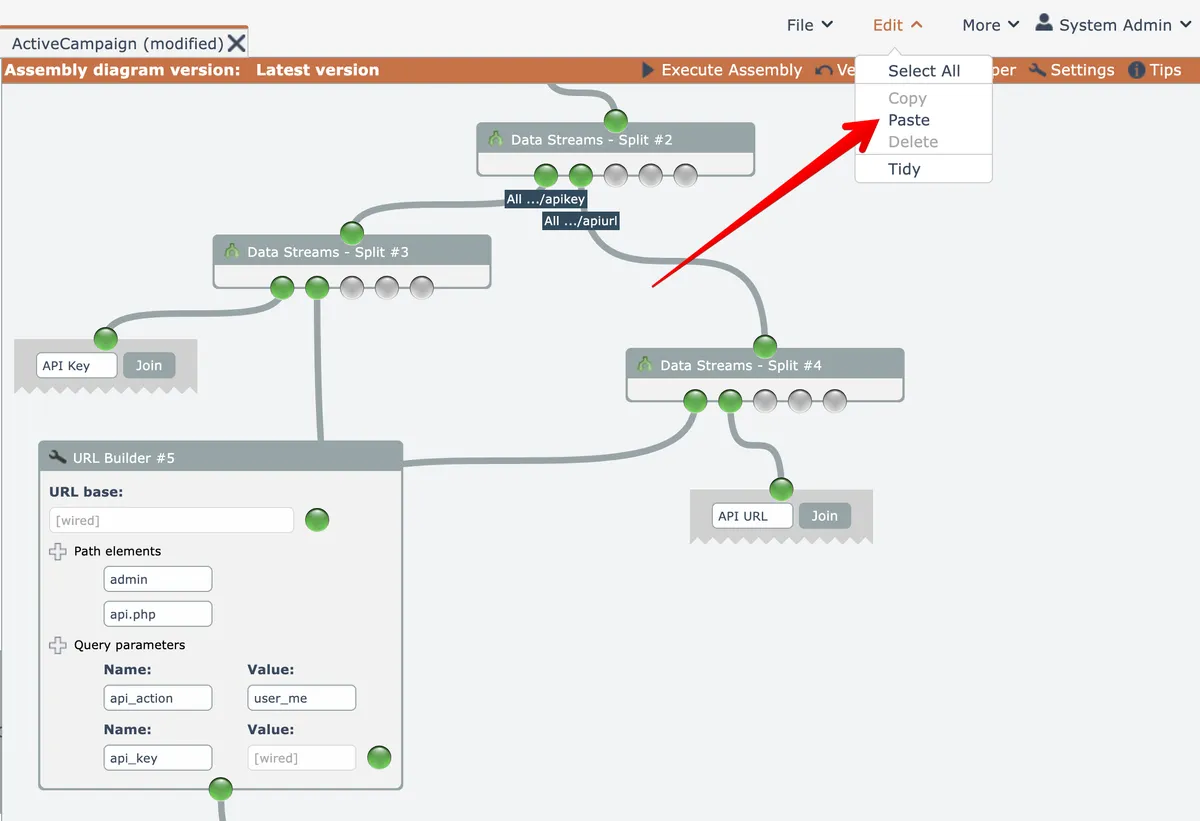
When pasting via the Edit menu, the items are positioned with a slight offset from their original positions.
After pasting, the items are then selected and can be dragged and repositioned as a group.
Pasting can be done into other assembly tabs opened within the same browser tab.
Items cannot be pasted from one browser tab to another browser tab.