
GuidePlatform UI (Fallback)v1
Tidy overlapped items
Resolving overlapped items in assembly diagrams using the automatic tidy feature to reposition elements and allow diagram saving.
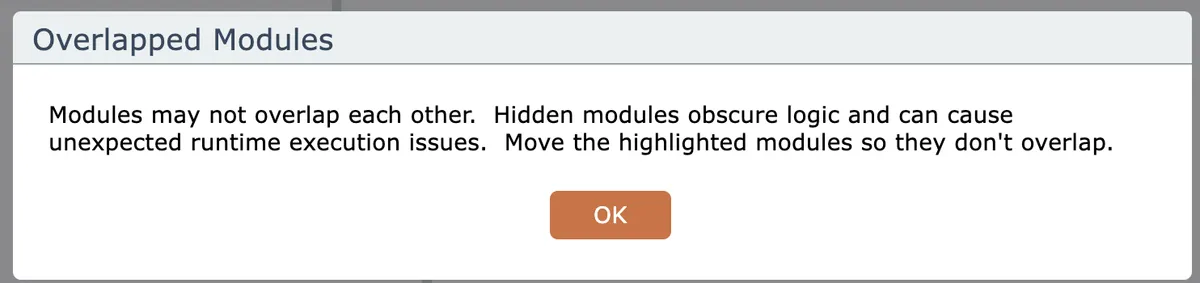
The editor will not allow an assembly diagram to be saved if items are overlapped. An error will be displayed:
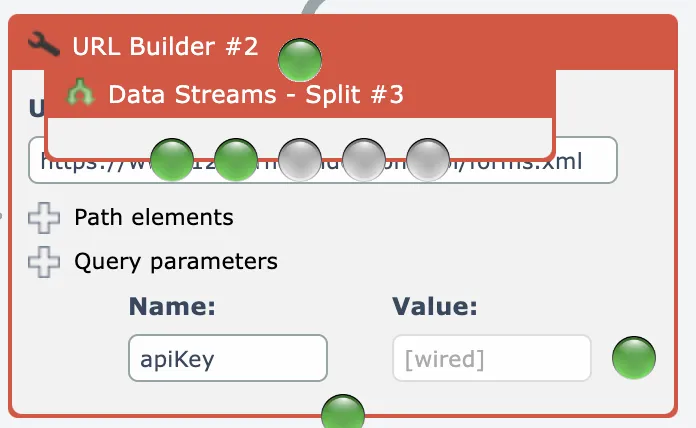
The overlapped items will be highlighted in red and the editor will attempt to make any hidden items appear on top:
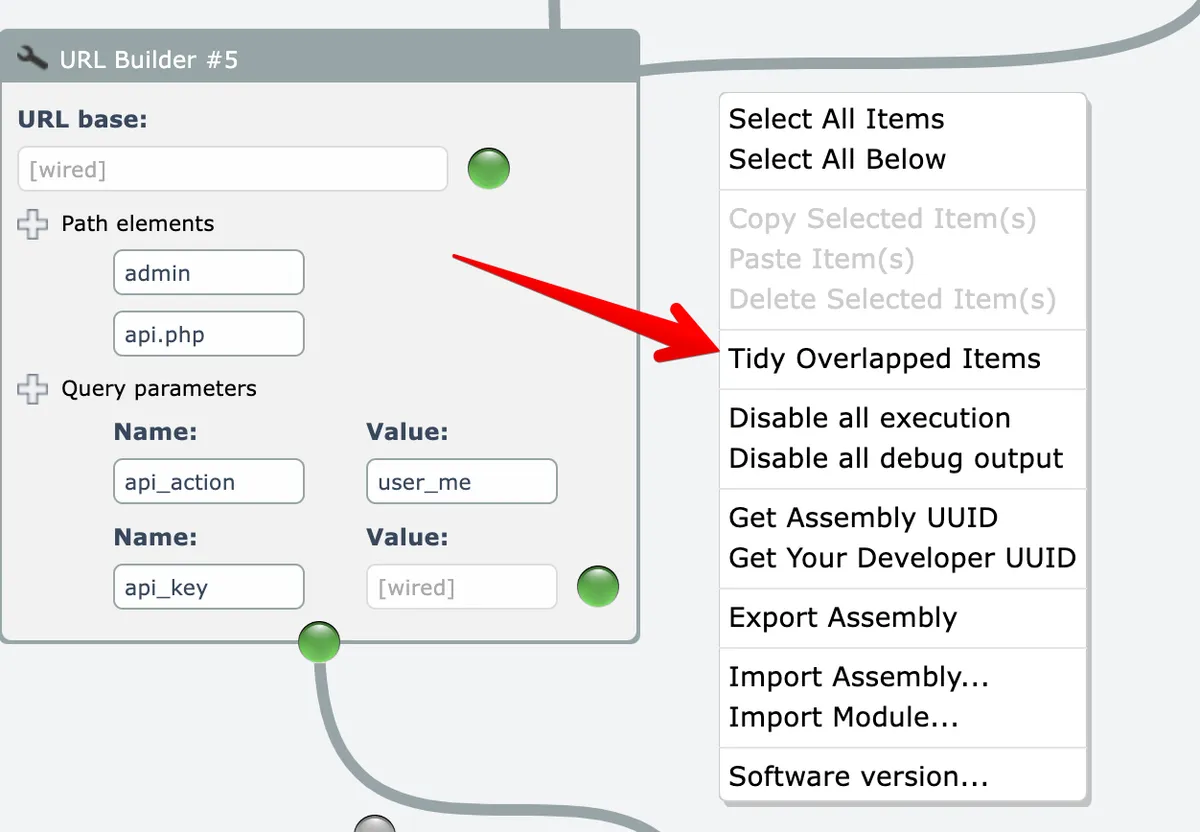
The editor can automatically tidy up any overlapped items by right-clicking on the editor's background and choosing the Tidy menu option:
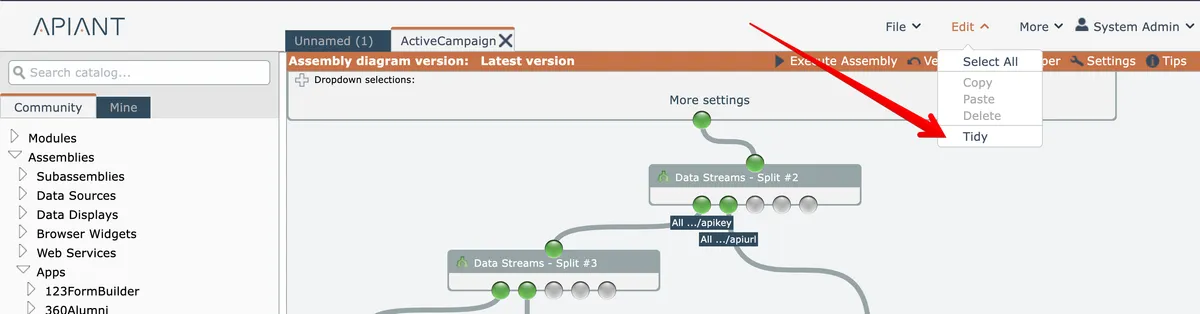
Alternatively, use the Tidy option from the Edit menu at the top right:
Last updated May 4, 2026