
Form Designer
Drag-and-drop interface for building forms with reusable templates, customizable containers, and input elements. Configure form attributes, element names, and layout options through right-side panels.
The form designer is a drag-drop design tool that lets you quickly build forms:
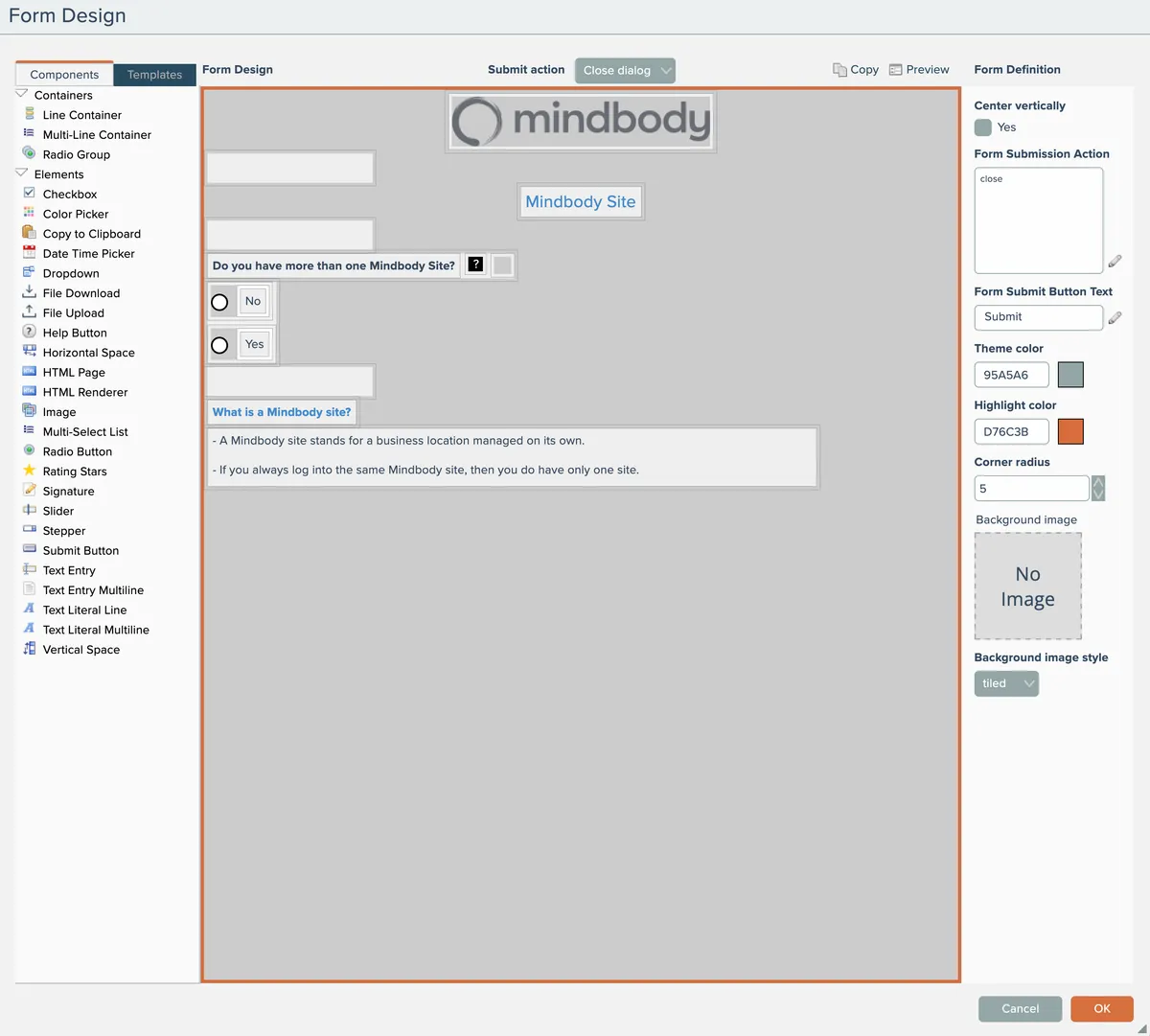
The left-side catalogs contain available form components and templates.
Templates let you re-use previously saved designs either saved by you or by others. See the Form Templates section for more information.
To begin a custom design from scratch, drag and drop one of the container components into the form design area in the middle. Then drag and drop elements from the left side catalog into the containers.
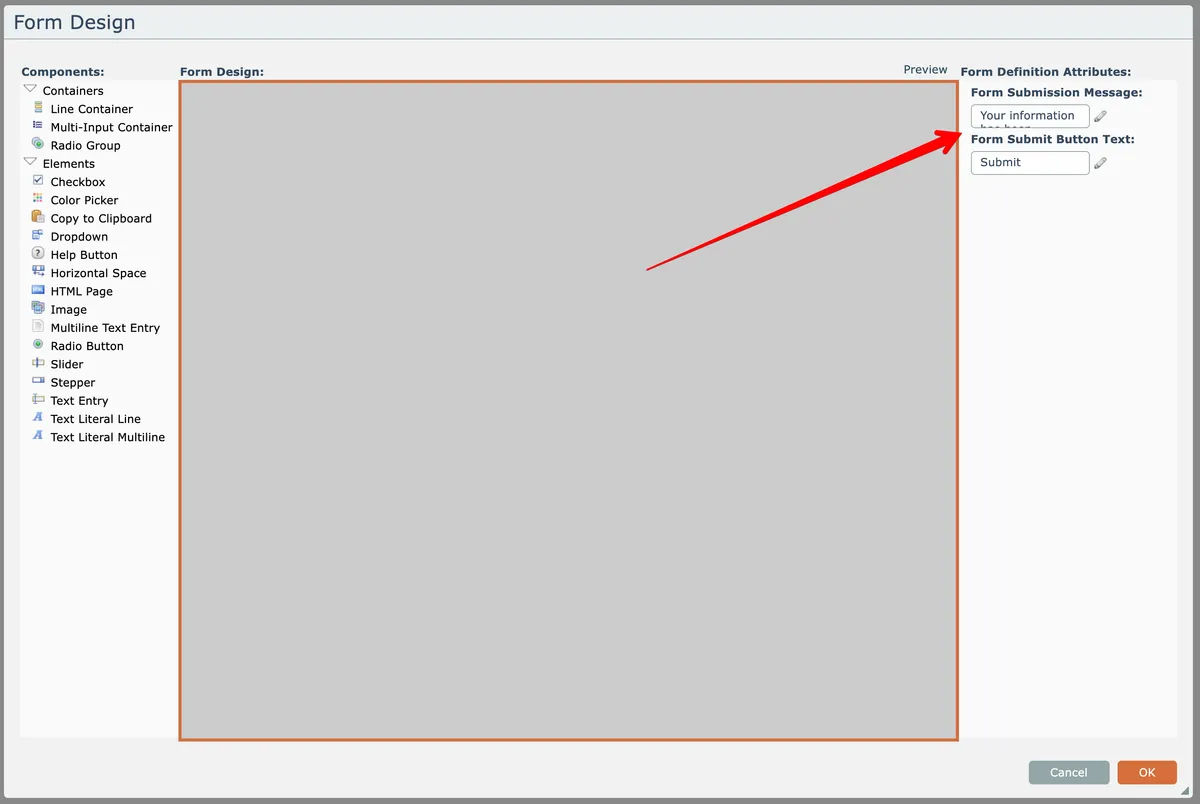
Clicking a container or an element in the design will show that item's attributes on the right side. The design area itself that represents the overall form has attributes for controlling the form submission message text and the text of the default form submit button. Click the form design background to select it and show its attributes:
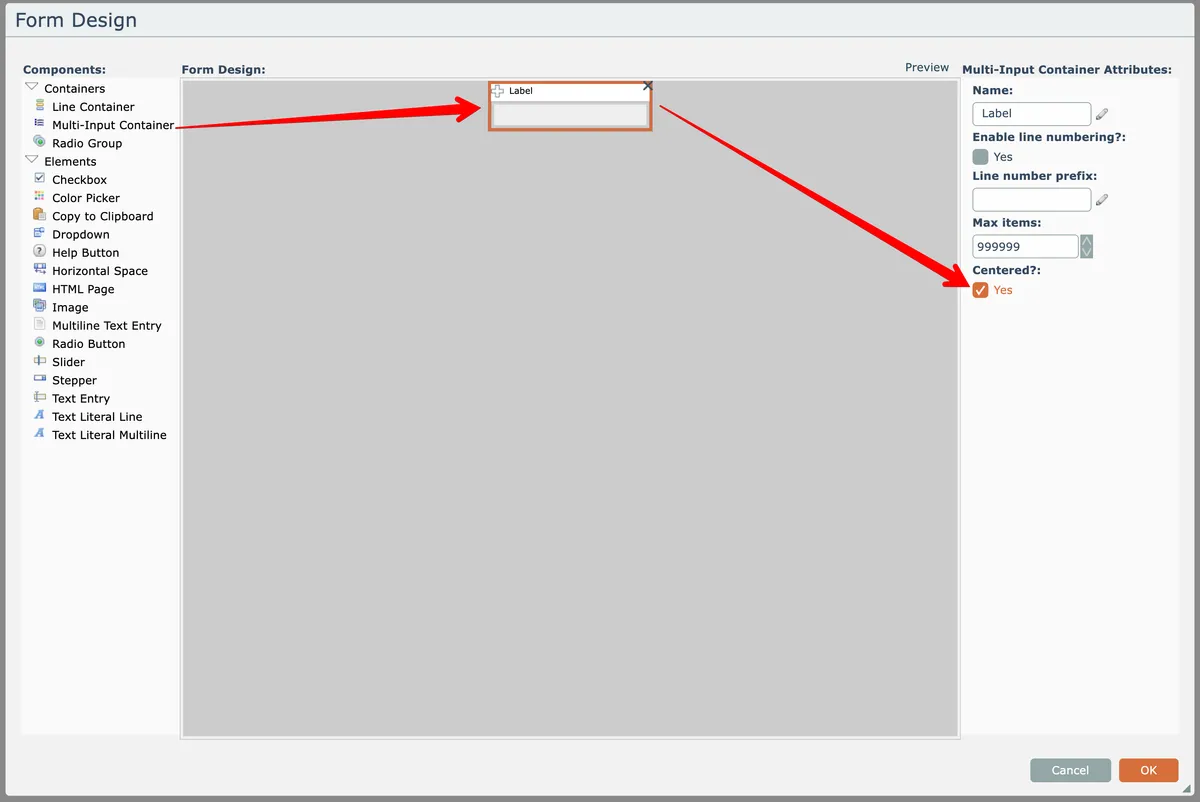
Containers have attributes, such as for centering themselves:
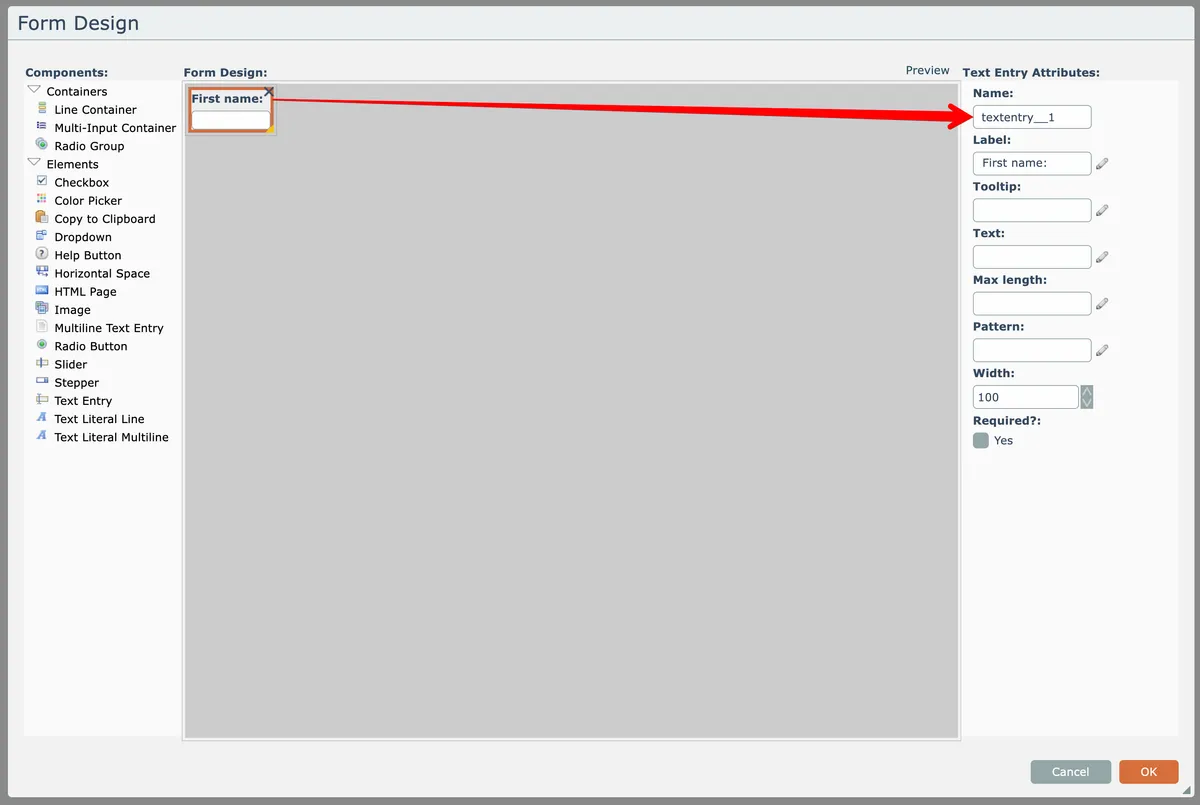
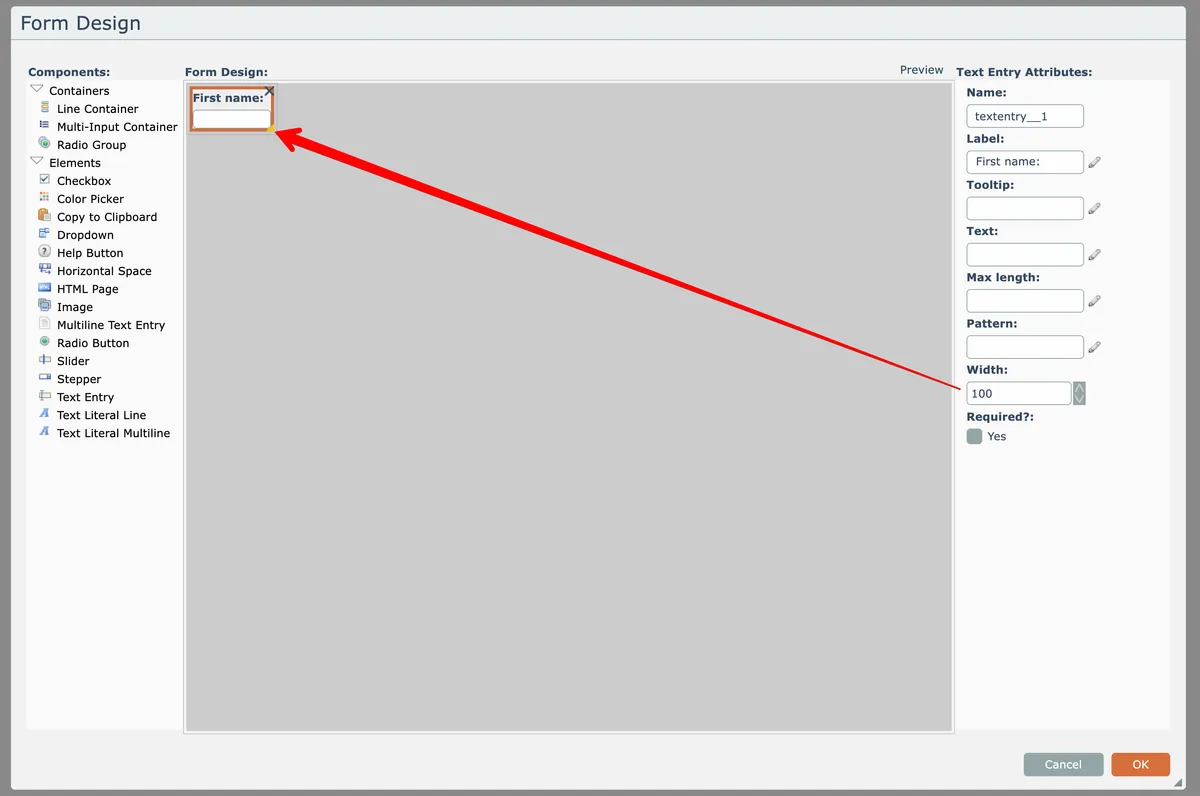
Elements have an attribute for their names. All element names must be unique within a form. The designer will auto-generate a unique name when an element is placed into the design. Generally you will want to rename elements that receive input so you can easily identify them within the automation. In the below case, this field is best renamed to "first_name":
Elements that are resizable have a yellow resize caret icon at their lower right that can be dragged to resize the element:
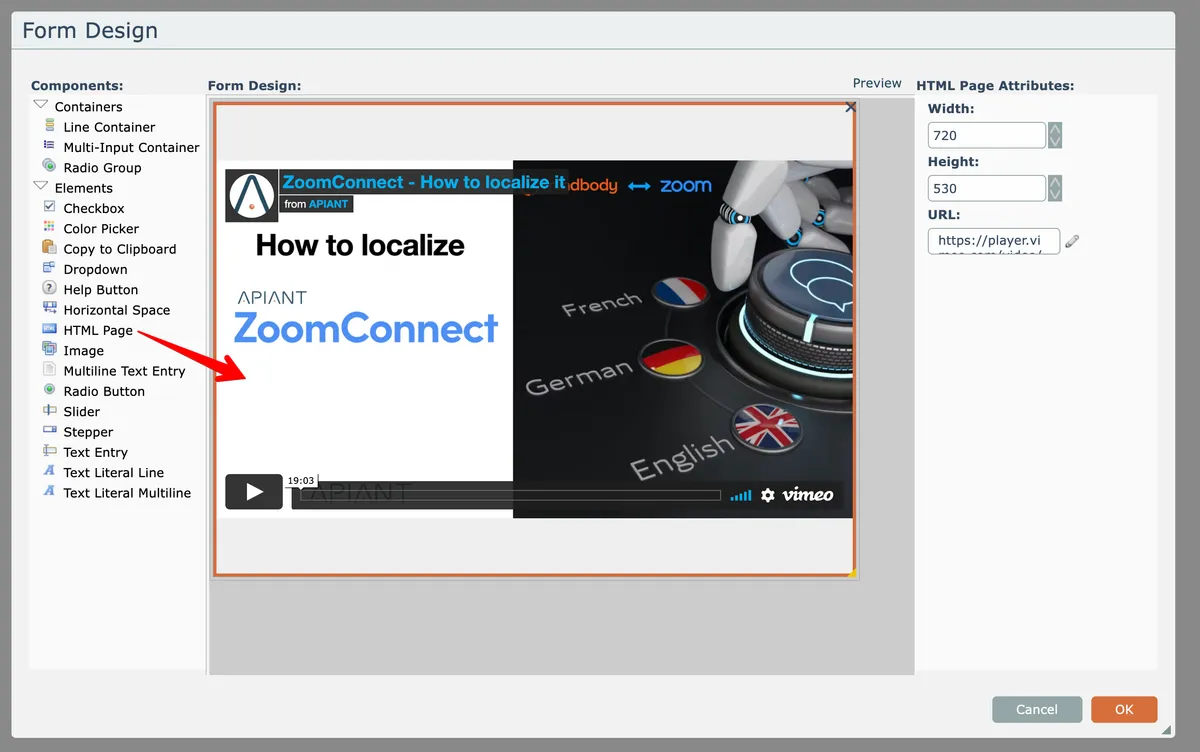
The HTML Page element can render frameable content such as a web page, animated gif, or video:
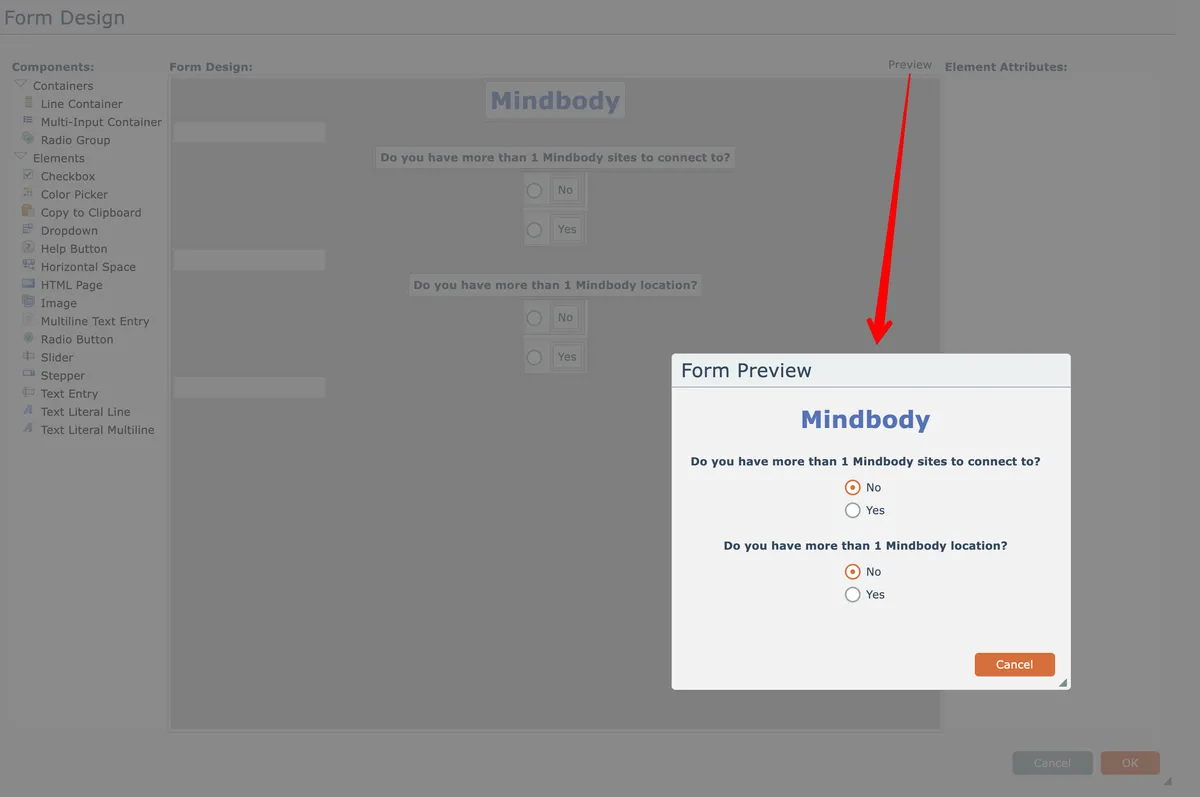
The Preview link at the top right of the form designer can be used to view how the form will be rendered:
Keyboard Controls
When a form element is selected, pressing the Delete key will delete the element.
Pressing the up arrow key will select the item's parent container.
In this section
Cloning Items
Duplicate form elements and containers by using keyboard modifiers during drag operations on Mac and Windows systems.
Form Templates
Reuse form designs by saving and loading templates from a shared catalog, with options to make templates public or publish them across environments.
Submit Button
Configure default and custom Submit buttons for forms, including text customization, styling with highlight colors, and layout options with additional content.