
Form Actions
Creates dynamic forms with data-mapped values and generates unique URLs for distribution. Includes await form submission actions that pause automations until forms are submitted and return field values.
Form actions are where the form is created as an action, which can optionally include data-mapped values to populate the form design with dynamic content. The output from a form action is the unique URL to the form, which is then typically sent to someone via email or some other mechanism. An "await form submission" action pauses the automation and awaits the form submission. When the form is submitted, the automation wakes up, the "await form submission" action emits the submitted form field values, and the automation continues its processing.
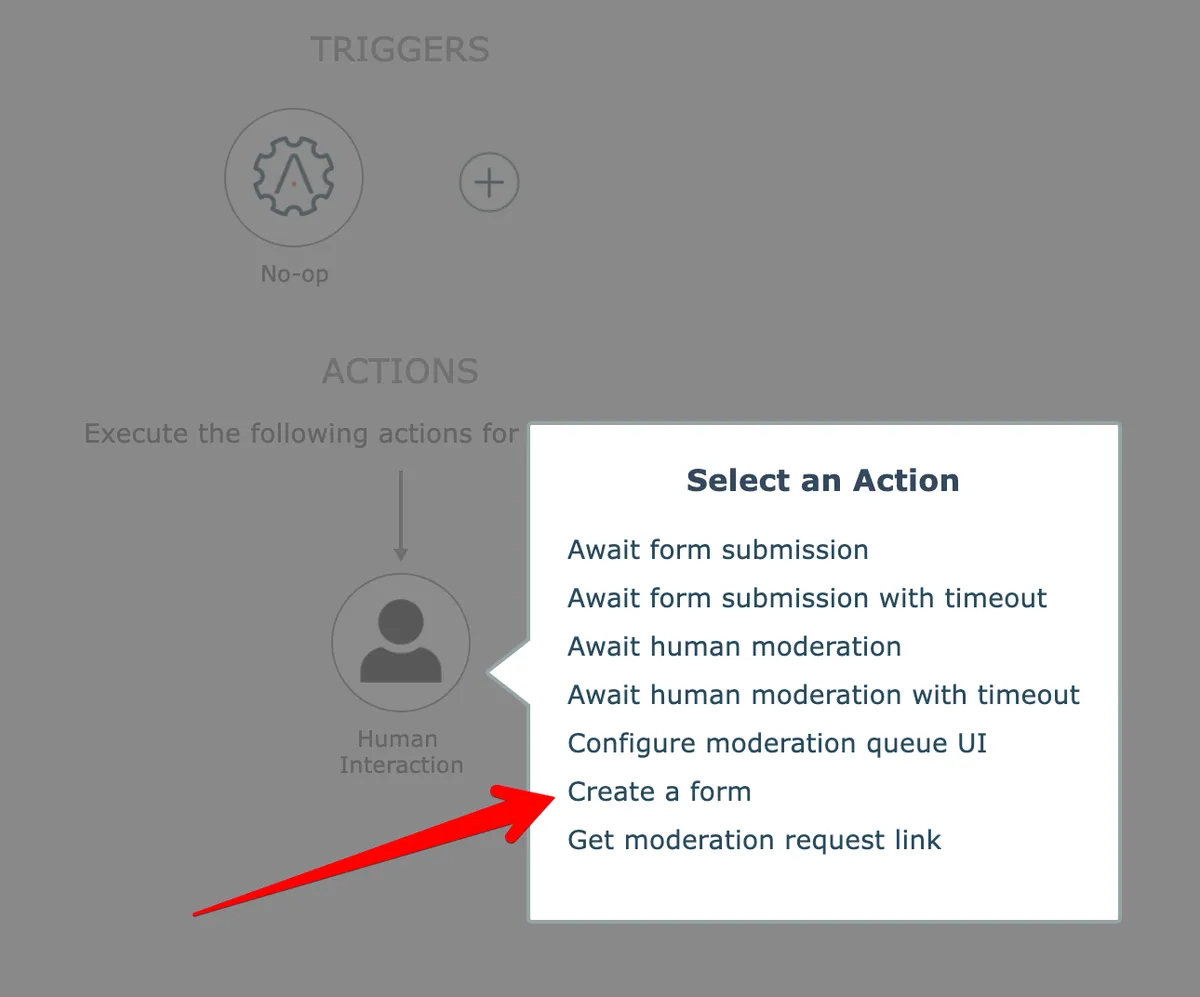
The "create a form" action is found under System Utilities within the Human Interaction app:
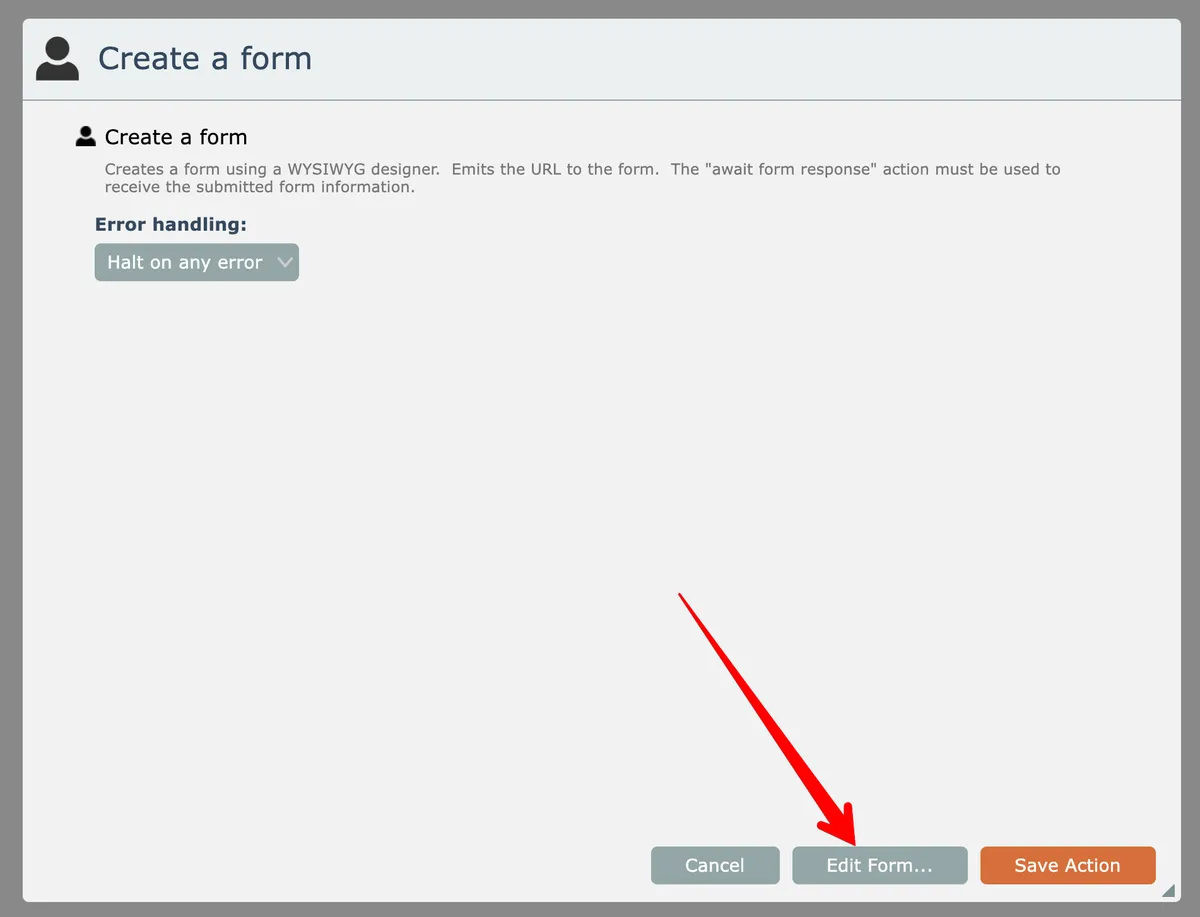
Click the Edit button to open the form designer:
The drag-drop form designer lets you design your form and preview it.
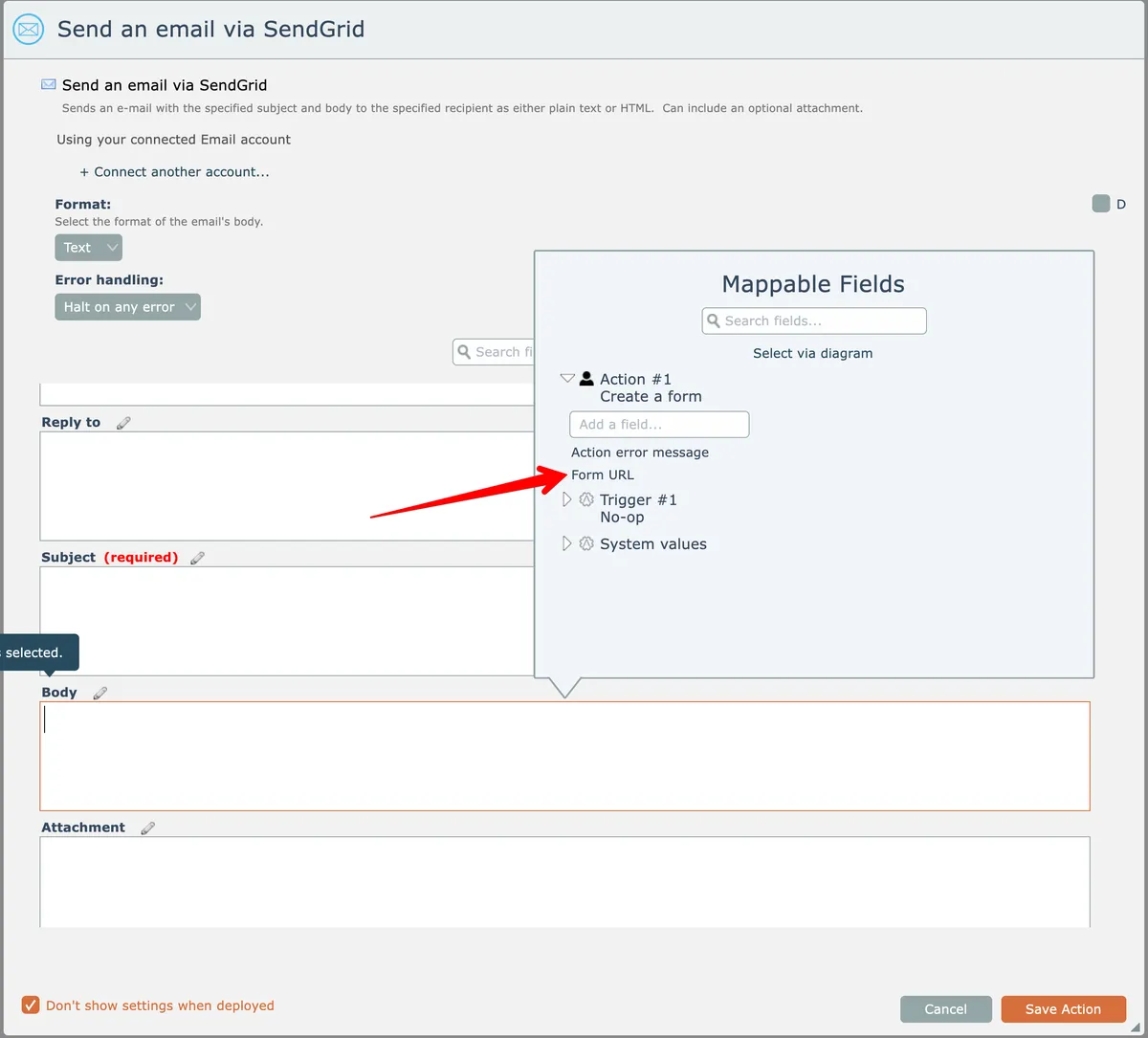
The "create a form" action emits the URL to the form, which is typically sent to someone via another action like email:
The Human Interaction app under System Utilities includes "await form submission" actions that pause the automation until the form is submitted:
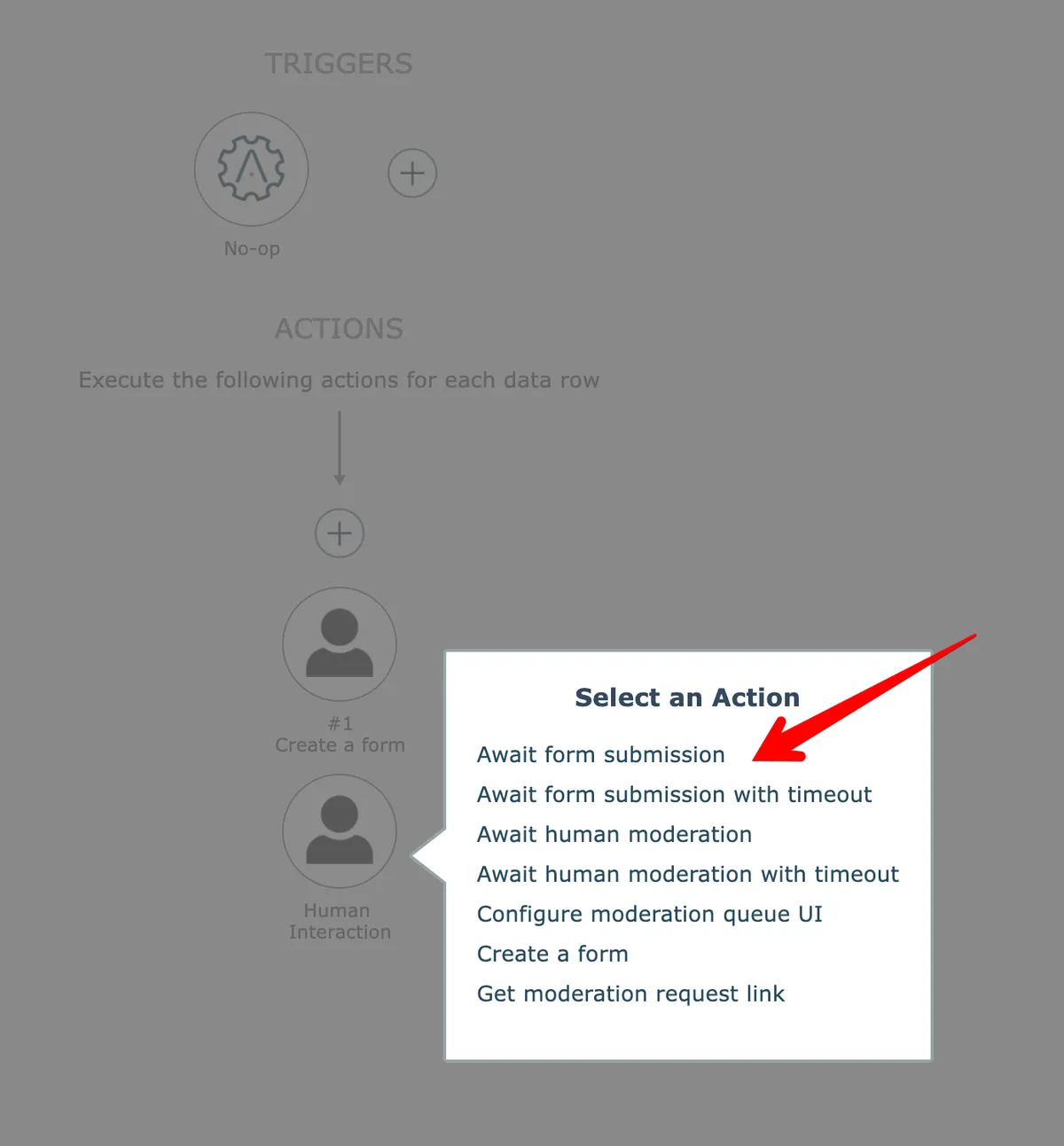
The "await form submission with timeout" action is a variation that will emit an empty form response if no submission is received within the specified amount of time.
The "await form submission" action is automatically associated to the closest preceding "create a form" action. It is ok to place other actions in between the "create a form" action and the "await form submission" action (and generally it is required in order to send the form URL to someone), but generally you want to keep these two actions close to each other so it is readily apparent that these two actions are associated with each other.
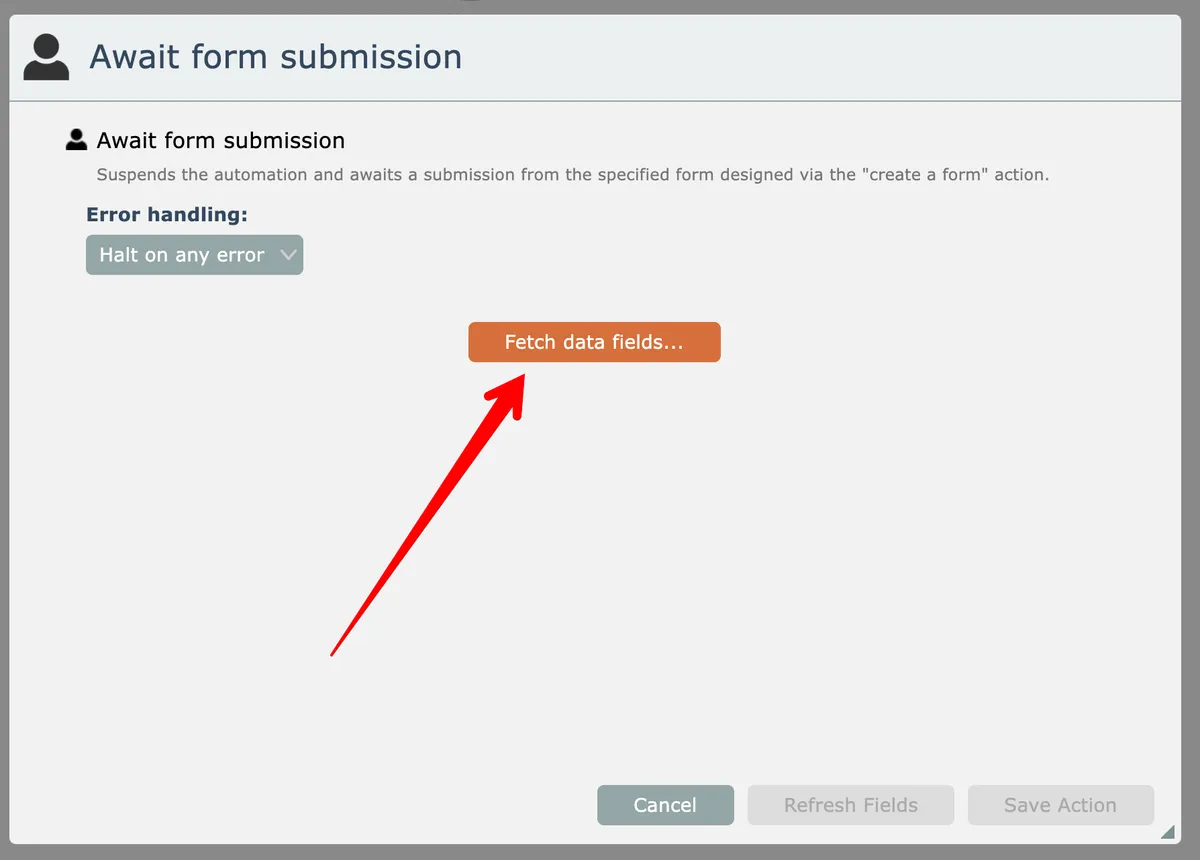
After adding the "await form submission" action, the form's fields must first be fetched:
Dynamic Inputs
The form's data fields can optionally be pre-populated with information, including dynamic data-mapped values:
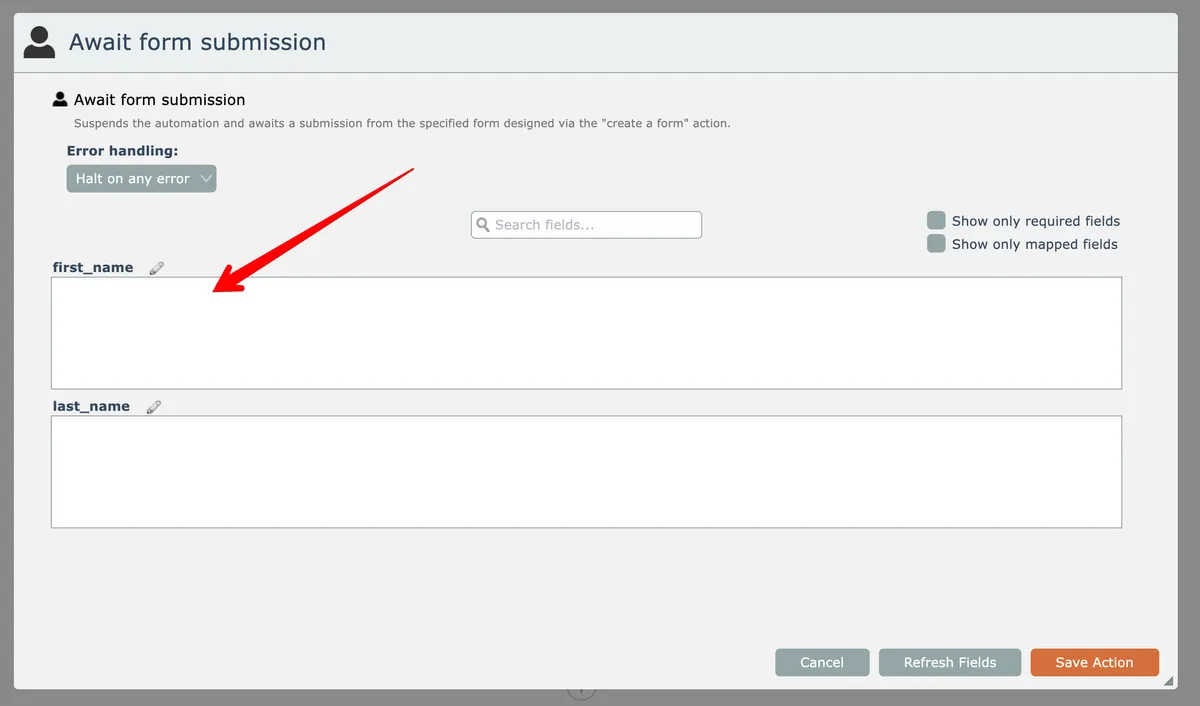
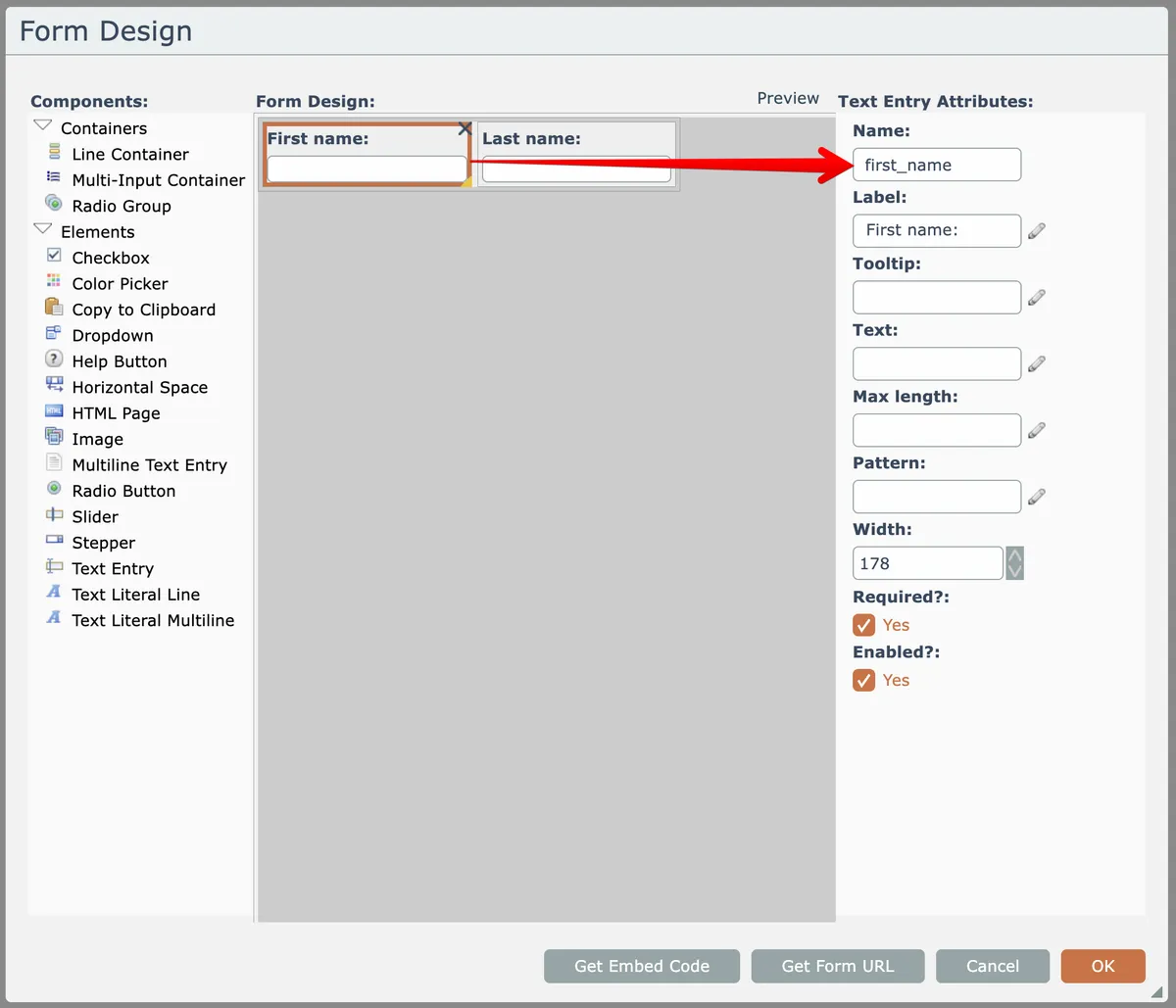
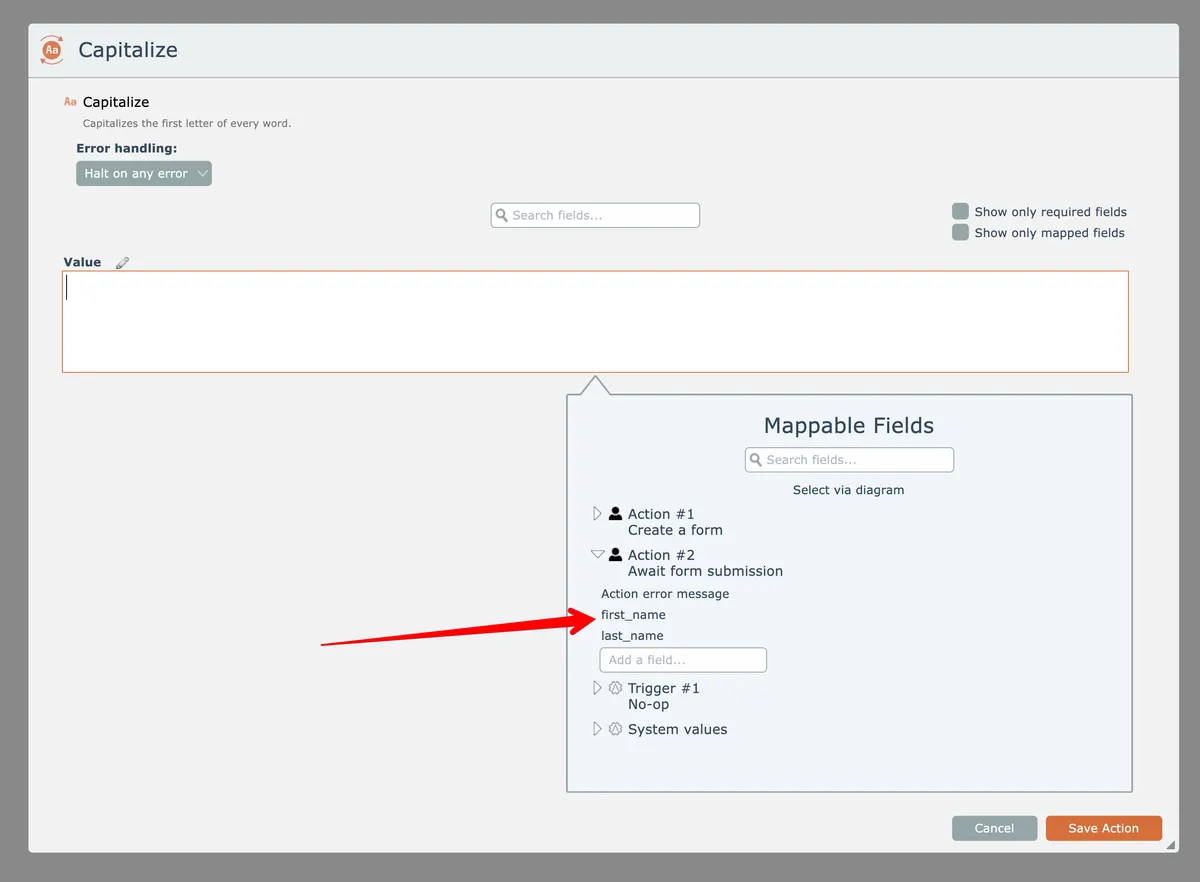
The input field names come from the UI elements within the form. For example, in the previous example the "first_name" field comes from this text entry field's name in the design:
If no input values are entered for the form's fields, then the default values in the form's design will be used when the form is opened.
If the UI element is a dropdown control and an array of values is mapped to it, the dropdown will display the array as the selectable choices in its pick list.
To send array data into a form for display, see Array Data.
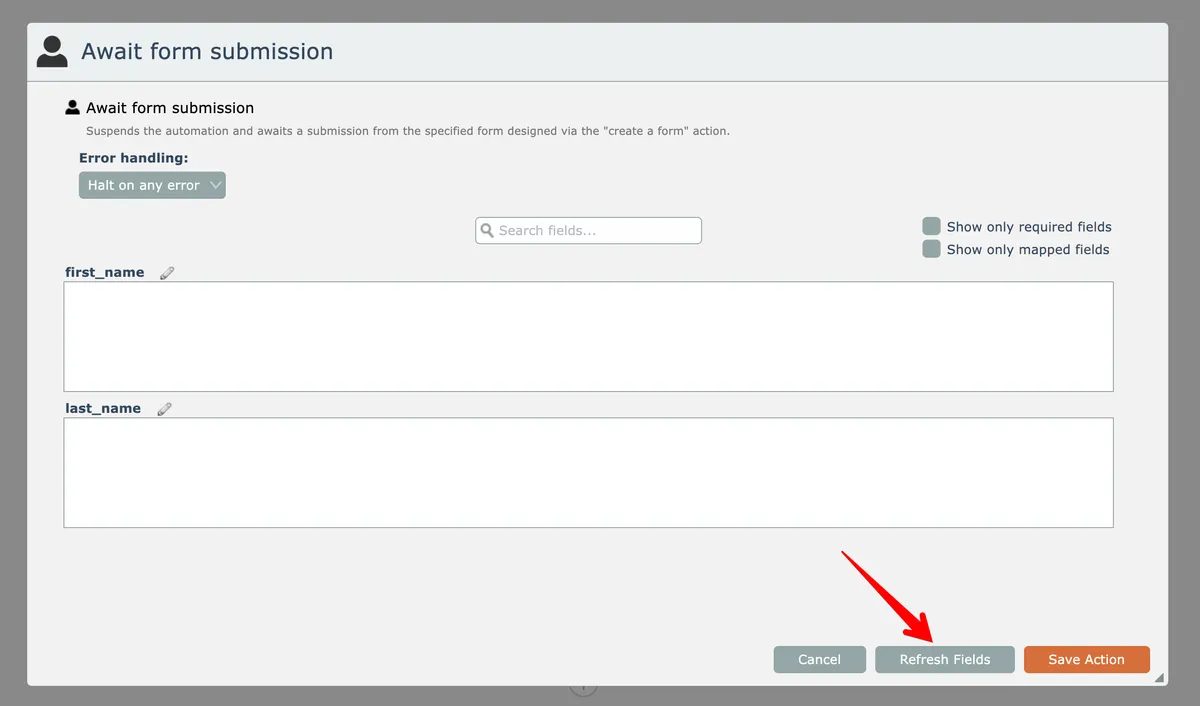
NOTE: any time the form design is edited, the corresponding "await form submission" action must be opened and the Refresh Fields button must be clicked and the action saved in order for the revised form fields to be processed!
When the form is submitted, the automation wakes up and the "await form submission" action will emit the form field values, which can be mapped to other actions:
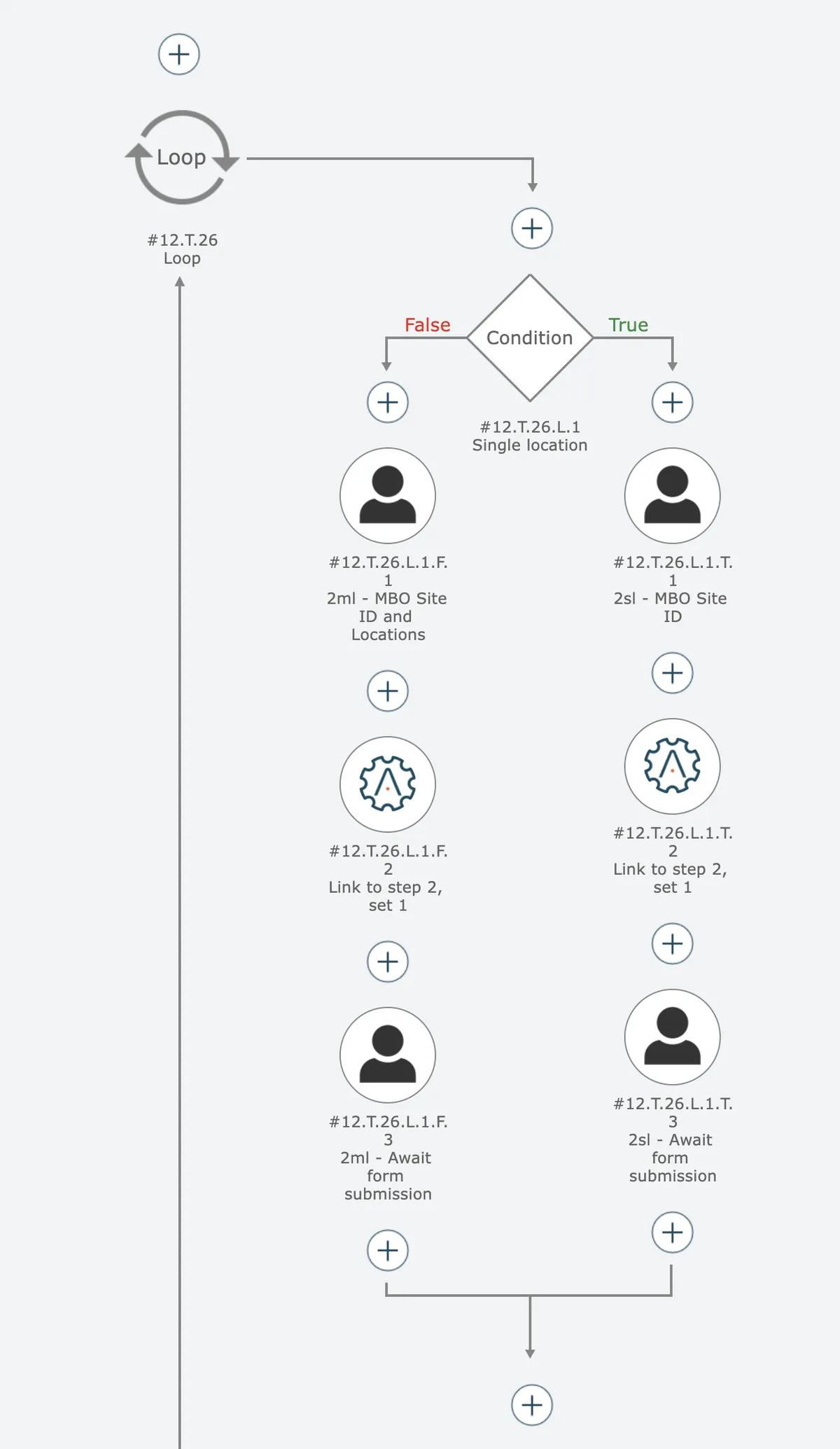
An automation may contain multiple forms, allowing complex workflows to be created where different forms with varying dynamic content are generated based upon previously received form submissions:
In this section
Array Data
Configure forms to receive and display array data by mapping arrays to multi-input containers with line items that render each element.
Dynamic Lists
Populate Dropdown and Multi-Select List elements with dynamic values from automation arrays at runtime instead of using static predefined options.