Form Templates
Reuse form designs by saving and loading templates from a shared catalog, with options to make templates public or publish them across environments.
Templates let you re-use previously saved designs either saved by you or by others.
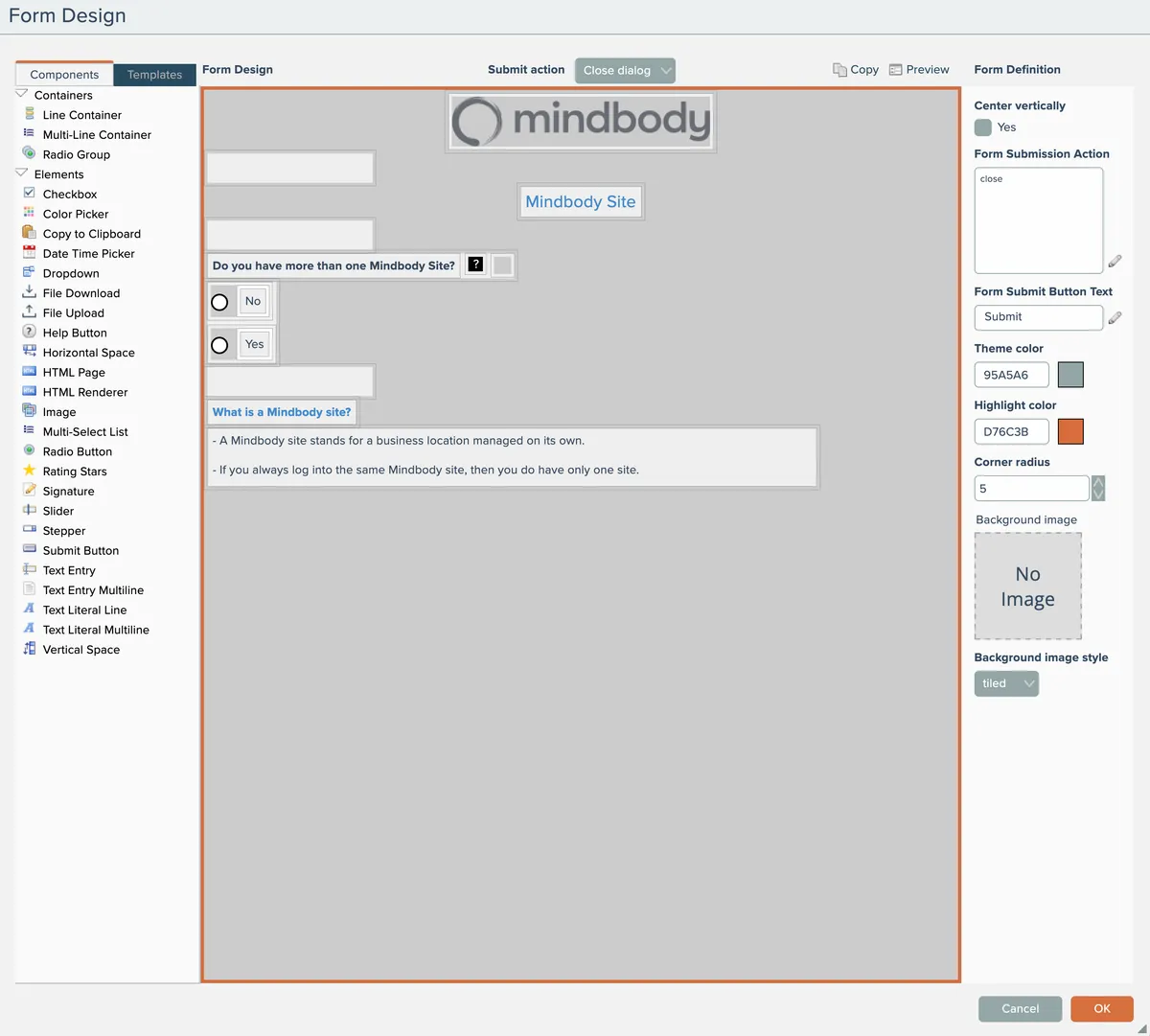
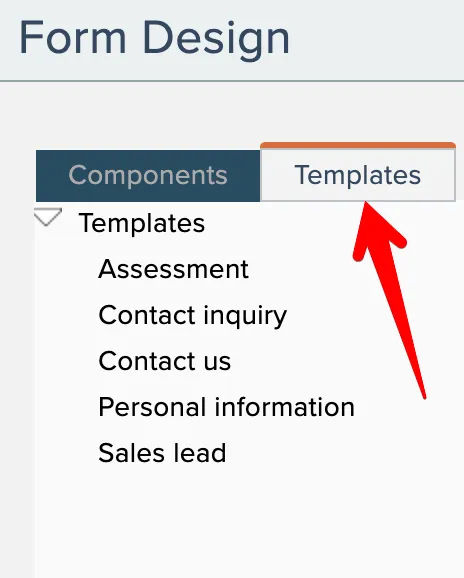
Select the Templates tab at the top left of the designer to view available saved templates:
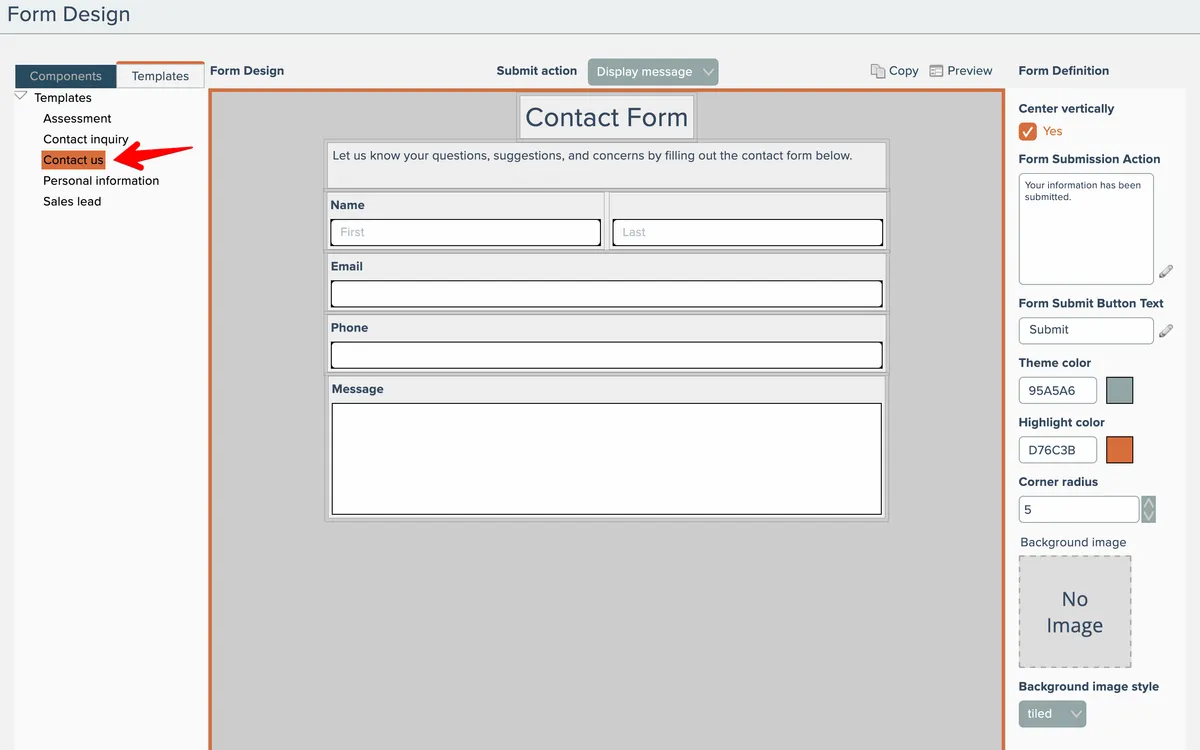
Click a template from the catalog to open it:
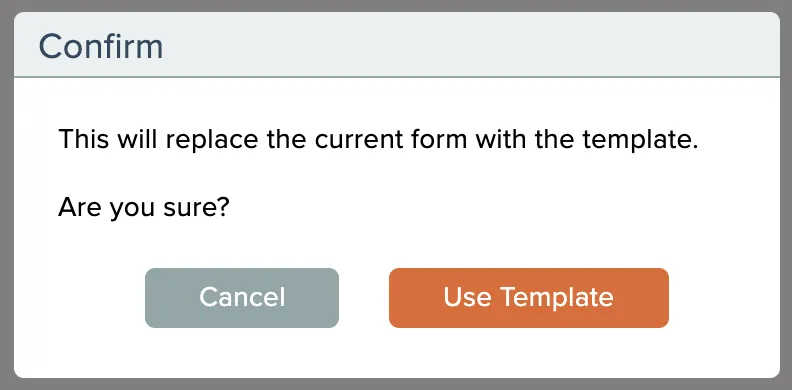
Opening a template will replace the entire design in the editor. If you already have a design loaded, the editor will confirm that you want to replace the existing form design with the selected template:
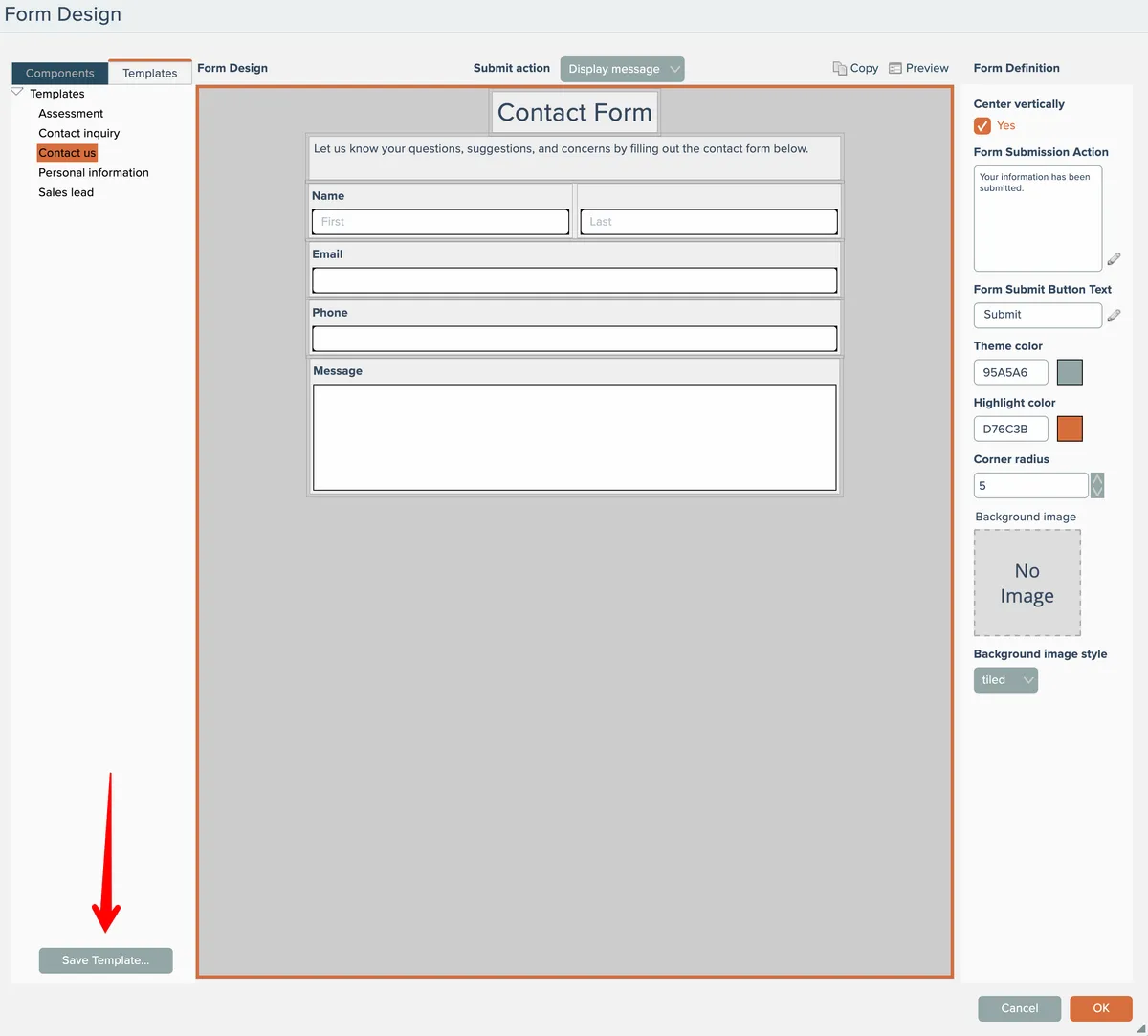
You can save your own form template designs. Click the Save Template button at the bottom left:
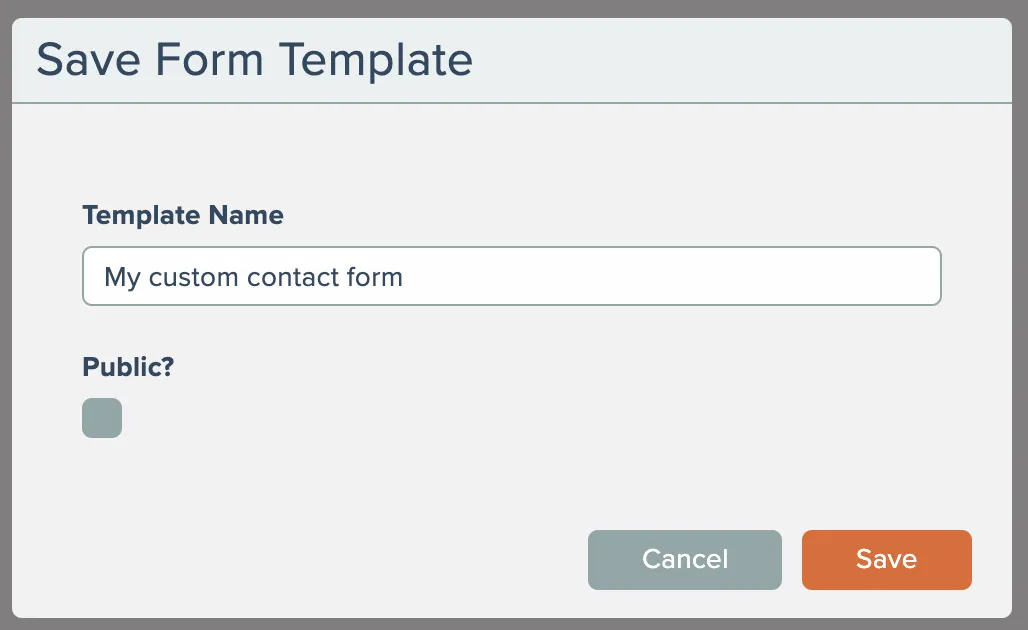
Give your template a name. If your account has permission to save public content, you can also choose to make the template public in the catalog:
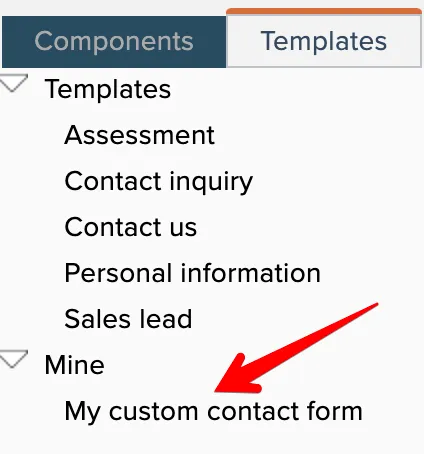
Your saved template will then appear in the catalog under a separate section named "Mine":
Public form templates on a development system can be published to production systems.
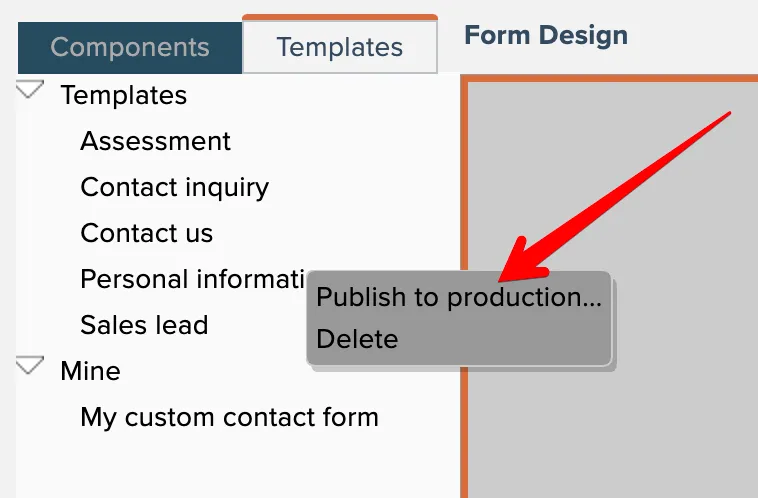
Right-click on a public form template and choose the Publish option:
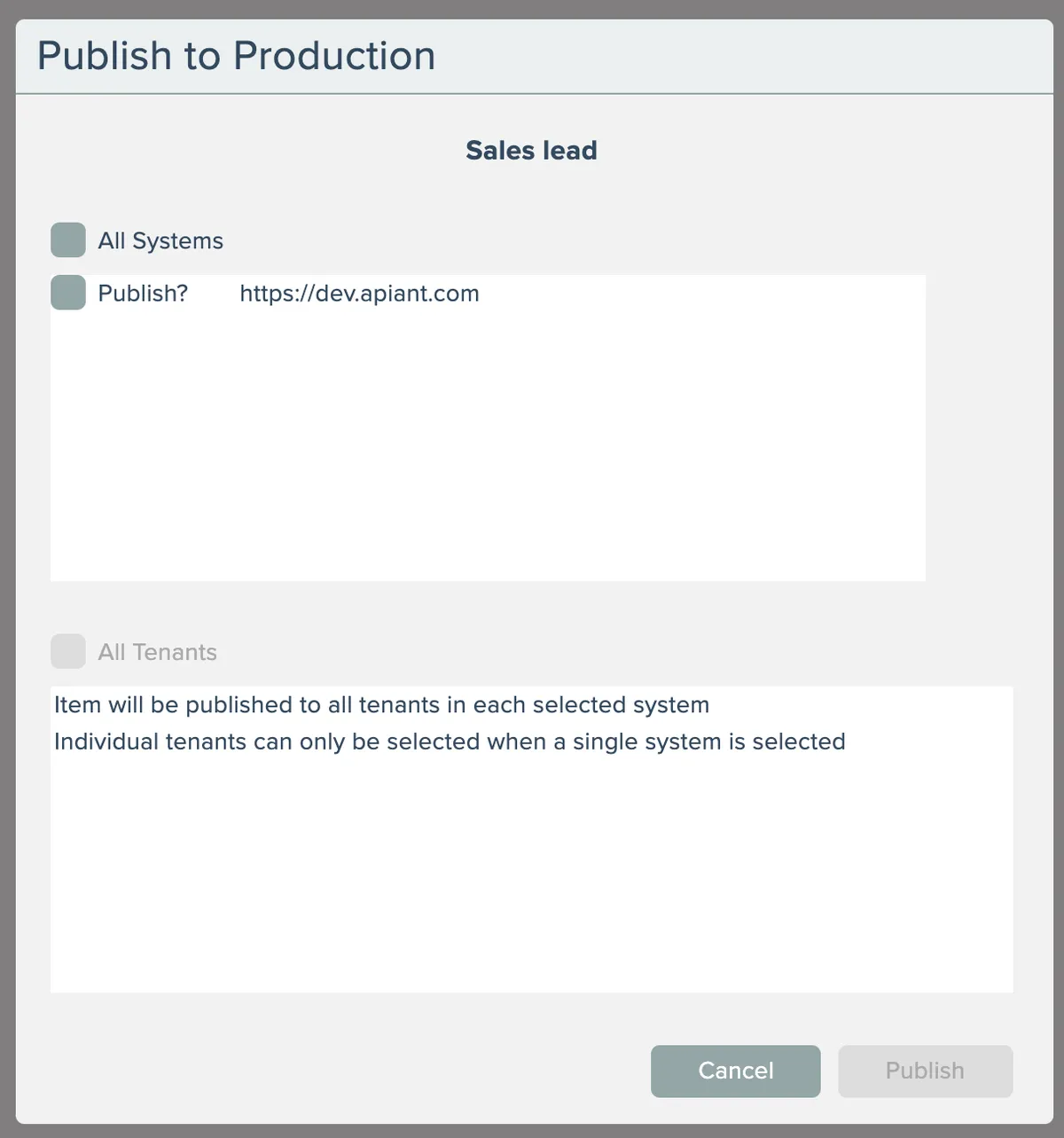
Then select the destination system and tenant(s):
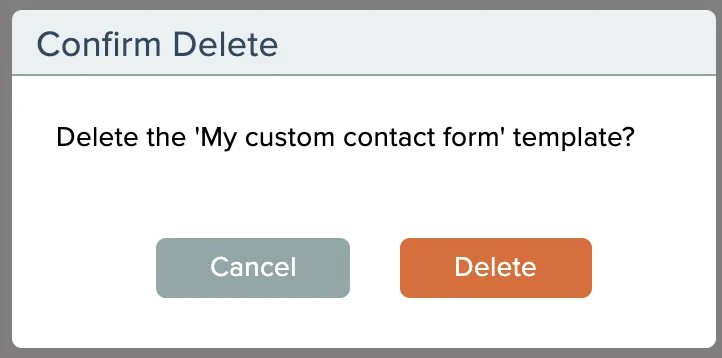
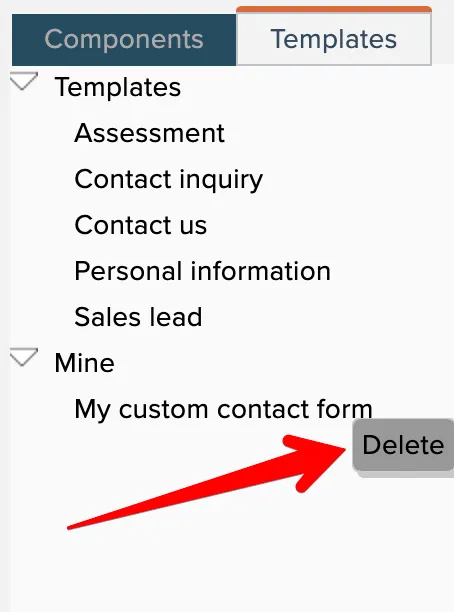
To delete a saved form template, right-click the template in the catalog and choose the Delete option:
Then confirm the delete: