
TutorialAPI Appsv1
Recovering after a Zoom outage
Reconnect your Zoom account to APIANT and refresh upcoming meetings after a Zoom outage or dropped connection.
After a Zoom outage or a dropped connection, reconnect your Zoom account to APIANT and refresh your upcoming meetings so no bookings are missed.
Reconnect your Zoom account
- Log in to your master Zoom account.
- Log in to your APIANT account.
- Go to your APIANT Dashboard.

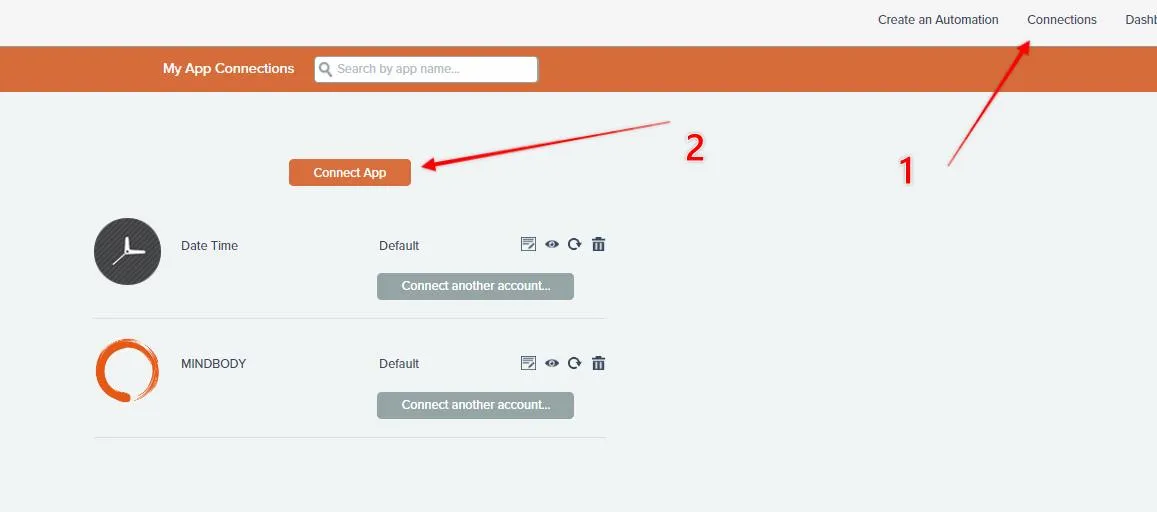
- Open Connections.

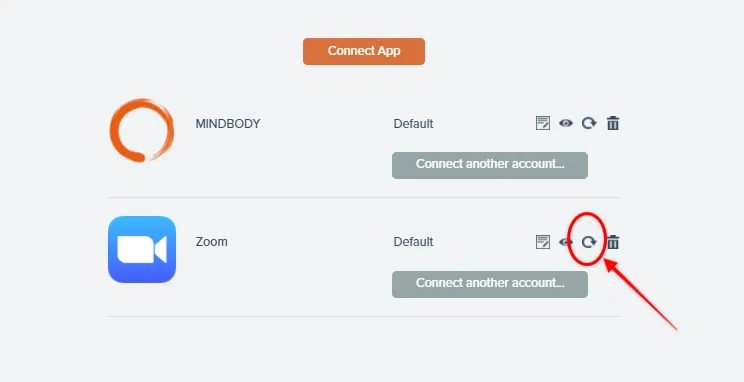
- Click the refresh icon on the Zoom connection.
- Choose your connection type and authorize access to your Zoom account.
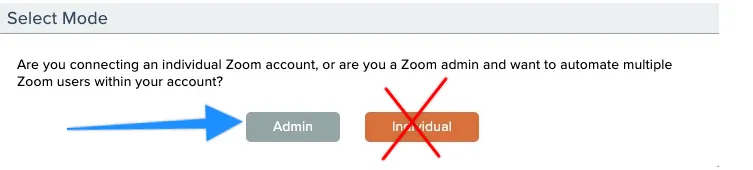
- Choose the Admin connection type.
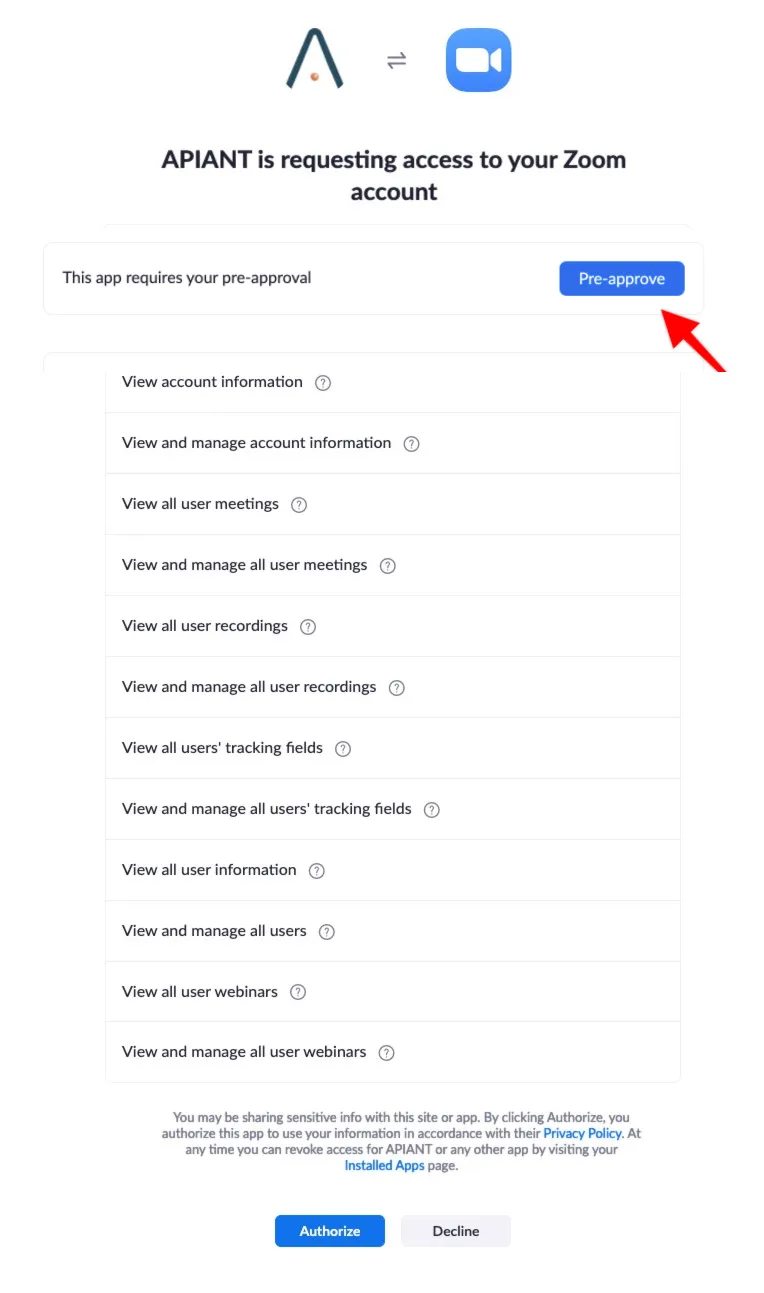
- If prompted, click the blue Pre-Approve button.
- The Authorize button becomes active after that — click Authorize.
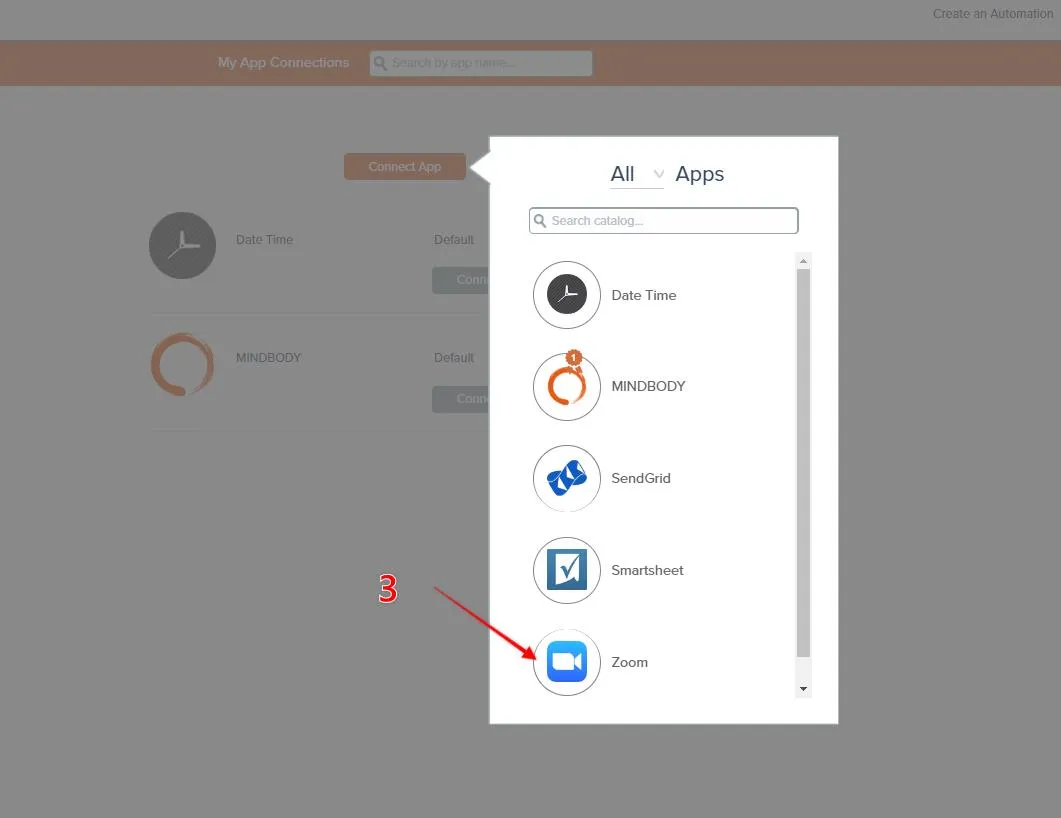
- If the reconnect doesn't work, add the Zoom connection again — follow the two steps below, then repeat from step 6 above.
Refresh your upcoming meetings
Once reconnected, check your Zoom meeting list in your Zoom account:
- Make sure everything for the next 24 to 48 hours (depending on your account settings) is present.
- Add the Zoom Meeting BOT to the remaining classes for today and tomorrow to refresh the registrant list. This re-registers anyone who signed up during the outage.
- Consider adding yourself to a class so you receive the scheduled email and can confirm it went out. If you don't receive it, add the Send Client Emails BOT.
Related BOTs:
Related docs
Last updated June 11, 2026