
Manually refresh classes
Trigger an immediate synchronization of Mindbody class changes to Zoom meetings using the Refresh Classes option, bypassing normal automation delays and addressing system issues.
There may be times when you need to be able to force your automations to refresh themselves so that Zoom meetings are created and updated immediately.
Some scenarios when this may be desired:
- Ther "Zoom meeting" BOT is not working due to Mindbody system issues
- Class cancellations can take up to 60 minutes to be reflected in Zoom (and there is no BOT that can refresh cancelled classes)
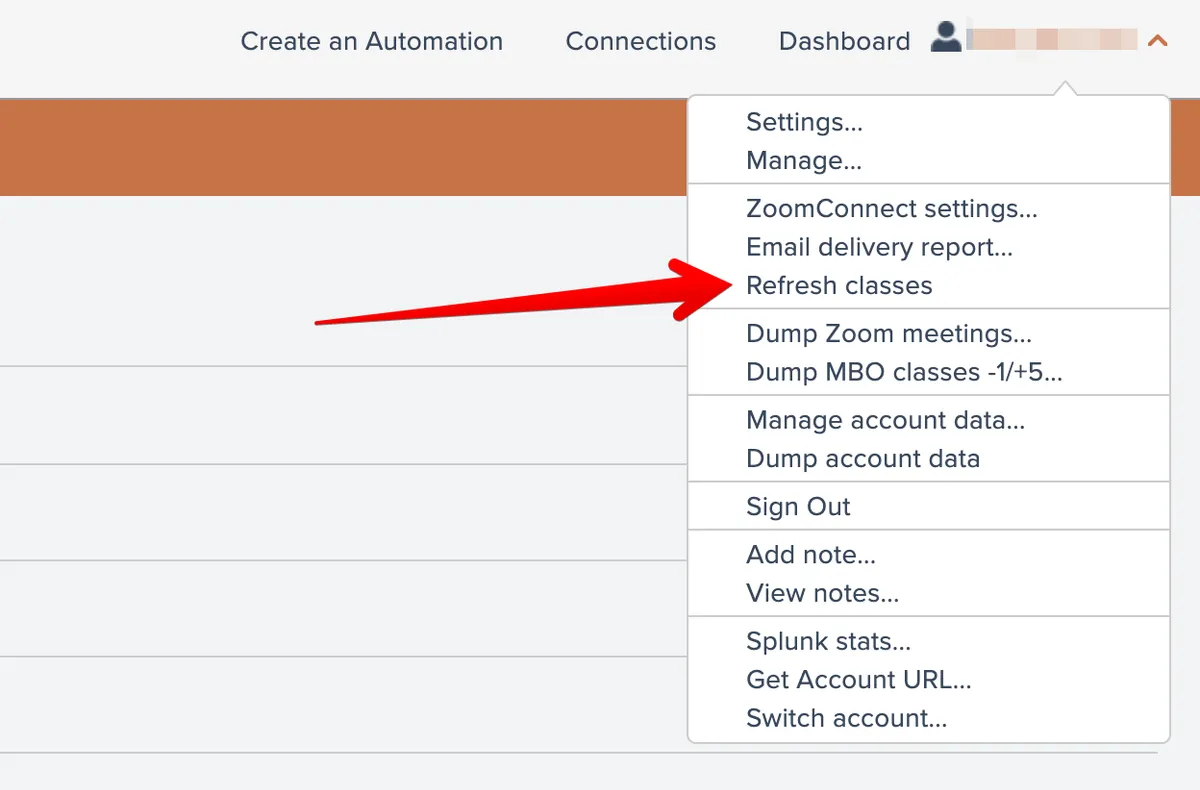
To force an immediate refresh of your Mindbody changes in Zoom, you can use the "Refresh Classes" menu option found under your account menu at the top right:
This runs an automation immediately. You can watch it do its processing if you like:
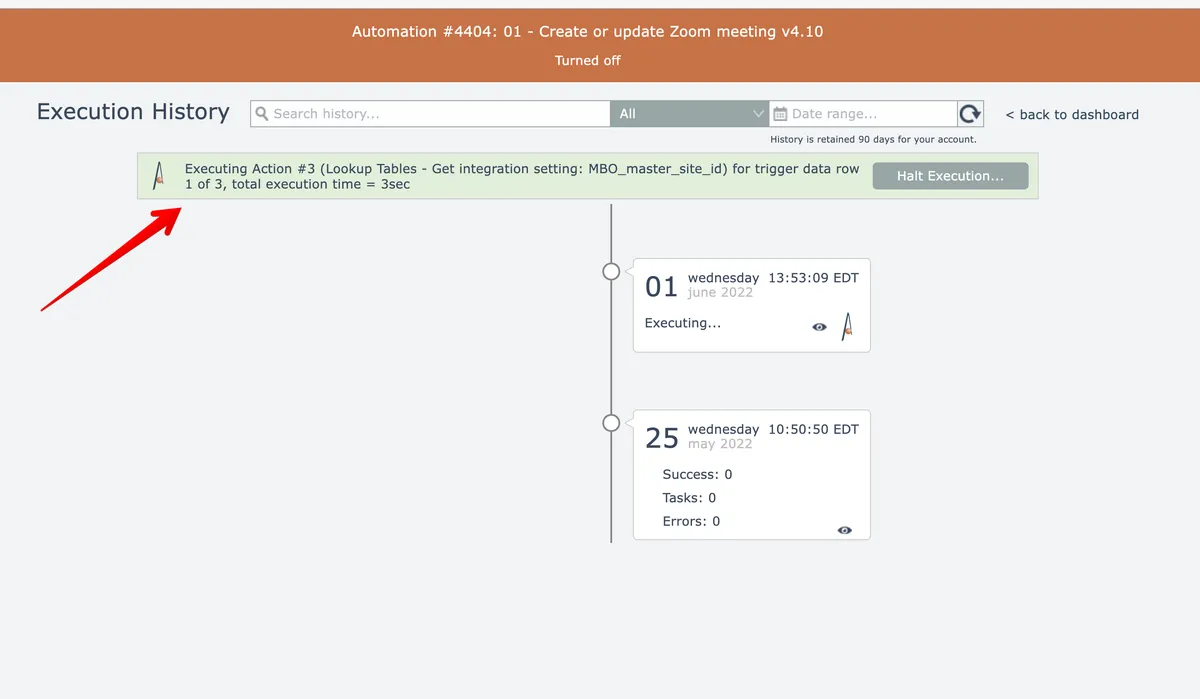
After it completes, you can check your Zoom meetings to verify that the refresh worked as needed.
If you need further help, Contact APIANT support