
Action Assemblies
Structuring actions with input modules, data formatting, API invocation, error handling, and output modules to process external system requests within automations.
AI can now build these assemblies for you via Claude Code + the APIANT plugin. See Get started.
Action Input
All Action assemblies begin with an Action module that defines input data fields for the action to process:
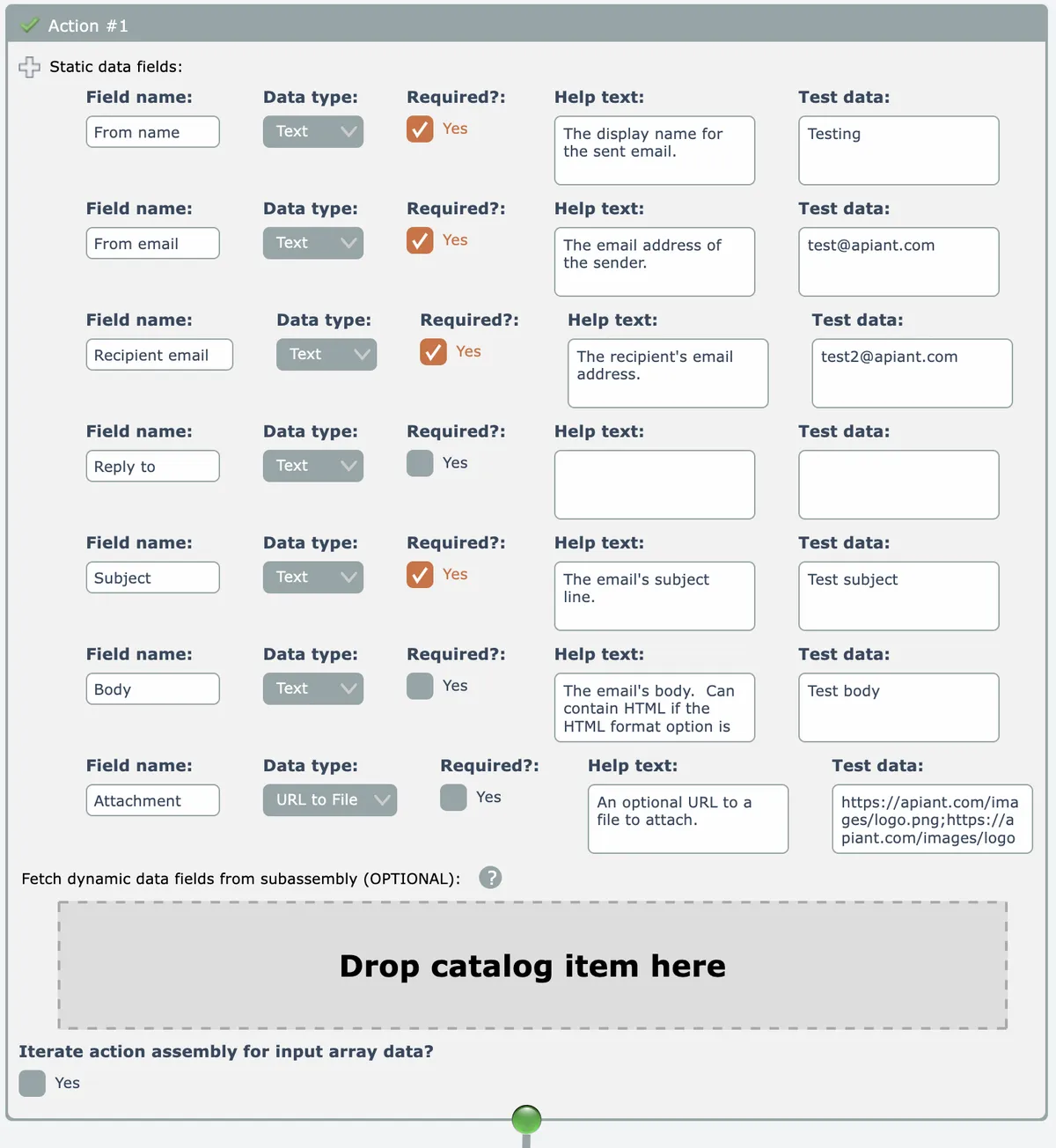
Static input data fields can be typed into the module and configured manually. Generally this is only done when the action has a relatively small number of input fields.
Dynamic data fields can be loaded from a nested subassembly.
As an example of when dynamic fields must be loaded, consider a spreadsheet action to write a new row. The action doesn't know which columns are available until the sheet is inspected via the API and its columns are determined.
Rather than keying in and configuring a lot of static data fields by hand, you can create a subassembly and use the Data Streams – Create From Text module to configure the fields from static XML data, which can be easier to create.
The outputs from the Action module are then typically formatted for sending to the API. The JSON Builder and XML Builder modules can be helpful for formatting simple API payloads. Complicated JSON/XML formatting usually requires custom coding via the Extension – Server-Side Script module.
Once data is formatted in the manner needed, the API is invoked via the HTTP or OAuth Transaction modules, or one of their variants.
Action Error Handling
After invoking an API call, the action should check for any error conditions and raise a fatal error if the API call was unsuccessful:
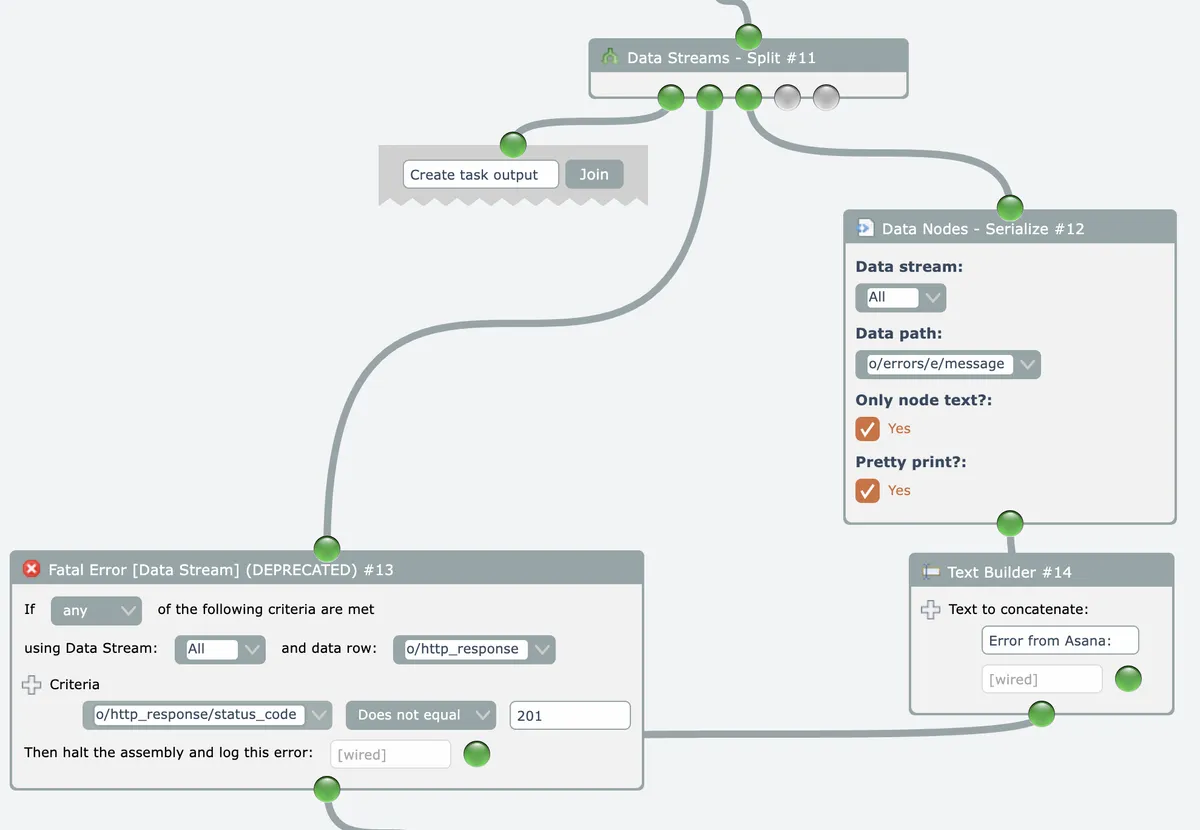
Actions must catch and throw all error conditions in order for the transaction to be flagged as an error in the automation’s history and for alert processing to be performed.
The proper way to do error checking in an Action is to test for the absence of a successful result from an API call.
For example, if you are adding a new contact to a CRM then check the API’s response to ensure that the new contact ID is returned. Or test for the HTTP status code the API uses to indicate success.
Some actions need to indicate to the system that the trigger data row should be skipped rather than retried. For example, an action that checks for existing duplicate data needs to skip the trigger data row if a duplicate exists. The Action - Skip Data Row module can be used within a Conditional module for this.
Action Output
Actions can emit output data fields via the Action Output module:
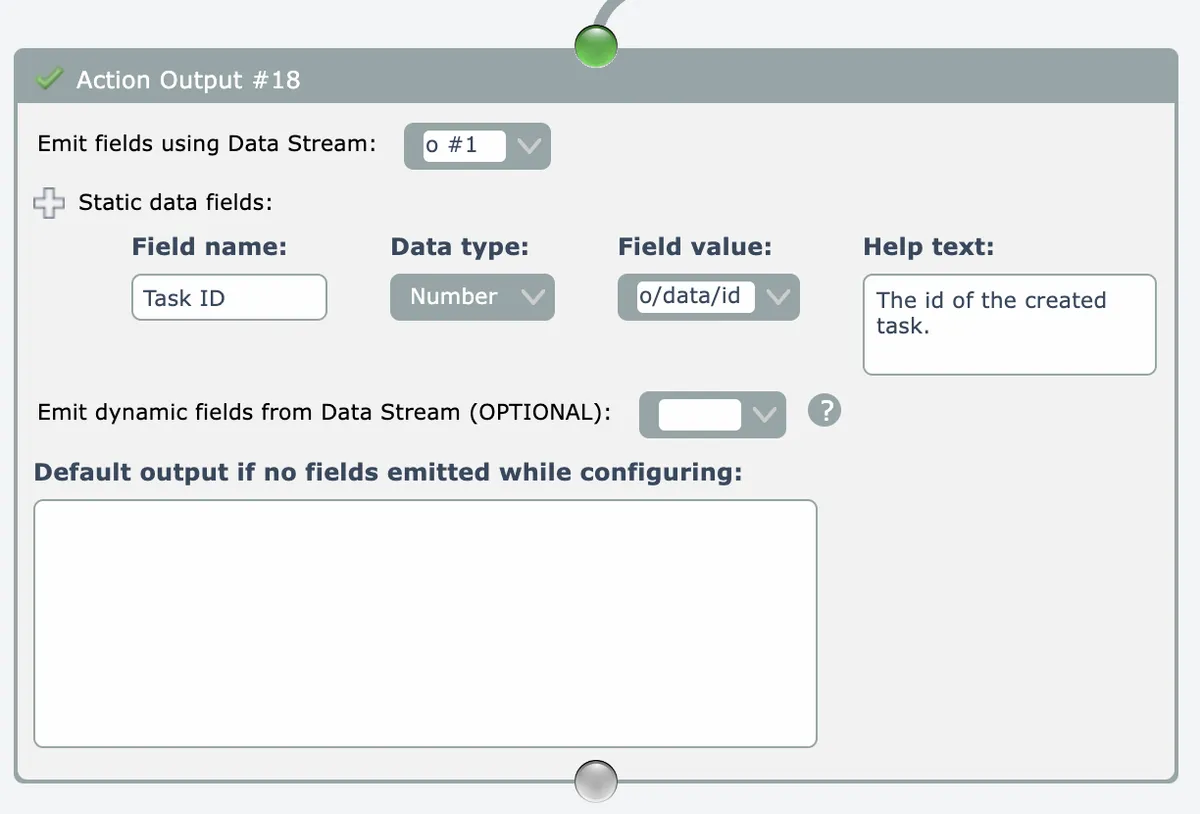
The output data fields can be used as inputs to subsequent actions within automations.
Similar to the Action module, output fields can either be statically typed into the module or they can be determined dynamically.
For dynamic output fields, the Action - Extract Output Data Fields module can be used to automatically parse output fields from a data stream (typically the API's response):
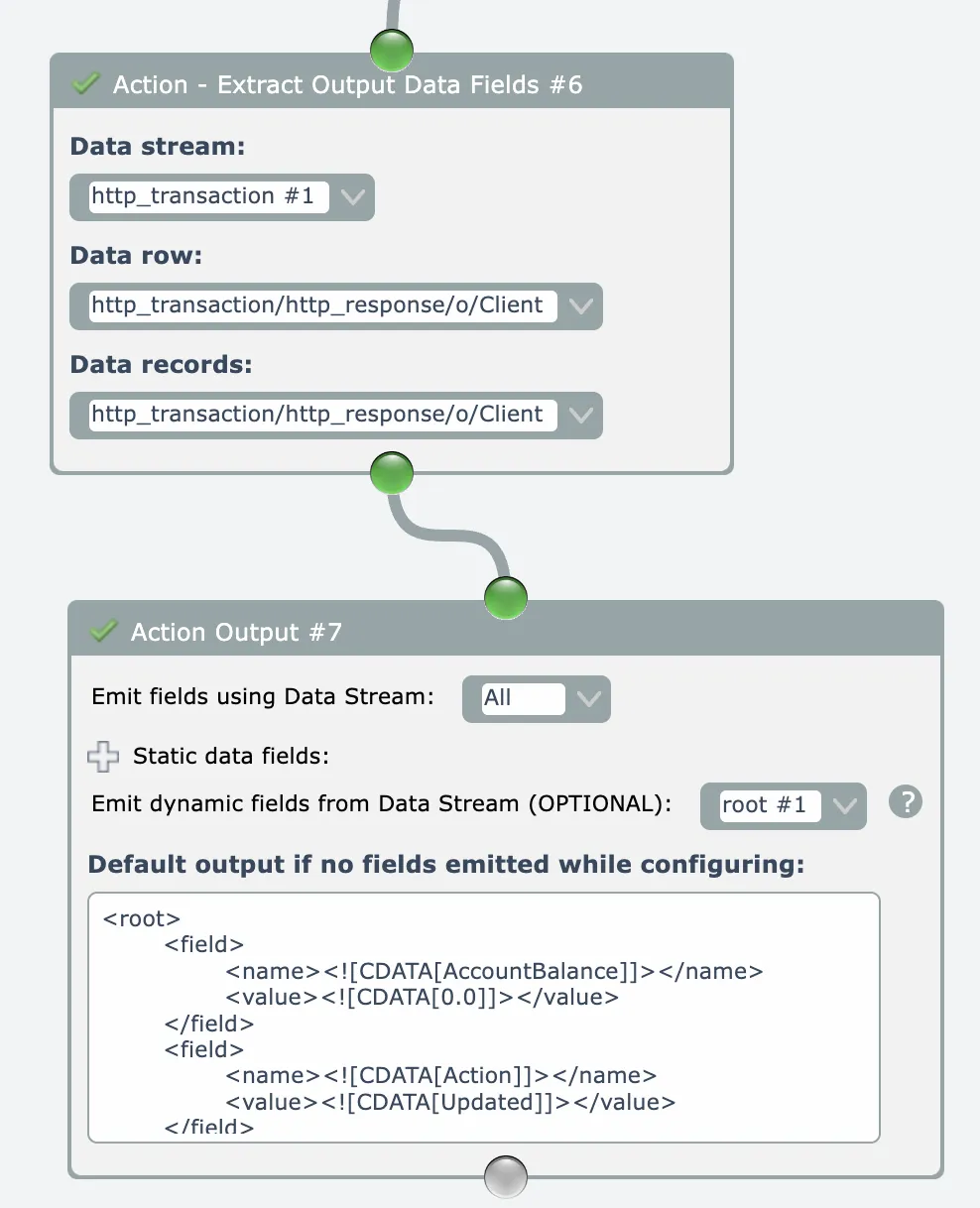
If an Action Output module emits dynamic fields, the action assembly is executed in the Automation Editor when configuring the automation in order to determine the mappable fields.
The action must not perform any API calls that modify data!
Use the Utility - When In module and Conditional modules to control processing that occurs when configuring the action in the automation editor vs. its behavior when running in an automation.
See the Zoom "get meeting" action for an example of this, uuid = 073aac7ff0d2447c87ed298aa4032213
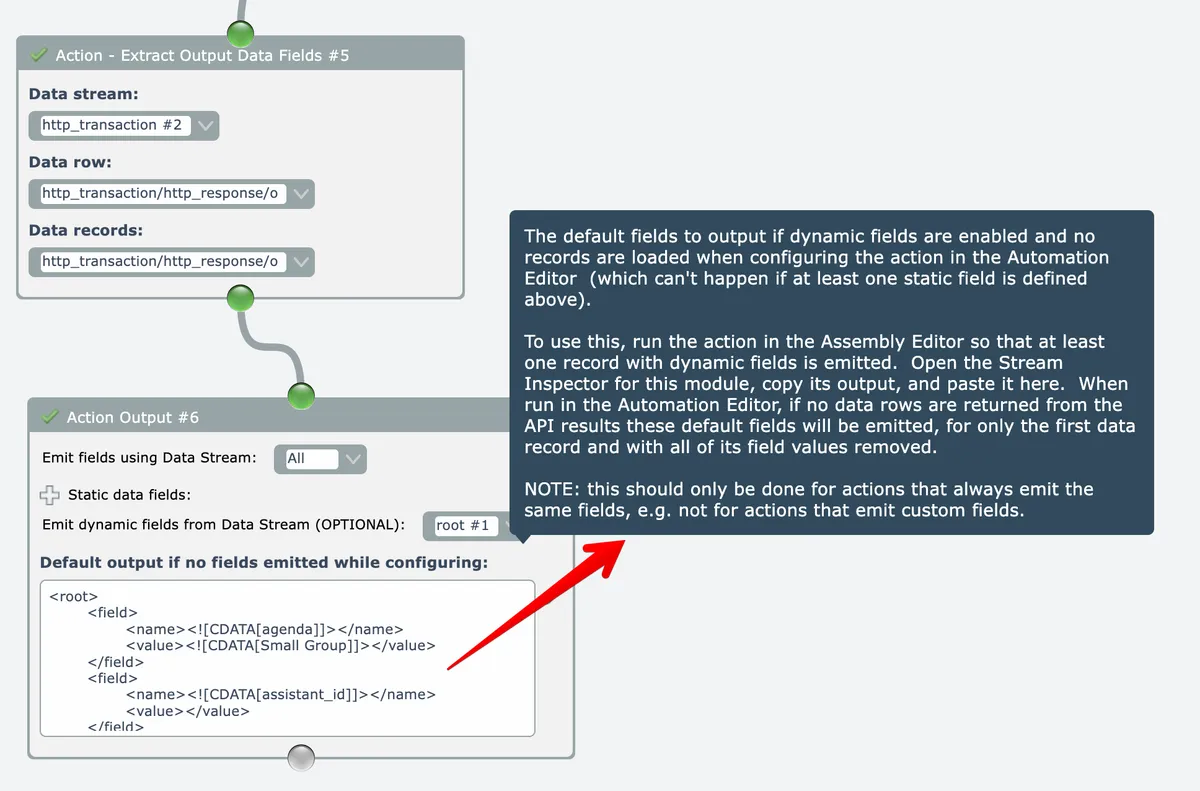
For actions that only emit dynamic output fields, in most cases you will want to define default output fields in case the action logic is unable to fetch an API record at the time the action is configured in the automation editor. Review the help info about default output by mousing over the default output field in the module:
Action Throttle
Actions can be configured with a throttle to enforce API rate limits. An action's thottle is defined when it is saved:
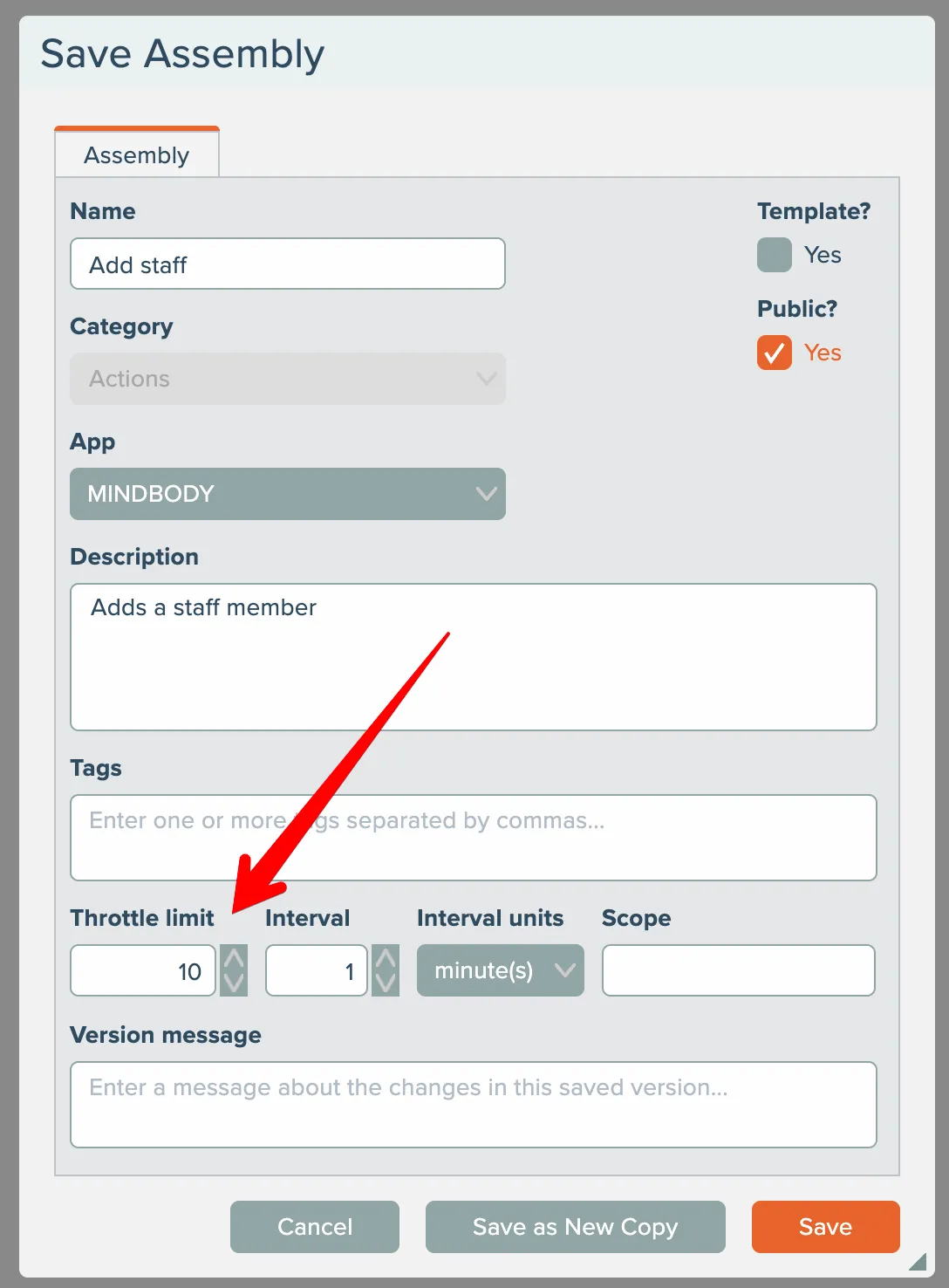
A scope for the throttle can be configured. If empty, the throttle is scoped to this individual action and app connection. If not empty, other actions in the same app having the same app connection and the same entered scope will share the throttle.
An example of using a scope is the HubSpot API, which has a different rate limit for their search API. Multiple 'find' actions can all use the search API and share the same throttle scope to remain under the search API's rate limit.
Action throttles are intended to be used for exception cases that differ from an API's typical rate limits. Some API providers will enforce more stringent rate limits on certain endpoints.
For more flexible rate limit rules, including across multiple accounts, see the Rate Limits section that covers the usage of a rate limiter action that can be used in automations.
Action throttles are enforced regardless of other automation-level rate limits applied.