
Reconnect your Zoom account
Process for reestablishing your Zoom account connection in APIANT, including authorization steps and post-reconnection actions like refreshing meeting lists.
Step-by-step instructions on how to reconnect your Zoom account with APIANT
Use separate tabs in the same web browser for both steps 1 and 2.
Open a browser tab to zoom.us and login to your master Zoom account.
Open a browser tab to apiant.com/editor and sign in to your APIANT account.
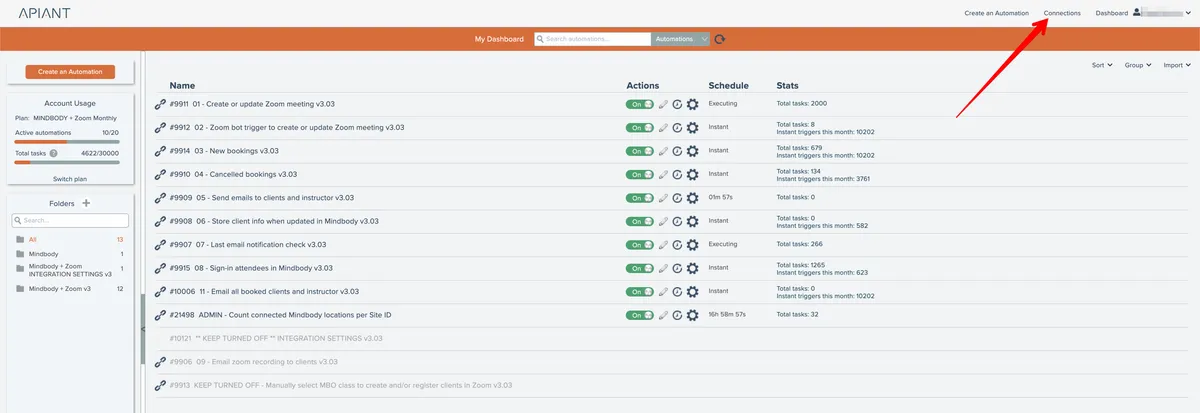
Click on the Connections menu option at the top right:
Click the refresh icon on the Zoom connection.

Choose your connection type and authorize access to your Zoom account

- Choose the Admin connection type.
- You may get prompted to CLICK the Blue Pre-APPROVE Button
- Then the AUTHORIZE button will light up after that and the you click AUTHORIZE

You may need to run the "Zoom meeting" BOT to create or refresh your Zoom meeting list and/or use the "Send Client Emails" BOT to send out emails for the classes affected while the Zoom account was disconnected.
How to use the "Zoom Meeting" BOT: BOT - "Zoom meeting"
How to use the "Send Client Emails" BOT: BOT - "Send Client Emails"