
TutorialAPI Appsv1
Connecting your Zoom API account
Step-by-step setup to connect your Zoom account to APIANT so ZoomConnect can manage your Zoom meetings.
Connect your Zoom account to APIANT so ZoomConnect can create and manage Zoom meetings for your Mindbody classes and appointments.
Steps
- Log in to your master Zoom account.
- Log in to your APIANT account.
- Go to your APIANT Dashboard.

- Open Connections.

- Click Connect App.
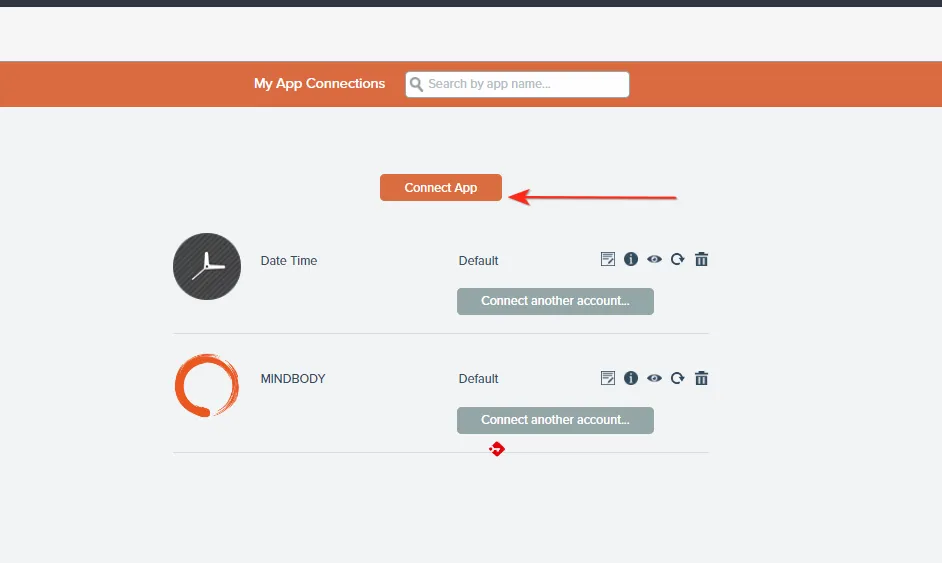
- Select the Zoom icon. You may need to click it twice.
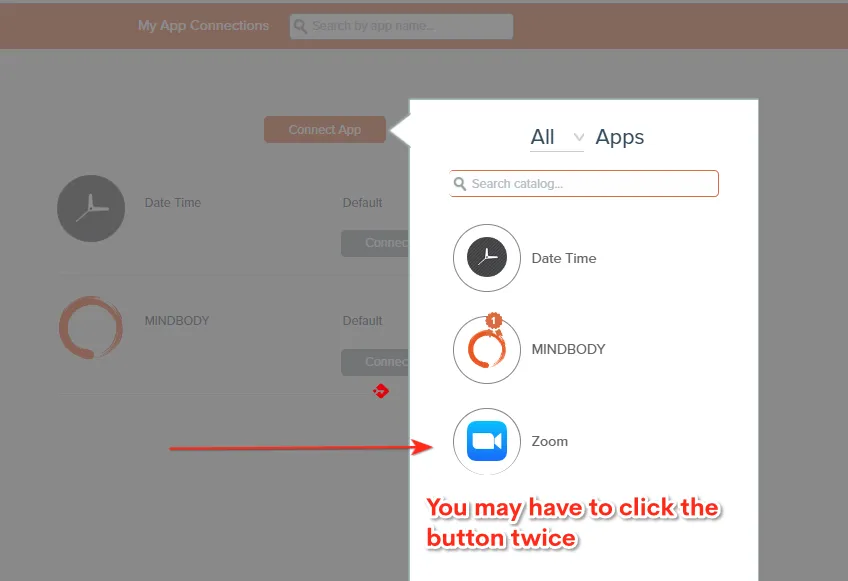
- Choose your connection type and authorize access to your Zoom account.
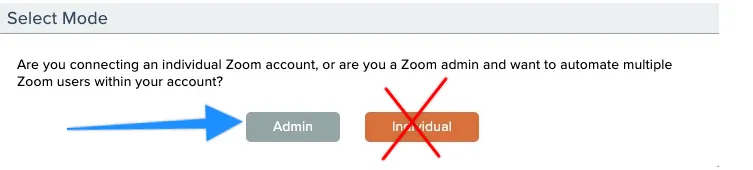
- Choose the Admin connection type.
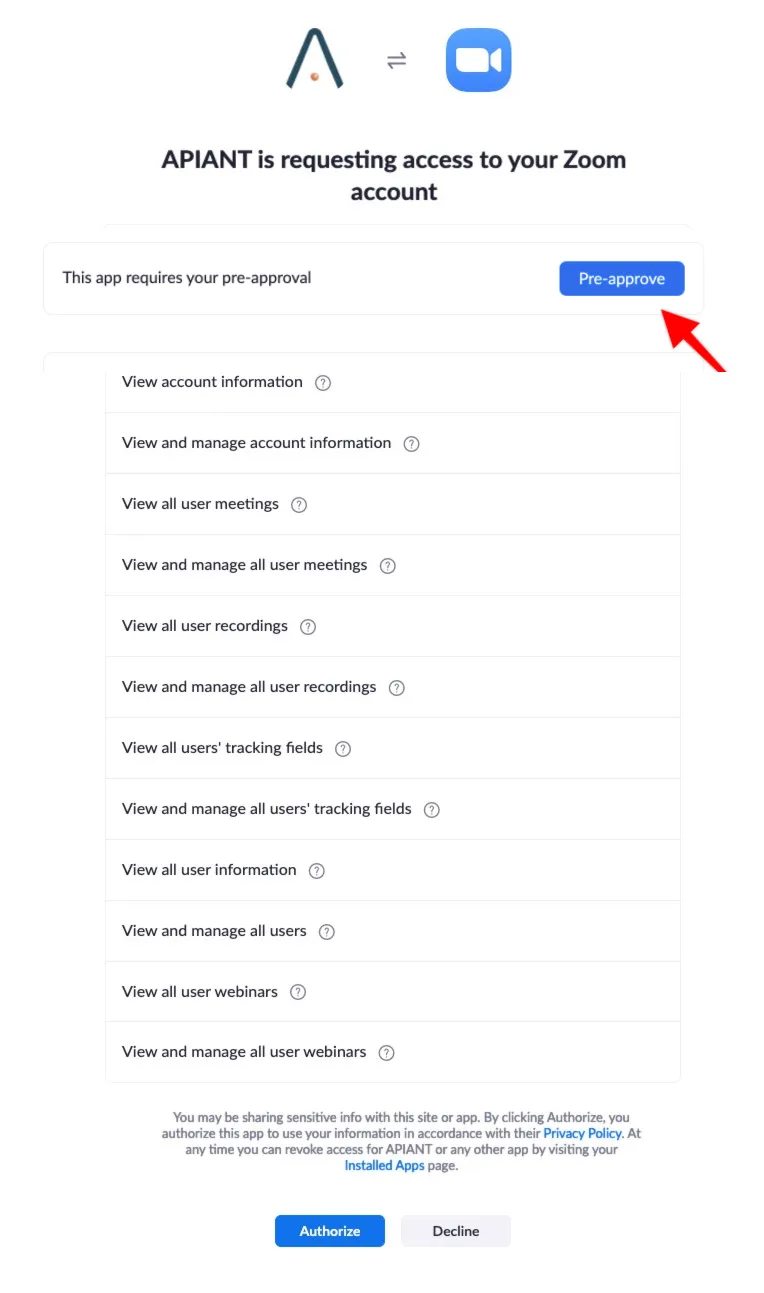
- If prompted, click the blue Pre-Approve button.
- The Authorize button becomes active after that — click Authorize.
Troubleshooting
Related docs
Last updated June 11, 2026