Searching the list
Find automations by name, number, tag, implementation content, or execution history data using the dashboard search feature.
Automations in the dashboard list can be searched in three ways:
- By name, number, or tag
- By content in their implementations
- By data in their execution history
Searching by name, number, or tag
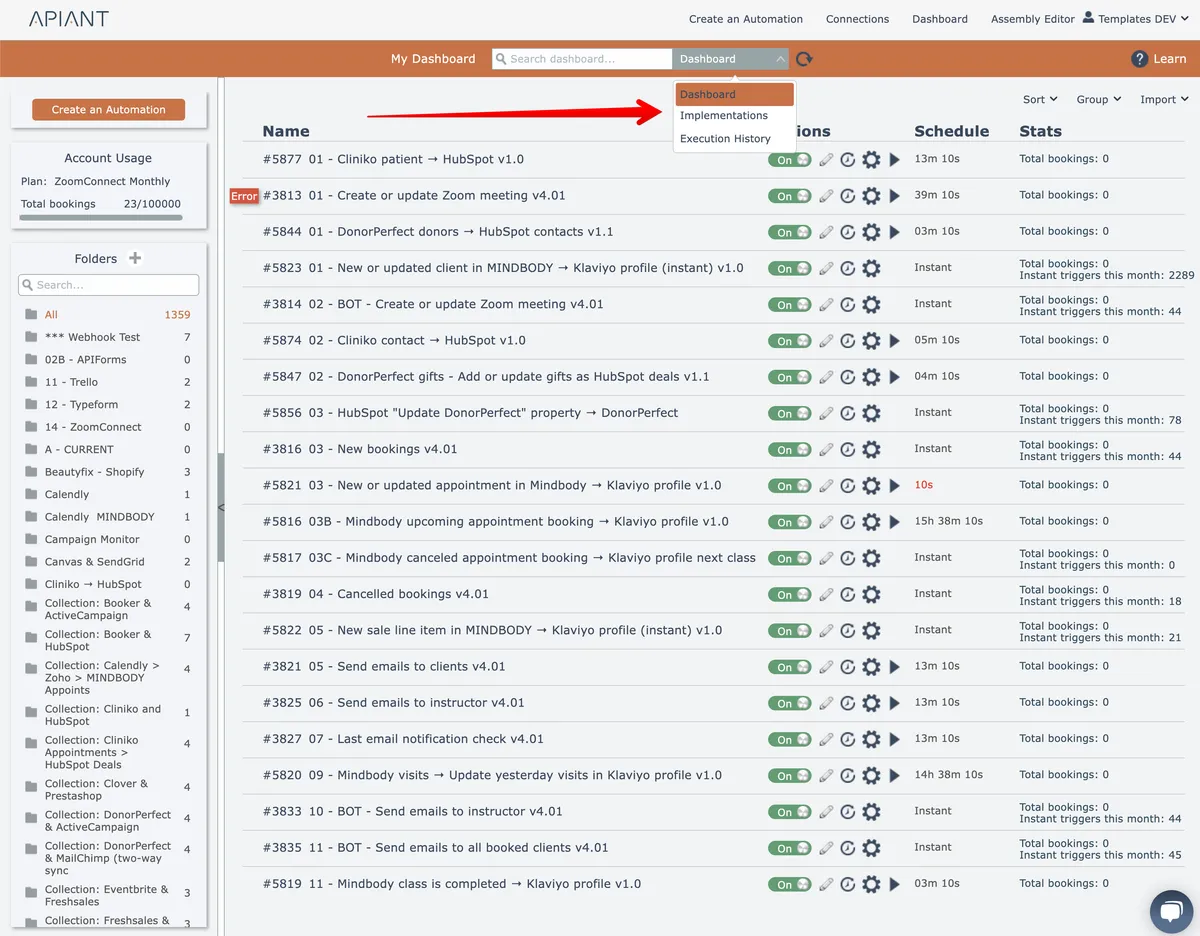
To search the dashboard list by an automation's name, number, or tag, select "Dashboard" from the search list and enter a query:
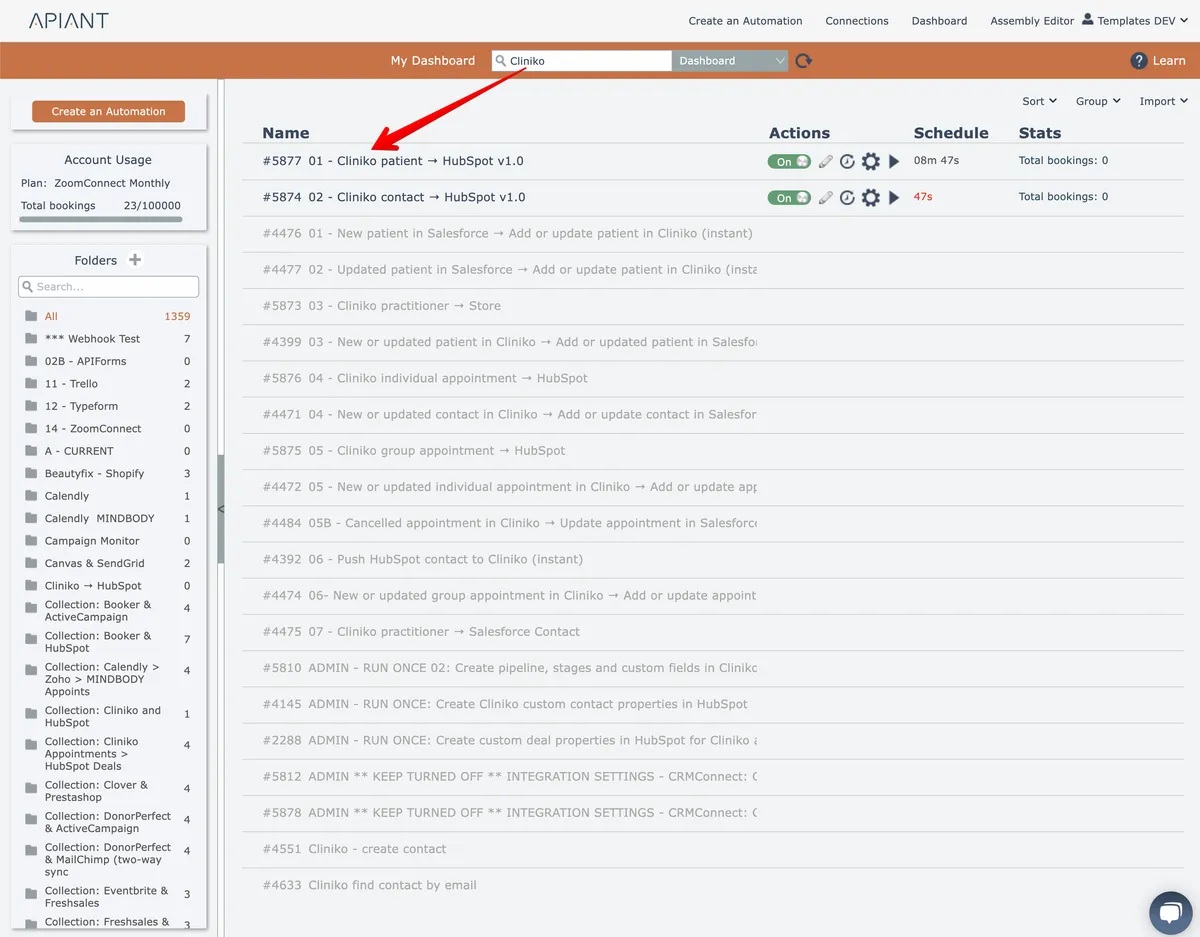
To manage automation tags, see Tagging an automation.
Searching implementations
To search all of the listed automation implementations for content, select "Implementations" from the search list and enter a query:
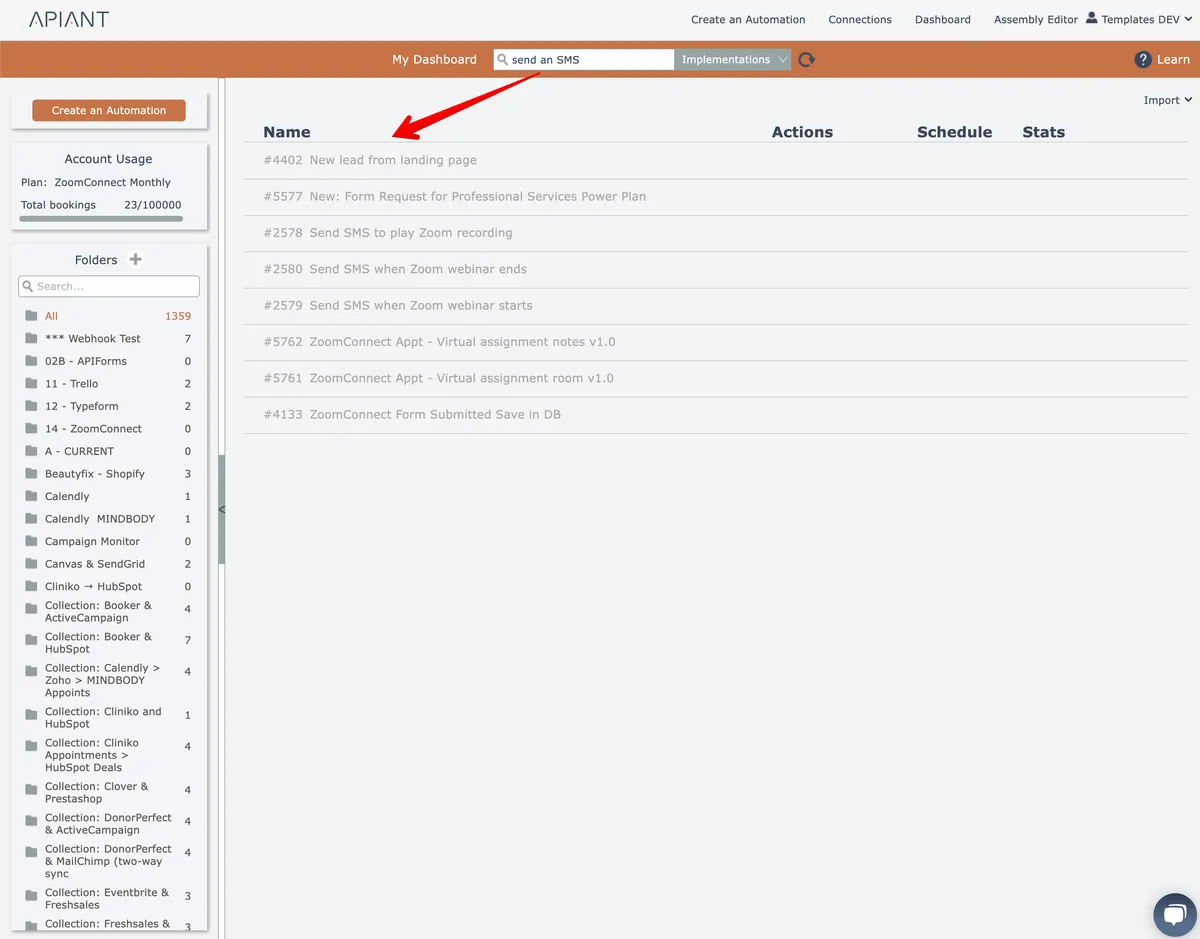
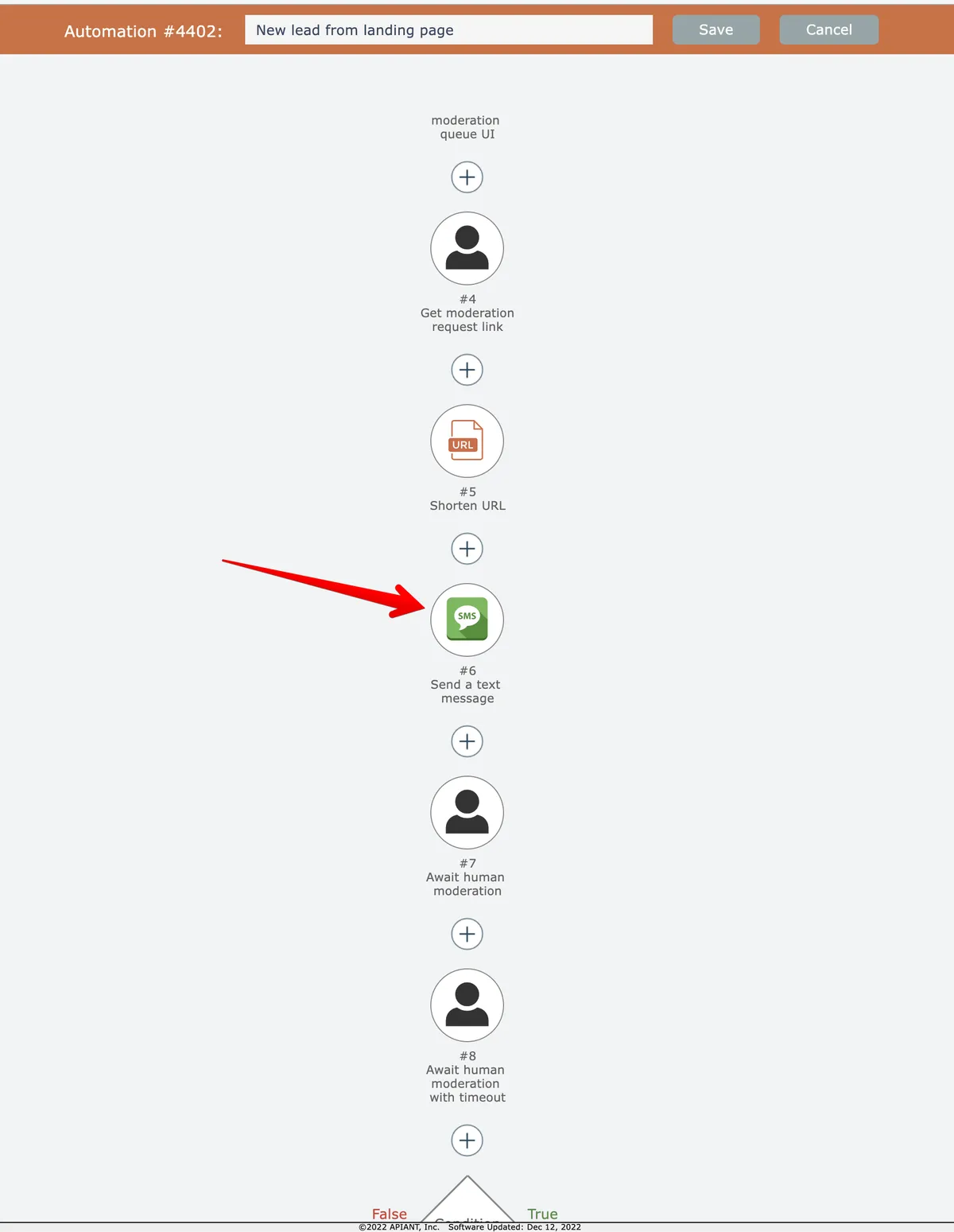
The raw implementation data for each listed automation is searched, which includes trigger/action names, notes, action field mappings.
The example search above found automations using a send SMS action:
Searching execution history
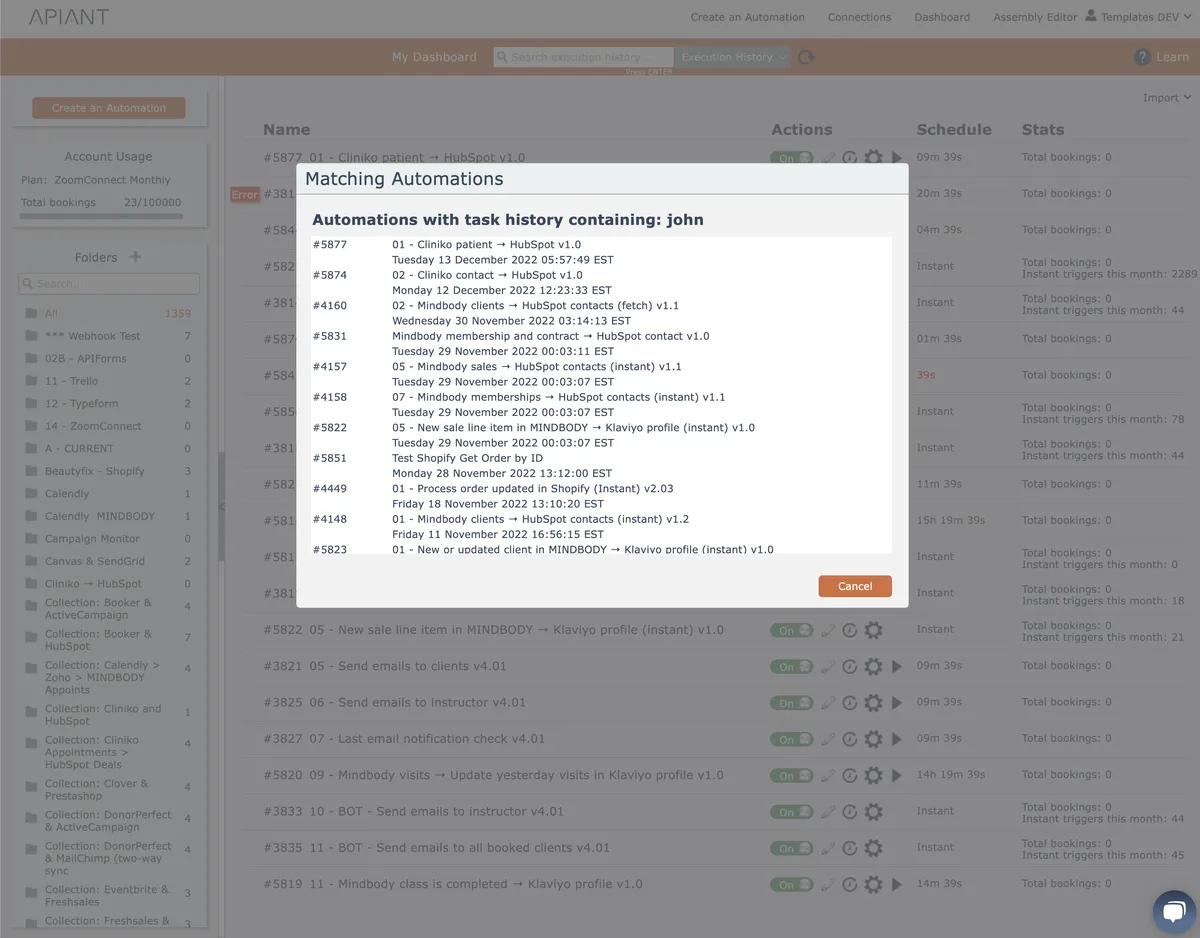
To search all execution history for all list automations, select "Execution History" from the search list and enter a query:

A dialog window appears with all automations from the dashboard list that contain the search query in their execution history:
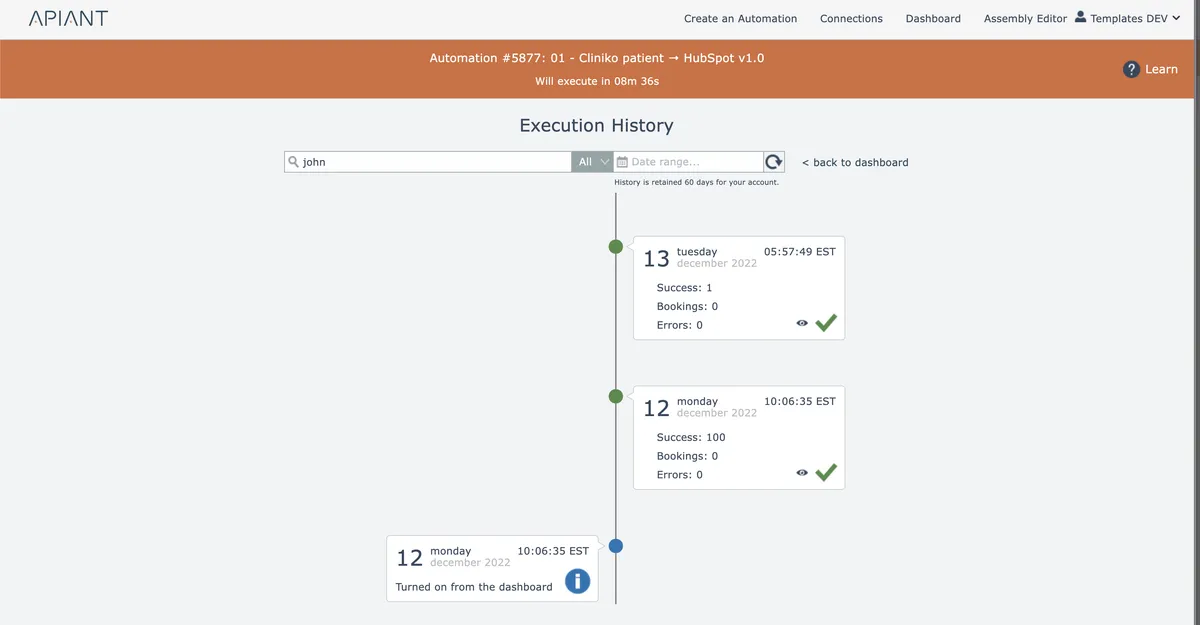
Click a search result to view its matching execution history entries:
When you return back to the dashboard, the search results dialog remains open so you can examine the execution history for all returned automations.
When the search results dialog is closed, it will no longer appear when the dashboard is subsequently accessed.
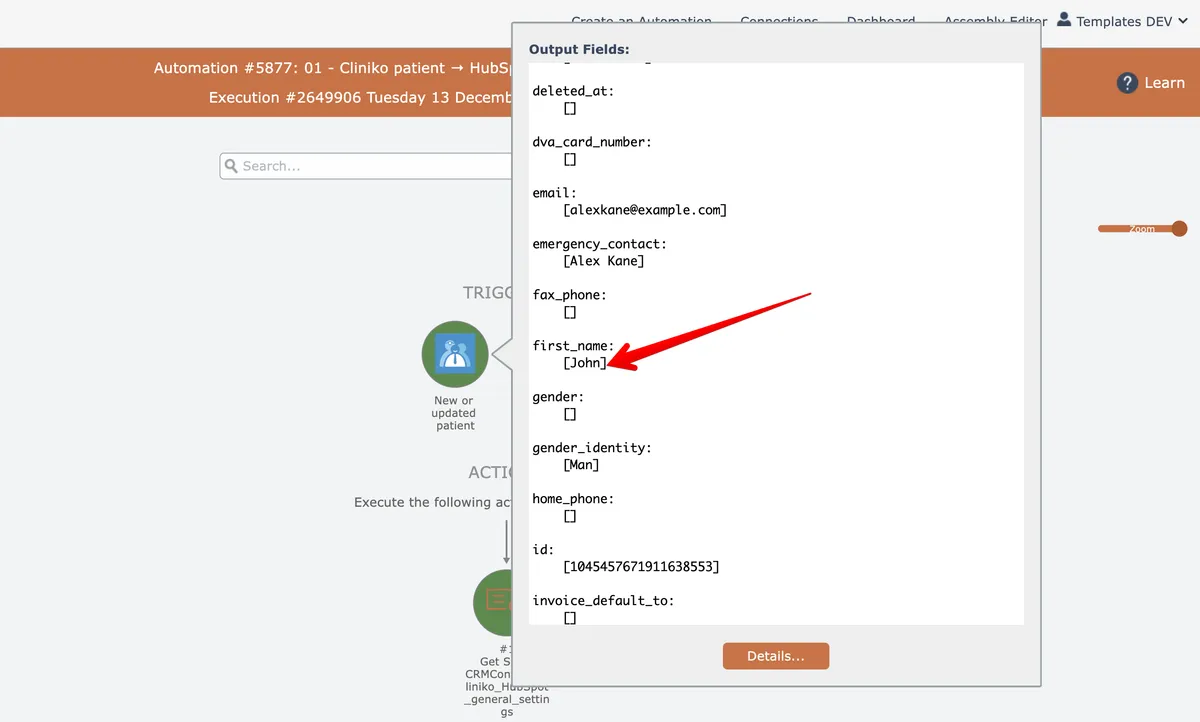
You can drill down into the automation's graphical history and examine it to find the matching data. In this example we searched for "John" and here it is: