
GuidePlatform UI (Fallback)v1
Viewing item details in history
View configuration settings and debug logs for triggers, actions, conditionals, and loops directly from the graphical history view by clicking items or using the Details button.
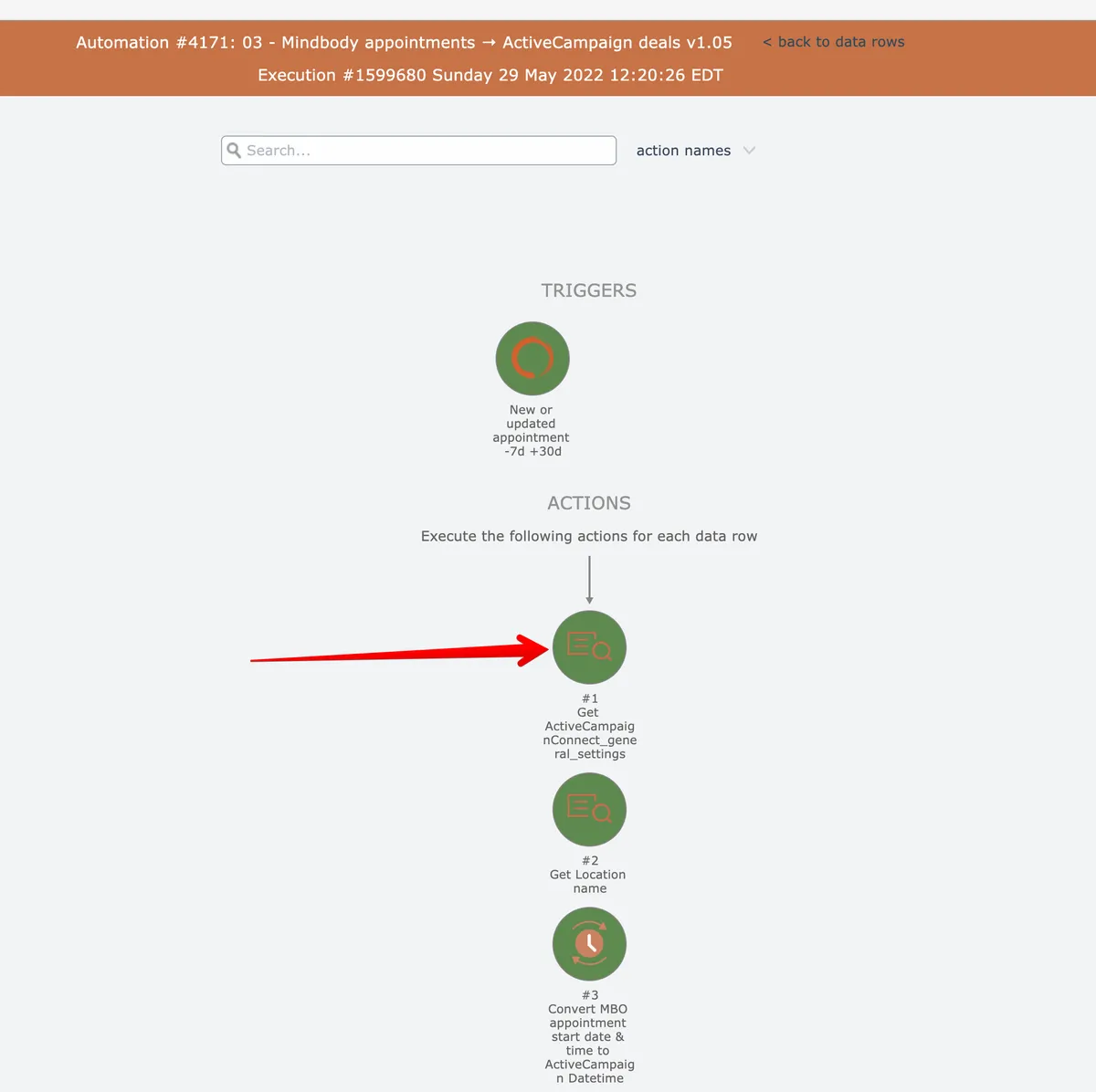
Triggers, actions, conditionals, and loops can be clicked to view their details in the graphical history view:
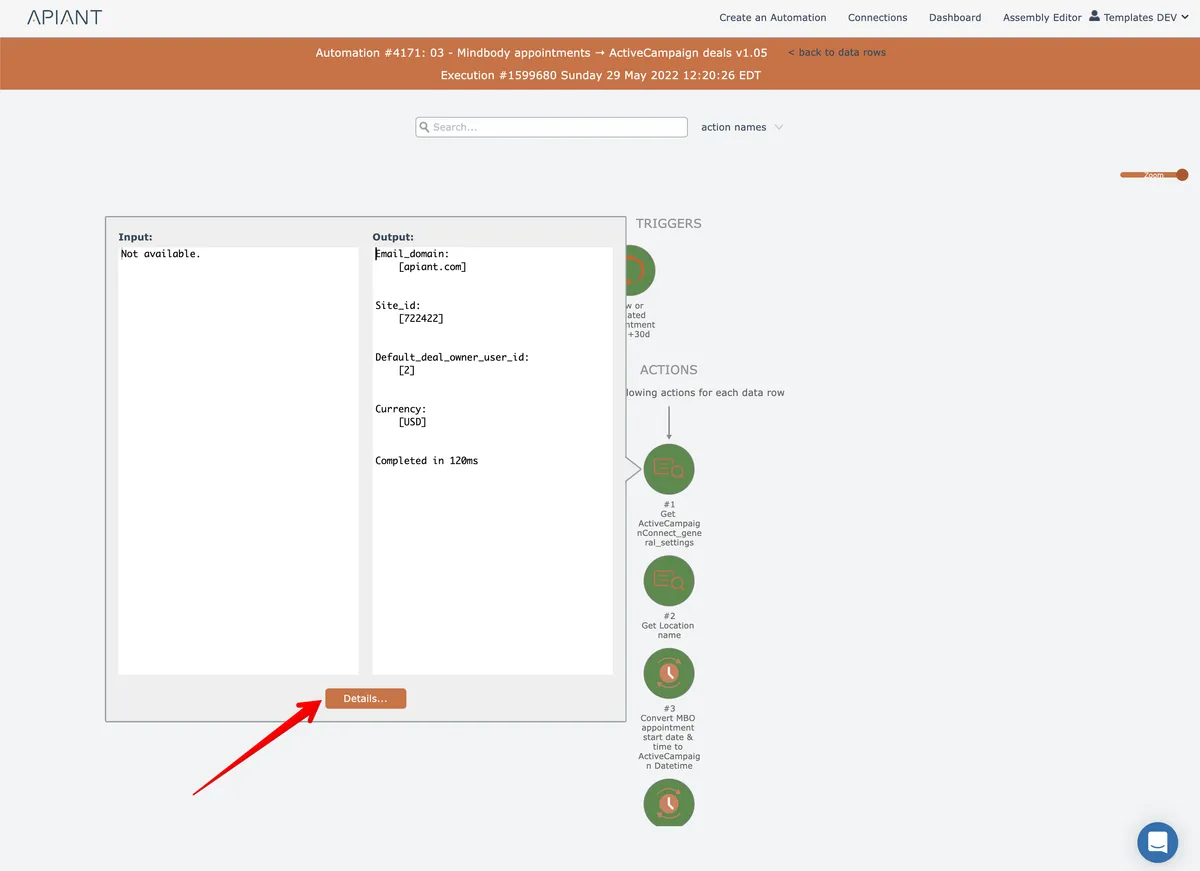
Alternatively, details can be viewed by hovering over the item and clicking the Details button:
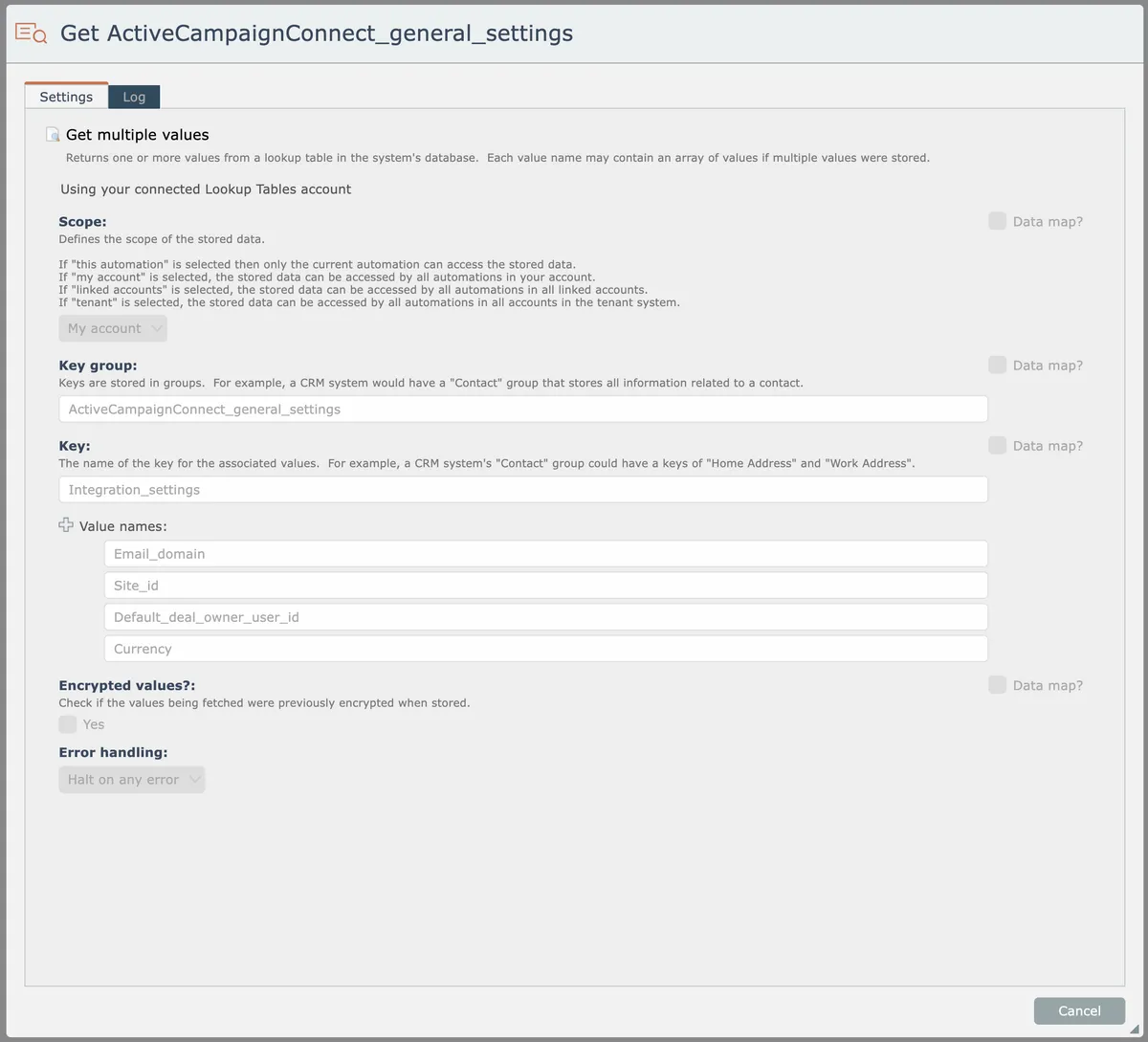
The item's settings will appear:
Select the Log tab to view the debug log for the item's execution (if available):
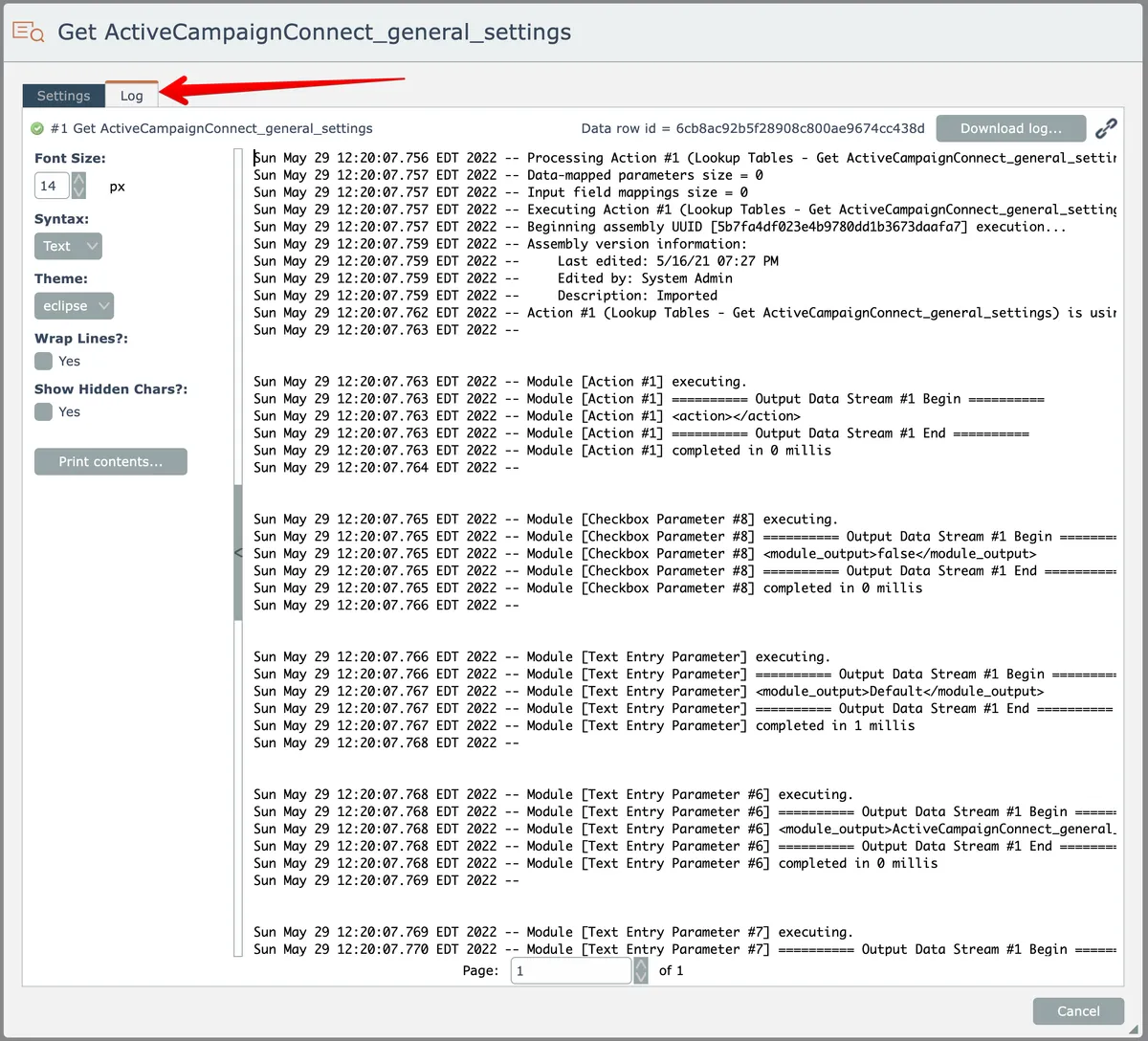
The debug log, if available, can be downloaded via the Download button at the top right.
A URL link to the log can be obtained via the link icon at the top right.
Related docs
Last updated May 4, 2026