
Disabling logging
Turn off debug logging for automation triggers and actions to save filesystem space, while maintaining the ability to re-enable it anytime via menu settings.
By default, automations keep debug logs for each executed trigger and action. Debug logs are accessible via the graphical history view:

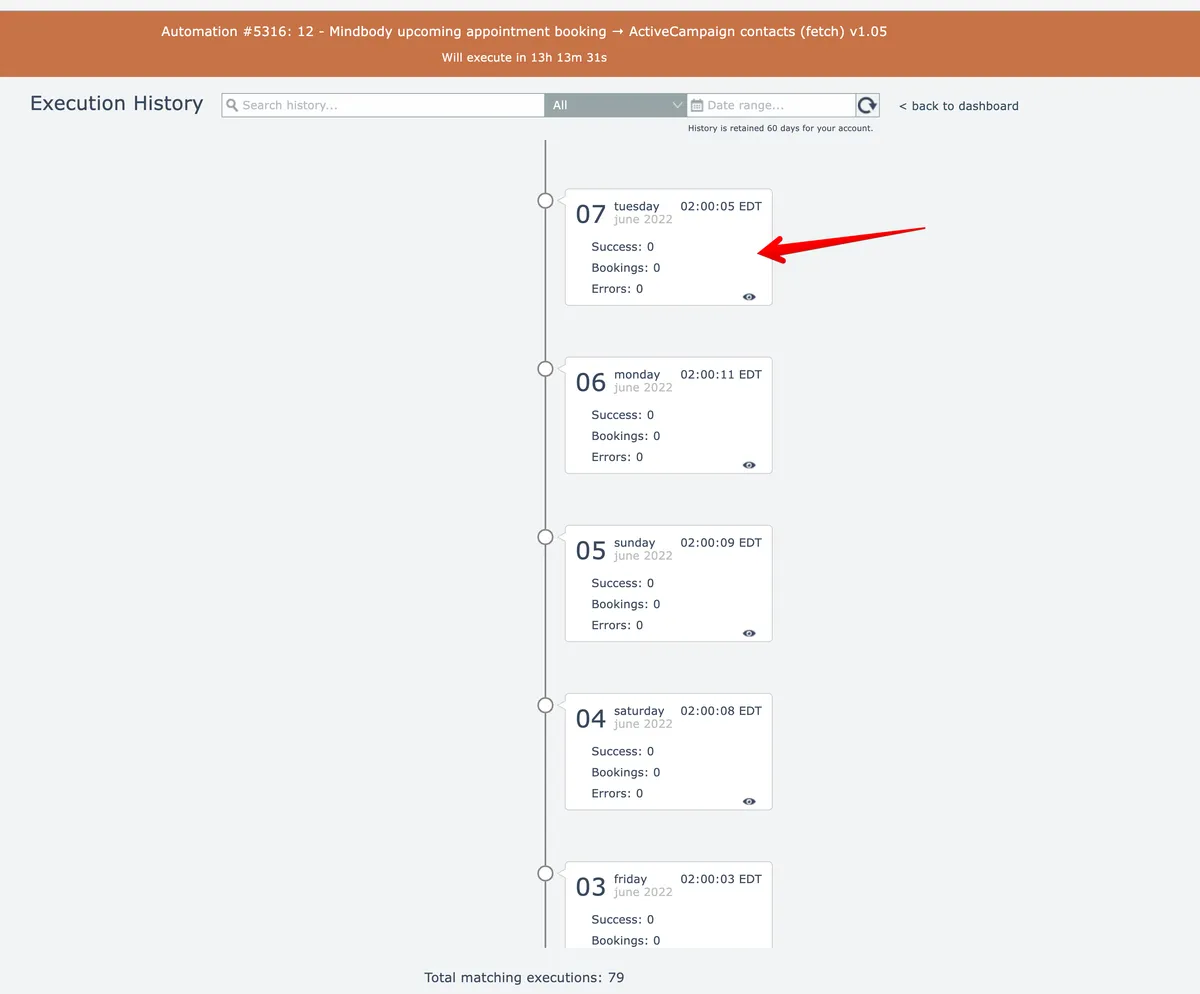
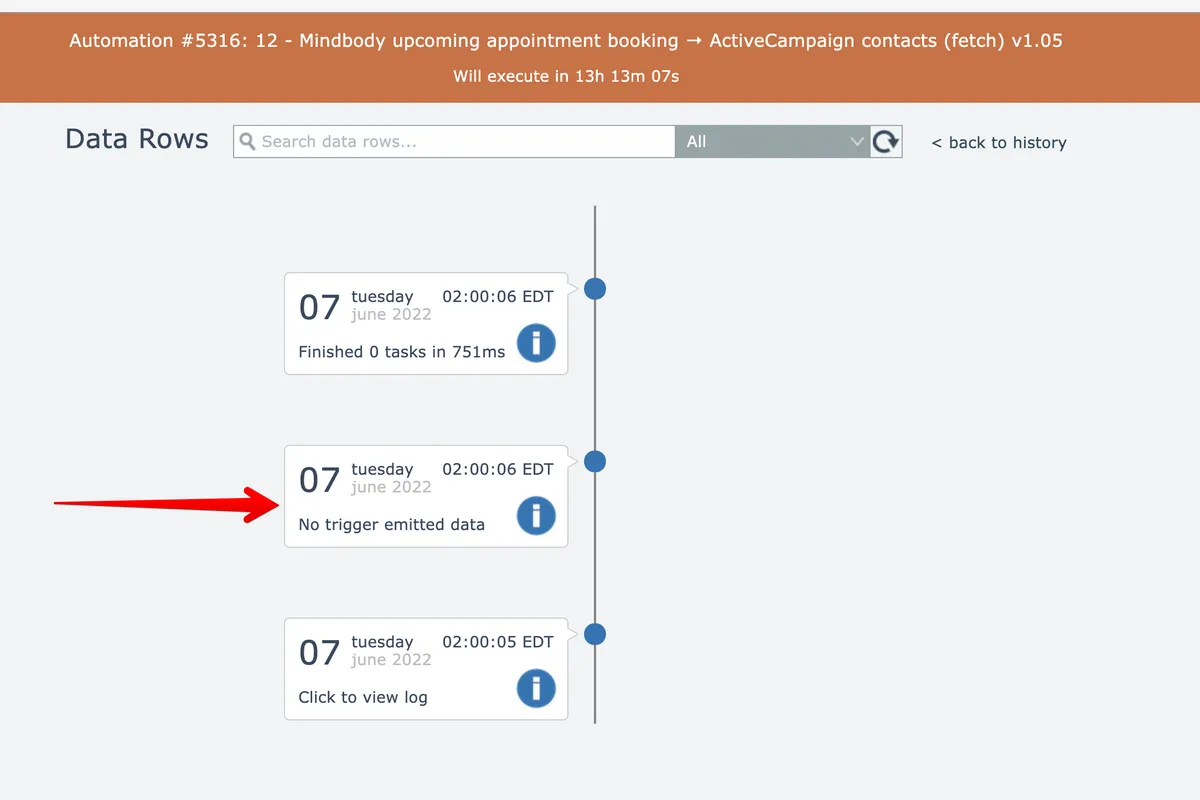
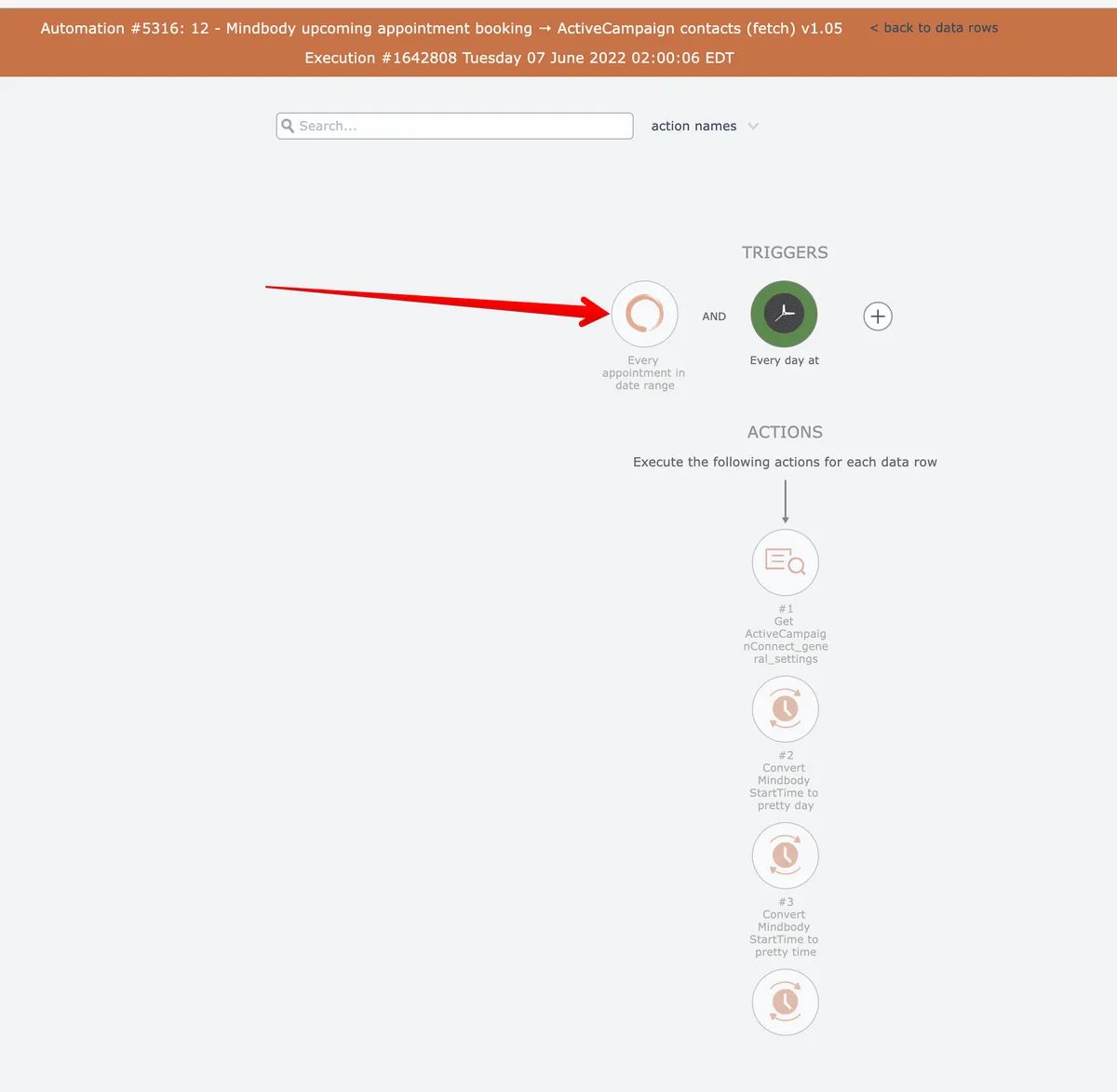
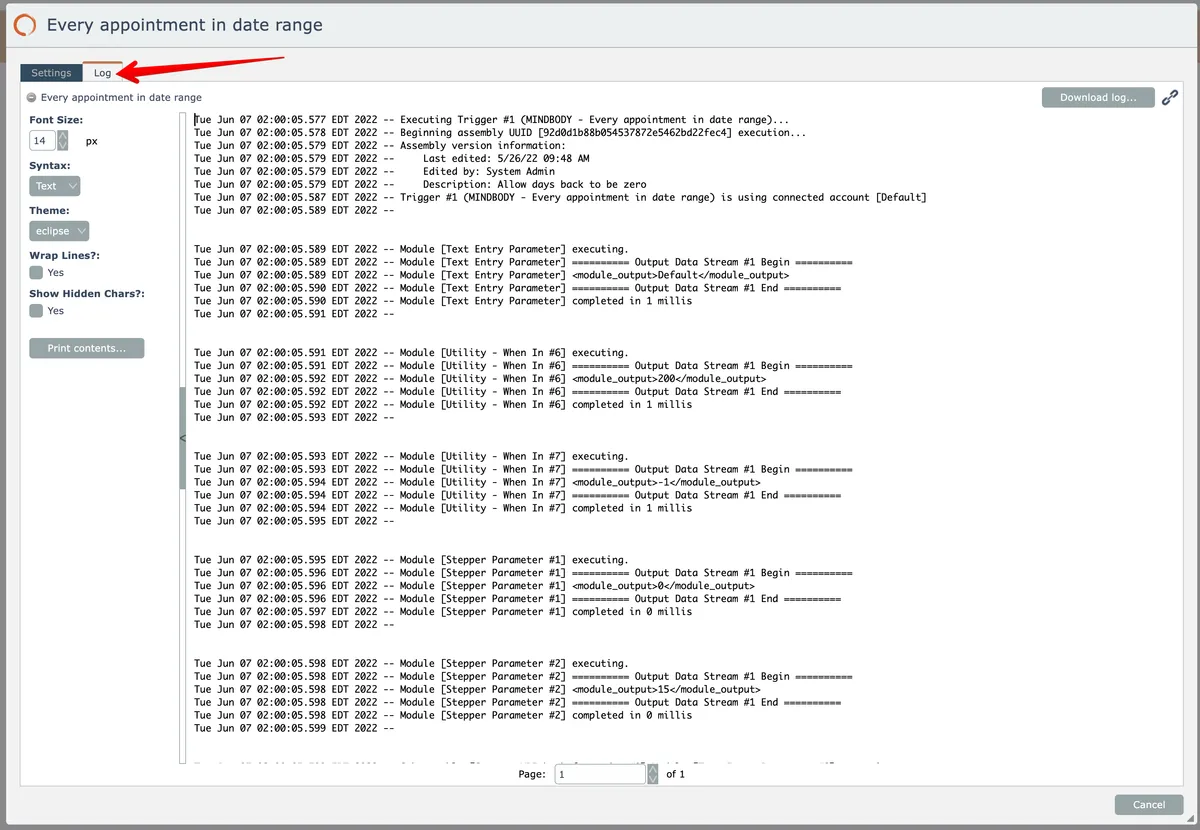
Automation logs contain information generated by each module within a trigger/action assembly. Generally the information within is useful for trigger/action implementors for troubleshooting.
Automation logs can become voluminous and consume lots of filesystem space, even though they are stored as ZIP files.
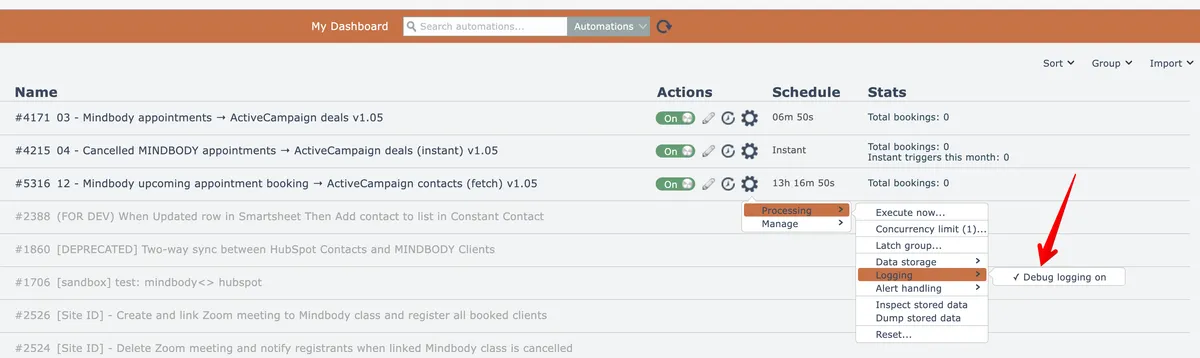
Automation logging can be disabled by selecting this menu option:
The menu option appears like this when automation logging is turned off:
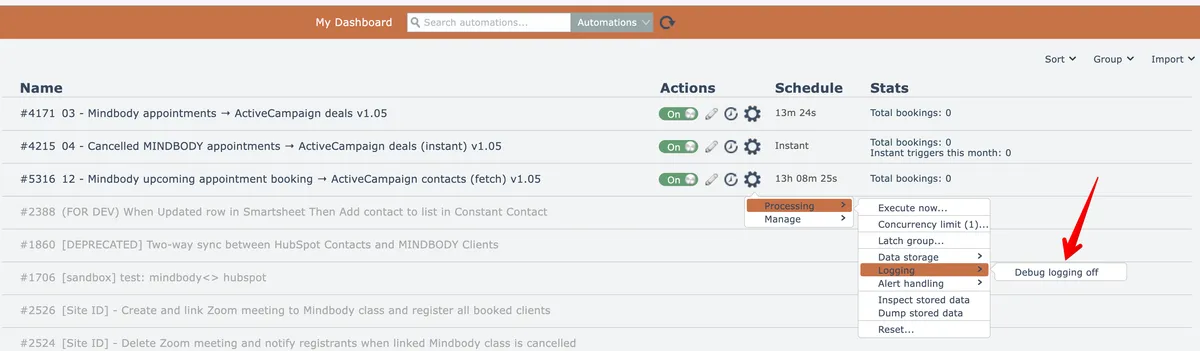
Automation logging can be re-enabled by selecting the menu option again.