
GuidePlatform UI (Fallback)v1
Edit polling schedule
Modify how frequently polling automations run by changing the polling schedule through the gear menu, either by selecting a preset interval or editing a Date Time trigger.
The polling schedule for polling automations can be edited from this gear menu option:
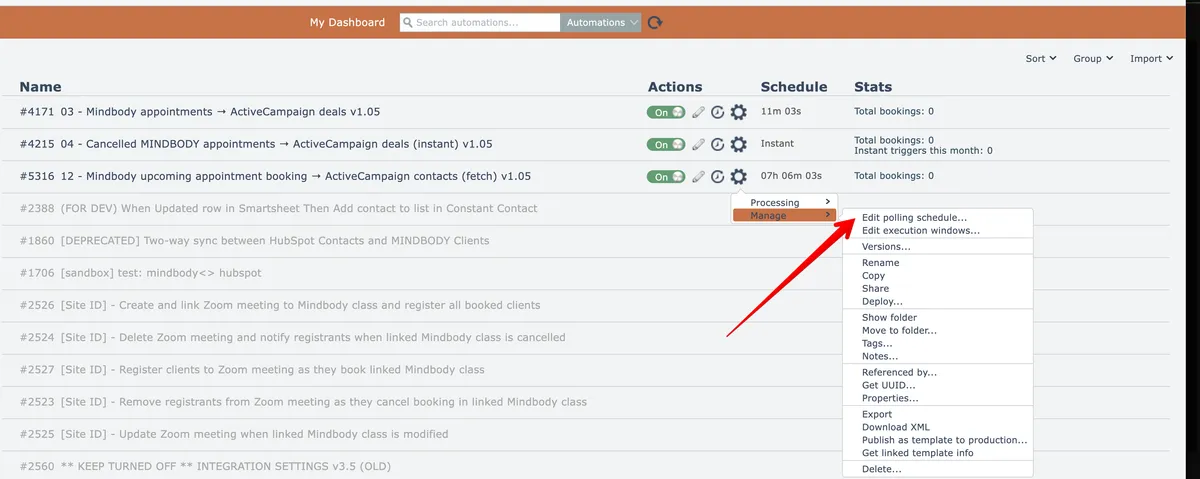
If the polling automation has no Date Time trigger, the polling schedule appears as follows:

A new polling schedule can be selected from the list.
If the automation has a Date Time trigger that controls its polling schedule, the automation editor opens the automation when the gear menu option is selected:
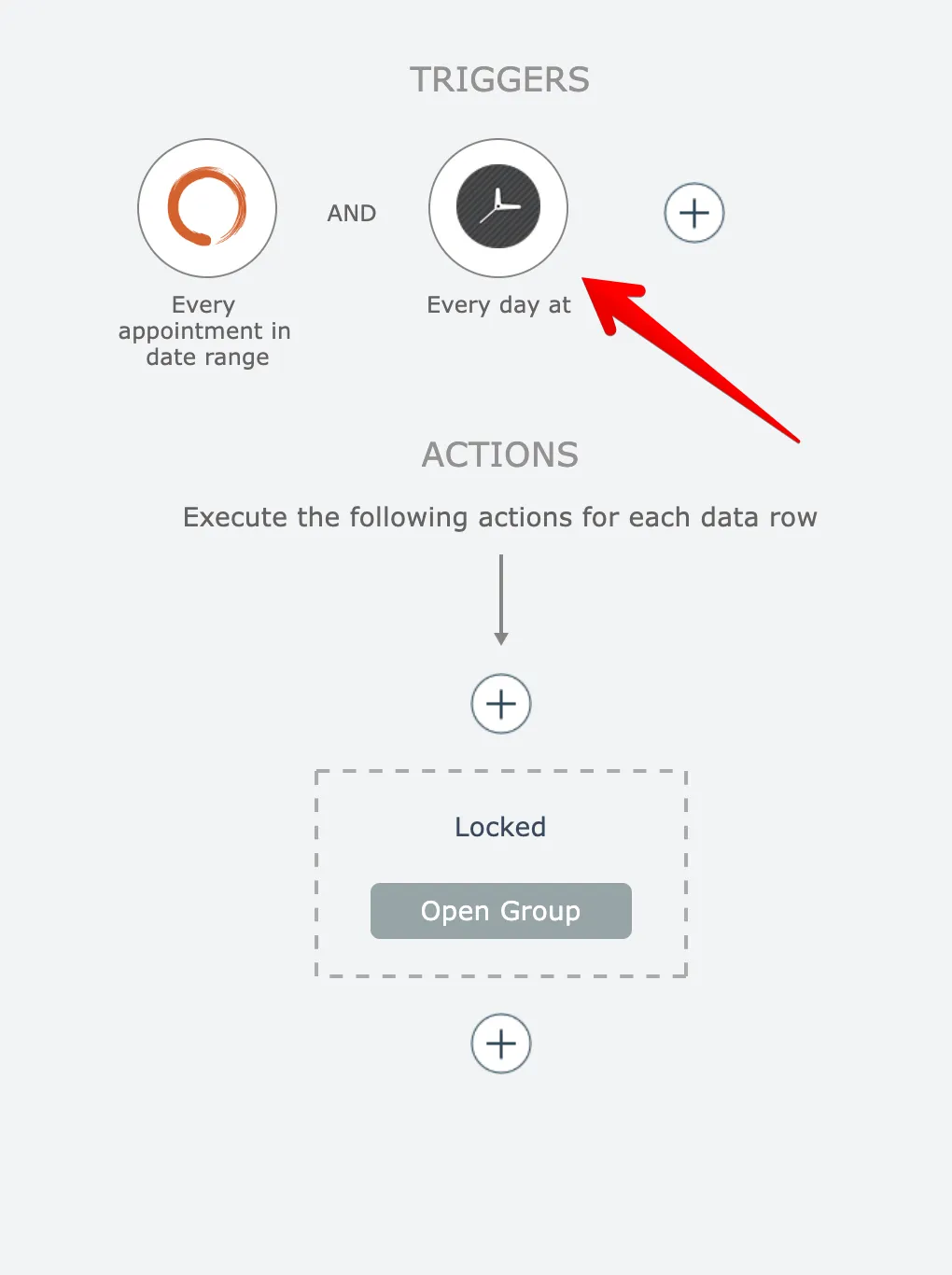
The Date Time trigger can either be edited, or a different Date Time trigger can be used:
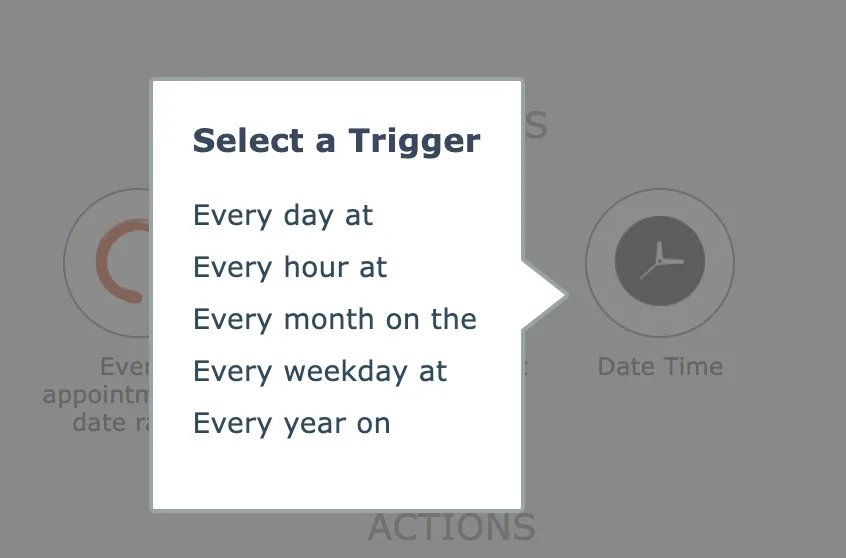
Save the automation after editing the Date Time trigger to complete the schedule change.
Related docs
Last updated May 4, 2026