Search by field mappings (cloned)
Locate actions containing specific values in their input field mappings by searching across automation configurations.
Actions usually have one or more input fields. They will appear with text entry fields:
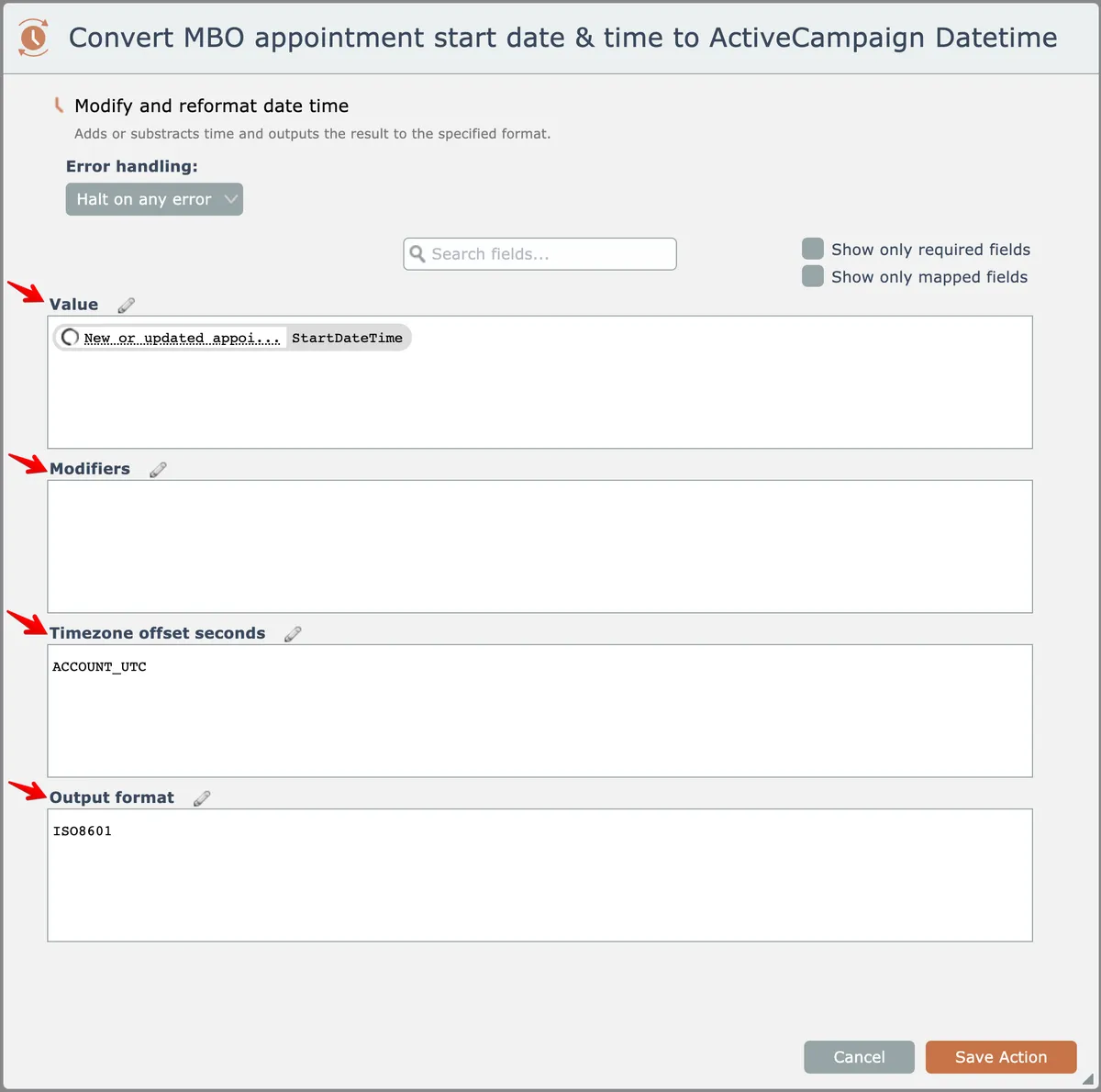
This action has four input fields highlighted above.
You can search an automation to find all actions having a certain value in its field mappings.
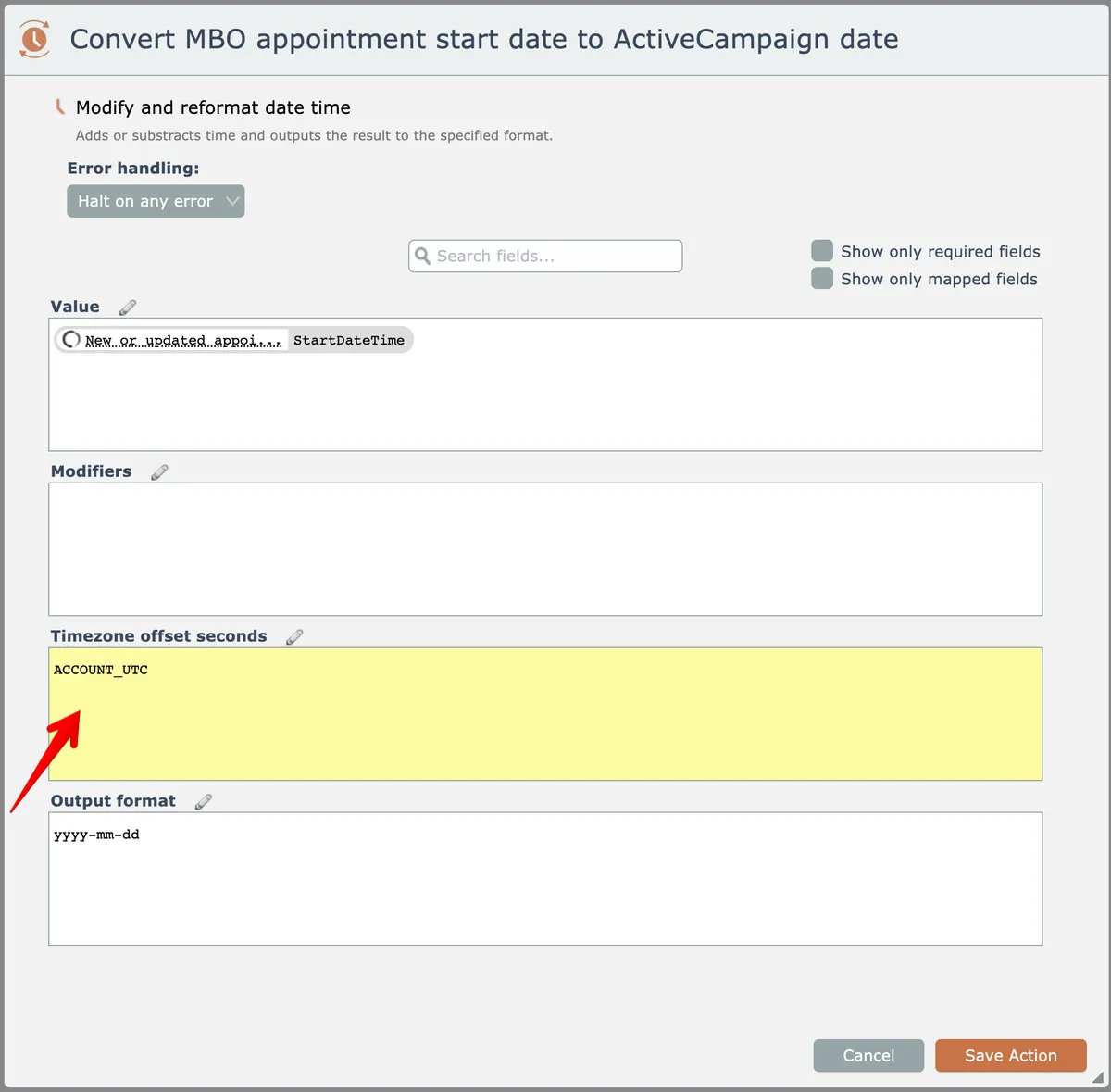
For example, in the action above has a field with a value of "ACCOUNT_UTC". Let's search to find that.
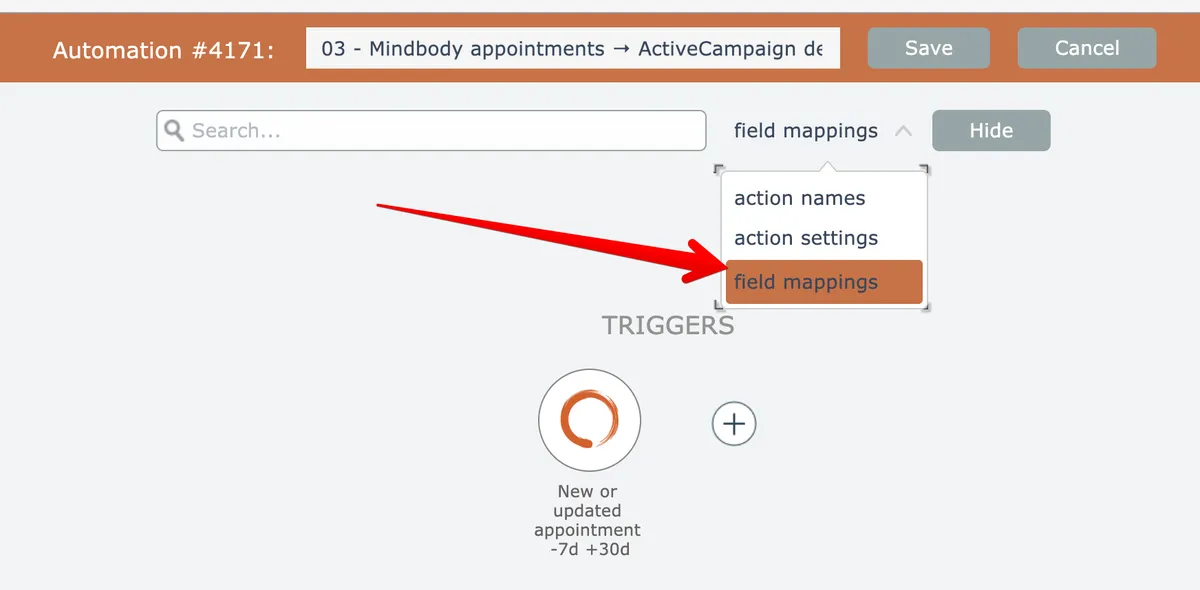
First, open the search (see Searching) and select "field mappings" as the search criteria:
Enter "ACCOUNT_UTC" as the search criteria and press Enter:
The first matching action, if any, will be highlighted and automatically scrolled into view:
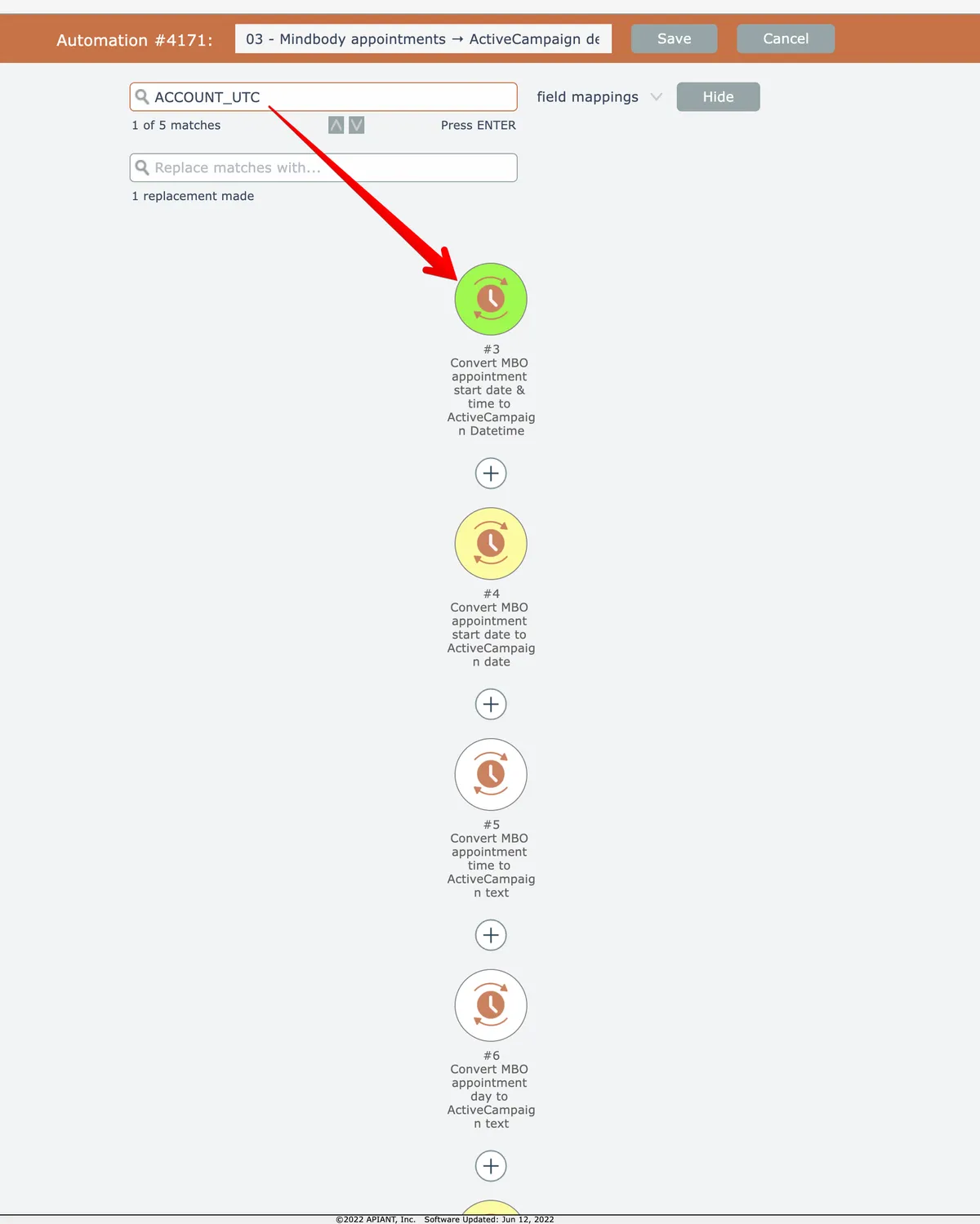
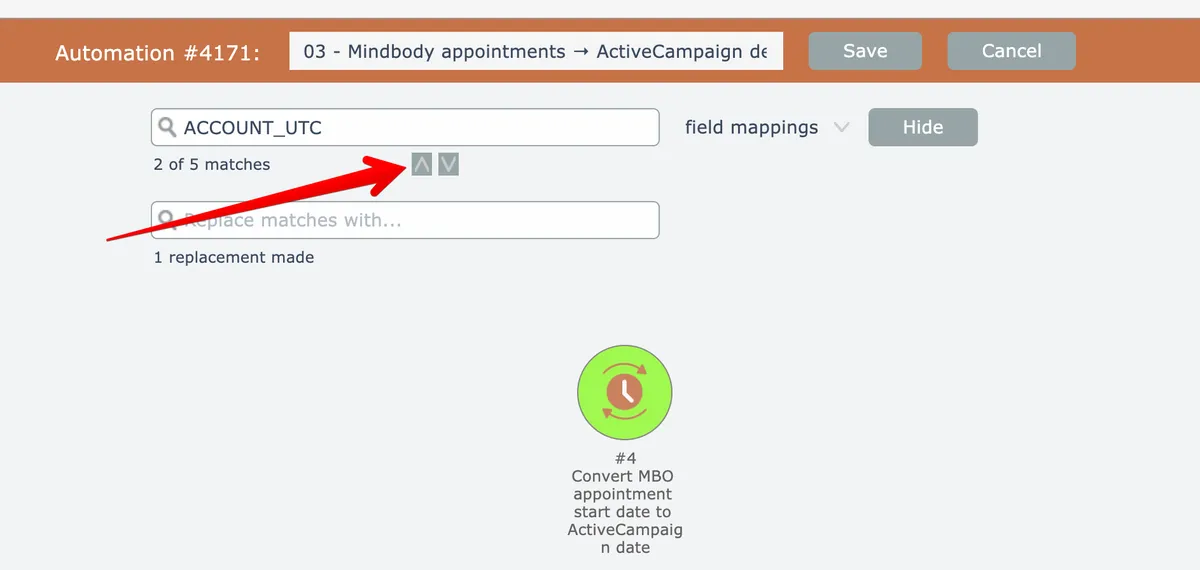
Use the up/down arrow buttons to move to the next/previous match, or press Enter or Shift-Enter:
When an action's settings are opened, all fields containing the search criteria will be highlighted: