
How to Enable Shopify Refund Notifications with Mindbody Contact Logs
Set up Shopify refund notifications in Mindbody by creating a contact log type, extracting IDs from Mindbody, and configuring ShopConnect settings to automatically log refund details.
Overview
Integrating Shopify refund notifications with Mindbody ensures that all refund-related activities are properly logged. Follow these steps to enable this integration
Creating the Shopify Contact Log Type
To create a contact log type, follow these steps:
- Navigate to Settings > Contact Log Types under Client Settings in Mindbody
- Name the new contact log type "SHOPIFY"
- Click the Add New Contact Log Type button
Finding the Mindbody Contact Log Type ID
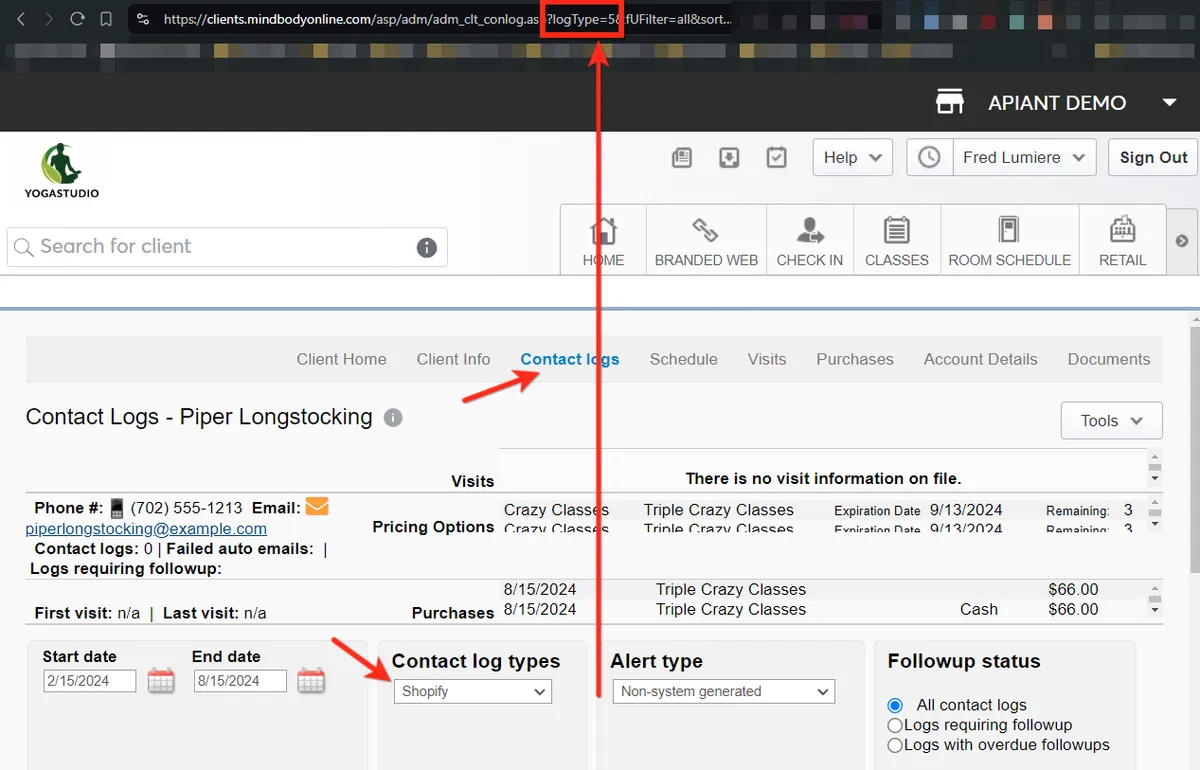
- Open any client profile within your Mindbody account.
- From the client profile, select "Contact Logs" from the menu.
- Change the Contact Log Type dropdown to SHOPIFY.
- The Contact Log Type ID appears in the URL in your browser. Look for a number in the middle of the URL string, as this is your unique Contact Log Type ID.
- In this example the ID = 5 (See image below)
Finding the Mindbody Staff ID
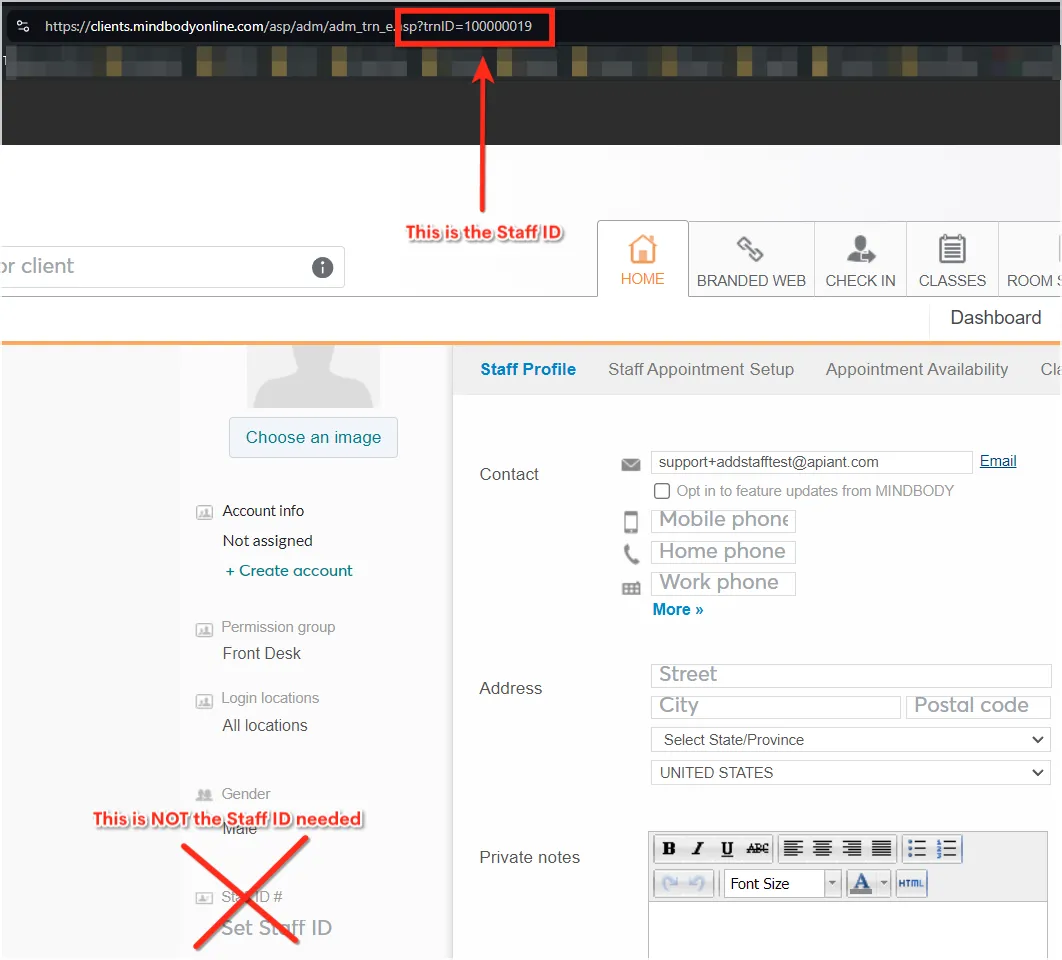
- Open the staff profile within your Mindbody account.
- The Staff ID appears in the URL in your browser. Look for a number in the middle of the URL string, as this is your unique Staff ID. (See image below)
- In this example the ID = 100000019 (See image below)
Adding the IDs to the ShopConnect Settings
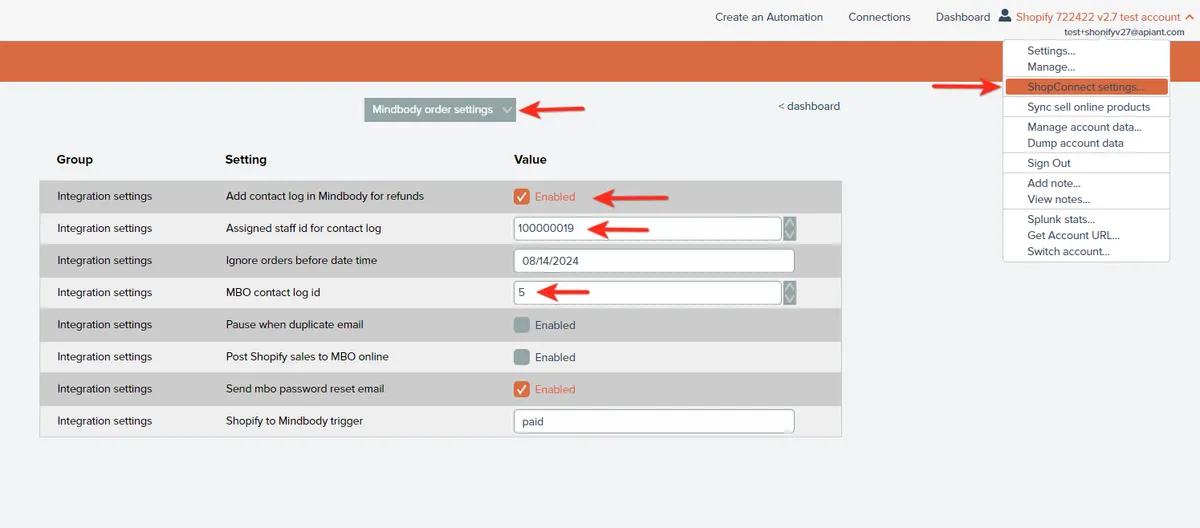
- Open ShopConnect settings in your APIANT account.
- Select the Mindbody Order settings
- Enable the setting "Add contact log in Mindbody for refunds".
- Staff ID and Contact Log Type ID in the respective fields
- The setting will auto-save.
Locating the Saved Contact Log
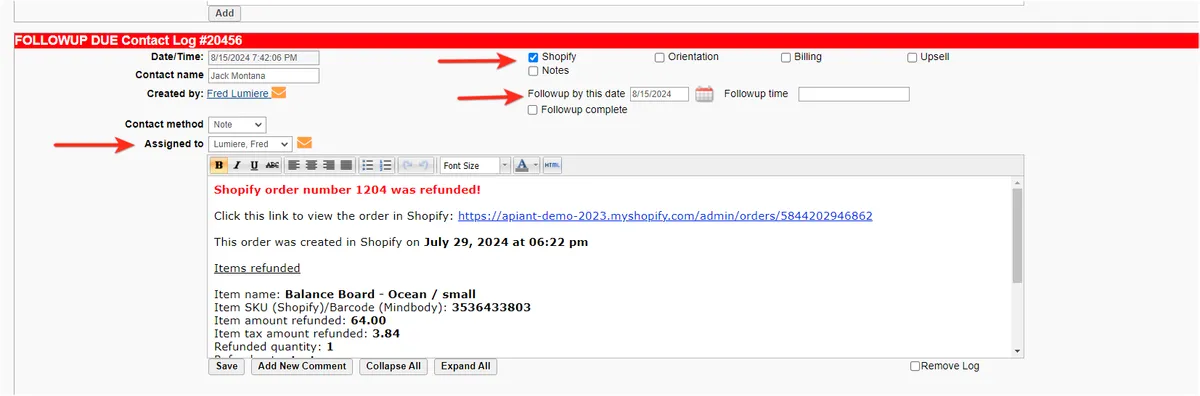
- Open the client's contact log in Mindbody.
- Scroll to find the refund information, including order number, item details, refund amount, and notes.
Conclusion
By following these steps, you can successfully integrate Shopify refund notifications into Mindbody, ensuring that all refund details are accurately logged and easily accessible. This integration streamlines the process of tracking refunds and enhances your ability to manage client transactions effectively.
Reference:
For more information on managing your Mindbody and Shopify ShopConnect integration settings, visit the ShopConnect support page.