
How Inventory Syncs Between Mindbody and Shopify
How ShopConnect keeps retail inventory in step between Mindbody and Shopify: in-studio sales, the daily inventory sync, new products and edits, what isn't synced, and how to force an update for a single product.
ShopConnect keeps the inventory count of your retail products in Shopify in step with Mindbody. Mindbody is the source of truth: ShopConnect always sets the Shopify count to the exact Mindbody number rather than adding or subtracting a difference, so counts stay accurate even when an online order arrives at the same moment.
This article explains how inventory moves between the two systems, what is and isn't synced, and how to force an update for a single product.
When a product sells in your studio
When a retail product is sold in Mindbody, ShopConnect lowers the Shopify inventory count for that product right away. This happens whether or not you post Mindbody sales to Shopify as orders.
This requires Sync inventory adjust to be turned on in your ShopConnect settings.
The daily inventory sync
Once a day, ShopConnect checks Mindbody for every product whose inventory changed since the last check, and sets the Shopify count to match Mindbody. A product counts as changed when:
- it was sold in Mindbody, or
- stock was received or adjusted in Mindbody.
This daily sync is also your safety net. If a product's Shopify count ever drifts away from Mindbody, the next sale or stock change on that product brings it back in line at the next daily sync.
Manual stock changes in Mindbody don't send an instant notification, so they reach Shopify through this daily sync rather than immediately.
New products and product edits
When a new product is created in Mindbody, or a synced product is edited, ShopConnect picks up the product along with its inventory. For this to work, make sure the ShopConnect setting Don't update inventory on product sync is turned off.
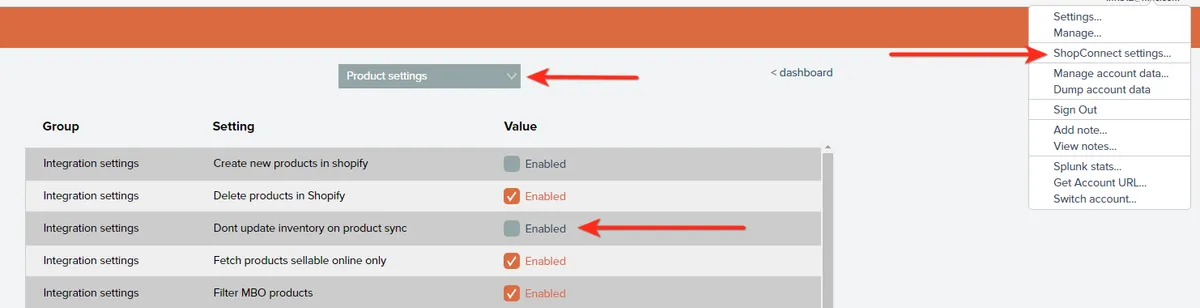
For example, if you add inventory while creating a new product, before saving it for the first time, the inventory is sent to Shopify along with the product. If you save the new product first and add inventory afterward, Mindbody doesn't treat that as a product update, so the inventory reaches Shopify at the next daily sync.
What isn't synced
- Products not linked to Shopify. Items that aren't synced to your store, for example products not set to sell online, have no Shopify product to update.
- Sales at your online location. Inventory changes recorded against Mindbody's online store location are not sent to Shopify.
Forcing an update for a single product
If you need a product's inventory in Shopify updated right away, make a small edit to the product in Mindbody. This marks the product as updated, and ShopConnect syncs it, including its inventory.
Recommended: use the Notes field. Open the product in Mindbody, add or change any text in the product's Notes field, and save. The Notes field is not synced to Shopify, so nothing changes on your storefront and there is nothing to undo afterward.
Alternative: edit the description. Add a single character, such as a period, to the product description and save.
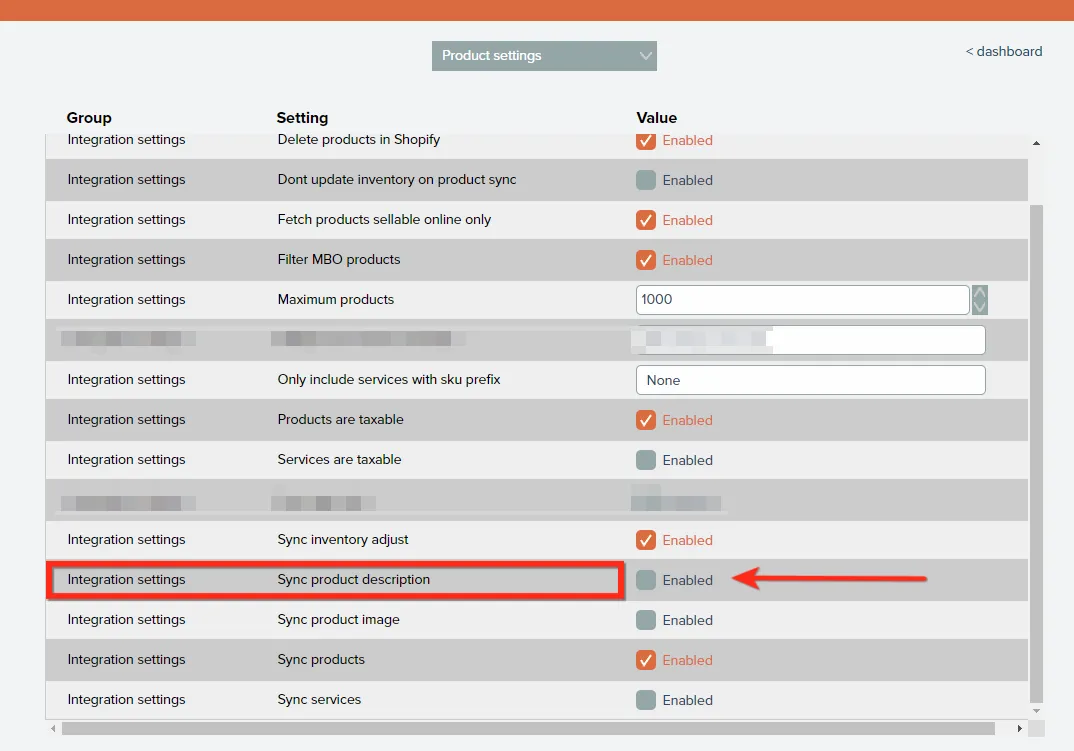
If Sync product description is turned on in your ShopConnect settings, the edited description also appears in Shopify, so you may want to undo the change once the inventory has updated. If it's turned off, the description change stays in Mindbody only.
It can take up to 15 minutes for the product to update in Shopify.
When counts still don't match
If a product's Shopify count is wrong and the product hasn't sold or changed since, the daily sync won't pick it up. Use Forcing an update for a single product above.
If many products are off, contact us at support@apiant.com and we can run a full inventory sync for your store.
Track quantity in Shopify
ShopConnect updates the Shopify inventory count for every synced retail product, whether or not Track quantity is turned on for that product in Shopify. That setting only decides whether Shopify uses the number at checkout, for example to stop selling when stock reaches zero. It does not change what ShopConnect syncs.