
Deploying automations
Copy automations to one or more accounts, with optional linking to enable batch updates and track deployment history across your system.
Automation deployment allows one or more automations to be copied to one or more other accounts in the system.
Accounts must have the "Deploy Automations" permission in order to deploy automations.
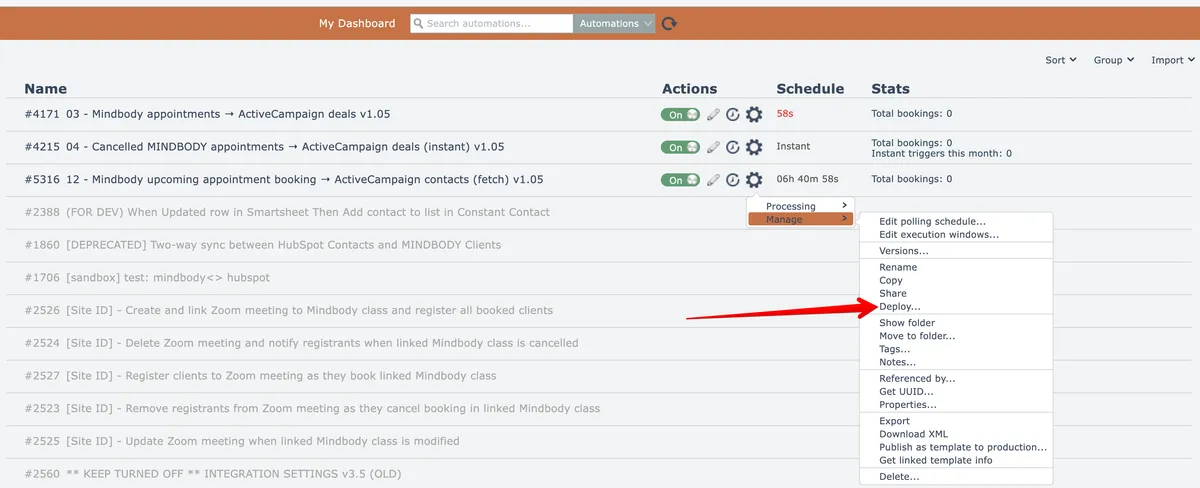
To deploy a single automation, choose the Deploy option from the gear menu:
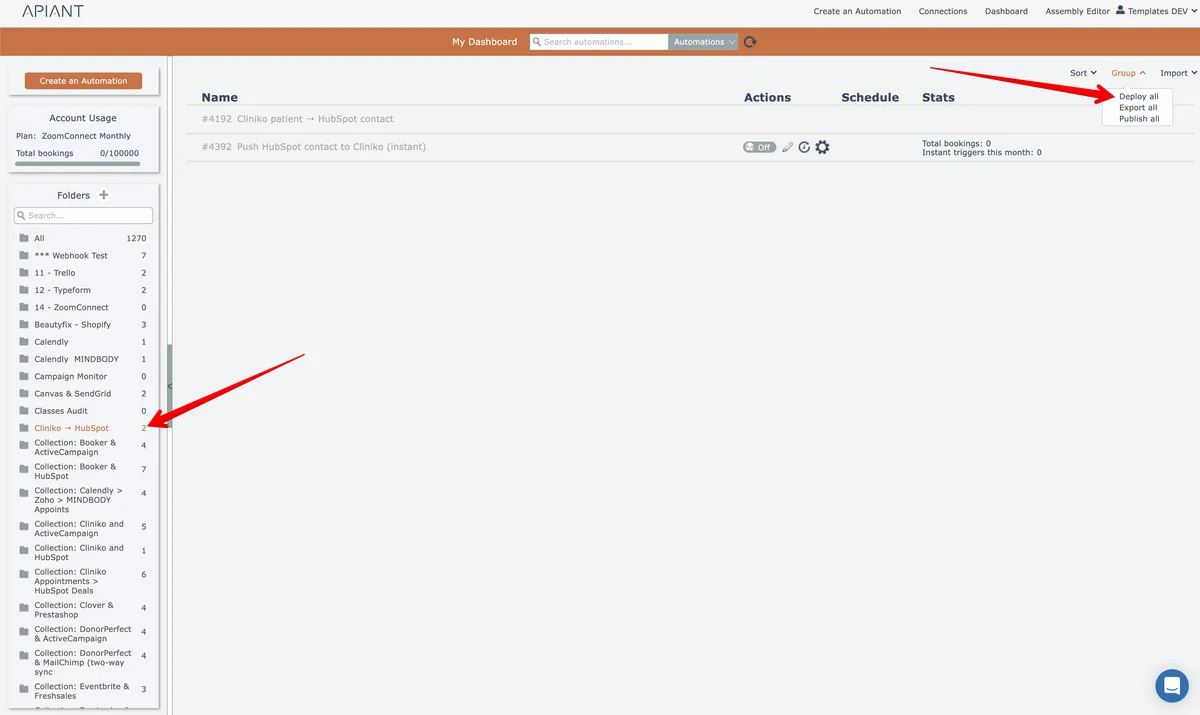
Multiple automations can be deployed at once by first selecting a folder of automations, then choosing the Deploy All option from the Group menu at the top right:
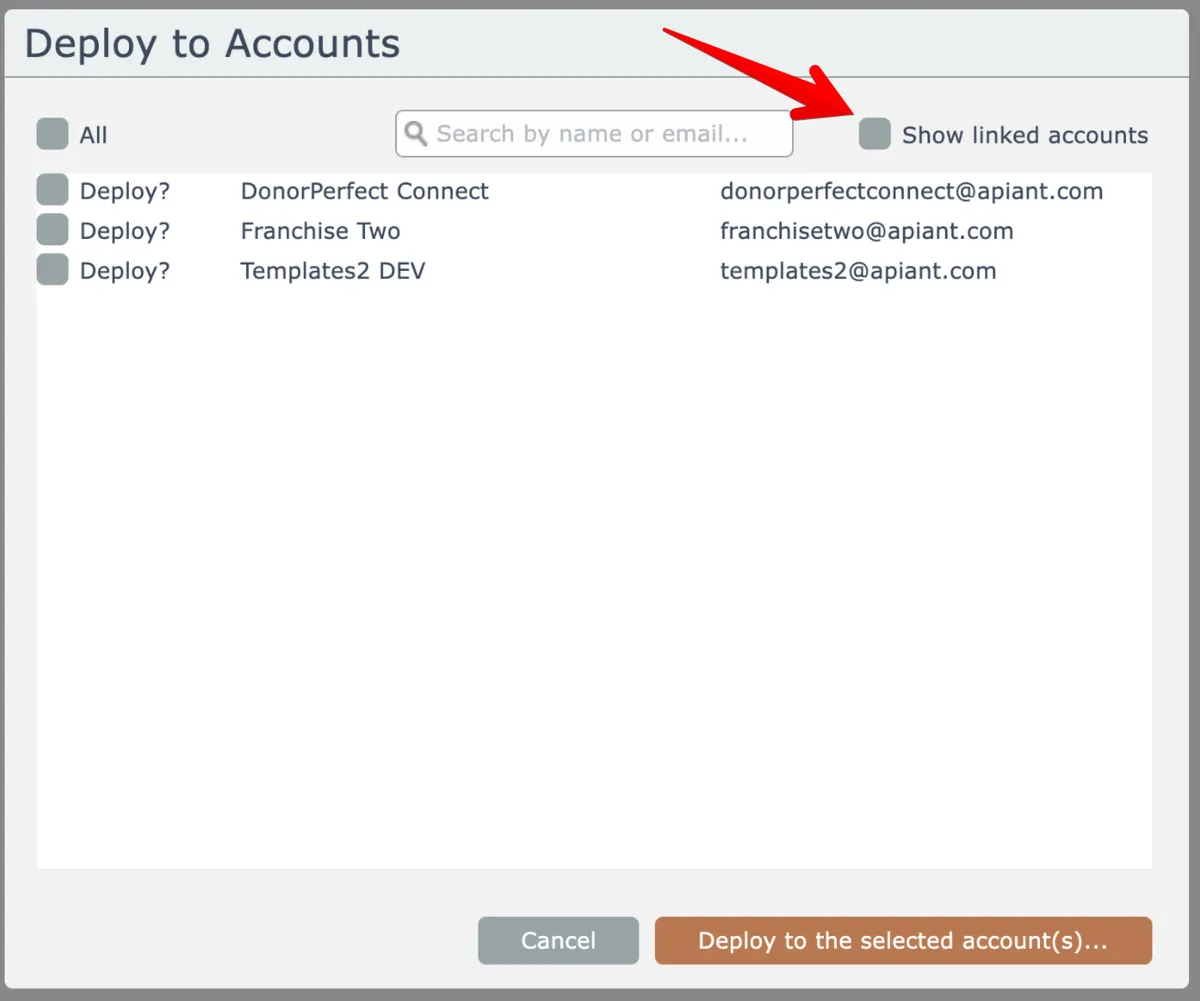
Select the destination accounts via their checkboxes at the left, or use the All checkbox at the top left to select all accounts in the list.
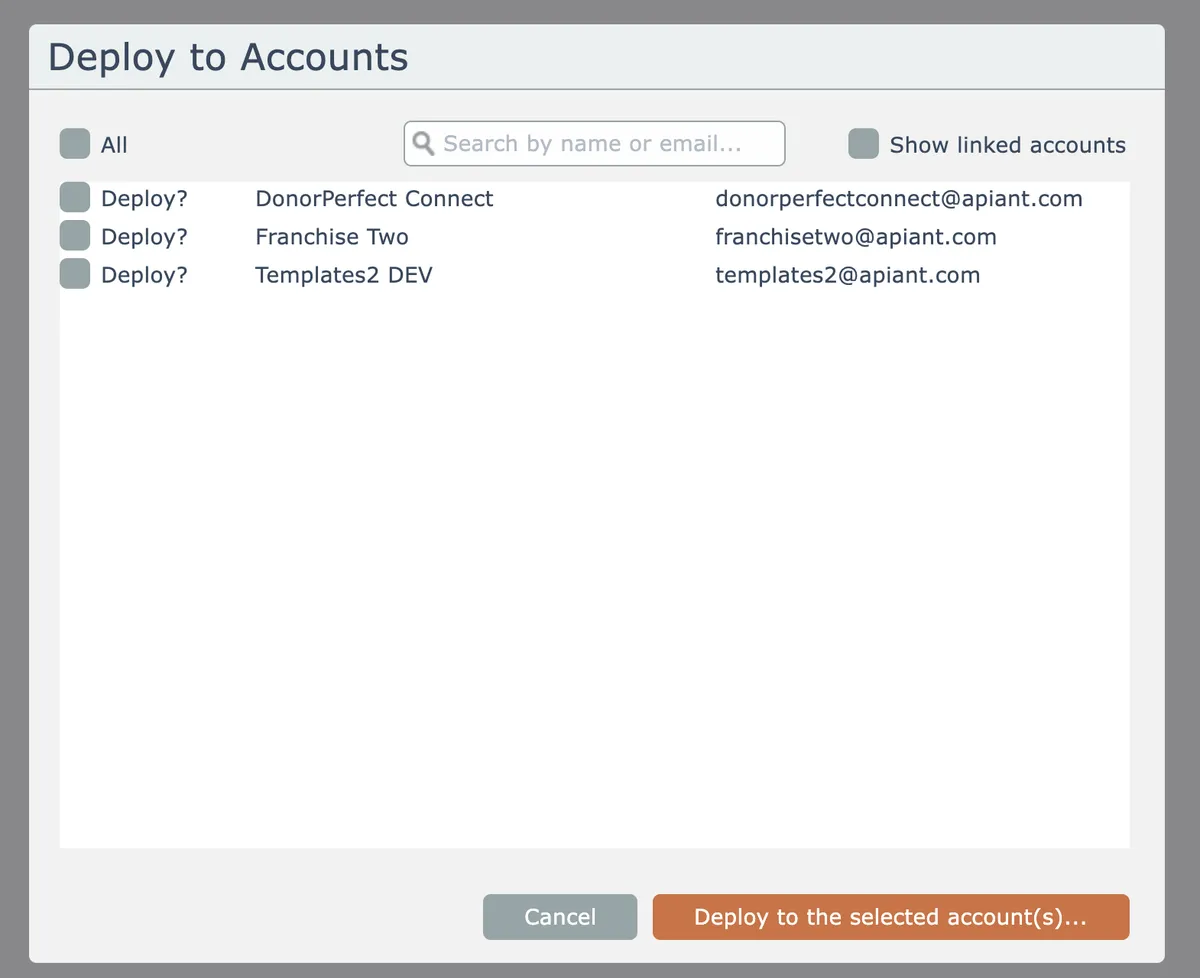
If the automation(s) were previously deployed and linked, checking the "show linked accounts" checkbox at top right will filter the list to only show those accounts containing linked copies of the automation(s).
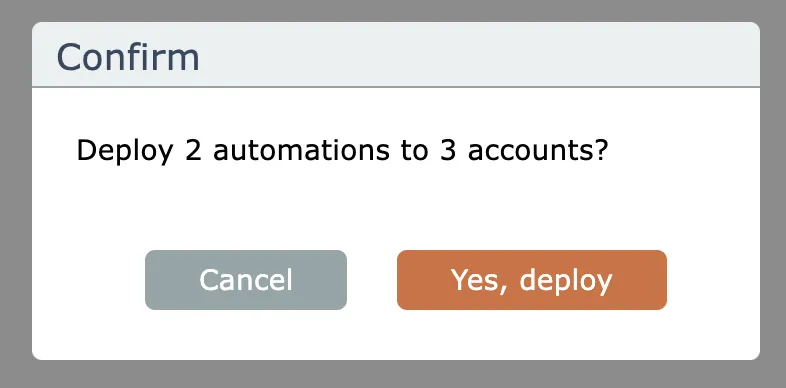
A confirmation appears. Check to make sure that the number of automations and destination accounts is correct:
Finally, the option to link the automations will appear:

Linking automations provides a way to update the deployed automations in the future, instead of always having new copies created.
Another benefit to linking automations is that the system knows which accounts contain the linked automations. So you can check this checkbox to see all the linked accounts and deploy to all of them at once:
Linked automations can be unlinked later if desired. See Unlinking deployed automations