
Adding an app connection
Steps for establishing new app connections in APIANT through the editor or Connections screen, including creating default connections and adding multiple accounts per app.
The most common way apps are connected to your account is when building automations in the editor. If you add an app to an automation that you haven't previously connected, the system will walk you through creating a new "Default" connection for that app.
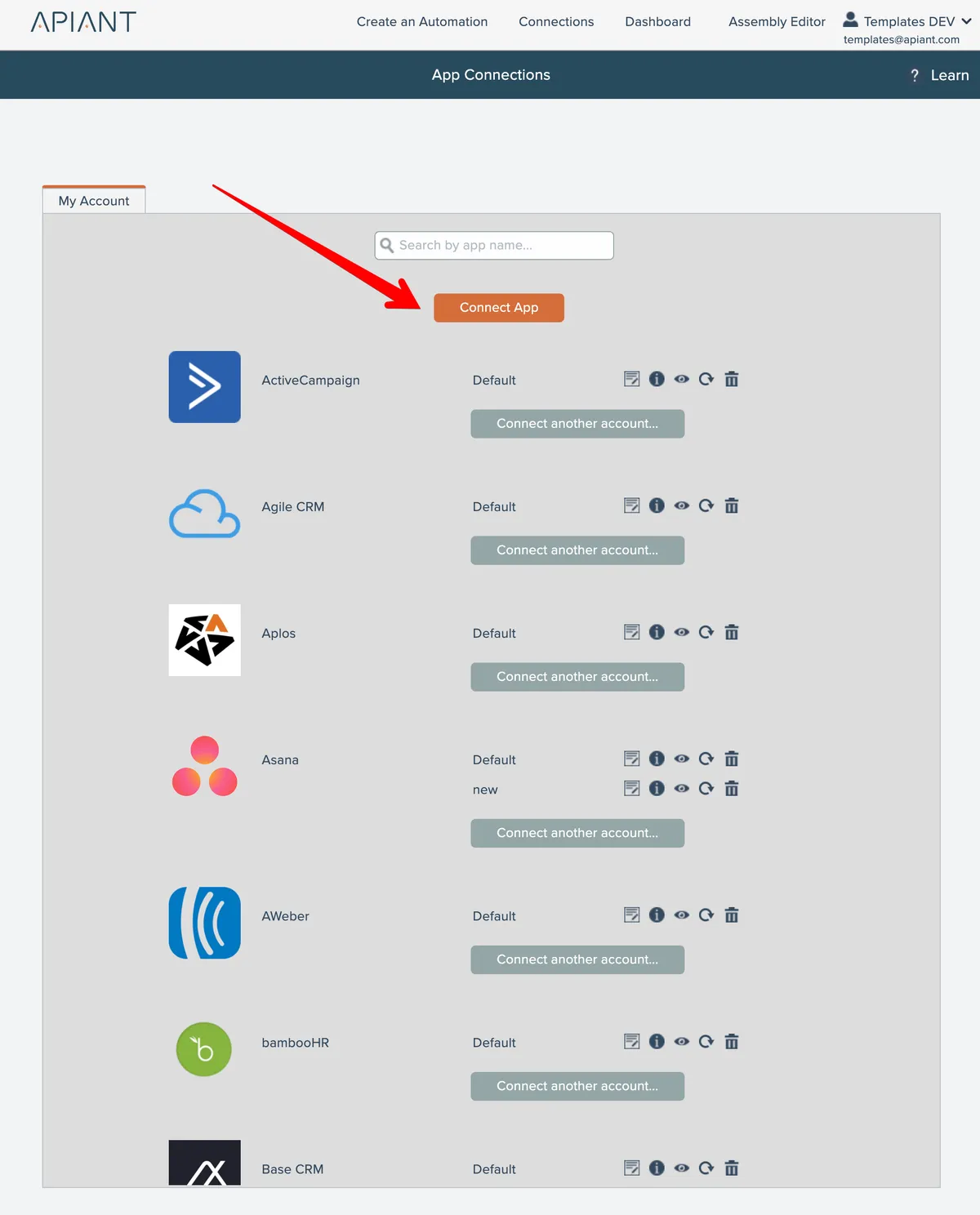
App connections can also be added from the Connections screen. To connect a new app, click the Connect App button at the top of the screen:
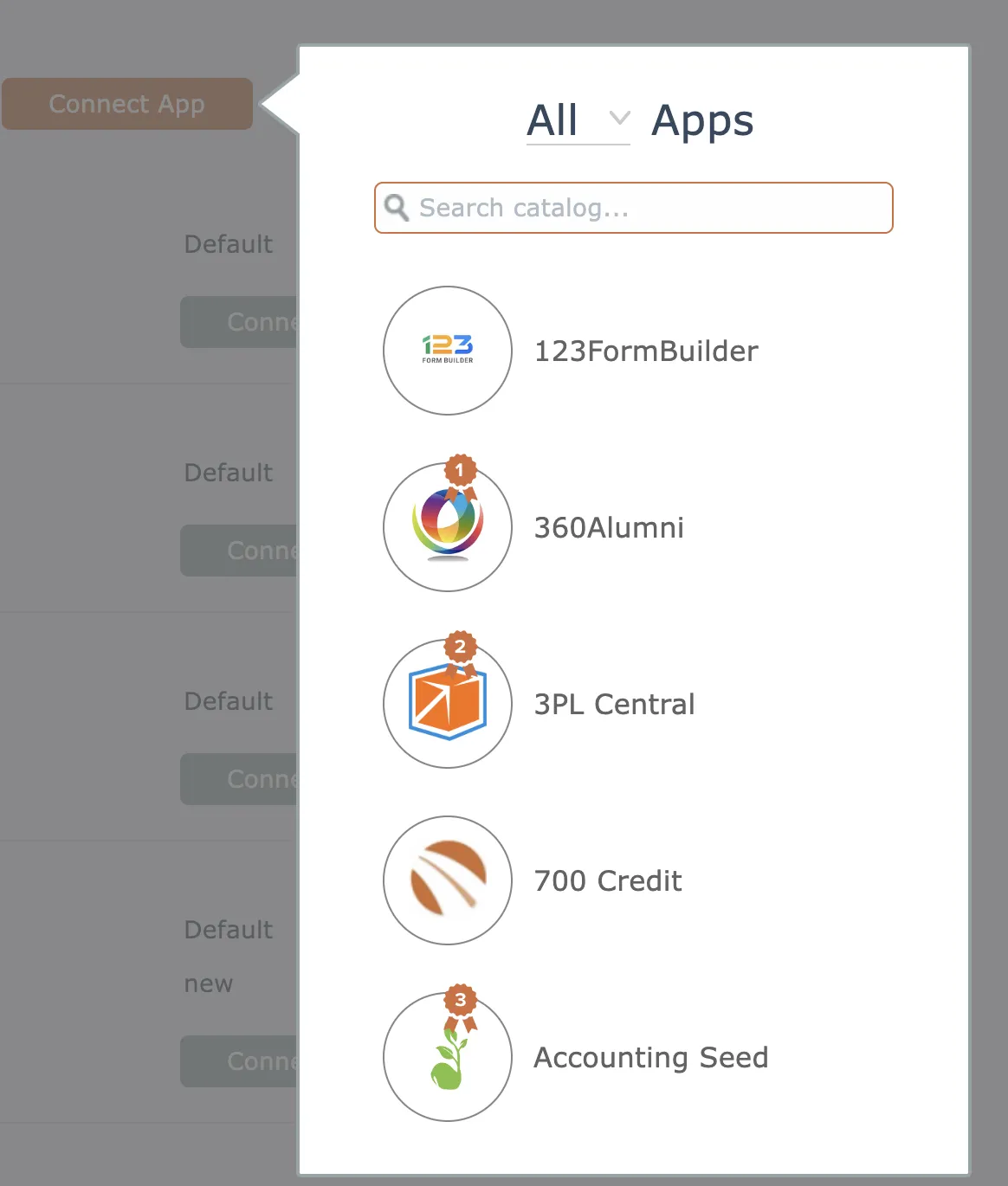
Then find and select the app you want to connect:
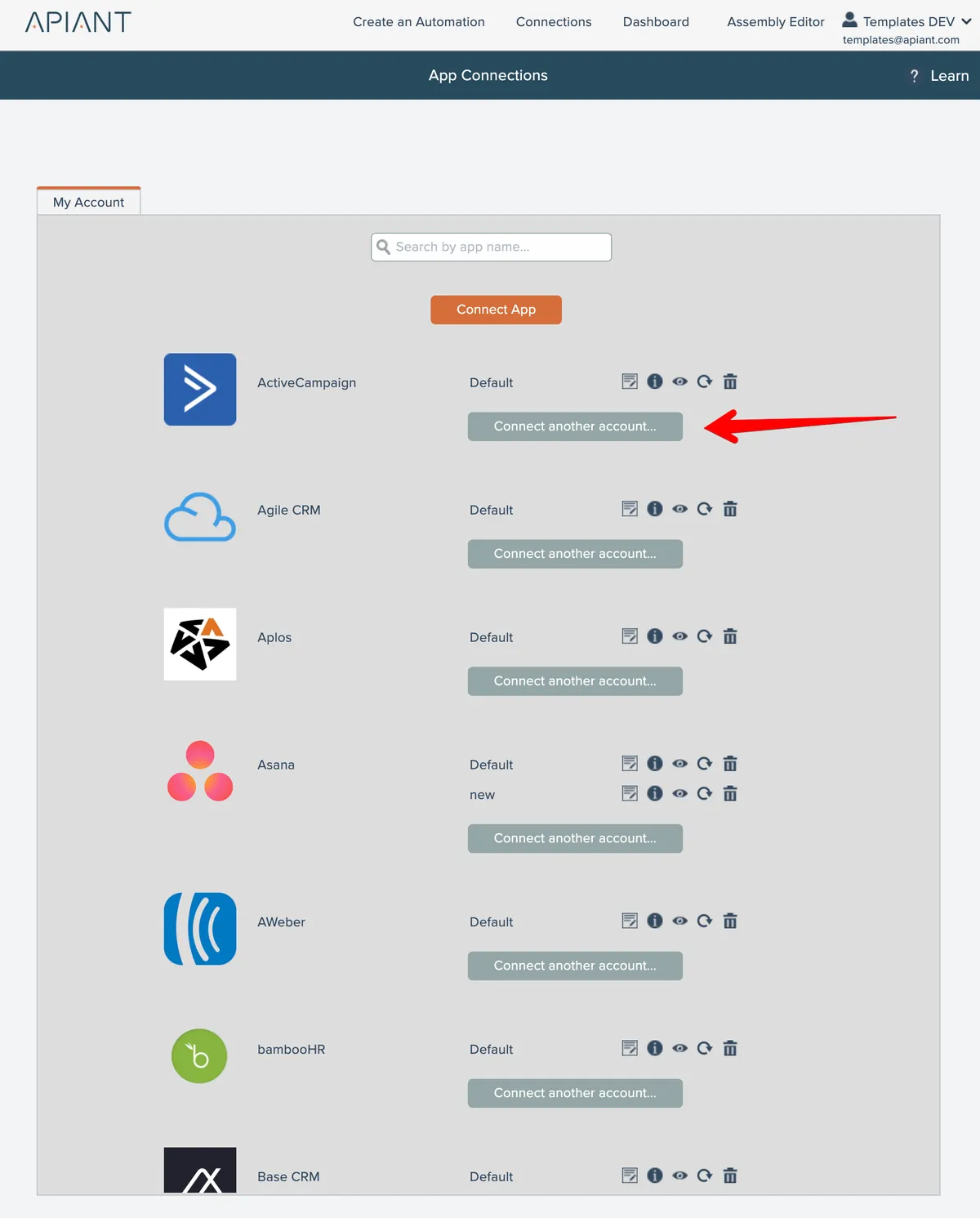
To add a new connection to an app that already has a connection, click the Connect Another Account button next to the desired app:
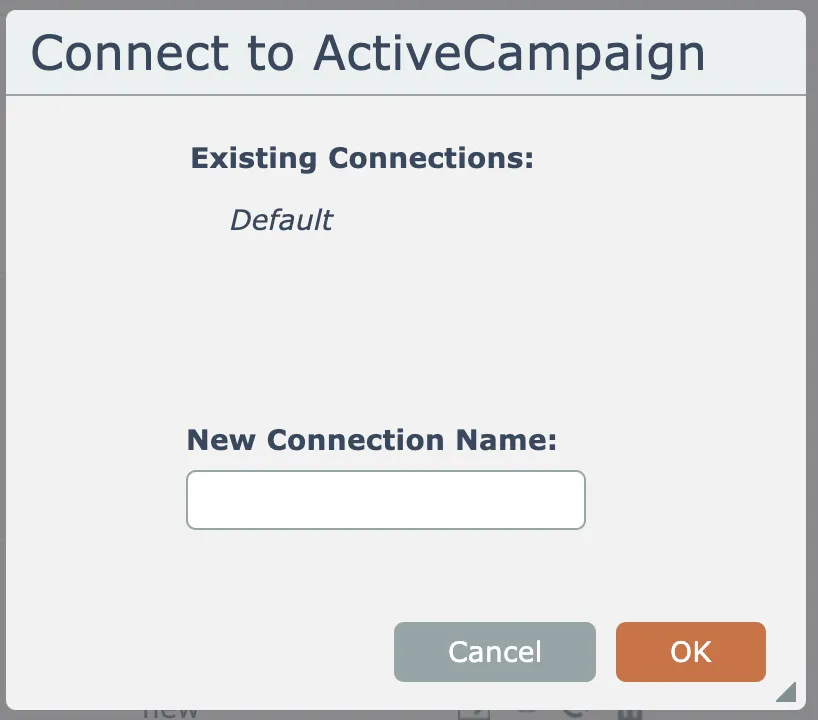
Enter a unique name for the new connection:
The system will then walk you through the process of adding a new connection for the app, which varies depending on the app.
If the new connection was successfully created, you will see it appear in your list.