
Multi-Factor Authentication
Secure account access by enabling time-based one-time passwords generated through authenticator apps, requiring additional verification during sign-in.
Accounts can be configured to require multi-factor authentication, where an additional verification step must be performed during sign-in.
The system implements TOTP (time-based one-time password) authentication, where a one-time password generated by a TOTP phone app (typically Google Authenticator) must be entered during sign-in after entering a valid email and password to the account.
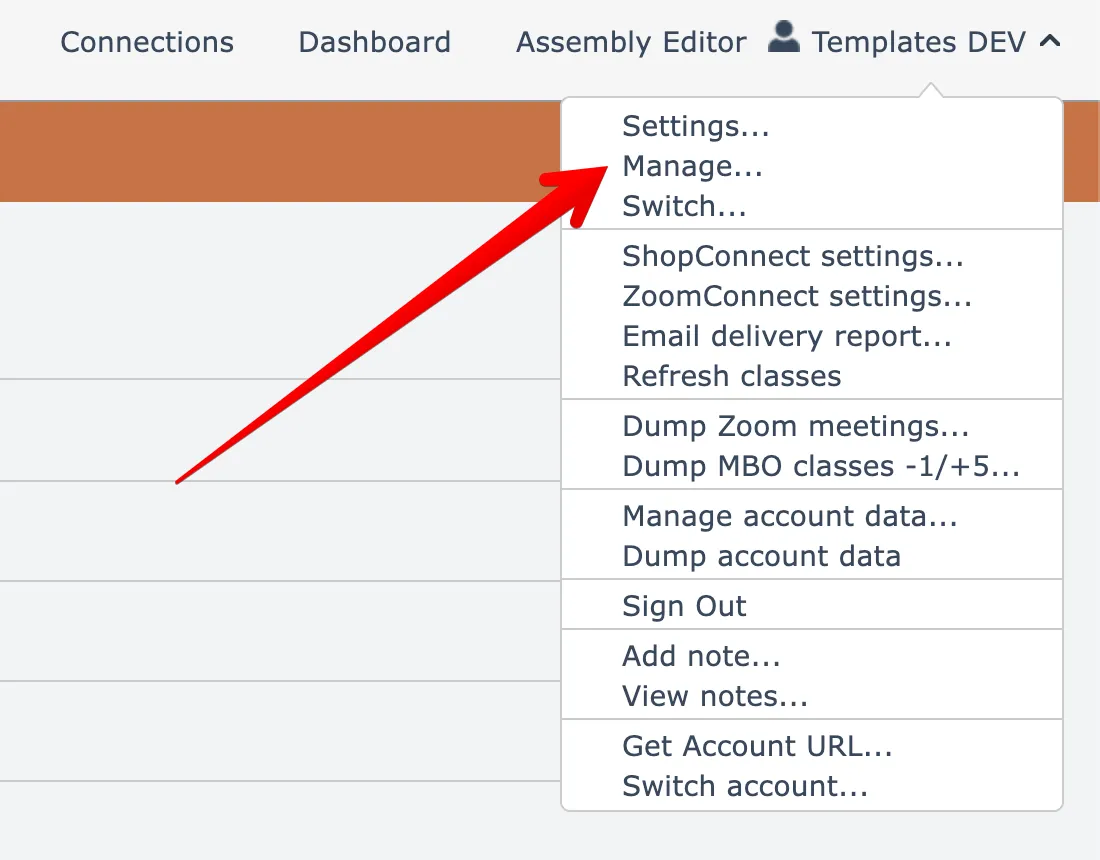
To configure multi-factor auth, open the Manage account menu option found under your account name menu at the top right:
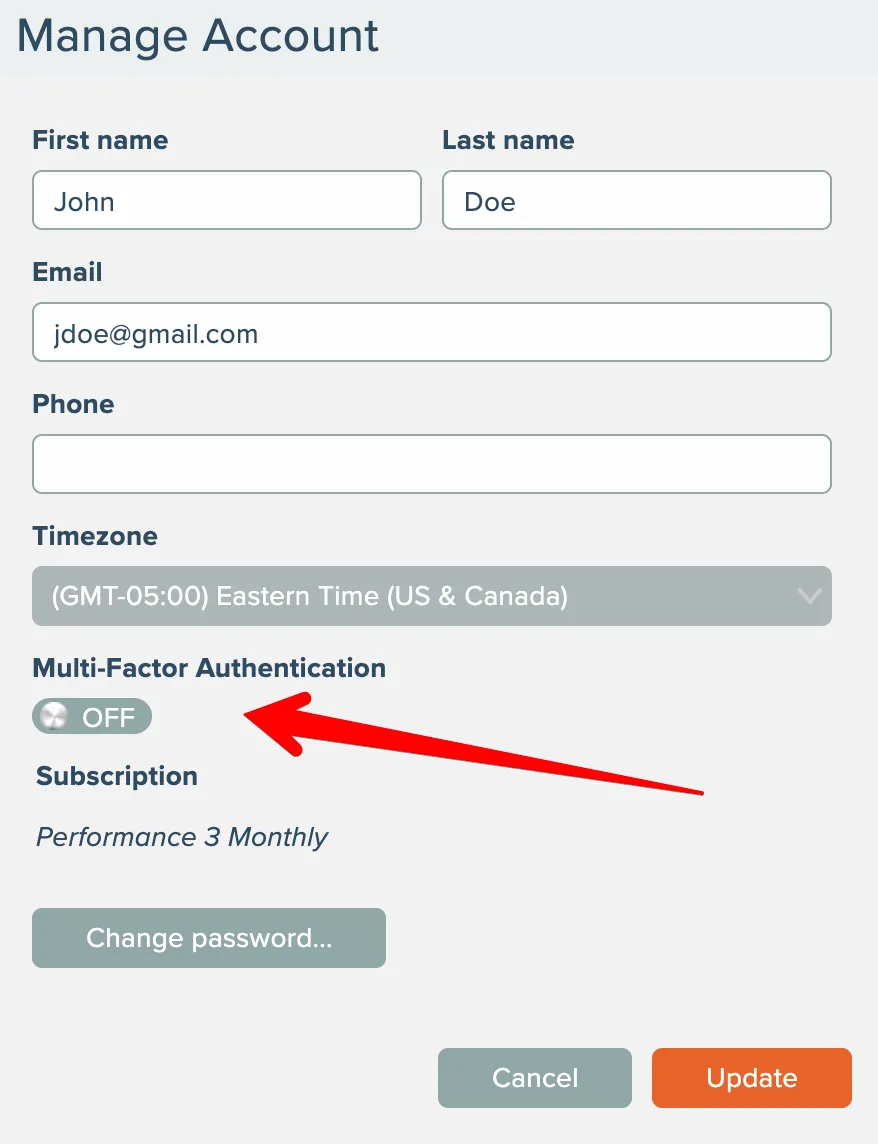
Then toggle this switch to initiate multi-factor auth setup:
The system displays a QR code:
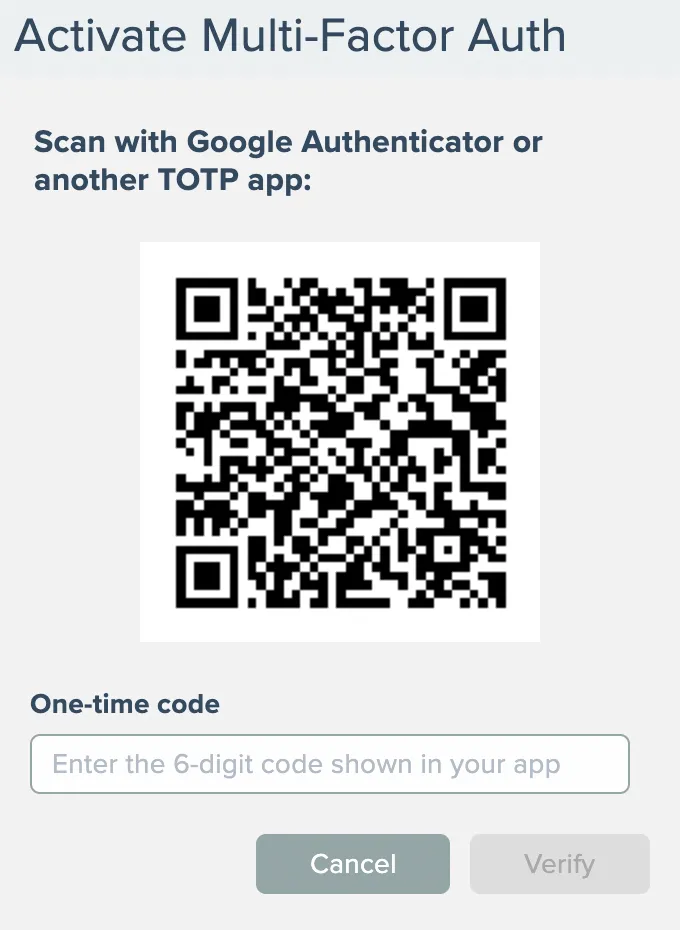
Open a TOTP app on your phone (typically Google Authenticator, but any TOTP app is ok) and use it to scan the QR code. The TOTP app displays a 6-digit number which must be entered into the screen above to complete the setup.
After successful configuration, the system will require entering a one-time password during subsequent sign-ins, after your email and password are successfully entered:
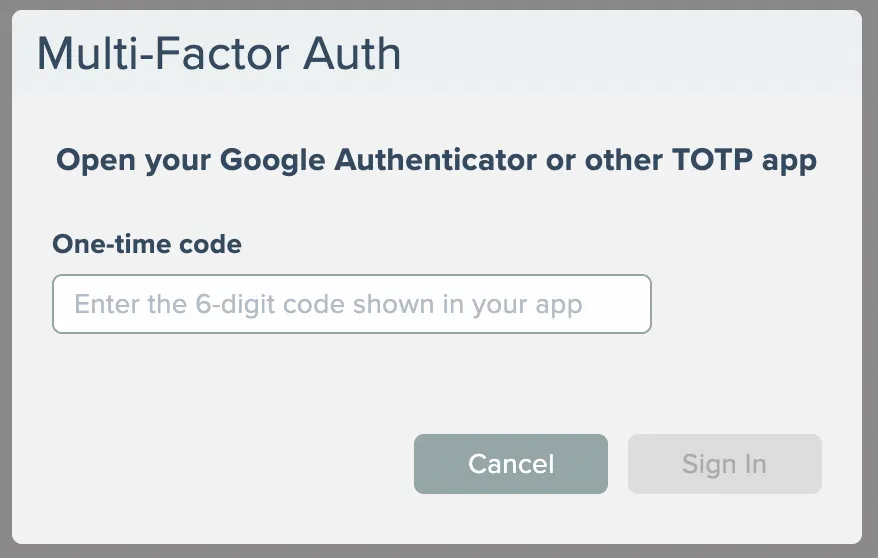
You will need to open your TOTP app on your phone and enter the correct 6-digit number to access your account.