
How to Add or Update a Mindbody Client from ActiveCampaign
Push contacts from ActiveCampaign to Mindbody using the updatembo tag — create new clients or update existing ones automatically.
Apply the updatembo tag to any ActiveCampaign contact, and CRMConnect creates or updates that client in Mindbody automatically. The tag is removed after processing to prevent duplicates.
How It Works
When a contact is added in ActiveCampaign — manually, via a form, or through a workflow — adding the updatembo tag triggers the sync to Mindbody.
Steps
-
Create or select a contact in ActiveCampaign
- Enter the contact's details, including name, email, and phone number.
- Ensure any required Mindbody fields (such as birthdate) are filled in ActiveCampaign.
-
Apply the updatembo tag
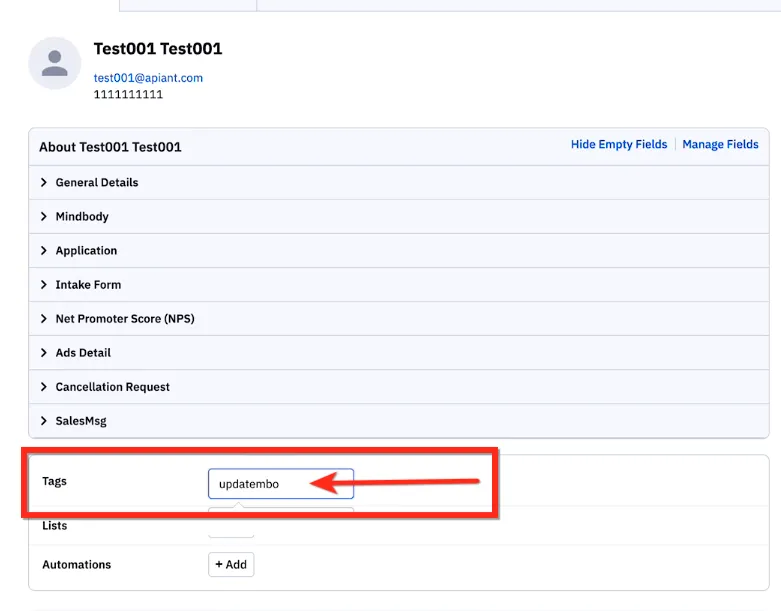
The tag can be added:
- Manually to the contact
- Automatically via a form submission
- Through a workflow in ActiveCampaign
-
Mindbody sync runs
- If the contact already exists in Mindbody, it updates the details.
- If the contact does not exist, it creates a new client in Mindbody.
- The tag is removed automatically after processing.
-
Confirm in Mindbody
- Search for the contact in Mindbody using name or email.
- Verify the details have been updated or a new record was created.
Using the Tag in an ActiveCampaign Automation
When a tag is added manually to a contact record, ActiveCampaign's system webhook fires automatically. However, when a tag is added via automation, the webhook is not triggered. This is a known ActiveCampaign behavior.
See: ActiveCampaign — How to send a webhook in an automation
Workaround: Add a "Webhook" action in your automation alongside the tag:
- Contact support@apiant.com to get the webhook URL for your account.
- Edit the automation where the tag is added.
- Click the + node, select Workflow → Webhook.
- Enter the webhook URL and click Save.
Important Notes
- Required fields: If Mindbody requires a birthdate, make sure this field is completed in ActiveCampaign before applying the tag. If missing, the sync will fail. Either enter the birthdate or change Mindbody settings to make it optional.
Troubleshooting
If the sync doesn't work, check:
- Required fields (e.g., birthdate) are filled in ActiveCampaign
- The updatembo tag was applied correctly
- Mindbody settings for required fields
For further assistance, contact support@apiant.com.