
GuidePlatformv1
System Upgrade
The System Upgrade screen provides functionality for the installation of system upgrades:
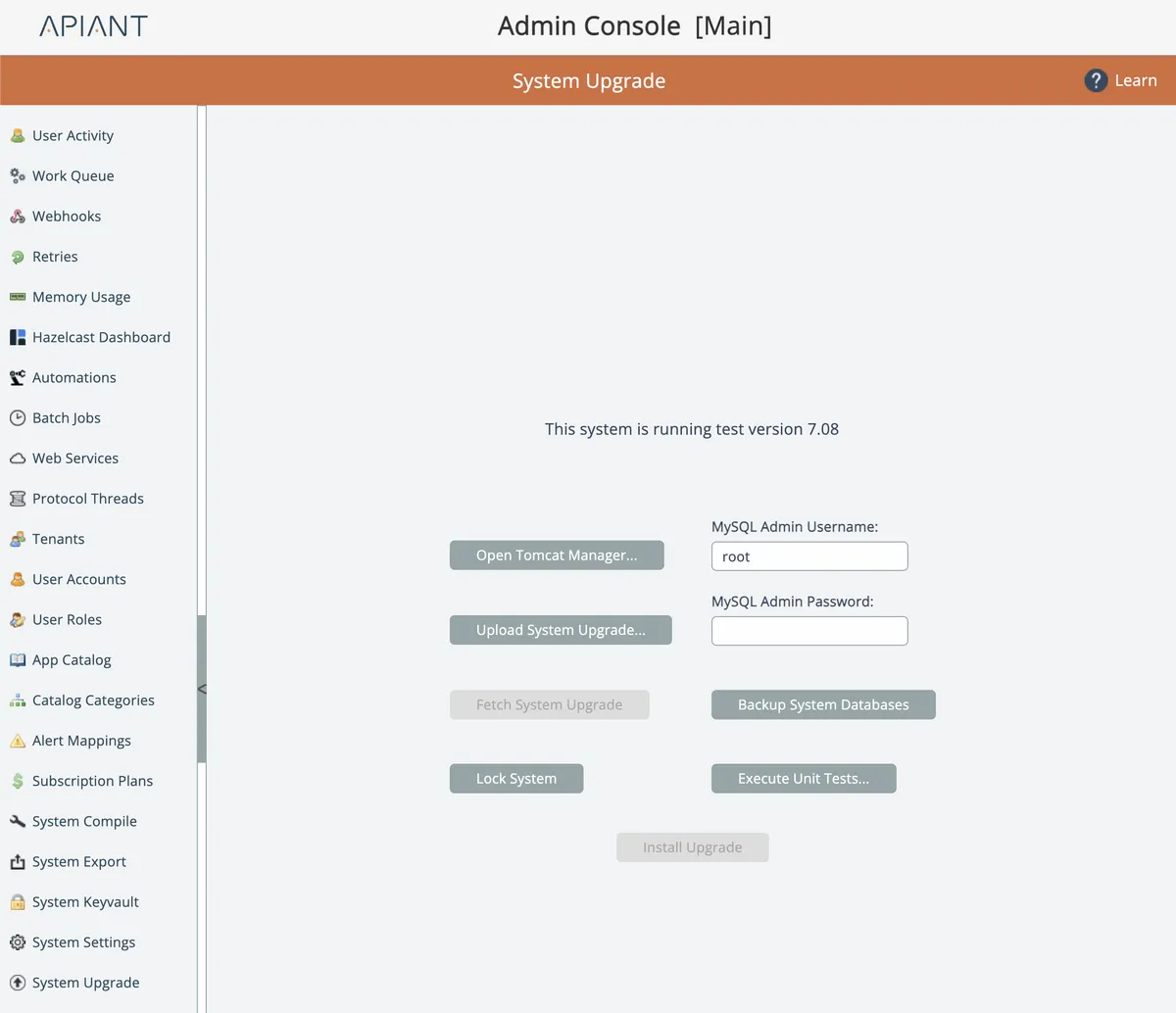
System upgrades are typically performed as follows:
- APIANT makes a new system version available
- During off hours w/ minimal online users and active automations, use the Work Queue screen to empty the work queue by first draining the queue. If automations cannot be drained, then consider locking the queue.
- When the work queue has been emptied, check the User Activity screen to see if any users are actively in the system. Consider sending any active users an announcement about the pending system maintenance.
- In the System Upgrade screen, click the Lock button to lock the system. Users will not be able to access the system while locked.
- In the System Upgrade screen, click the Fetch button to fetch the latest system upgrade ZIP file. It will be downloaded to the server.
- In the System Upgrade screen, click the Install button to install the system upgrade.
- When the system upgrade is complete, a message will be shown. Reboot the system.
- Reload the admin console and confirm the system is operating normally. Check the Work Queue screen to ensure automations begin processing normally.
- If any additional system upgrades need to be installed, repeat these steps.
System upgrades are announced here:
https://forum.apiant.com/c/system-releases
You can sign up for a forum account and monitor this forum so you receive email alerts when new system upgrades become available.
It is generally best to keep your system up-to-date as new releases are made available.
Related docs
Last updated May 4, 2026