
Multi-Site Walkthrough (Slides)
A visual slide-by-slide walkthrough of ZoomConnect Multi-Site: shared vs single-site classes, class code matching, timing, example setup, conversion steps, and FAQ, illustrated with the fictional studio APIANT Wellness.
This is the visual companion to ZoomConnect Multi-Site: Shared Zoom Meetings. It walks through the same material slide by slide, illustrated with the fictional two-site studio APIANT Wellness (Doylestown as the Master site, Chicago as the Linked site).
1. Overview
2. What we will cover
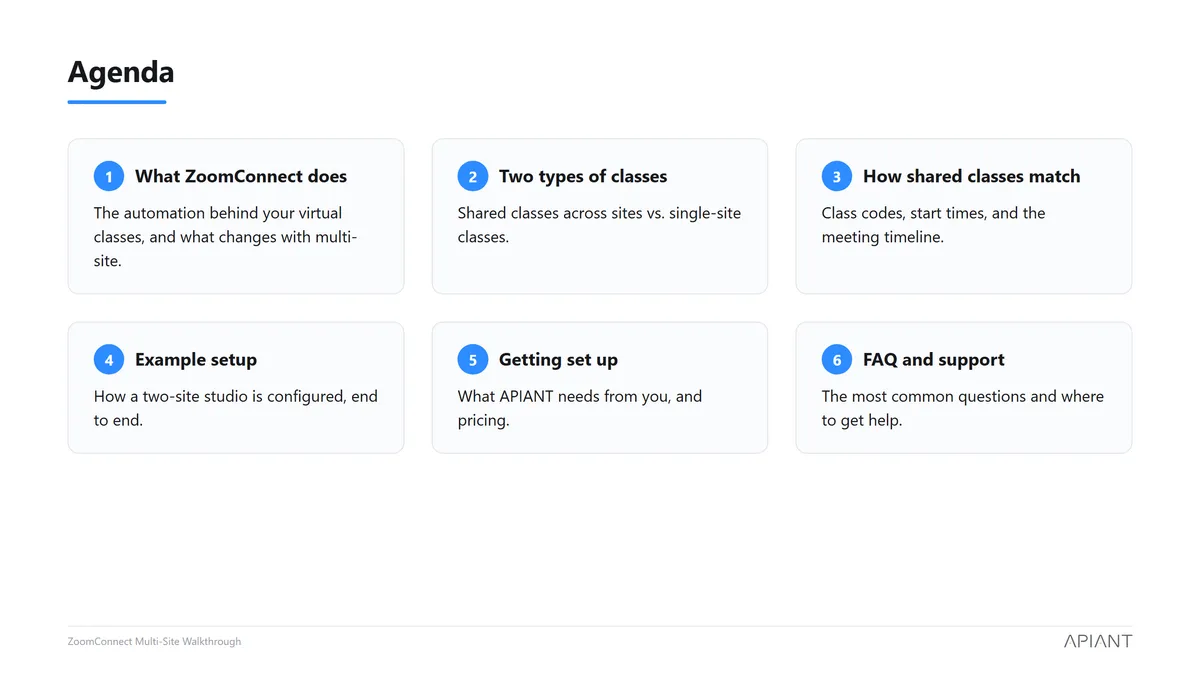
3. What ZoomConnect does, and what multi-site adds
The core automation stays the same. Multi-site adds one thing: clients booking the same class at any of your sites land in one shared Zoom meeting, while every site keeps its own separate client database.
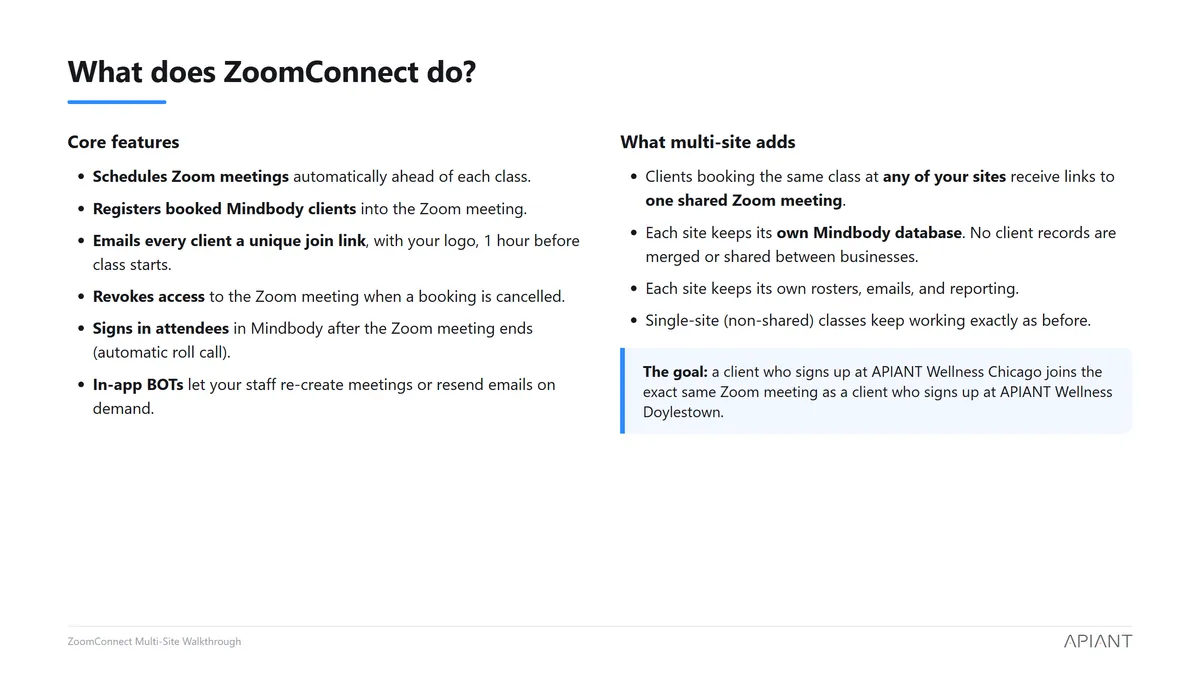
4. The two types of classes
Shared classes point to one meeting created by the Master site. Single-site classes keep working exactly as before.
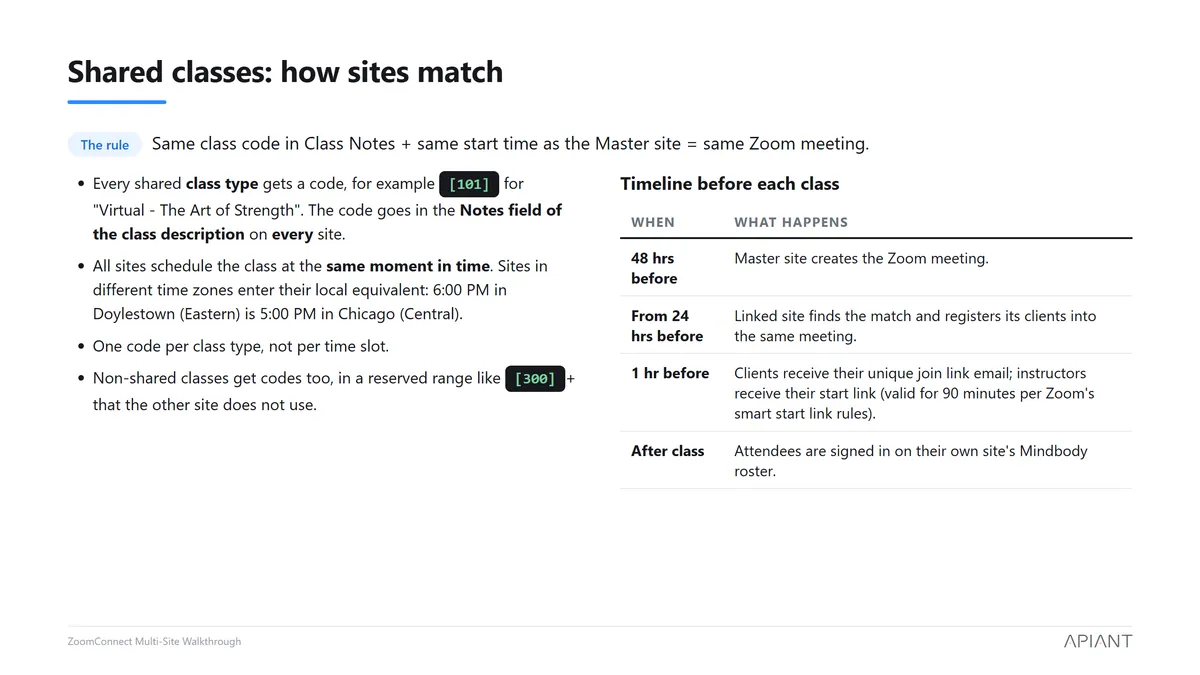
5. How shared classes match
Same class code in the Class Notes plus the same start time as the Master site equals the same Zoom meeting. The timeline shows what happens automatically before and after every class.
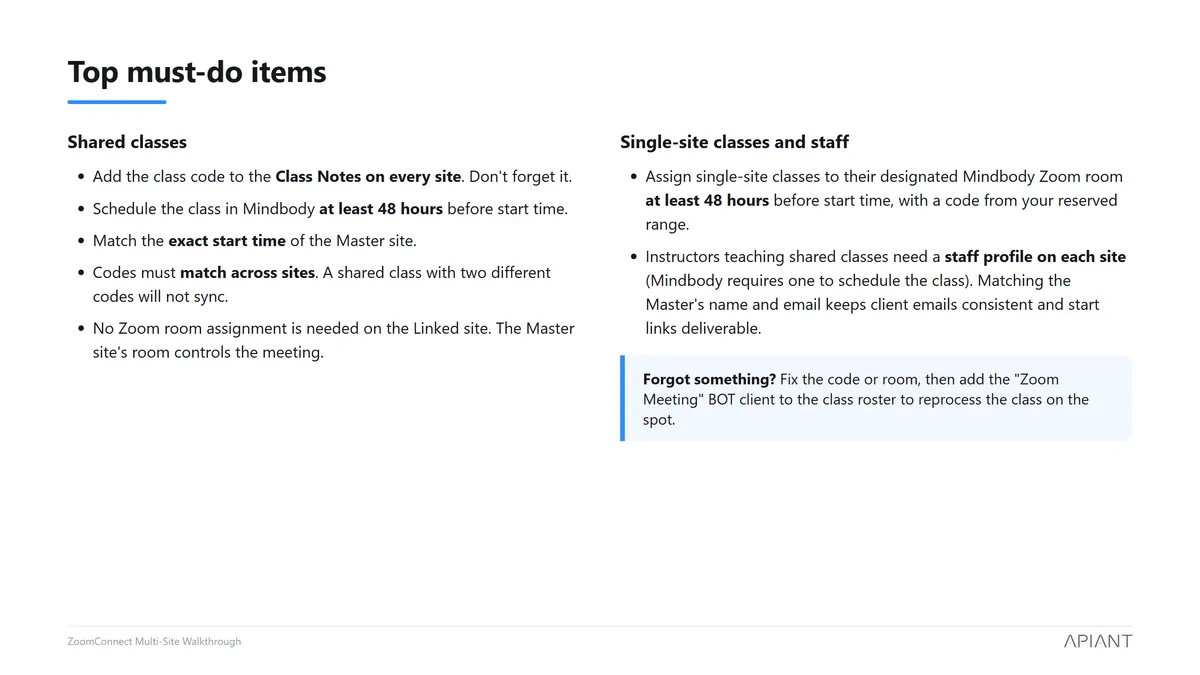
6. Top must-do items
The short list your front desk and schedulers need to know.
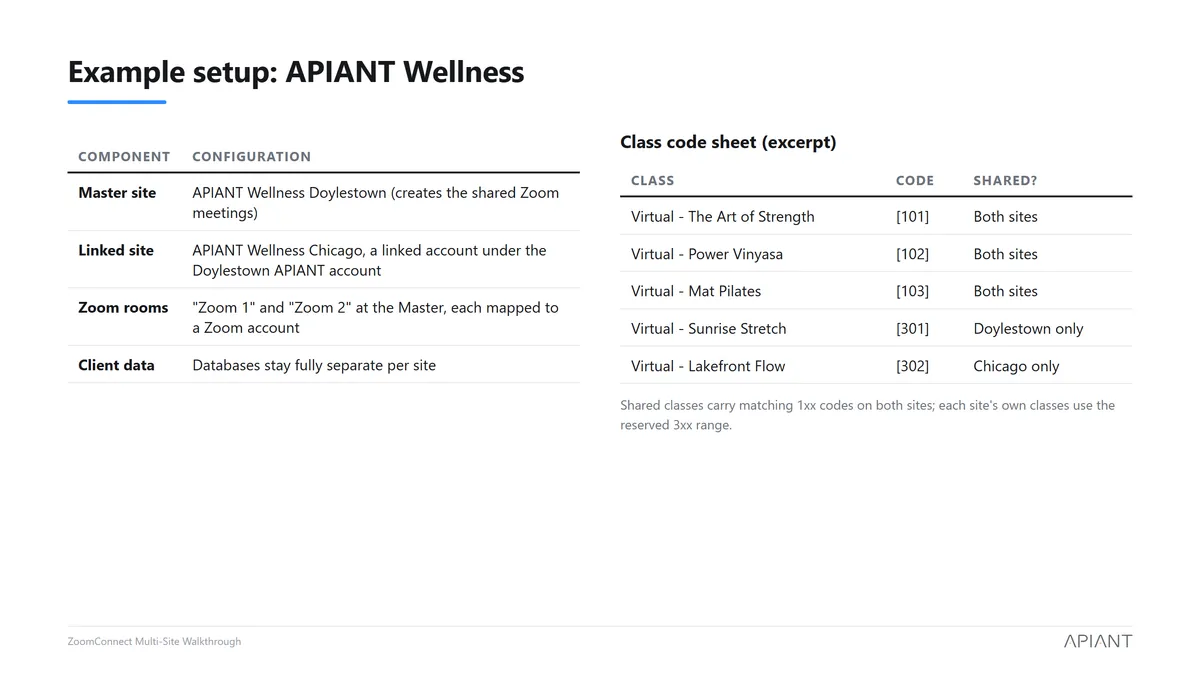
7. An example setup
How a two-site studio is configured end to end, including an excerpt from the class code sheet showing shared codes and reserved single-site codes.
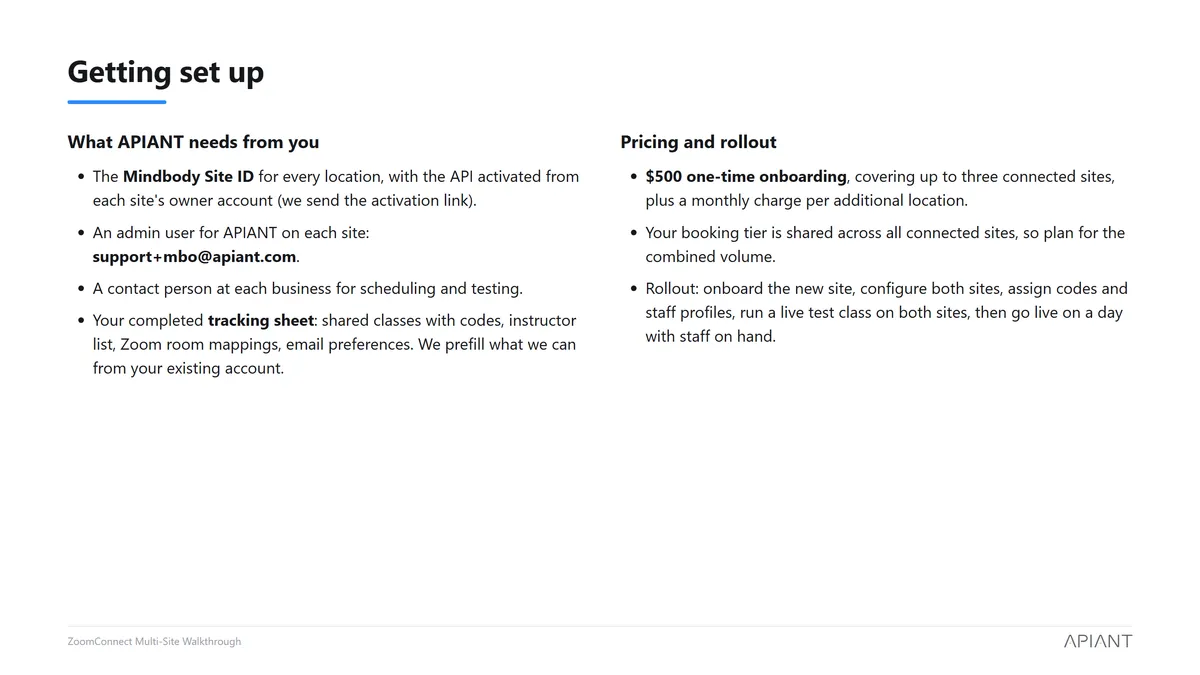
8. Getting set up
What APIANT needs from you, plus pricing and the rollout shape.
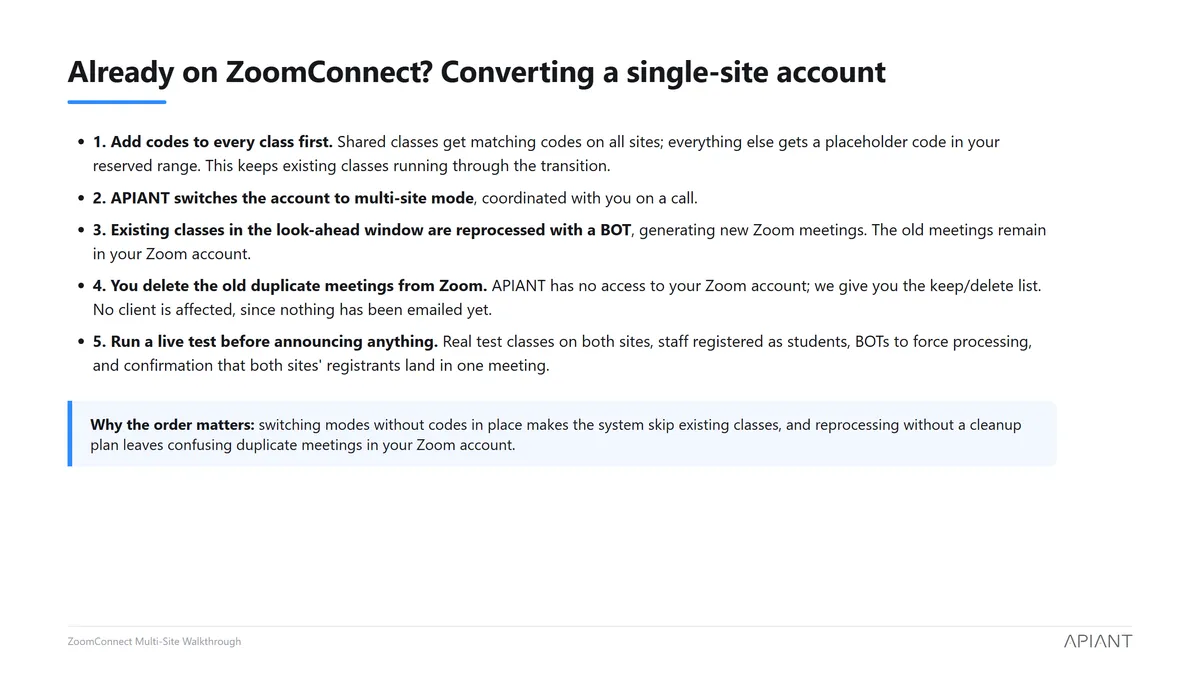
9. Converting an existing single-site account
The order of operations matters. Codes first, then the mode switch, then reprocessing, then Zoom cleanup, then a live test.
10. FAQ and support
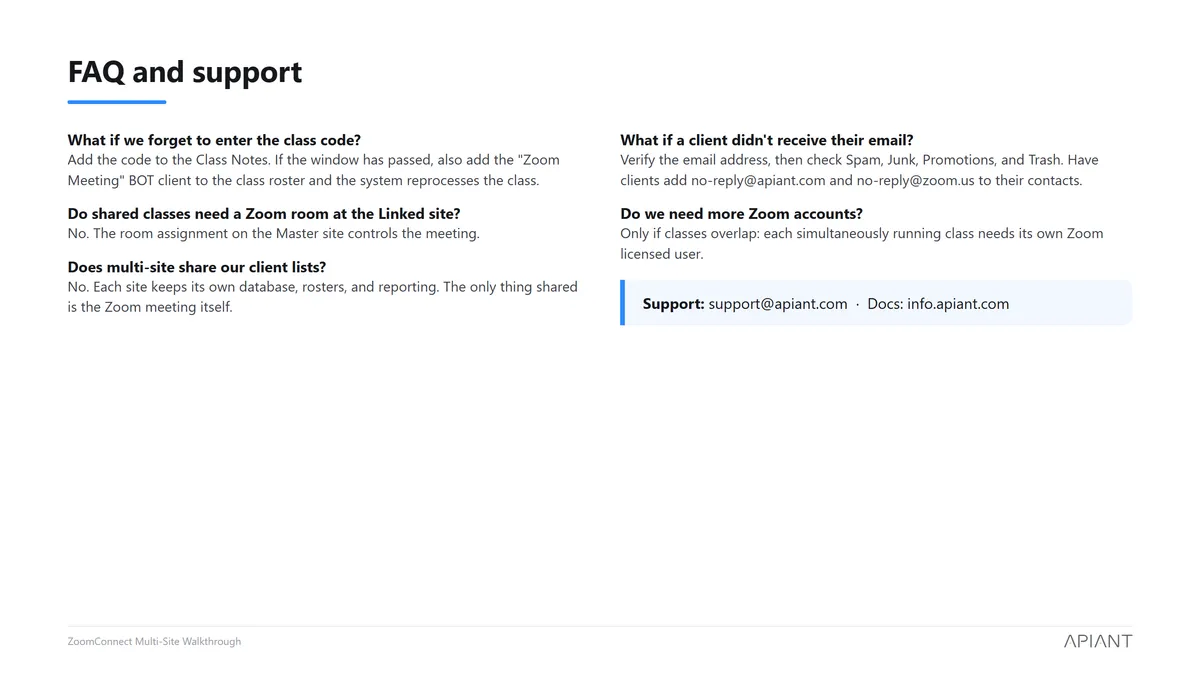
For the full written guidelines, including troubleshooting and BOTs, see ZoomConnect Multi-Site: Shared Zoom Meetings.
Questions? Contact support@apiant.com. We are here to help.