
Customize the Look and Feel of Your Booking Widget
Change the ShopConnect booking widget's font, text size, and accent color yourself in the Shopify theme editor. Blank settings inherit your theme automatically, and changes apply live with no code.
Overview
The ShopConnect booking widget sits on your product pages and lets customers pick a class or appointment time before checkout. Out of the box it inherits your theme's fonts and sizes and uses a green accent, so it blends in without any setup.
If you want it to match your brand more closely, you can change the widget's font, base text size, and accent color yourself, directly in the Shopify theme editor. No code, no support ticket, and changes apply to your storefront as soon as you save.
If you never touch these settings, nothing changes: the widget keeps inheriting your theme. Customization is optional.
What you can customize
| Setting | What it changes | Accepted values |
|---|---|---|
| Widget font family | The typeface for all text inside the widget. | Any CSS font list, for example Georgia, serif. Leave blank to use your theme's font. |
| Widget base font size (px) | The base text size. Titles, labels, and buttons all scale from it proportionally. | A number from 10 to 40. Leave blank to use your theme's size. |
| Widget theme color | The accent: the widget border, selected date and time chips, the focus outline, and the hint bar. | Any color from the color picker. Default is #1A7F5A green. |
Step by step
- Open the Themes page. In the Shopify admin, click Online Store in the left sidebar.
- Open your live theme in the editor. On the Themes page, click Edit theme on your live theme (on some stores the button says Customize).
- Open Theme settings. In the theme editor, click the gear icon at the bottom of the left sidebar.
- Find the ShopConnect Booking section. Scroll the Theme settings list past Shopify's built-in groups (Colors, Typography, Cart, and so on) until you see ShopConnect Booking, and click it to expand.
- Set your values. Type a font list, a base size in pixels, and pick a color. The preview pane updates as you change them, so open any bookable product page in the preview to watch the widget restyle live.
- Save. Click Save in the top right. Your storefront reflects the change right away.
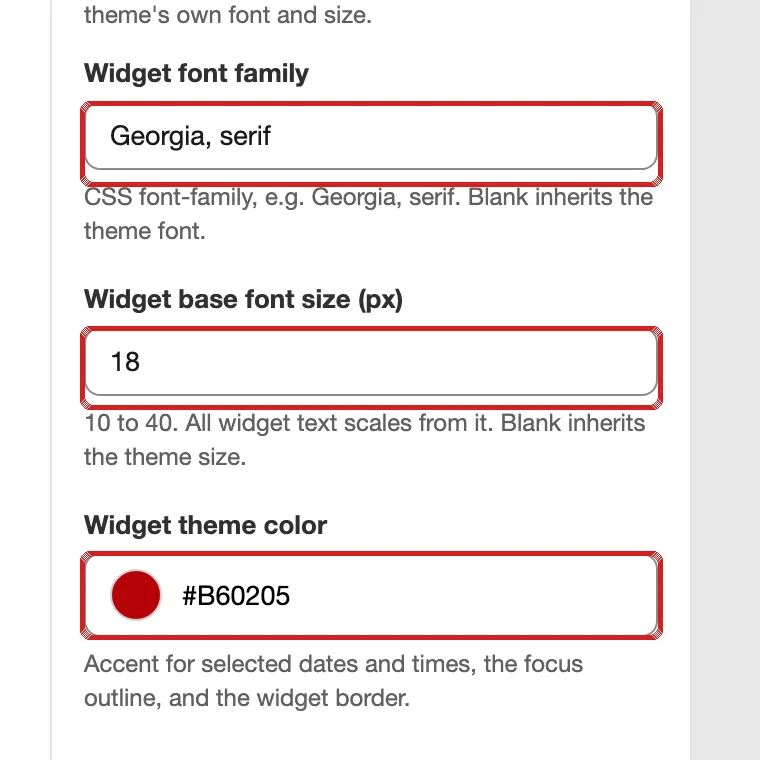
To go back to the stock look, clear the font and size fields and set the color back to #1A7F5A. Blank fields always mean "inherit from my theme."
Before and after
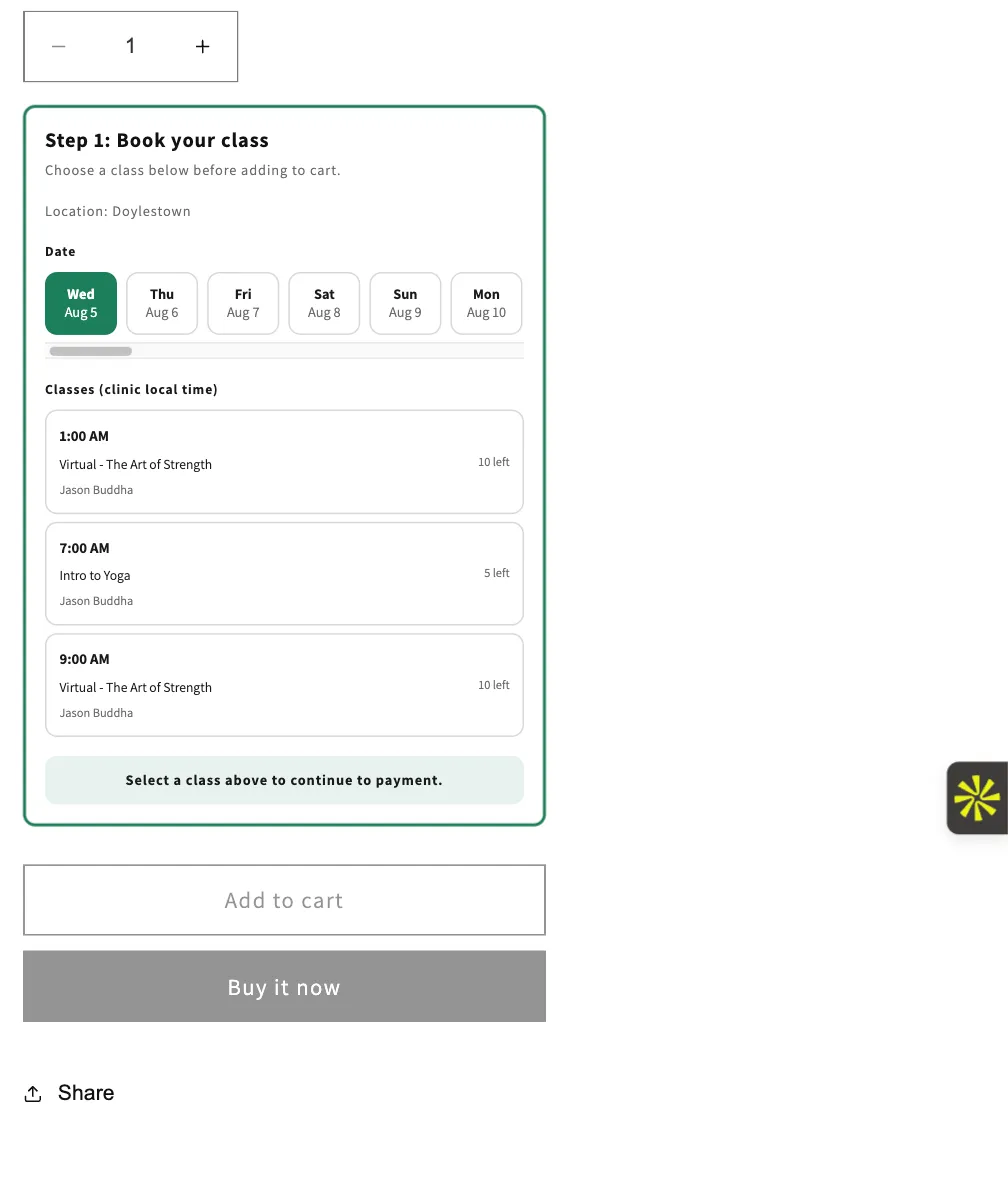
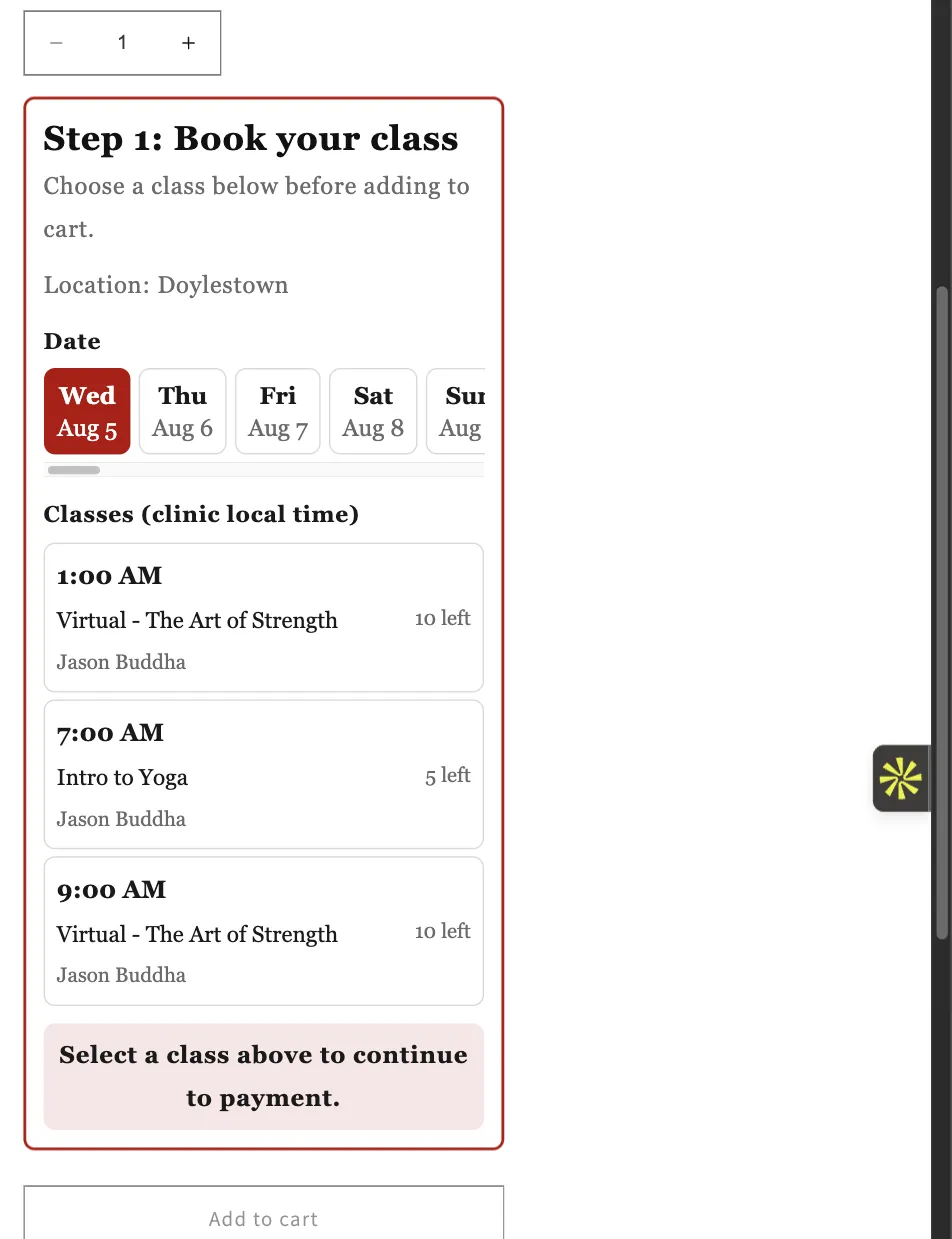
The same product page, first with everything at defaults, then with Georgia, serif, base size 18, and theme color #B60205:
Good to know
- Bad values cannot break the widget. If a font contains characters the widget does not accept, or the size is outside 10 to 40, that value is simply ignored and the default is used. The widget never disappears and the buy buttons keep working.
- Readability is automatic. When you pick a dark accent color the widget uses white text on the selected chips; for a light accent it switches to dark text.
- Settings are per theme. If you switch to a different theme or reinstall the widget, re-enter your values in the new theme's settings.
- Everything else stays untouched. These three settings only affect the booking widget, never the rest of your product page or theme.
Troubleshooting
| Symptom | What to do |
|---|---|
| I saved, but the storefront still shows the old style. | Do a hard refresh (Cmd+Shift+R on Mac, Ctrl+F5 on Windows). Shopify's page cache can hold the old page for a few minutes. |
| I do not see a ShopConnect Booking section in Theme settings. | The widget was installed before theming support, or into a different theme. Contact APIANT support; re-running the widget install adds the section. |
| My font is not applying. | Check the spelling of the font list and make sure the font is available in browsers (web-safe fonts such as Georgia, Verdana, or Trebuchet MS always work). The widget rejects values containing ; { } < > or url( for safety. |
| The size field is set but the text did not change. | Values below 10 or above 40 are ignored. Pick a size between 10 and 40. |