
GuidePlatform UI (Fallback)v1
Conditional branches
Configure conditional branches to direct automation workflows through different execution paths based on criteria logic, supporting AND/OR operators and nested conditions.
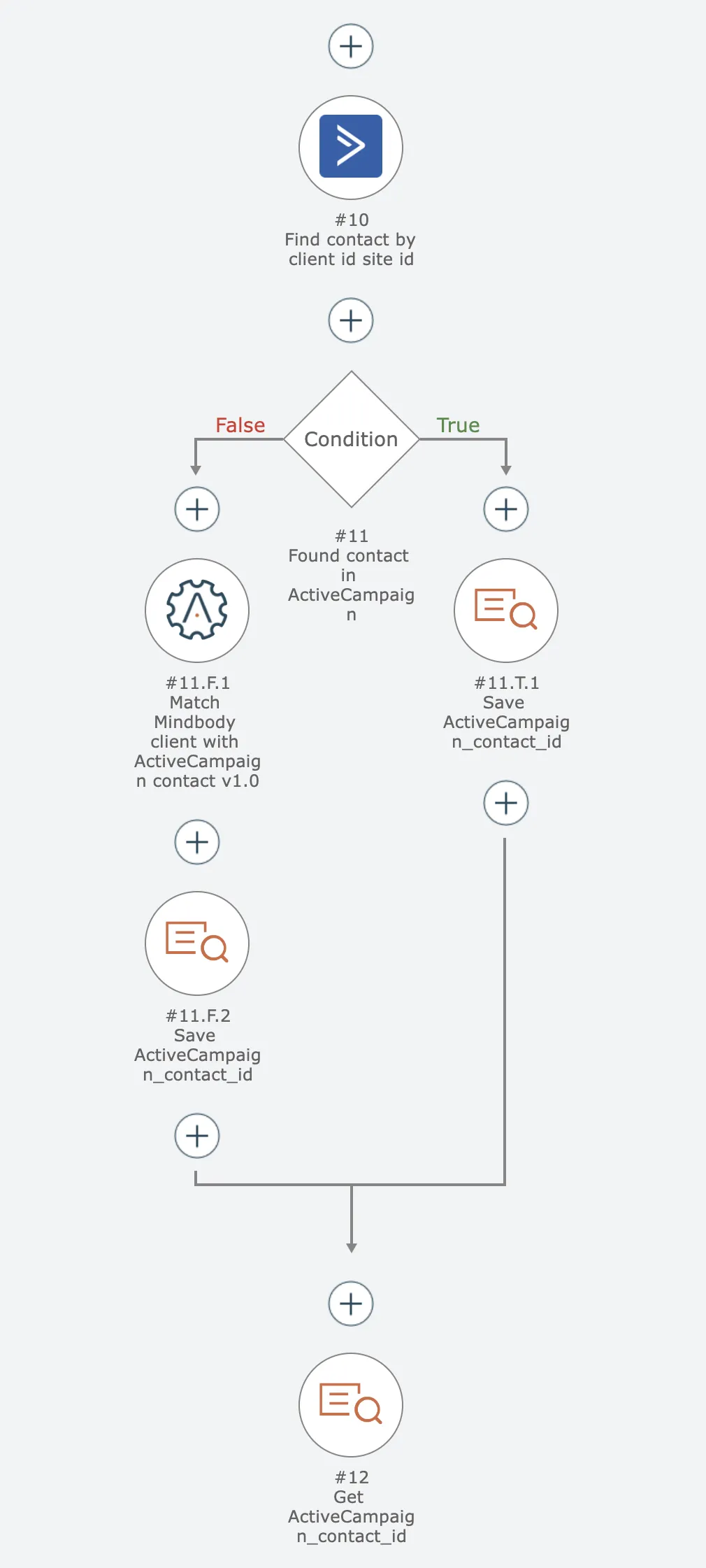
Conditional branches let automations choose different execution paths for actions based upon criteria:
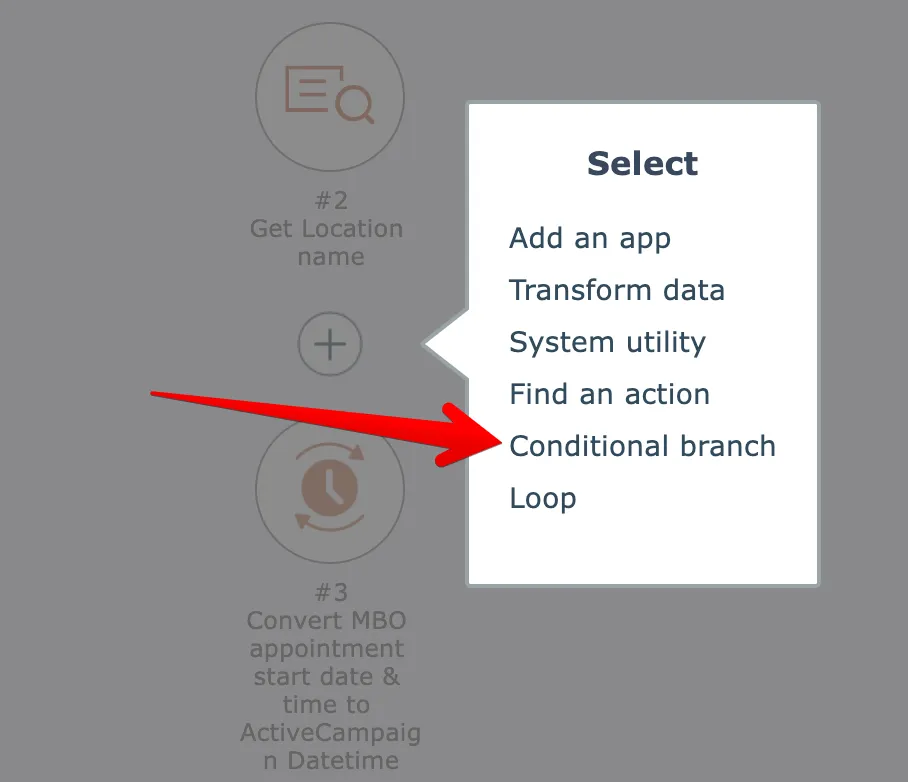
To add a conditional branch, click a "plus" icon and select the option:
Then configure the condition's criteria. Typically the condition will be based on a mapped output value from a previously executed action:
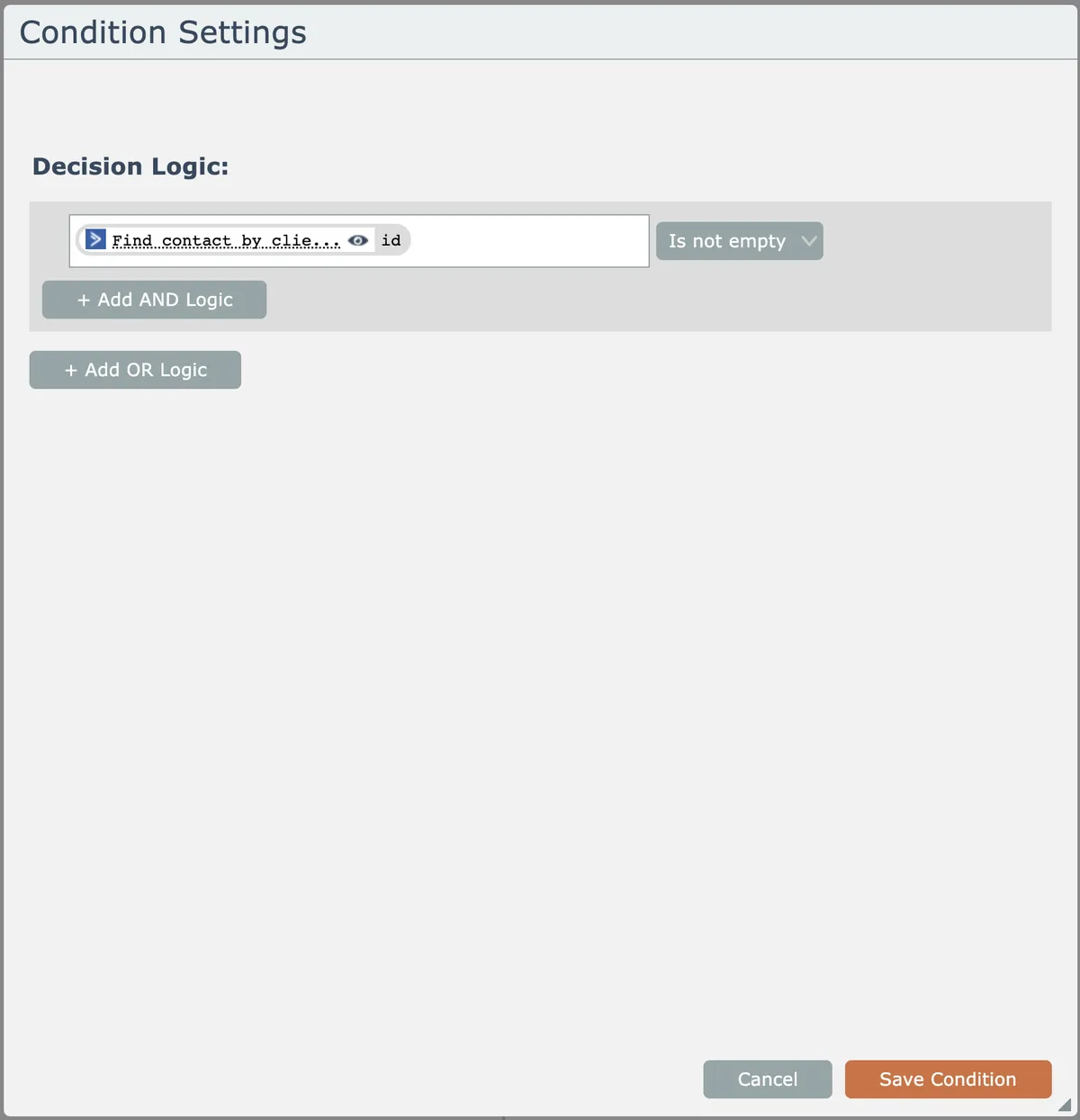
The conditional can include AND and OR logic for sophisticated branching rules if needed.
Then add actions to the true and false branches of the condition as needed:
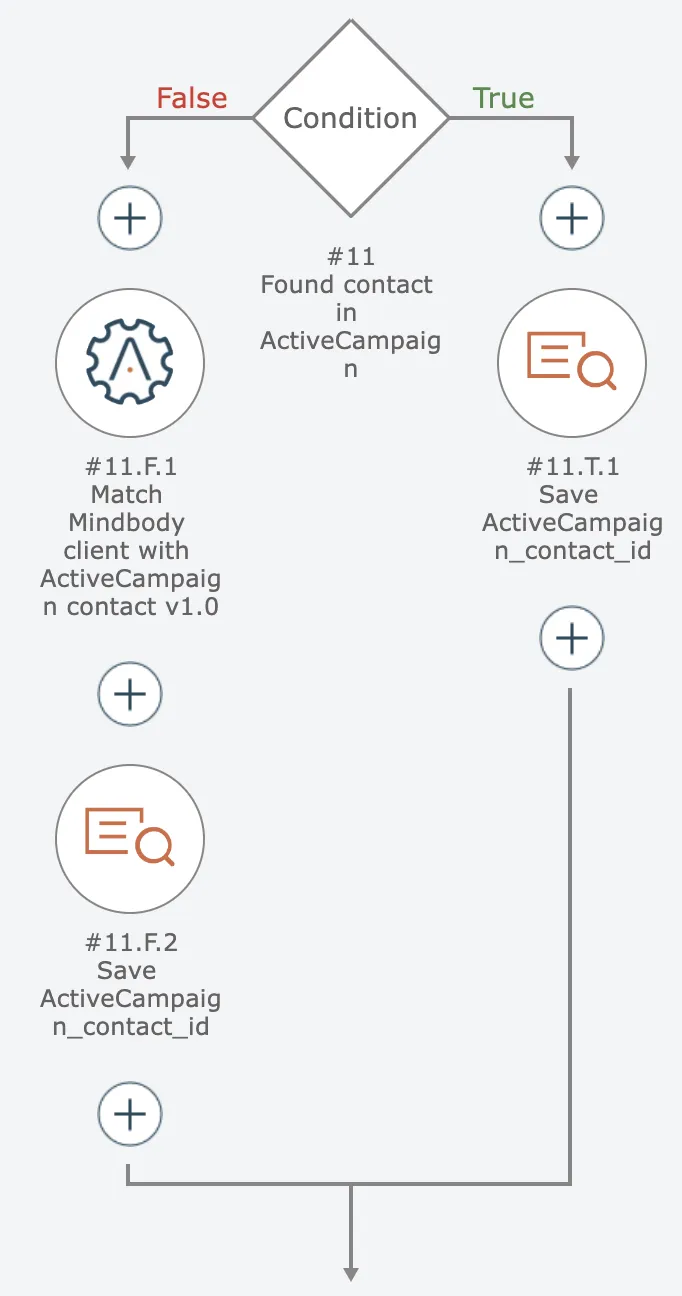
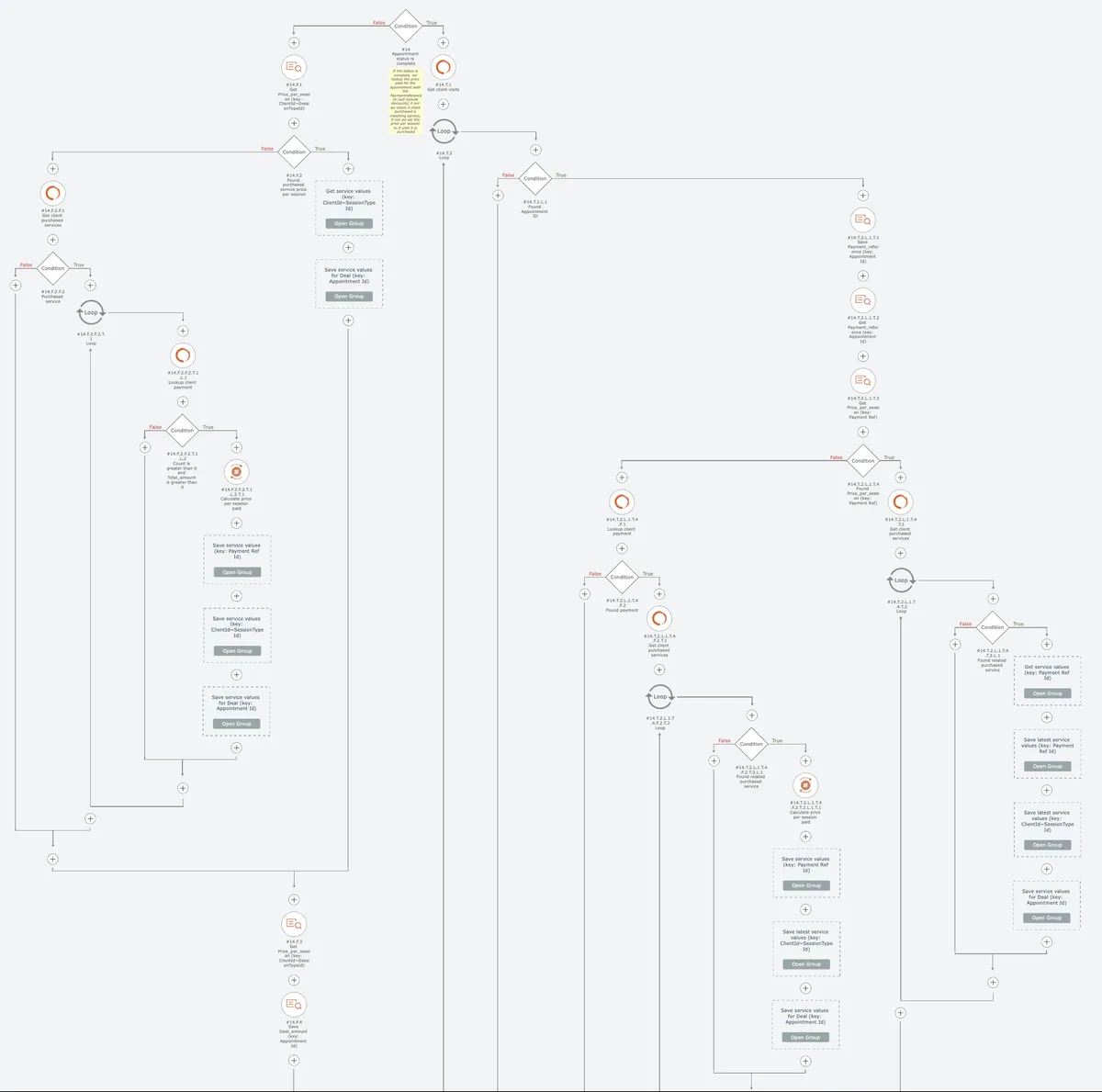
Conditions can be nested into the true/false branches as needed:
Related docs
Last updated May 4, 2026