
Installing AppConnect
Connect your Mindbody site to AppConnect and route Mindbody event payloads to Zapier webhook URLs, then manage payload limits and webhook URLs after install.
AppConnect connects your Mindbody site to Zapier by sending Mindbody event payloads to webhook URLs you generate in Zapier, opening Mindbody to the 8,000+ apps in Zapier's ecosystem.
Installing AppConnect
Finding your Mindbody Site ID
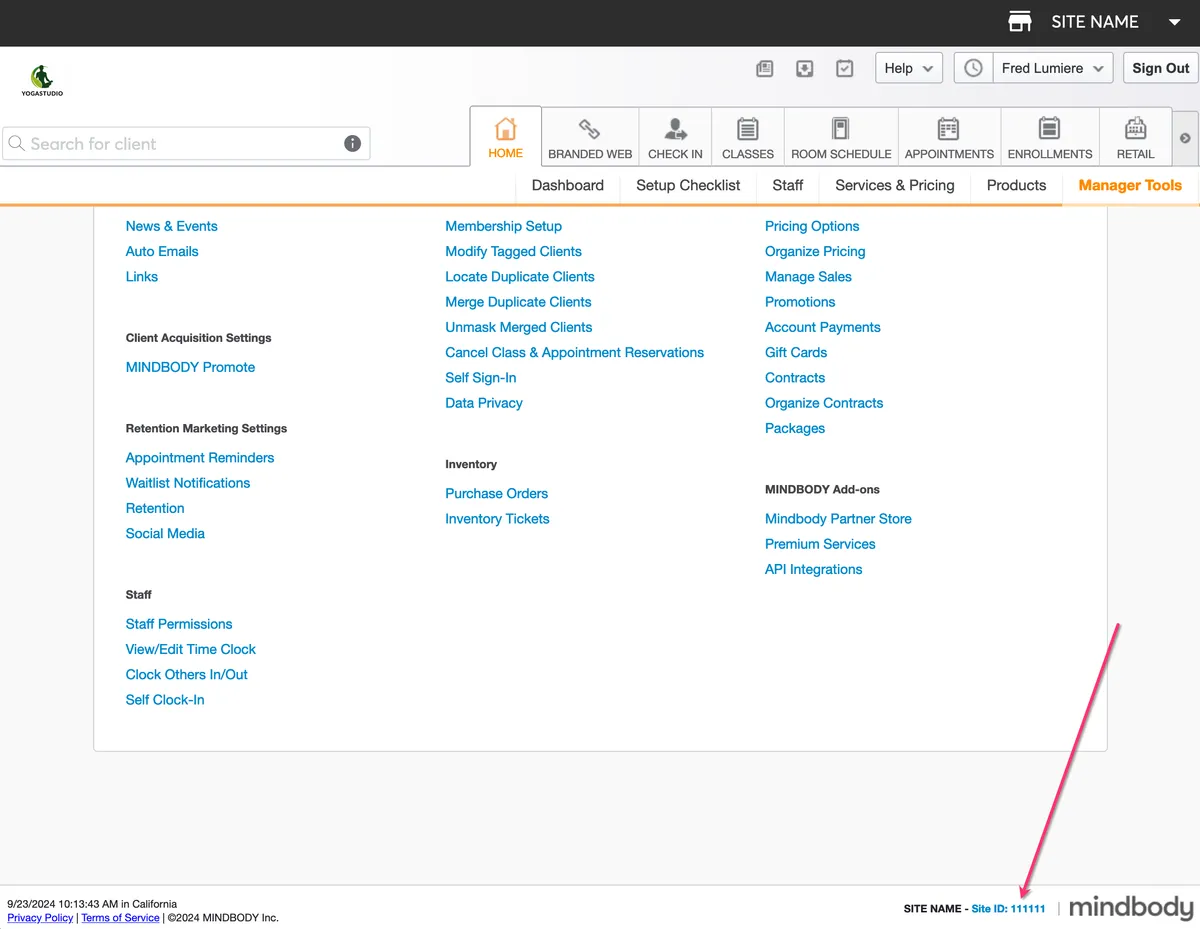
Your Mindbody Site ID appears at the very bottom of the screen when you are logged in to Mindbody.
Connecting Mindbody to your APIANT account
Connecting Mindbody to your APIANT account requires your Mindbody owner login to authorize the API Integration.
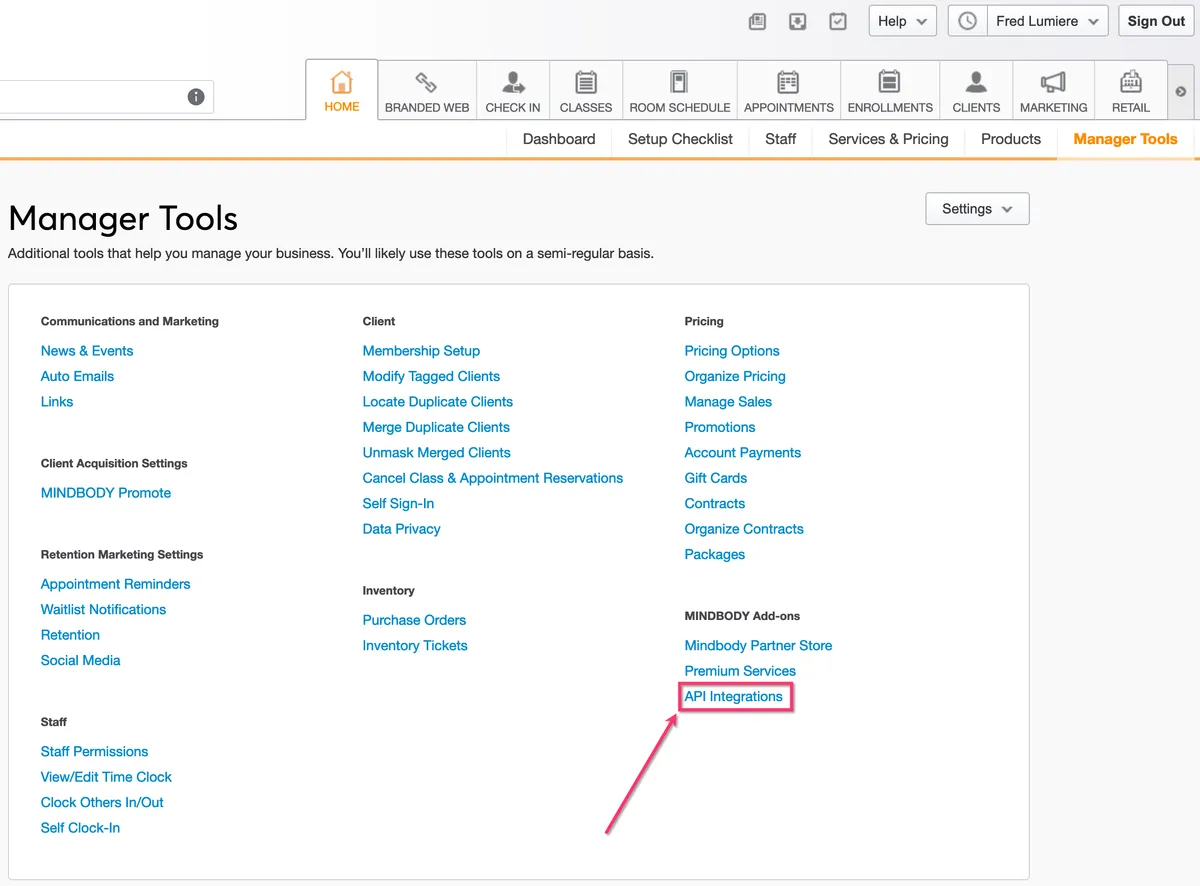
In Mindbody, open Manager Tools. API Integrations appears under MINDBODY Add-ons. If you do not see this option, you are not signed in with the Mindbody owner login. Contact Mindbody Support to obtain your owner login before continuing.
Creating a Zap in Zapier to receive payloads from AppConnect
Build a Zap in Zapier that catches the payload AppConnect sends:
- Choose Webhooks by Zapier as the app
- Choose Catch Hook as the trigger event
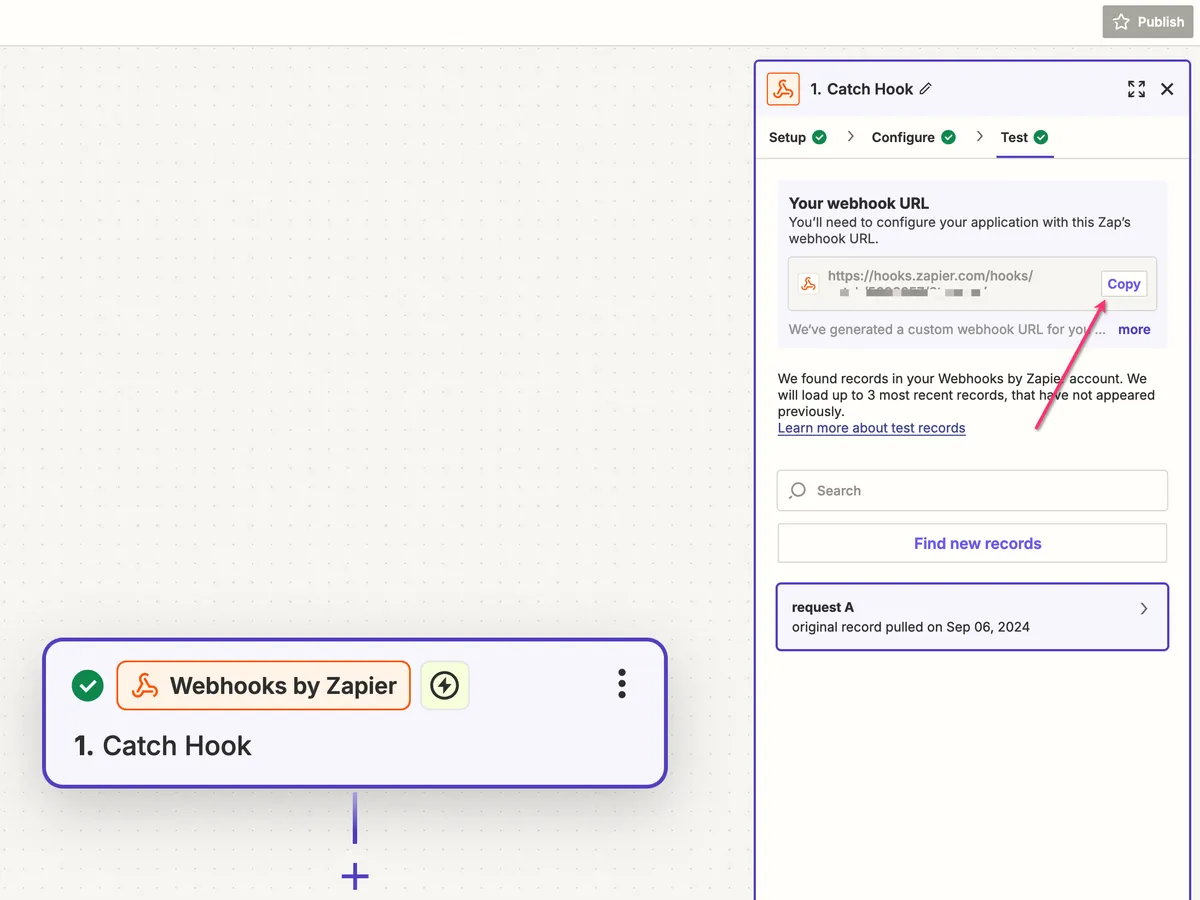
- Click Continue and copy the provided webhook URL — this is the URL you paste into AppConnect
Walkthrough (2 min): creating the Catch Hook in Zapier and pasting the webhook URL into AppConnect.
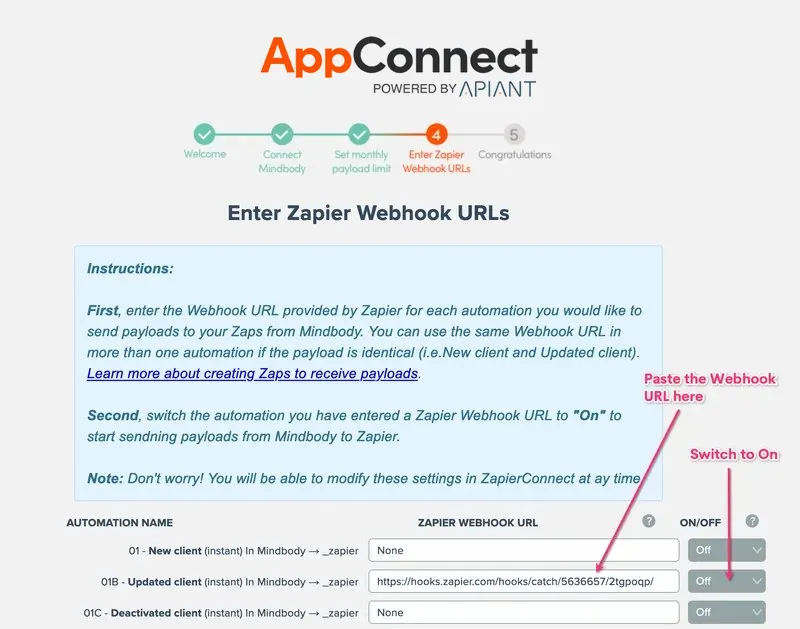
Paste the webhook URL into AppConnect for the automation you want to send a payload from. You can paste it on the initial screen when you first install AppConnect (Step 4, Enter Zapier Webhook URLs):
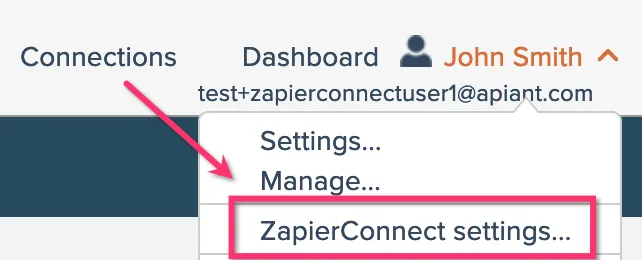
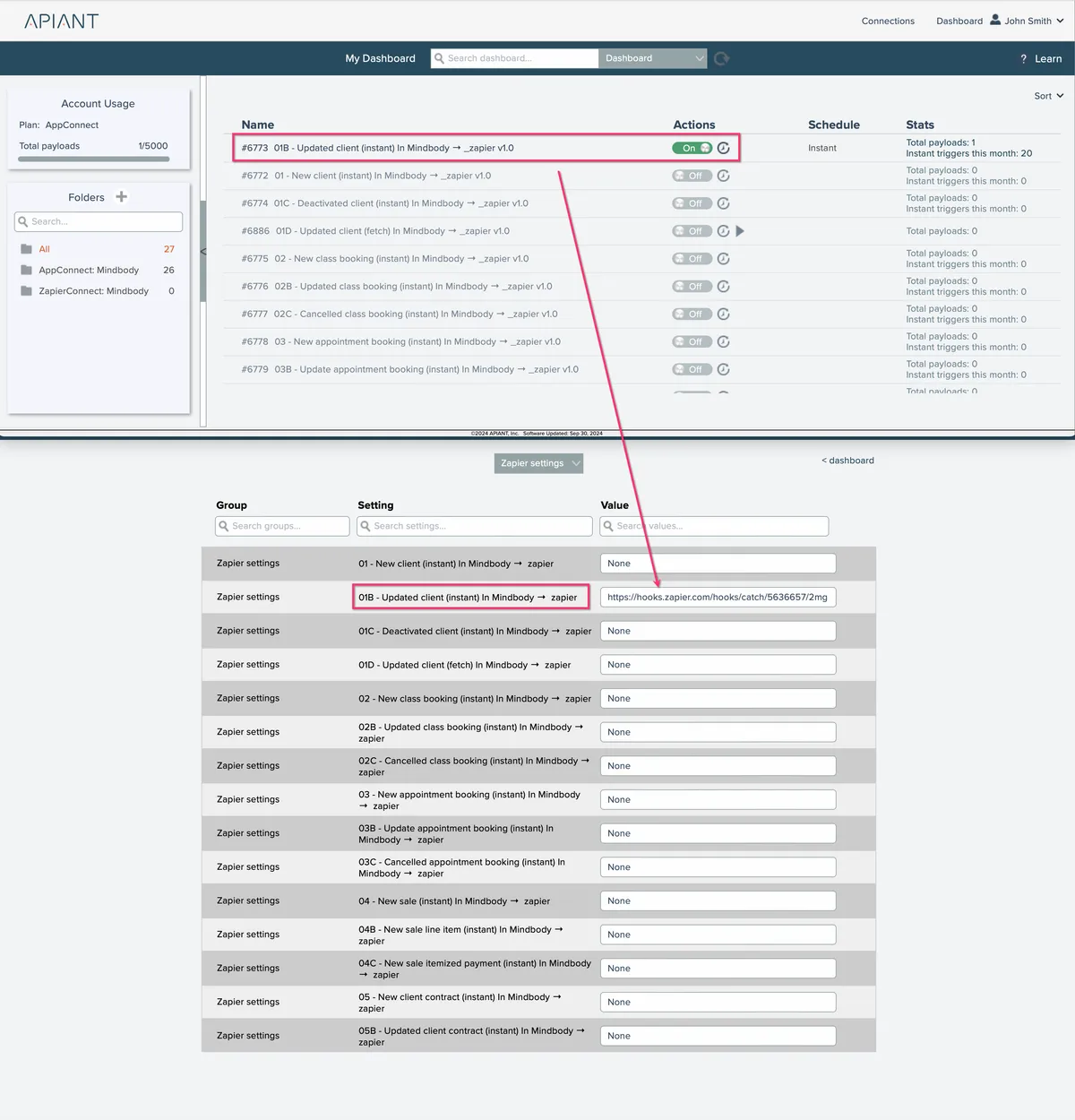
If you have already completed the install, paste it in the AppConnect settings instead. Open your AppConnect settings from the menu:
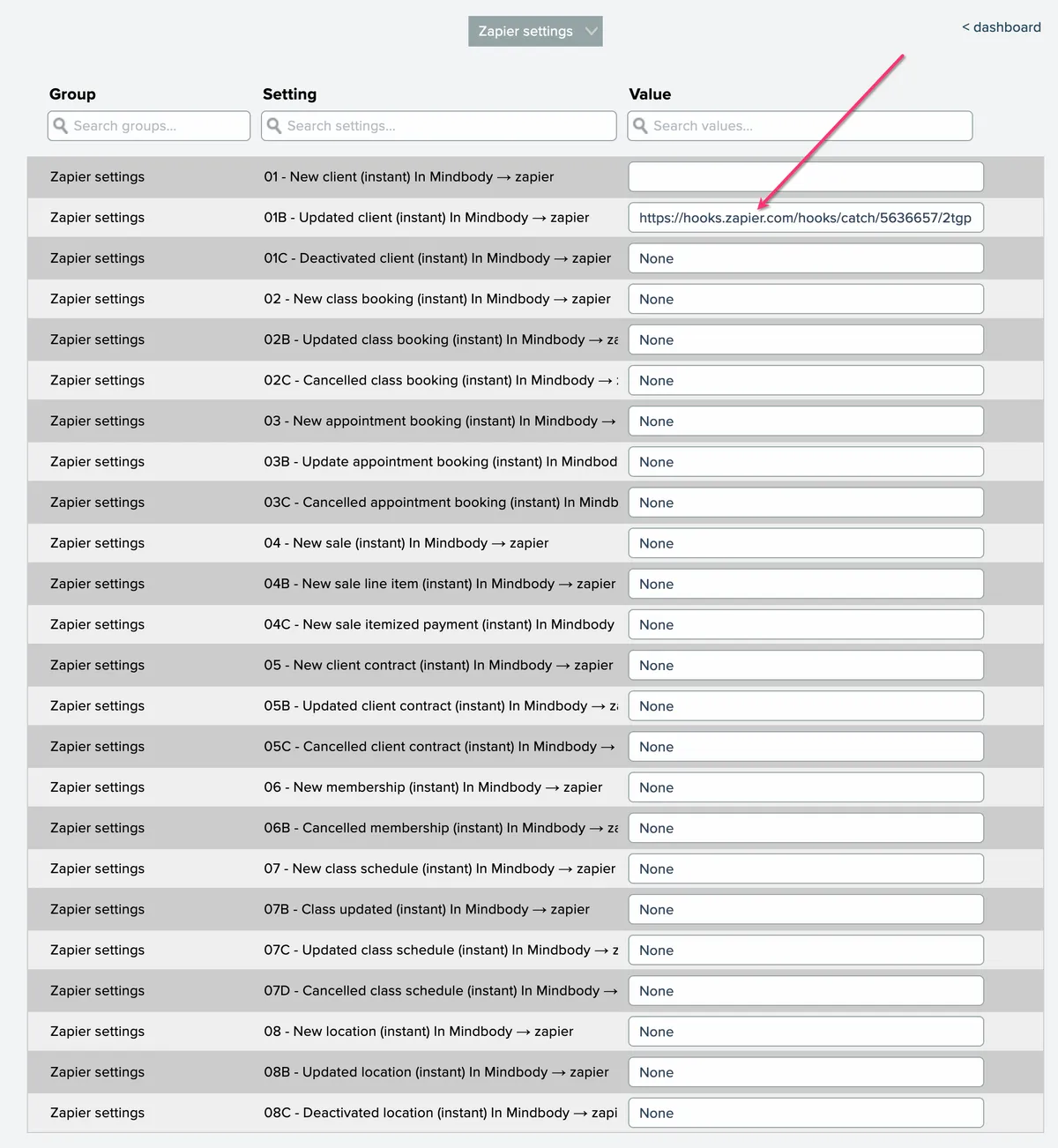
Choose Zapier settings and paste the webhook URL into the matching automation:
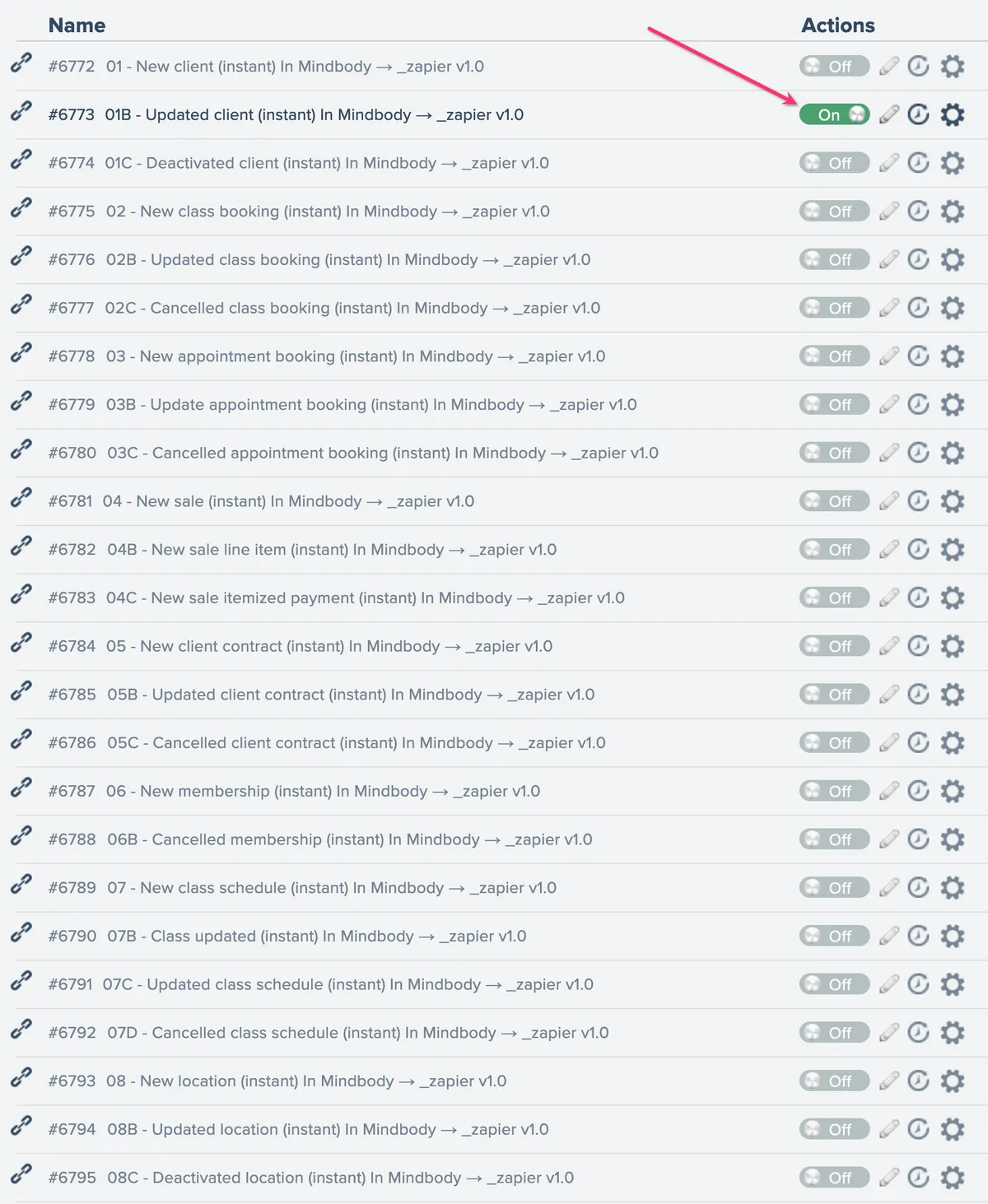
Switch back to Dashboard from the menu and turn on the automation you pasted the URL for:
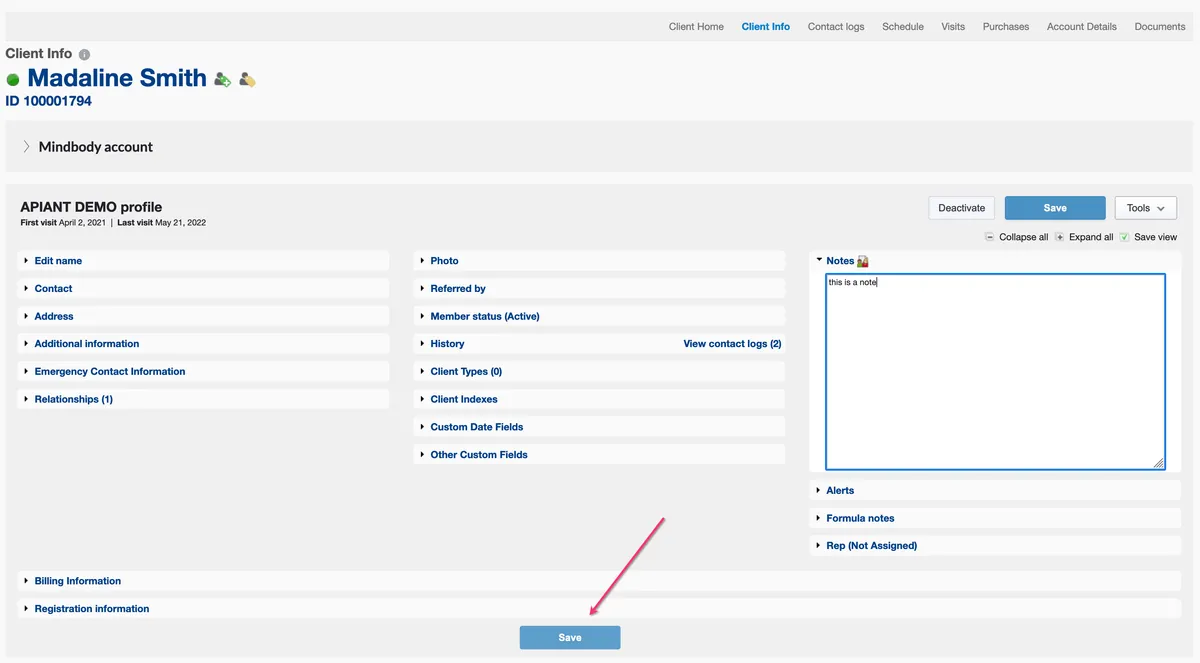
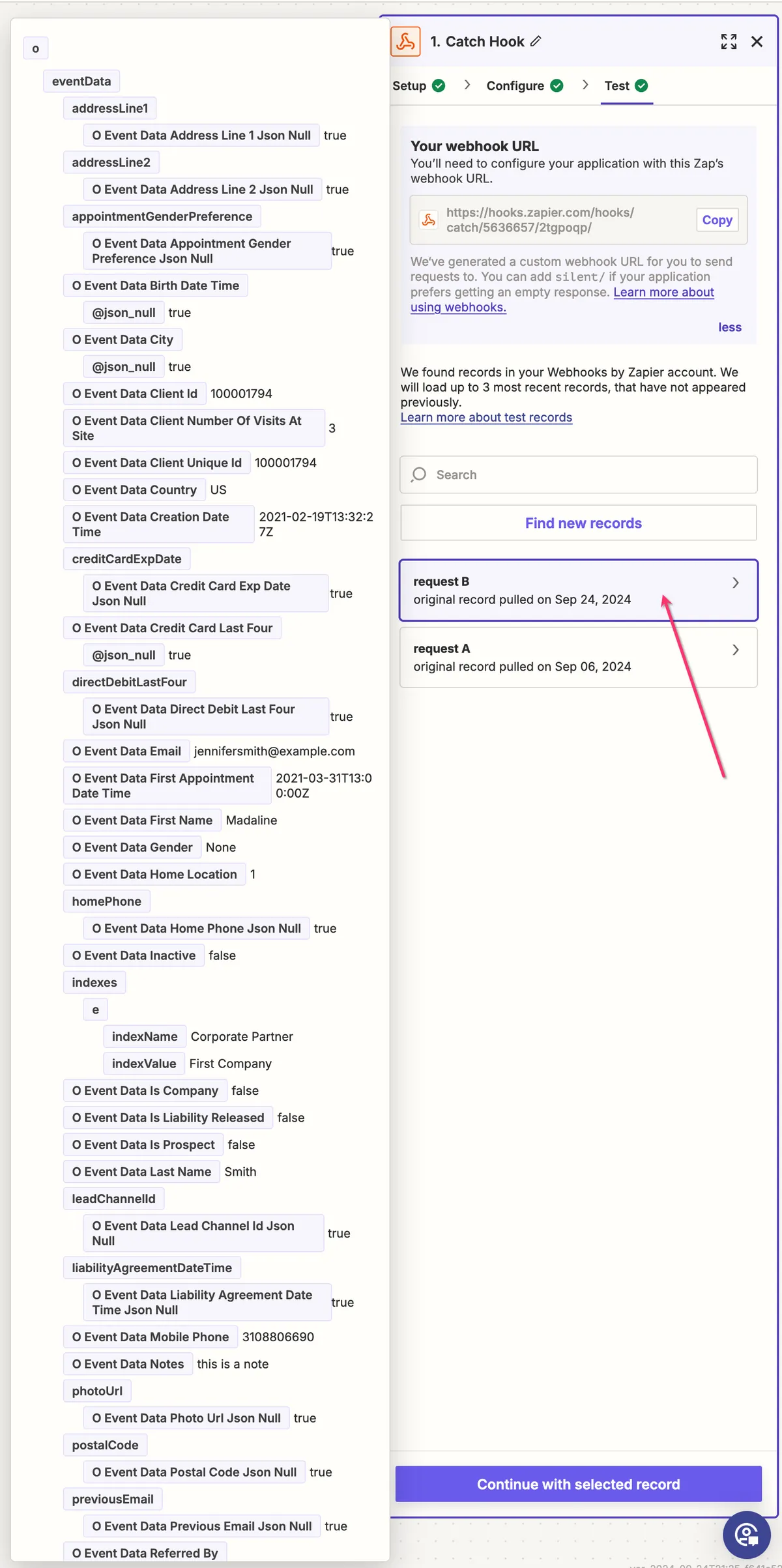
Trigger a payload from Mindbody (this example uses a client update). The payload appears in Zapier:
Click Find new records in the Zapier trigger test. The payload appears so you can map its fields to the actions you add after the trigger:
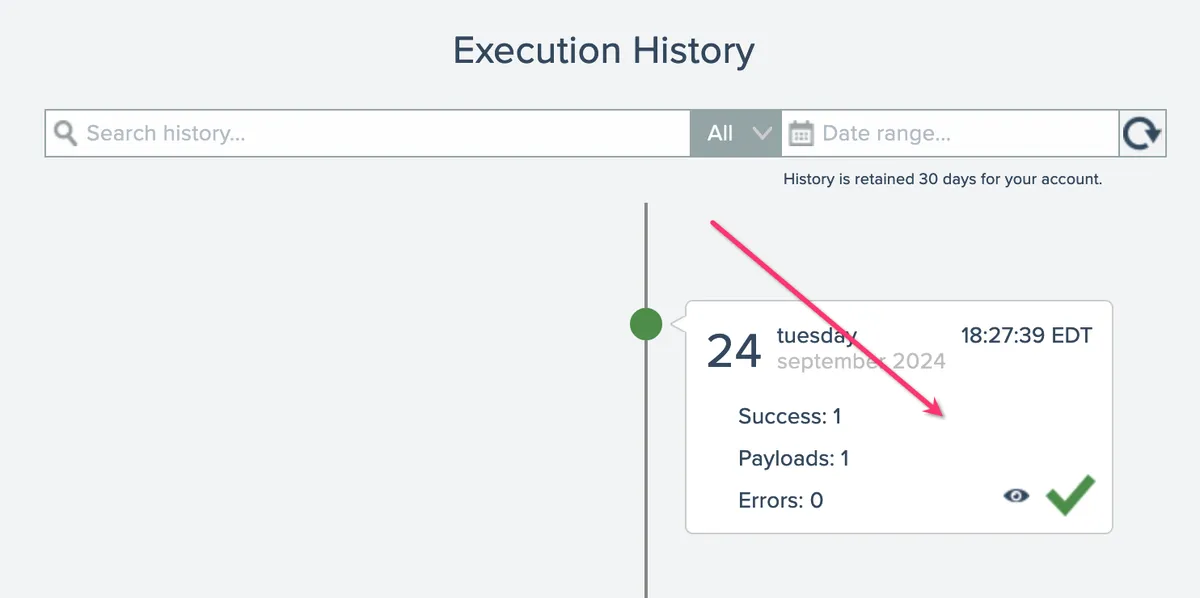
You can also confirm the automation processed the payload from your Dashboard by clicking the automation's View execution history icon:

Need help with your Zaps beyond the steps above? Search the Zapier Experts directory for a certified expert who can build Zaps for you.
Changing your monthly payload limit
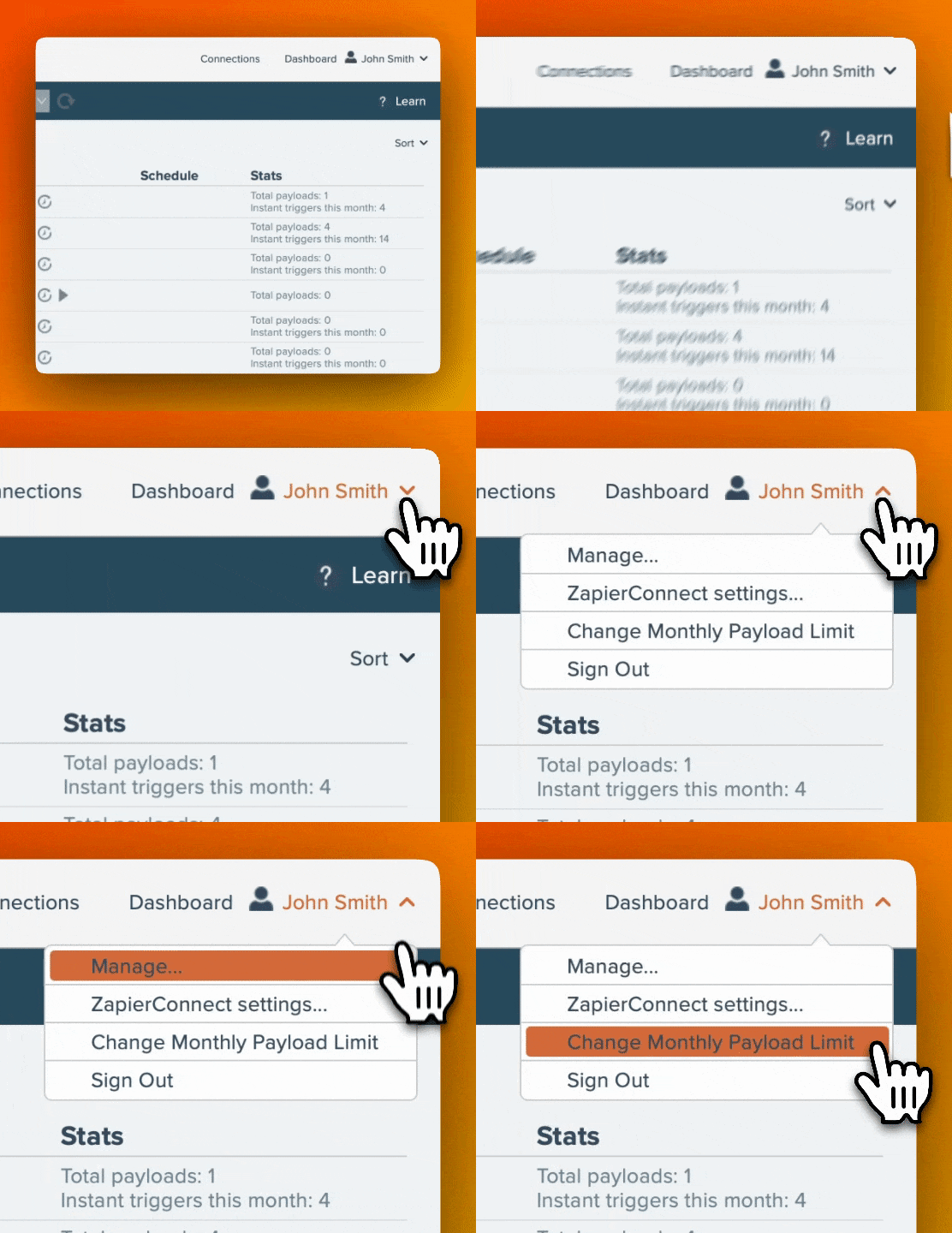
Change your monthly payload limit from the menu:
Using AppConnect
Updating your Zap webhook URLs
Update your Zap webhook URLs from the menu:
Auto shut-off of automations

If Zapier reports that a Zap URL is deleted, AppConnect automatically turns that automation off to avoid errors.
Monitoring account usage of payloads
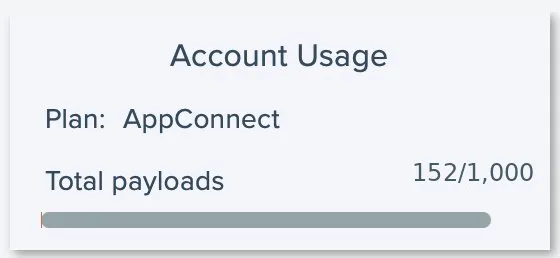
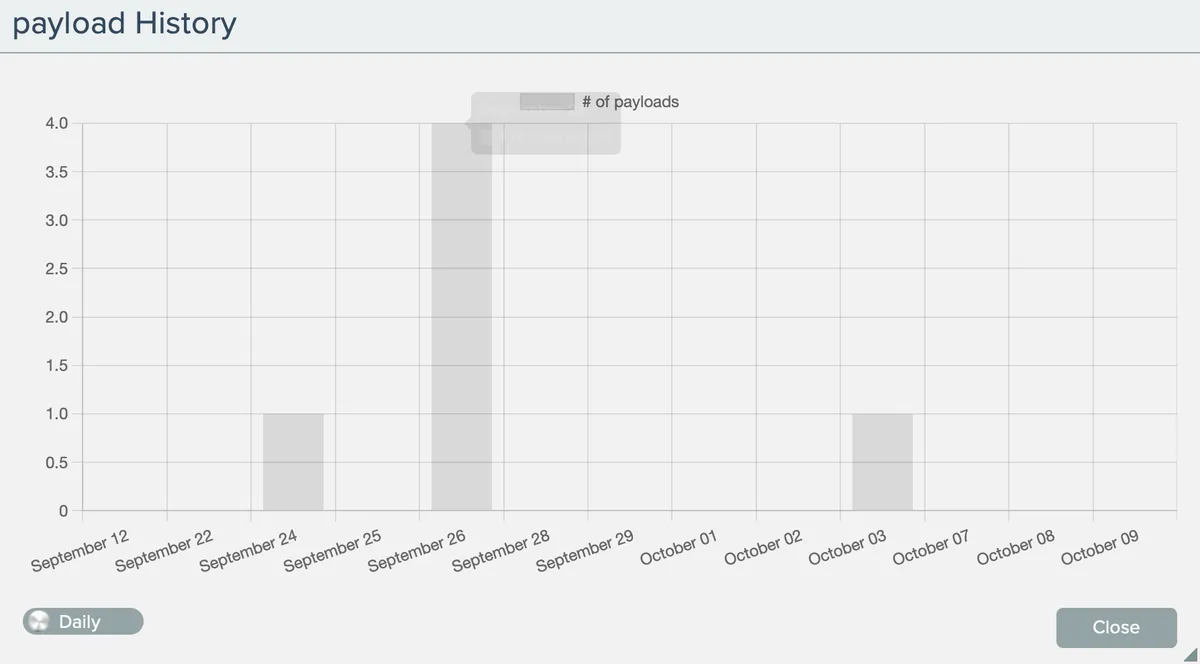
Your base subscription includes 1,000 payloads per month. Monitor usage under Account Usage on your dashboard, and click the payload number for a day-by-day history.
Increasing or reducing your monthly payload limit
Raise your monthly payload limit anytime under Menu > Change Monthly Payload Limit.
Raising the limit during your trial converts the trial to a paid subscription.
Troubleshooting
| Symptom | Cause | Fix |
|---|---|---|
| API Integrations is missing in Mindbody Manager Tools | Not signed in with the Mindbody owner login | Contact Mindbody Support for the owner login, then retry |
| An automation turned itself off | Zapier reported the Zap URL as deleted | Recreate the Catch Hook in Zapier, paste the new URL in AppConnect's Zapier settings, turn the automation back on |
| Payload went to the wrong Zap | Webhook URL entered for the wrong automation | Use the automation number preceding each name as the reference when pasting URLs |
| The Change Monthly Payload Limit screen never opens | Browser popup blocker | Allow popups for the AppConnect domain, then reopen the screen |